Hulu tracks everything you watch and uses that data for recommendations and the Continue Watching row. Sometimes you need to clear that history for privacy or because you share the account with others. This guide covers viewing, managing, and deleting your Hulu watch history on desktop, mobile, and smart TV.
- Continue Watching and Keep Watching show recently viewed titles that you haven’t finished
- Full viewing history requires a data report request through Hulu’s California Privacy Rights page
- Individual titles can be removed from watch history on desktop and mobile but not all smart TVs
- Clearing all history is only available through a web browser under Privacy and Settings
- Deleted watch history is permanent and cannot be recovered once confirmed
#How Do You View Your Hulu Watch History?
Here’s how to see what shows and movies you’ve recently watched on Hulu across various devices:
#On Desktop (Web Browser)
-
Go to Hulu.com and sign into your account
-
Scroll down to the “Continue Watching” section
-
Use the right arrow to browse through recently watched titles
-
Click “VIEW ALL” to see the full list of in-progress content
#On Mobile App (iOS & Android)
-
Open the Hulu app on your phone or tablet
-
Scroll down to find the “Continue Watching” row
-
Swipe right to see recently viewed shows and movies
-
Tap “VIEW ALL” for the complete unfinished watch list
#On Smart TV
The process to view Hulu watch history on smart TVs varies depending on your device, but here are general steps:
-
Open the Hulu app on your smart TV
-
Navigate to the “Keep Watching” section from the home screen
-
Browse through your recently watched titles
Some smart TV models and older versions may have limited or no watch history functionality. If you don’t see “Keep Watching”, try these alternate methods:
-
Search for a show or movie you recently watched
-
Select it from the results to view your watch progress
-
Or check under “TV”, “Movies” or “My Stuff” menus
If your smart TV doesn’t support watch history, use the Hulu website or mobile app to access more features.
Is Hulu not working on your smart TV? Check out our troubleshooting guide for Hulu not working on smart TV.
Keep in mind the “Keep Watching” list only includes content you’ve started but haven’t finished. To track individual episodes you’ve watched for a series:

-
Find the show you want to track
-
Tap the three dots and select ”+ My Stuff”
-
Go to the “My Stuff” hub to see your watched progress
#How Do You Access Your Entire Hulu Viewing History?
The “Continue Watching” list provides a snapshot of your recent viewing activity, but not your complete history. To get a full record of everything you’ve ever watched on your Hulu account:
-
Sign into your Hulu account page
-
Go to “California Privacy Rights” under “Privacy and Settings”
-
Click “REQUEST REPORT” and follow the instructions
The full viewing history report also includes timestamps and billing history, giving you a complete record of your account activity.
#How to Remove Shows & Movies from Your Hulu Watch History
If you want to delete a specific show or movie from your viewing history, here’s how:
#On Desktop
-
Sign into Hulu.com and go to “Continue Watching”
-
Find the title to remove and click the three dots
-
Select “REMOVE” to delete it from your history
#On Mobile App

-
Open the Hulu app and go to “Continue Watching”
-
Locate the title and tap the three dots icon
-
Choose “Remove from Watch History” in the pop-up menu
#On Smart TV
Removing individual titles from watch history on smart TVs is trickier due to device limitations. Here are a few methods to try:
-
Go to the show or movie’s details page
-
Look for options like “Remove from Watch History” or “Start Over”
-
If you don’t see those, try the “Manage DVR” menu
Alternatively, use the Hulu website or mobile app to edit your smart TV watch history, since they have more control options.
Having trouble with Hulu error 94 or Hulu not working on Roku? Check out our guides for solutions.
Removing a title from your history will erase your watched progress, so you’ll start from the beginning if you view it again. Deletions can’t be undone, so be sure before confirming.
#How to Clear All Hulu Watch History at Once
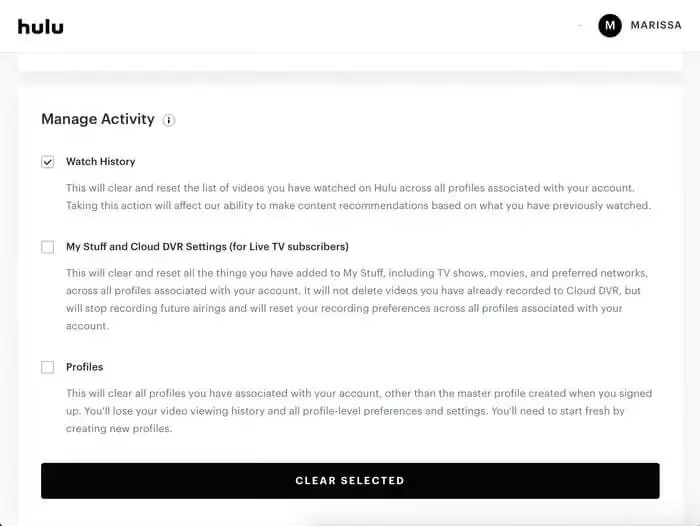
To completely reset your viewing history across all profiles on your account:
-
Sign into your Hulu account page in a web browser
-
Select “Account” under your profile icon
-
Scroll to “Privacy and Settings” and choose “California Privacy Rights”
-
Find “Watch History” in the “Manage Activity” section
-
Click “CLEAR SELECTED” and confirm your choice
This will erase your entire Hulu viewing history, so you’ll have a clean slate. There’s no way to restore it, so make sure you want to clear everything before proceeding.
Note that this process must be done through a web browser, as there currently isn’t a way to clear your full history on the mobile app or smart TV devices.
#Bottom Line
-
Use “Continue Watching” or “Keep Watching” to see recently viewed content
-
Use ”+ My Stuff” to track individual watched episodes for a series
-
Smart TVs may have limited or missing watch history capabilities
-
Request a report for your full lifetime viewing history and activity
-
Remove specific titles from your watch history on desktop or mobile
-
Clear your entire viewing history across all profiles via web browser
#FAQ
#What does Hulu use my watch history for?
Hulu uses your viewing data to power the Continue Watching row and generate personalized content recommendations. It also tracks your progress within individual episodes so you can pick up where you left off.
#Can I recover shows I’ve removed from watch history?
No. Deleted titles are removed permanently. You’ll need to search for the show again and start watching from the beginning, since your progress is also erased.
#Do I need to clear watch history for each profile?
You can clear the entire account’s watch history at once from the California Privacy Rights page. This erases viewing data across all profiles on the account in a single action.
#Is viewing history different from Keep Watching?
Yes. Your full viewing history includes everything you’ve ever watched on Hulu, going back to account creation. Keep Watching only displays titles you started but haven’t finished, and older entries cycle out over time.
#How far back does Hulu keep my watch history?
Hulu stores your entire viewing history for the life of your account. The only way to remove it is through the manual clearing process under Privacy and Settings. Continue Watching entries may disappear after a few weeks of inactivity, but the underlying data remains until you delete it.
#Can I stop Hulu from tracking my watch history?
There is no way to disable watch history tracking entirely. You can clear your history periodically through the account settings page. Some older smart TV apps may not sync watch history as reliably as desktop or mobile.
#Does clearing watch history affect my recommendations?
Yes, clearing your history resets the data Hulu uses for recommendations. Your homepage suggestions will become more generic until Hulu builds up new viewing data from your account activity.
#Can I view watch history for a specific Hulu profile?
Hulu does not separate watch history by profile in its data export. The California Privacy Rights report includes viewing data for the entire account, not individual profiles.
Looking for more Hulu tips and troubleshooting? Check out our guides on: