Hulu subtitles or Hulu captions can become priceless if you are trying to watch a movie without headphones. If the place is pretty noisy, you will have problems hearing the dialog, even with headphones. This is exactly when knowing how to turn on the closed caption on Hulu becomes handy.

Whether you’re using its mobile app, web service, or other streaming devices, this article covers it. So, let’s go ahead and read it out.
- Hulu supports subtitles on every platform — website, mobile apps, streaming devices, and older hardware all have caption controls
- Website captions use the Subtitles menu — hover over the video player, click the subtitles option, and toggle your preferred language
- Mobile app uses the gear icon — tap the screen during playback, select the gear in the upper-right corner, and flip the subtitle switch on
- Streaming devices vary by model — press Up on the remote, open Settings, then select Captions and Subtitles to enable them
- Language options are limited to English and Spanish — not every title offers both, so check the subtitle menu for availability
#The Functionality of Hulu
Hulu may be accessed from a variety of devices. Also, up to five more users can use one account under their own username and password. Although each profile is unique, there are no additional fees to pay for them.
Every profile has its viewing history and set of suggestions. Even children may have their own Hulu account, which allows them just to watch stuff that’s appropriate for them.
Hulu’s whole library is available for free and without restriction. Authentic contracts with content providers allow Hulu authorization to post material from various networks. That’s why it is so popular.
Disney, Fox, Showtime, BBC America, TLC, ABC News, CBS, Animal Planet, Freedom, etc., are among the networks represented.
Using Hulu for streaming requires a paid subscription. Some content isn’t included as default. However, it may be purchased for an extra fee if you choose to include it. Hulu also charges an extra cost if you wish to eliminate the advertising from the service.
#How to Get Hulu Subtitles on Its Website?
Well, Subtitle settings are found under a menu titled Subtitles or Captions & Subtitles. That should be chosen depending on your device to stream Hulu content.
The platforms and the app you choose to view Hulu will impact how you get to that menu.
That said, you can learn how to turn on the closed caption on Hulu using the website.
- To get started, go to Hulu and start watching a movie or episode.

- Make sure you’ve got your cursor pointing to the right.
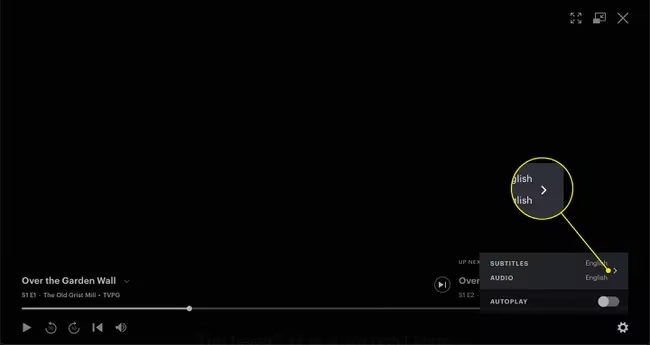
- Make your selection from the menu called Subtitles.
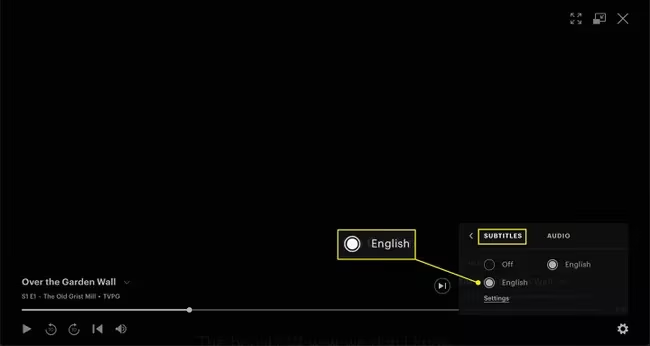
- Do you want to customize the subtitles? If so, you may do so here by clicking on the link named Settings.
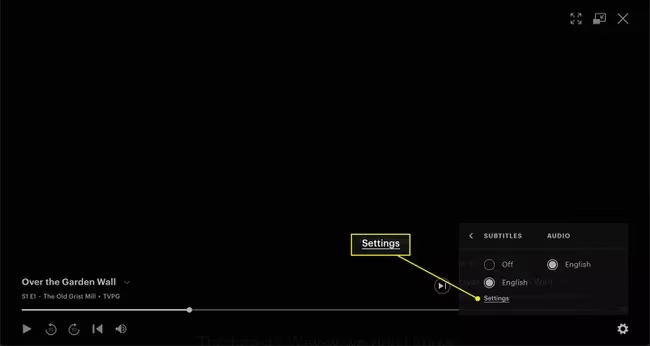
- When you’re done, click “OK” to exit and close the window.
PS: if you are experiencing the Hulu not working on Samsung Smart TV error, here are the top solutions for you.
#How to Get Hulu Captions or Hulu Subtitles using the Hulu App?
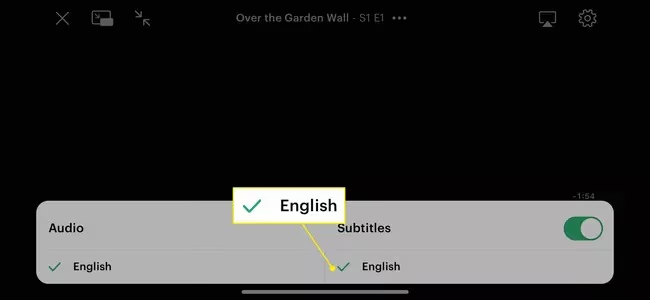
These steps show how to enable closed captions for Hulu if you’re using Hulu for Android or iOS. There are some differences between these instructions and those found on the internet, though.
Playback controls appear on the Hulu app when you tap the screen while viewing a show.
- Select the gear in the upper-right corner.

- To enable subtitles, flip on the box next to it.
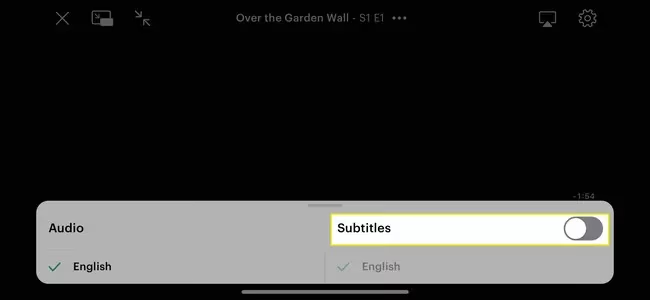
- If there are many language options, select the one you like below the switch.
Besides, let’s figure out how to fix Hulu error 94 from interrupting streaming.
#How to Turn on the Closed Caption on Hulu on a Streaming Device
Some devices, such as the fourth generation of Apple TV and subsequent models, have a particular, system-wide method. That is used for turning on closed captions independent of which app is used.
Otherwise, you’ll need to follow these instructions to get Hulu to work on game consoles and Amazon Echos. These instructions become handy for Chromecasts and other devices that support the service.
These are basic guidelines. The specific procedures you must follow may vary depending on the hardware model you use.
-
To activate your remote, press the Up button. However, if the remote comes with a touchpad, just swipe down.
-
To access the Settings option, press or slide once more.
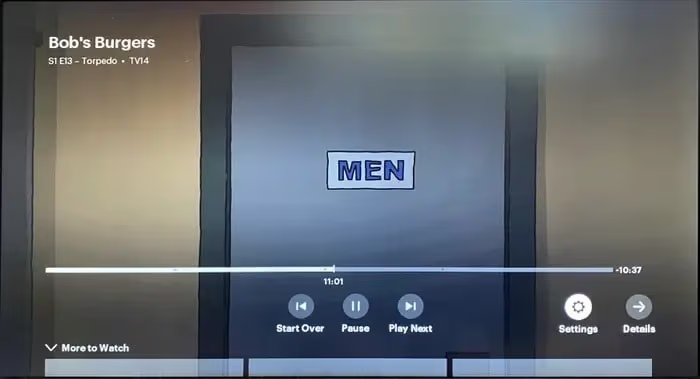
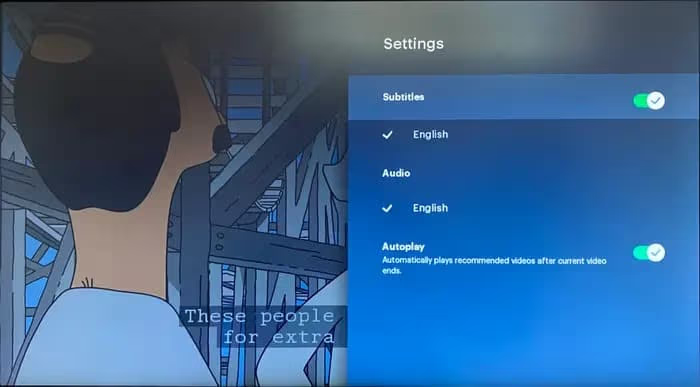
- Select Captions and Subtitles from the drop-down menu.
Note: On certain devices, this option may be referred to as Subtitles.
- Subtitles can be enabled by selecting On and then selecting a language from the drop-down menu. This is true if more than one choice is available.
So, that’s how to turn on the closed caption on Hulu if you are using their website to view content.
Also, are you a fan of HBO Max? If yes, let’s figure out how to turn on subtitles on HBO Max in different ways, as well as how to close the HBO Max caption easily.
#Activating Hulu Subtitles if You Are Using an Older Device
A few older devices cannot stream Hulu using the most recent version. Assume that you look at the options accessible through the Hulu home page.
In that case, you can know which version of the service you are experiencing. It is possible to identify shows and movies to watch later on the new one. That will display on a tab named My Stuff if you use the new one.
In the “original” version, you’ll notice a section labeled “Watchlist.” Most newer devices, such as the fourth-generation Apple TV or later, will utilize the more updated version. And you’ll need to follow the instructions in that section instead.
To enable captions in the traditional Hulu application, follow these steps. The original Hulu application may still be used by businesses and hardware.
-
Apple’s 3rd Gen Apple TV set
-
Some LG TVs and LG Blu-ray players
-
Some of the base stick models introduced by Roku
-
Samsung’s Blu-ray and TVs (some of the models are excluded)
-
TiVo DVR units
-
Some of the TV units are manufactured by Vizio.
Below are the steps to turn on Hulu captions or subtitles on such older devices.
-
Press the Up key on the remote to evoke the playback controls.
-
Then, you should press the Up key once again to see more settings.
-
To bring Hulu captions up, select the option called “Captions.”
-
After that, you should choose a language to display the respective video’s captions.
#What is the Process You Should Follow to Disable Hulu Captions or Subtitles?
Once you’ve turned on subtitles, you may turn them off by going to the Captions and Subtitles menu. And the steps you should follow might depend on the device you’re using. So, mentioned below is how to do that.
-
On the respective website or the mobile application: Choose the Settings option from the drop-down menu.
-
If you are using a different device, here is what you should do. Just chooseCaptions and Subtitles from the drop-down menu.
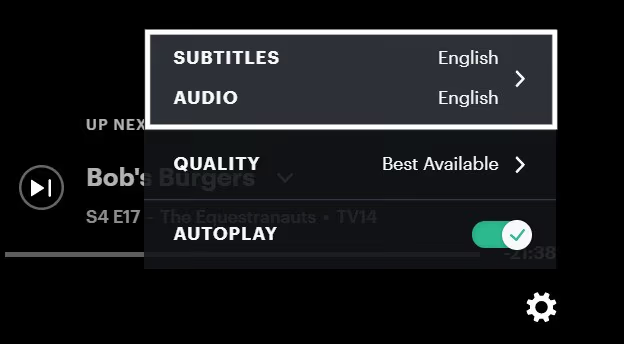
- Once you have reached that menu, select Off from the drop-down menu.
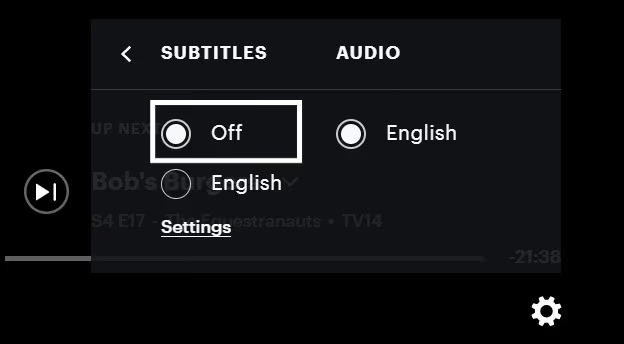
And that’s how to disable Hulu captions.
#Can You Have Hulu Subtitles in Different Languages As Well?
As of this writing, the only languages available for subtitles for Hulu are Spanish and English. Also, not every television episode or movie will be available in both languages.
When you access the menu dedicated to Subtitles following the procedures above, you can see a list. And that list displays the languages that are currently available.
By the way, let’s figure out how to turn off closed captions on Peacock TV.
#Frequently Asked Questions on Hulu Subtitles
#How do I fix Hulu subtitles that are out of sync with the audio?
Start by pausing the video for a few seconds, then resume playback. If the lag continues, close the Hulu app completely and reopen it. Clearing the app cache on your device also helps reset the subtitle timing. Hulu’s own support page acknowledges this as a temporary glitch that usually resolves after restarting.
#Can I change the subtitle language on Hulu?
Yes, but the options are limited to English and Spanish as of now. Open the Subtitles or Captions and Subtitles menu during playback to see which languages are available for that specific title. Not every show or movie supports both languages.
#How do I customize subtitle appearance on Hulu?
On the Hulu website, click the Settings link inside the Subtitles menu while a video is playing. From there you can adjust font size, color, background opacity, and text style. These customization options are not available on every device, so you may need to change subtitle appearance through your device’s own accessibility settings instead.
#Why do subtitles keep turning on by themselves on Hulu?
Hulu remembers your last subtitle preference and applies it to the next video you watch. If someone else on your shared account enabled captions, that setting carries over to your profile too. Switch to your own Hulu profile and turn off subtitles once to reset the preference.
#Do Hulu live TV channels support closed captions?
Yes, Hulu + Live TV channels carry closed captions just like on-demand content. The toggle works the same way through the playback settings menu. Keep in mind that live caption accuracy depends on the broadcaster, so you may notice occasional delays or errors during real-time broadcasts.
#Can I use subtitles on Hulu with multiple profiles?
Each Hulu profile stores its own subtitle preference separately. Turning captions on under one profile will not affect other profiles on the same account. This is useful for households where one person needs subtitles and another does not.
#How do I turn on subtitles for Hulu on a Samsung Smart TV?
Press the Up button on your Samsung remote during playback to bring up the player controls. Select Settings, then choose Captions and Subtitles from the menu. Pick your preferred language and the captions will display immediately on screen.
#Bottom Line
Subtitles are a valuable feature on Hulu, providing accessibility and enhancing the viewing experience for a wide range of users. By following the steps outlined in this guide, you can easily turn on subtitles and customize them according to your preferences. Enjoy your favorite shows and movies on Hulu with the added benefit of closed captions.