Hulu not working on Roku is usually caused by a temporary software glitch, outdated firmware, or a weak internet connection. Whether the app fails to load, gets stuck on the logo screen, or crashes mid-stream, the fixes below cover every common cause.
Before attempting any fix, check if there is a known Hulu outage impacting the service. You can verify this on Hulu’s support page or on third-party sites like Downdetector. If Hulu’s servers are down, you’ll need to wait until they fix the problem. For Hulu issues on other devices, check out our guides for troubleshooting Hulu on Smart TVs, Apple TV, and Amazon Fire Stick.
- Restart your Roku first — a simple reboot through Settings > System > System restart fixes most Hulu loading failures
- Check your internet speed — Hulu needs at least 7 Mbps for HD and 12 Mbps for 4K streaming
- Update Roku OS — outdated firmware causes app crashes and compatibility errors with Hulu
- Clear the Hulu cache — removing and reinstalling the channel rebuilds corrupt temporary data
- Disable VPNs — active VPN or proxy connections trigger Hulu playback blocks on Roku
#How Do You Fix Hulu Not Working on Roku?
If Hulu service is operating normally, try these solutions in order until you find the one that resolves the problem on your Roku device:
#Restart Your Roku Device via Settings Menu
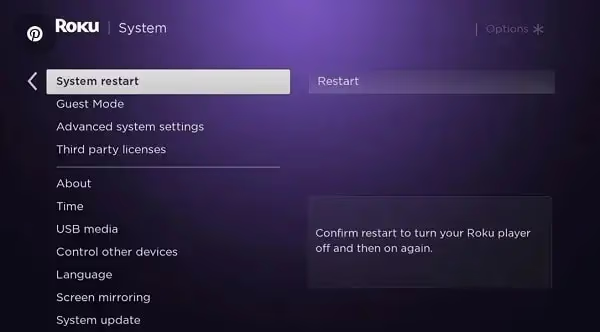
One of the simplest and most effective ways to clear up any temporary software glitches is power cycling your Roku. To soft reset your device:
-
On the Roku home screen, scroll down and select Settings
-
Choose System > System restart > Restart
-
Your Roku player will shut down and reboot
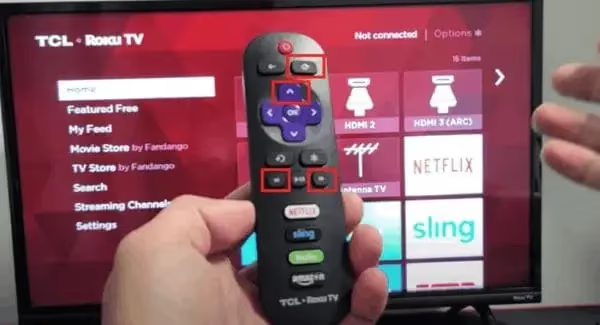
If the regular restart doesn’t resolve the Hulu issue, you can also try a hard reboot by following these steps:
-
On your Roku remote, press Home 5 times
-
Press Up once
-
Press Rewind twice
-
Press Fast Forward two times
This will trigger a full system refresh on your device. Once it powers back on, re-launch Hulu to verify if it’s working properly.
#Check Your Internet Connection
Hulu, like any streaming service, requires a fast and stable internet connection for uninterrupted viewing. Make sure your Roku is getting sufficient bandwidth to stream content.
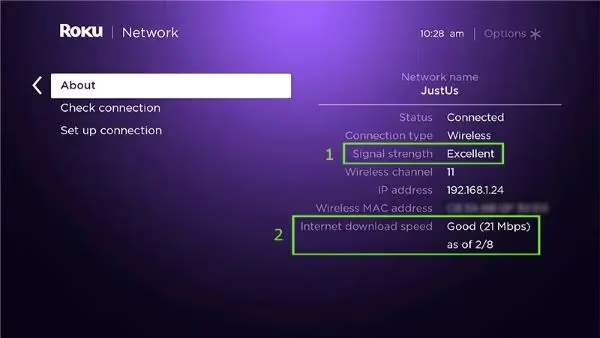
You can verify your network status in the Roku settings menu:
-
Navigate to Settings > Network > About
-
Look next to “Signal Strength” – it should show Excellent or Good for smooth streaming
-
If it shows Fair or Poor, try moving your Roku closer to the wireless router or connecting it directly to the modem via Ethernet
-
Run a speed test on another device to verify you’re getting your plan’s advertised speeds
For streaming HD content, Hulu recommends a minimum download speed of 7 Mbps. For smooth 4K streaming, aim for 12 Mbps or higher.
#Update Your Roku OS
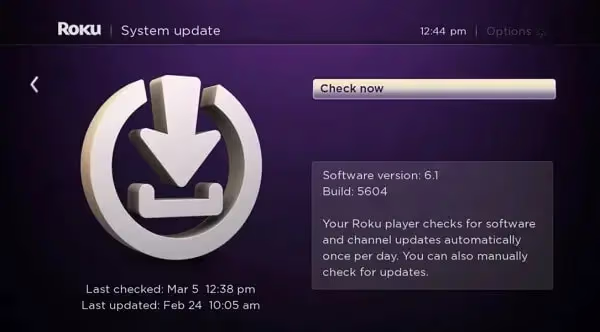
Running outdated software can cause apps like Hulu to malfunction. Check if there are any pending Roku OS updates that may resolve known bugs and compatibility issues:
-
From the Roku home screen, go to Settings
-
Select System > System update
-
Choose “Check now” to manually scan for updates
-
If an update is found, let it install and reboot your device
#Clear the Hulu App Cache
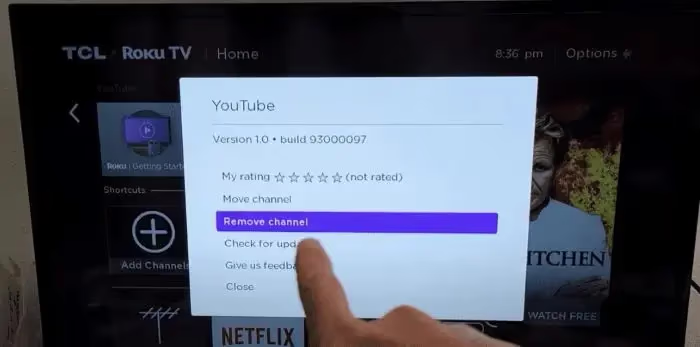
Streaming issues can often be attributed to a corrupted application cache. Removing and re-adding the channel will force it to rebuild this temporary data:
-
From the Roku home screen, scroll down to your channel list
-
Find the Hulu app, press the Star button on the remote
-
Choose Remove channel and confirm the prompt
-
Restart your Roku device by going to Settings > System > System restart
-
Open the Roku Channel Store, find the Hulu app and select Add channel
#Disable VPNs or Proxy Services
If you’re using a VPN, proxy, or any service that redirects your internet traffic, it can interfere with Hulu and cause playback issues. We recommend disabling or uninstalling these before trying to stream.
Most VPNs have options to exclude certain websites or services from the VPN tunnel. Consult your provider’s documentation for steps on how to whitelist Hulu’s domains and relaunch the channel.
#What if None of These Fixes Work?
If none of the above steps resolve your Hulu problems, a factory reset will revert the device to its original settings. This erases all your installed channels, preferences, and settings, so treat it as a last resort.
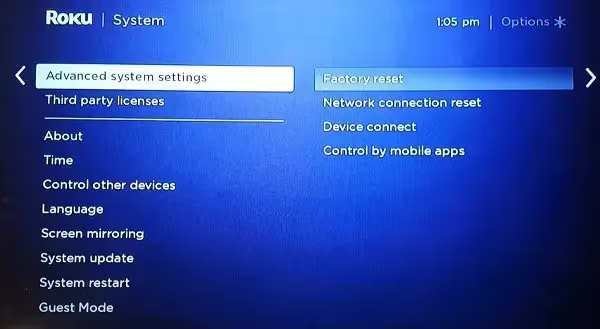
Before resetting, write down your Roku account login details. You’ll need to sign in and set up the device again from scratch. Then follow these steps:
-
Press the Home button and scroll up or down to the Settings menu
-
Select Factory reset > Factory reset everything
-
Choose OK to confirm
-
The device will reboot and clear all data
-
Set up your Roku and Hulu accounts from scratch
If Hulu still won’t work after a factory reset, the problem likely sits outside your Roku. Contact Hulu support for account-level issues or Roku support for hardware diagnostics.
#Frequently Asked Questions
#Why is Hulu not working on my Roku?
The most common causes are outdated Roku firmware, a corrupted Hulu app cache, or a weak Wi-Fi signal. A quick restart of the Roku device fixes the issue in most cases. If that doesn’t help, remove and reinstall the Hulu channel to clear cached data.
#How do I clear the Hulu cache on Roku?
Roku doesn’t have a dedicated cache-clearing option, so you need to remove the Hulu channel entirely. Highlight Hulu on the home screen, press the Star button, select Remove channel, then reinstall it from the Channel Store. This forces the app to rebuild all temporary files from scratch.
#What internet speed does Hulu need on Roku?
Hulu recommends at least 7 Mbps for HD streaming and 12 Mbps for 4K content. You can check your Roku’s connection strength under Settings > Network > About. If the signal shows Fair or Poor, move the Roku closer to your router or use an Ethernet adapter.
#Can I use a VPN with Hulu on my Roku?
No. Hulu actively blocks VPN and proxy connections, which triggers playback errors or prevents the app from loading. Disable your VPN before streaming, or configure it to exclude Hulu traffic through split tunneling.
#Why does Hulu keep freezing on my Roku?
Freezing usually points to insufficient bandwidth or an overloaded Roku processor. Close other streaming apps running in the background by pressing the Home button, then relaunching Hulu. If freezing continues, restart the Roku and run a network speed test to rule out internet issues.
#Does Hulu work on older Roku models?
Hulu has dropped support for several older Roku models over the years. Roku devices running OS version 9.4 or earlier may no longer receive Hulu app updates. Check Roku’s supported devices list to confirm your model is still compatible. If it isn’t, upgrading to a current Roku Express or Streaming Stick is the only fix.
#Will a factory reset fix Hulu on Roku?
A factory reset resolves Hulu problems caused by deep software corruption that a normal restart can’t fix. Keep in mind that it erases all channels, login credentials, and custom settings. Only use it after you’ve tried every other troubleshooting step listed above.
#Bottom Line
-
When Hulu is not working on Roku, start by checking for any known service outages
-
Restart your Roku device through the Settings menu or by using the remote shortcut
-
Verify your internet download speed meets Hulu’s minimum bandwidth requirements
-
Make sure the Roku OS, firmware, and Hulu app are updated to the latest versions
-
Clear the Roku’s app cache by removing and reinstalling the Hulu channel
-
As a last resort, perform a factory reset on your Roku device
-
If problems persist, reach out to Roku or Hulu’s customer support team for further assistance
Most Hulu problems on Roku come down to stale software or a flaky network connection. Work through the fixes in order, starting with a restart, and you’ll likely be streaming again within minutes. If nothing works, contact Hulu or Roku support for account-level or hardware diagnostics.
For more Hulu tips, check out our guides on fixing common Hulu error codes and adding premium channels to your Hulu account.