Losing or damaging your TV remote can be very frustrating, especially when you want to enjoy your favorite shows or movies. Fortunately, most Vizio TVs provide alternative ways to turn on the power without needing the original remote control. In this guide, we’ll walk you through several easy methods to switch on your Vizio TV even if you can’t find the remote or the batteries are dead. As an electronics expert with over a decade of experience, I’ve helped countless people troubleshoot their devices, so you can trust my insider tips.
- Every Vizio TV has a physical power button — check the back panel, bottom-left corner, or bottom-right corner of the frame
- The free SmartCast app works as a full remote — available on iOS and Android, it controls power, volume, inputs, and streaming apps
- HDMI-CEC lets connected devices power your TV — enable CEC in your TV settings so game consoles and streaming boxes turn the TV on automatically
- Smart speakers add hands-free voice control — pair an Alexa, Google Home, or HomePod to your TV for voice-activated power and volume
- Universal remotes are a permanent fix — most models under $15 support Vizio TV codes right out of the box
#Why You Might Need to Turn on Your TV Without the Remote
There are a couple main reasons why you could find yourself unable to use your regular Vizio TV remote:
#Lost or Damaged Remote
It’s all too common for remotes to get misplaced around the house or even damaged from being dropped or sat on. If you’ve searched everywhere and the remote is nowhere to be found, you’ll need another way to power on your TV. If your Vizio remote is not working, there are several troubleshooting steps you can try before resorting to alternative control methods.
#Dead Remote Batteries
Even if you have the remote handy, it won’t do you any good if the batteries are dead. While replacing the batteries is usually the quickest solution, you may not have spares on hand. In that case, you’ll appreciate knowing alternative methods to turn on your Vizio TV without the remote.
#Where Is the Hidden Power Button on Your Vizio TV?
You may be surprised to learn that all Vizio TVs actually come with a set of manual buttons, including Power, located directly on the TV unit itself. The challenge is these buttons are purposely designed to blend in with the frame for a sleeker look. But once you know where to find the power button, you can always turn on your TV even without a functioning remote.
#Typical Button Locations
While the exact location varies between models, there are a few common spots Vizio tends to place the manual buttons:
-
On the back of the TV
-
Lower right-hand corner of the frame
-
Lower left-hand corner of the frame
-
Along the bottom edge of the frame
#Buttons Found on Different Models
Depending on your specific Vizio TV model, you will likely find a few additional manual buttons next to the Power button. These often include:
-
Volume Up/Down
-
Channel Up/Down
-
Input/Source
-
Menu
If you’re unsure where the buttons are located on your particular TV model, consult the user manual or Vizio’s online support materials for guidance. The company provides detailed documentation for every TV model they produce.
#Using the Vizio SmartCast Mobile App
Perhaps the most convenient way to control your Vizio TV without the original remote is by downloading the free SmartCast app to your mobile device. Available for both iOS and Android, this handy app turns your phone or tablet into a fully functional touchscreen remote for your TV.
#Downloading the App
The Vizio SmartCast app can be easily downloaded from either the Apple App Store for iOS devices or the Google Play Store for Android. Simply search for “Vizio SmartCast” in the appropriate app store for your device and tap “Install”. The app is completely free.
#Pairing the App with Your TV
Once you have the SmartCast app installed, launch it and follow these steps to pair it with your TV:
-
Ensure your mobile device is connected to the same Wi-Fi network as your TV.
-
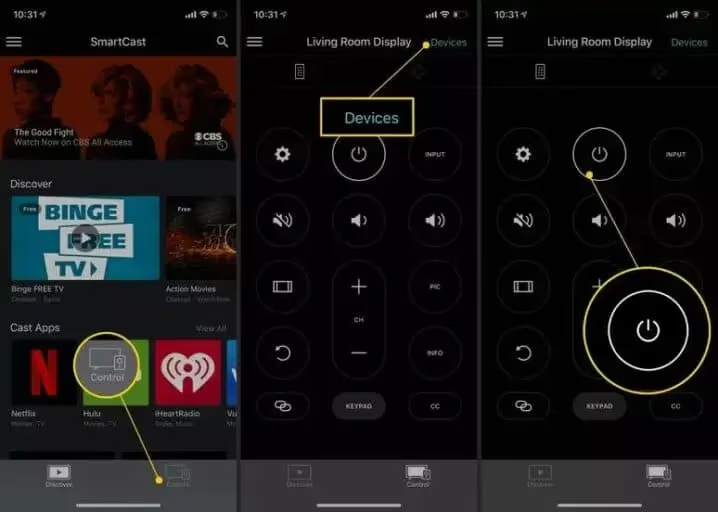
In the app, tap the “Devices” button at the top right corner.
-
Tap “Add Device” and hold your phone or tablet near your TV.
-
Wait a few seconds for the app to detect and connect with your TV.
After your devices are paired, you can instantly begin controlling your TV right from the app. You’re now ready to turn your TV on or off, change channels, adjust volume, switch inputs and more.
#Controlling Your TV with the App
The Vizio SmartCast app provides a user-friendly touch interface for controlling all your TV’s major functions. Tapping the “Control” tab at the bottom reveals a full TV remote with all the buttons you’re used to, including Power, Volume, Channel, Input, Menu, etc.
To switch your TV on when it’s off, simply tap the Power button in the app. You can even turn your TV on automatically by casting content to it from within the SmartCast app. The TV will power up and start playing the content right away. This can come in handy if your Vizio TV won’t turn on at all using the remote or manual buttons.
Other convenient features of the SmartCast app include browsing trending content, searching for specific shows or movies, and launching your favorite streaming apps like Netflix or Hulu. You get full access to your TV’s SmartCast platform directly from your mobile device.
#Turning on Your TV with a Gaming Console
If you frequently use a gaming console with your Vizio TV, you can take advantage of a feature called “device link” or “device control” to power both on simultaneously. The exact steps vary a bit between different gaming systems. Let’s look at a couple popular options.
#Using a PS4
To set up your PS4 to automatically turn on your Vizio TV when powered on, and switch the TV to the correct input, follow these steps:
-
Connect the PS4 to your TV with an HDMI cable.
-
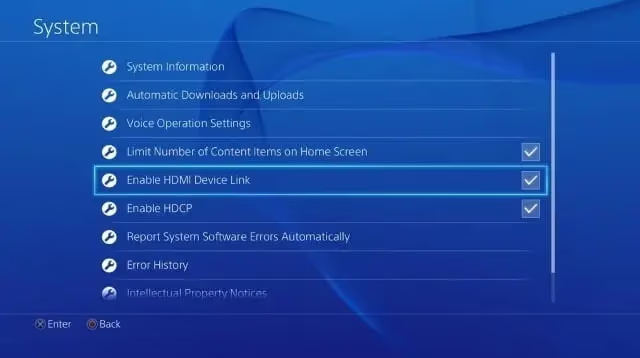
On the PS4, navigate to Settings > System.
-
Check the box for “Enable HDMI Device Link”.
Now, powering on your PS4 will also switch on your Vizio TV and swap to the PS4 input channel. Conversely, switching the input to your PS4 will automatically boot up the console if it’s powered down. Keep in mind you may need to enable Game Mode on your Vizio TV for the best gaming experience.
#Using a Nintendo Switch
The Nintendo Switch has a similar feature, but the setup process is a little different:
-
Place the Switch in its dock, which should be connected to the TV via HDMI.
-
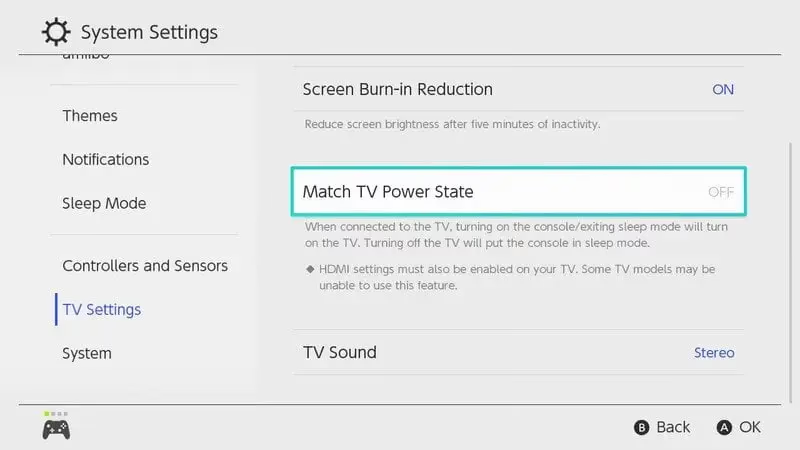
From the Switch Home screen, navigate to System Settings > TV Settings.
-
Scroll down to “Match TV Power State” and turn this setting On.
With this enabled, putting the Switch into Sleep Mode will also power off your TV. Waking the Switch from Sleep will power the TV back on and switch to the correct input for the Switch. Very handy!
#Limitations with Xbox One
Unfortunately, Microsoft’s Xbox One lacks the HDMI-CEC capability described above for automatically controlling your TV’s power state. Some limited control is possible using the Xbox’s IR blaster and Kinect accessory, but this only works for adjusting volume and TV settings – not for turning the TV on or off. Despite user requests, the Xbox One still does not support full HDMI-CEC functionality.
#Enabling HDMI-CEC for Connected Devices
While we’ve focused on game consoles so far, the HDMI-CEC feature is also supported by many other media devices you might connect to your TV – such as cable boxes, satellite receivers, streaming devices, etc.
#What is HDMI-CEC?
HDMI-CEC stands for “Consumer Electronics Control” and it’s a feature of the HDMI standard that allows different devices connected through HDMI cables to communicate and control one another. With CEC enabled, you could use your cable box remote to adjust TV volume, or press a button on the TV remote to switch on your Blu-ray player.
#Turning On Your TV Through a Connected Device
To turn on your Vizio TV through a connected HDMI device:
-
Ensure the device is connected to your TV via HDMI.
-
Turn on the connected device.
-
In most cases, your TV should automatically detect the signal and power on, switching to the proper input.
To check that CEC is enabled on your Vizio TV:
-
Press the Menu button on your Vizio remote.
-
Navigate to System > CEC.
-
Ensure CEC is enabled.
-
You may also see options to enable specific CEC functions, like auto power off or one-touch play. Enable those that you wish to use.
With CEC active, turning on any connected device should also switch on your TV and jump to that device’s input channel. It’s a very convenient feature when it works properly.
#Can You Use Smart Speakers to Turn on a Vizio TV?
Yet another option for controlling your Vizio TV without its original remote is using a smart speaker like Amazon Echo, Google Home or Apple HomePod. With voice commands, you can switch your TV on or off, change channels, adjust volume, switch inputs and more. Some key things to be aware of:
#Connecting a Smart Speaker to Your TV
In order to use a smart speaker for voice control of your TV, a few things need to happen:
-
Your TV and smart speaker need to be on the same Wi-Fi network.
-
You’ll need to add your Vizio TV in the smart speaker’s mobile app.
-
Follow the in-app instructions to link/pair your TV with the smart speaker.
-
Ensure any required skills for Vizio SmartCast are enabled.
Each smart speaker brand (Amazon Alexa, Google Assistant, etc.) has a slightly different setup process, so refer to your product’s support materials for specific guidance. But in general, expect to spend a few minutes in the speaker’s mobile app enabling the integration with your Vizio TV.
#Using Voice Commands
Once your TV and smart speaker are connected, you can begin controlling your TV with voice commands like:
-
“Turn on the [room name] TV”
-
“Switch the TV to HDMI 1”
-
“Set TV volume to 30%”
-
“Play Friends on Netflix on TV”
Again, the specific phrasing may vary between the different voice assistant platforms, but all of them support a range of TV controls. And conveniently, you can turn your TV on or off entirely hands-free by combining a smart speaker with the power of Vizio’s SmartCast platform.
In my experience, using a smart speaker to control your TV is hit or miss. When it works, it feels like magic. But too often, the TV and speaker get out of sync or voice commands fail to register. More often than not, I resort back to the manual power button or SmartCast mobile app for reliable control. Still, using a smart speaker can be a useful option to have for those times you can’t find a remote.
#Frequently Asked Questions
#Can I use a universal remote with my Vizio TV?
Yes, most universal remotes support Vizio TV codes. Pick up any universal remote from a major brand and look up the Vizio code in the included manual. Our Vizio TV universal remote codes guide lists the codes for all popular models.
#Where are the manual buttons on my Vizio TV?
Every Vizio TV has physical buttons built into the frame, though they blend in by design. Run your fingers along the back panel near the bottom-right corner, then try the bottom edge and left side. A flashlight aimed at the bezel makes them much easier to spot.
#How do I adjust volume without the remote?
Use the Vizio SmartCast app on your phone, a universal remote, or a paired smart speaker with voice commands. Some Vizio sound bars also have volume buttons on the bar itself. If your Vizio sound is not working, try the steps to reset your Vizio sound bar.
#Why won’t my TV turn on when I power on a connected device?
The connected device must be plugged into an HDMI port, not a composite or component input. Check that CEC is enabled on both your TV and the device, since not all HDMI devices support this standard.
#Why does my Vizio TV turn on by itself?
HDMI-CEC is the most common cause, where a linked device waking from sleep triggers the TV to power on. A Sleep Timer set to “on” instead of “off” can also do this. Check your TV’s CEC and timer settings first, then review any connected smart speakers. Our guide to a Vizio TV turning on by itself covers every possible cause.
#Does the SmartCast app work when the TV is off?
The SmartCast app can turn on your TV as long as the TV is plugged in and connected to your Wi-Fi network. The TV stays in a low-power standby mode that keeps the network connection active, so the app can send the power-on signal. You do need to have paired the app with your TV at least once while the TV was on.
#Can I set up my Vizio remote to control other devices?
Certain Vizio TV remotes have programmable buttons for basic functions on cable boxes, sound bars, and Blu-ray players. Check your remote’s user guide for the setup steps. Not all Vizio remotes have this feature, so older or entry-level models may lack it.
#Bottom Line
While there’s no denying that using your Vizio TV remote is the easiest way to control your TV, you have options even if the remote goes missing or breaks. Here are the core points to keep in mind:
-
All Vizio TVs have a set of basic control buttons (including Power) built into the TV frame itself. Know where to find these.
-
The free Vizio SmartCast mobile app turns your phone or tablet into a full-featured TV remote. Enable this before you lose your main remote.
-
Many HDMI-connected devices (like game consoles) can automatically turn your TV on and off, if you enable the HDMI-CEC feature.
-
Smart speakers offer a hands-free voice control option for your TV, but functionality can be hit or miss.
Whether your dog buried your remote in the back yard or the buttons have stopped working, you now know how to power on your Vizio TV and keep watching your favorite content without interruption. Hopefully this guide has given you the confidence to master your TV technology, with or without that familiar clicking remote in hand.