Screen mirroring allows you to wirelessly share your device’s display to another screen like a TV or monitor. It’s a handy feature but also poses privacy risks if left enabled. This guide will teach you how to fully disable screen mirroring across all major platforms.
- iOS screen mirroring — open Control Center, tap Screen Mirroring, then tap Stop Mirroring to disconnect instantly
- Android Smart View or Cast — use Quick Settings or the Google Home app to disconnect active mirroring sessions
- Windows projection — go to Settings > System > Projecting to this PC and toggle the feature off or require PIN confirmation
- Mac AirPlay — click the AirPlay icon in the menu bar and select Turn AirPlay Off, or disable it in System Preferences > Displays
- Smart TVs — use the SmartThings (Samsung), Google Home (Sony/Android TV), or LG ThinQ app to stop screen sharing
#Why Should You Turn Off Screen Mirroring?
Here are some top reasons to disable screen mirroring when not in use:
-
Privacy – An unlocked device being mirrored could expose private info to others. Turn it off to prevent accidental sharing.
-
Security – Connections can be vulnerable to snooping. Disable when not needed.
-
Reduce Power Drain – Mirroring uses more battery life. Turn off to conserve power.
-
Minimize Interruptions – Ongoing mirroring can disrupt your workflow. Disable when focusing.
-
Interference Issues – Nearby devices can sometimes interfere with mirroring signals. Power off to troubleshoot.
Now let’s get into the step-by-step guide for each device.
#How to Turn Off Screen Mirroring on iPhone & iPad
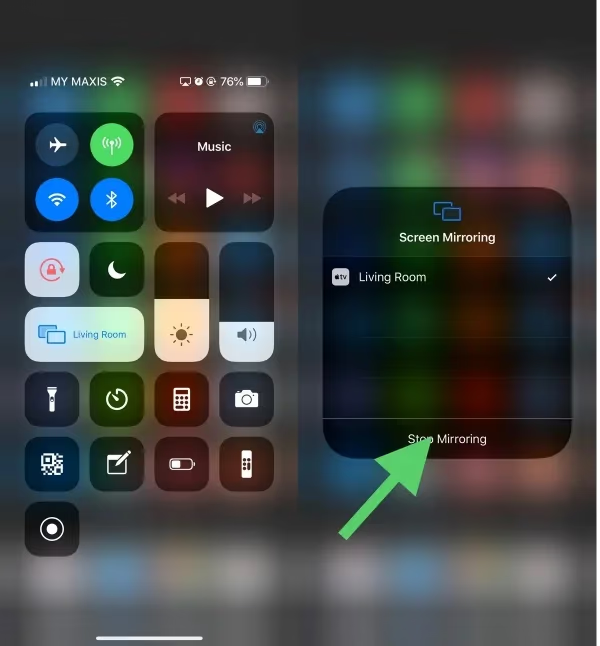
Apple calls their screen mirroring technology AirPlay. Here’s how to turn AirPlay mirroring off on iOS:
-
Open the Control Center by swiping down from top right corner.
-
Long press on the Screen Mirroring icon.
-
Tap Stop Mirroring to disconnect any devices.
You can also disable AirPlay auto-connections:
-
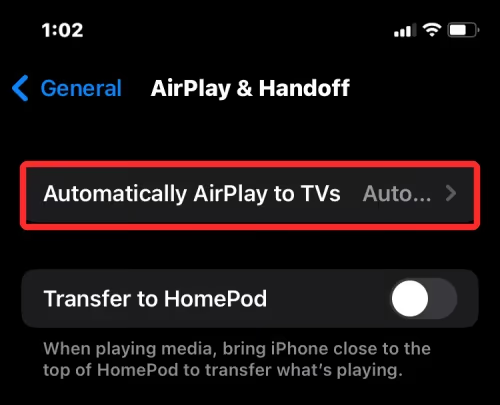
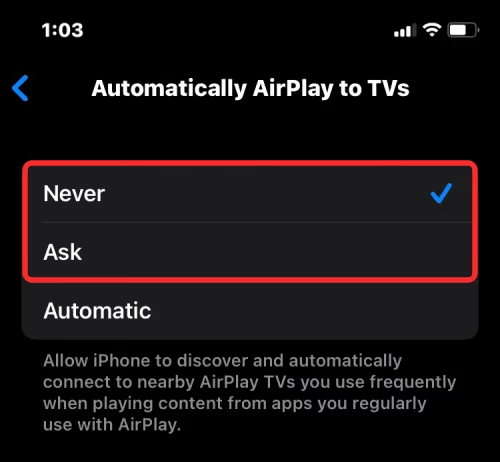
Go to Settings > General > AirPlay & Handoff
-
Turn off Auto AirPlay toggles for TVs and other devices.
Finally, fixing AirPlay unable to connect issues often resolves persistent mirroring to some devices.
Enabling Airplane Mode will also disconnect AirPlay, but it isn't required just to stop mirroring.
#How Do You Turn Off Screen Mirroring on Android?
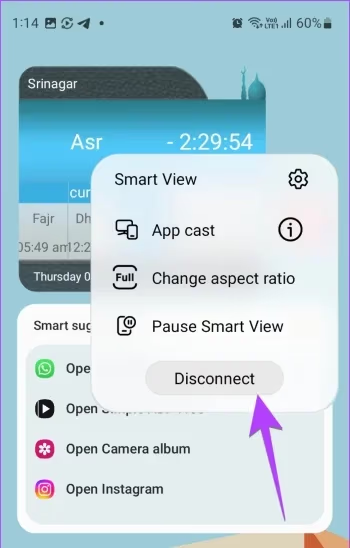
The Android screen mirroring feature is called Smart View or Cast. Here’s how to disable it:
-
Open Quick Settings and tap the Smart View icon.
-
Tap Disconnect next to any connected devices.
You can also stop mirroring via the Smart View or Cast menu in Settings:
-
Go to Settings > Connected Devices > Connection Preferences > Cast
-
Tap the three dots icon next to devices.
-
Select Disconnect to stop screen mirroring.

You can also use the Google Home app to disconnect casting sessions.
If you want to learn how to full screen mirroring from Android to TV, that guide covers mirroring between different devices.
#How Do You Disable Screen Mirroring in Windows?
Here are the steps to turn off screen mirroring in Windows 10 and 11:
-
Go to Settings > System > Projecting to this PC
-
Toggle setting to Off
You can also permanently block projections:
-
In Projecting to this PC, choose Available everywhere
-
Enable Ask to project to this PC
-
Select Every time a connection is requested

For extra security, turn on the Require PIN option.
#How to Stop Chromebook Screen Mirroring
Follow these steps to disable screen mirroring on your Chromebook:
- Go to Settings > Device > Displays

- Uncheck Mirror Built-in Display
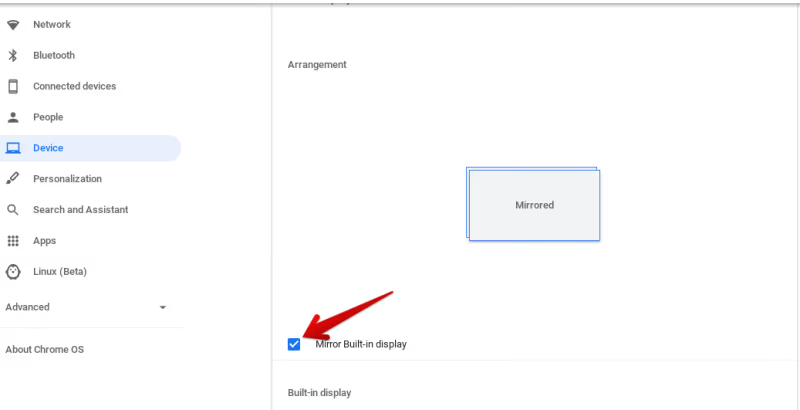
You can also stop active Chromecast sessions:
-
Open the Google Home app
-
Select the casting device
-
Tap Stop Casting
#Turning Off Screen Mirroring on a Mac
To disable AirPlay mirroring on a Mac:
-
Click the AirPlay icon in the menu bar
-
Hover over your device and select Turn AirPlay Off
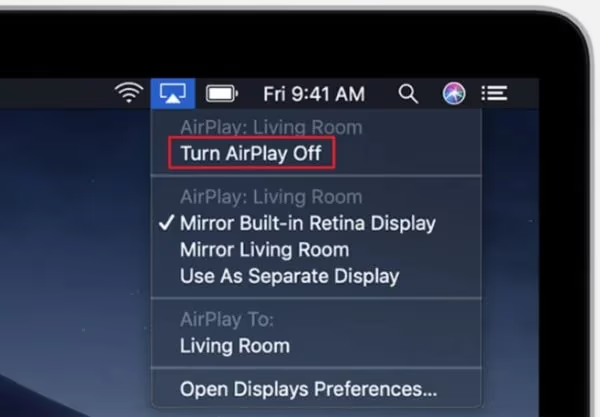
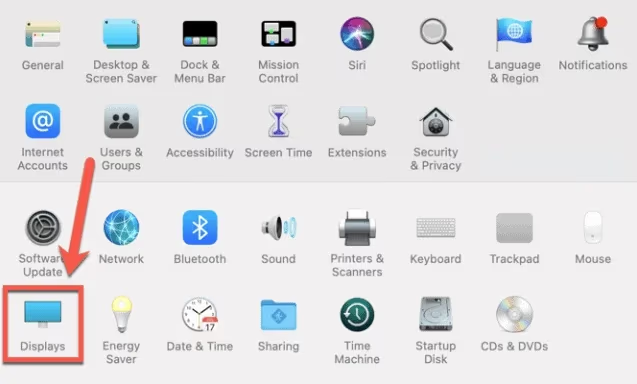
You can also stop mirroring via System Preferences:
- Go to System Preferences > Displays
-
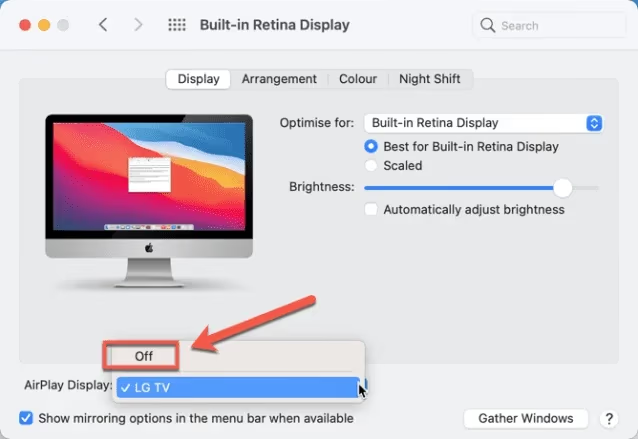
Click the AirPlay Display drop down
-
Choose Off to disconnect devices
#How to Turn Screen Mirroring Off on Smart TVs
Here are the basic steps for disabling screen mirroring on smart TVs:
#Samsung Tizen TVs
-
Open SmartThings app
-
Go to SmartView section
-
Toggle Screen Mirroring off
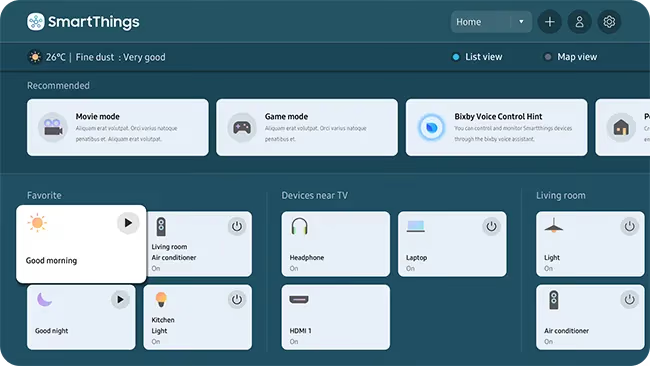
Common issues like Samsung TV green screen may require factory reset.
#Sony / Android TV
-
Go to Settings > Device Preferences > Cast
-
Select Disconnect to stop mirroring
#LG webOS TVs
-
Open LG ThinQ app
-
Go to Screen Sharing
-
Tap Disconnect
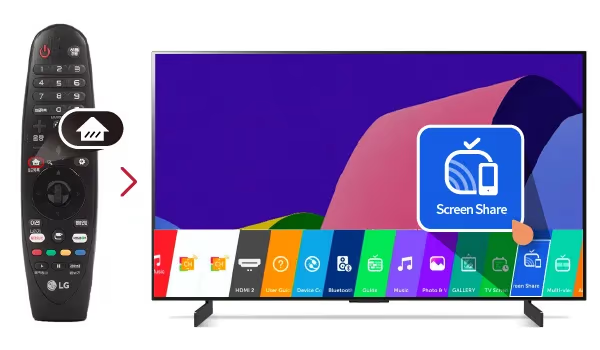
Refer to your TV’s user manual for exact instructions.
Check the tips in this LG TV black screen troubleshooting guide if display issues occur.
#FAQ
#How do I permanently disable screen mirroring?
On most platforms you can completely turn off mirroring so it doesn’t automatically enable again. Go into your device’s settings and disable auto-connect options like Auto AirPlay on iOS or Smart View on Android. Chromecast and some smart TVs are exceptions where you can only disconnect active sessions rather than permanently block the feature.
#Does turning off screen mirroring save battery?
Yes, screen mirroring uses extra CPU and network resources. Disabling it reduces background processing and wireless activity, which directly extends your battery life. This makes the biggest difference on phones and laptops running on battery power.
#Can I disable mirroring without affecting other wireless connections?
Switching screen mirroring off only affects that specific feature. Your Wi-Fi, Bluetooth, and other network connections stay active and unaffected. The only exception is if you use Airplane Mode to disconnect, which turns off all wireless radios.
#How do I stop Miracast screen mirroring on a Windows PC?
Miracast on Windows works through the Projecting to This PC settings. Go to Settings > System > Projecting to this PC and toggle the feature off, or set it to require confirmation before connecting. You can also enable a PIN requirement for added security.
#How do I prevent accidental screen sharing from mobile apps?
Check your app permissions and disable options like auto-casting in apps that support it. Enable screen pinning on Android to lock your device to a single app while using sensitive content. On iOS, disabling Auto AirPlay in Settings prevents your phone from connecting to nearby TVs without your approval.
#Is screen mirroring a security risk?
Unprotected mirroring connections can expose your screen content to anyone on the same network. Someone could potentially view your passwords, messages, or personal data if your device auto-connects to a nearby TV or display. Always disable mirroring in public spaces and require PIN confirmation on shared networks.
#Can I turn off screen mirroring on my TV without the remote?
Yes, most smart TVs let you manage mirroring through their companion apps. Use the SmartThings app for Samsung TVs, Google Home for Android TVs, or LG ThinQ for LG TVs. You can disconnect active sessions and change mirroring settings directly from your phone.
#Bottom Line
-
Monitor the Quick Settings panel for Screen Mirroring/Smart View and toggle off when not needed.
-
Fully disabling Auto AirPlay and Smart View auto-connections increases privacy.
-
Use device disconnect options in SmartThings, Google Home, and AirPlay menus.
-
Require PIN confirmation for projection security in Windows.
-
Unchecking Mirroring in Display Settings stops the session on Chromebooks.