Peacock TV is a popular streaming service with a large library of content, including hit shows like The Office, Parks and Recreation, and Yellowstone. If you’re new to Peacock TV and want to learn more about its features, pricing, and content offerings, check out our Peacock TV review. Closed captions can sometimes get in the way of your viewing experience. Whether you find them unnecessary or just prefer watching without subtitles, turning off closed captions on Peacock TV takes only a few steps. This guide covers how to disable closed captioning on smart TVs, mobile apps, and web browsers.
- Closed captions toggle off in seconds — tap the CC icon during playback and select Off on any device
- Web browsers show the CC button — it appears in the bottom-left corner when you move your cursor over the video
- Mobile apps use a text bubble icon — tap it during playback on iPhone or Android to access subtitle settings
- Smart TVs and streaming devices vary slightly — press Select or OK on your remote to access playback options
- Device accessibility settings override app settings — check your system-level caption preferences if the in-app toggle does not work
#What Is the Difference Between Closed Captions and Subtitles?
Before turning off closed captions, it helps to know how they differ from subtitles:
-
Closed Captions (CC): Designed for the deaf or hard-of-hearing, closed captions provide a text description of all audio elements, including dialogue, sound effects, and music cues.
-
Subtitles: Primarily used for translation purposes, subtitles display only the dialogue in the viewer’s preferred language.
Peacock TV offers both closed captions and subtitles for most of its content, giving users flexibility to choose their preferred viewing experience.
#How Do You Turn Off Closed Captions on Peacock TV?
Follow these step-by-step instructions to disable closed captioning on Peacock TV across different devices:
#Web Browsers
-
Sign in to your Peacock TV account using your preferred web browser
-
Select the title you want to watch and start streaming
-
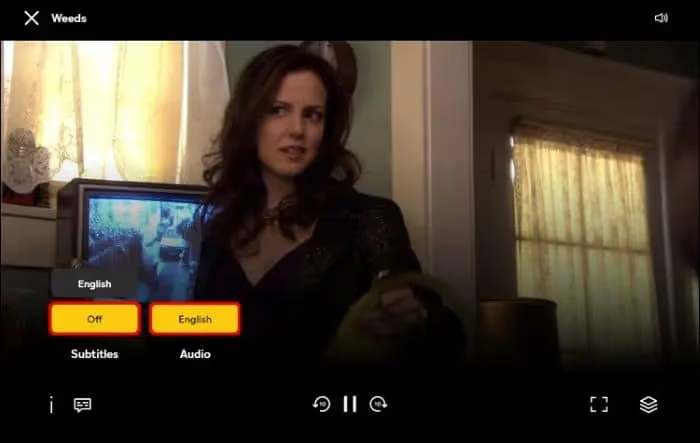
Move your cursor anywhere on the screen to display video playback options
-
Click on the “CC” (closed captions) icon located in the bottom-left corner
-
Choose “Off” from the pop-up menu to disable closed captions
#Peacock TV Mobile App (iOS & Android)
-
Open the Peacock TV app on your iPhone or Android device
-
Start playing the content you want to watch
-
Tap the screen to bring up playback options
-
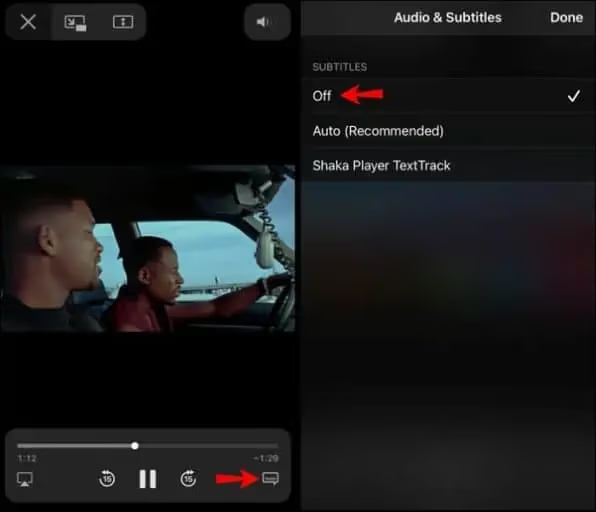
Tap the text bubble icon (subtitles) to access subtitle settings
-
Select “Off” to turn off closed captions
#Apple TV
-
Press the “Select” button on your Apple TV remote while watching content
-
Navigate to the “Subtitles” option using your remote
-
Choose “Off” to disable closed captions
To learn how to use Peacock TV on your streaming device, check out our guides for Firestick and Roku.
#Smart TVs (LG, Samsung, etc.)
-
Launch the Peacock TV app on your smart TV
-
Start playing your desired content
-
Use your TV remote to access playback options (usually by pressing “Select” or “OK”)
-
Navigate to subtitle settings and select “Off” to turn off closed captions
For specific instructions on using Peacock TV on your smart TV, refer to our guides for LG TVs and Vizio TVs.
#How Can You Customize Closed Caption Appearance?
If you find Peacock TV’s default closed caption settings difficult to read, you can customize their appearance:
-
On iOS or Apple TV, go to Settings > Accessibility > Subtitles & Captioning
-
On Android, navigate to Settings > Accessibility > Captions
-
Adjust font, size, color, background, and other options to improve readability
#Troubleshooting Common Issues
-
If closed captions don’t turn off immediately, wait up to 30 seconds for changes to take effect
-
Restart the Peacock TV app or your device if you encounter any issues
-
Make sure your device’s accessibility settings allow subtitle customization
-
Contact Peacock TV customer support if problems persist
If you’re experiencing issues with Peacock TV not working, check out our guide on troubleshooting Peacock TV problems.
#Frequently Asked Questions
#Are closed captions available in languages other than English on Peacock?
Peacock TV currently only provides English closed captioning for its content library. If you need subtitles in another language, you may need to check whether your specific title has multilingual subtitle options, though availability is limited.
#Can I customize how closed captions look on Peacock TV?
Yes, you can adjust font style, color, size, and background through your device’s accessibility settings. On iPhone or Apple TV, go to Settings > Accessibility > Subtitles & Captioning. Android users can find similar options under Settings > Accessibility > Captions.
#What should I do if closed captions won’t turn off?
Start by restarting the Peacock TV app and trying again. If that does not work, check your device’s system-level accessibility settings, since some devices override app-level caption preferences. Updating the app to the latest version can also resolve this issue.
#Do all Peacock TV shows and movies have closed captions?
Most content on Peacock TV includes closed captions, but there are occasional exceptions. Trailers, bonus clips, and some older catalog titles may not have captions available.
#Does Peacock remember my closed caption preference?
Peacock TV generally saves your caption preference within the app on each device. However, if you switch devices or reinstall the app, you may need to turn off captions again. Logging into the same account does not always sync caption settings across devices.
#How do I turn off captions on Peacock using a Fire TV Stick?
Press the menu button on your Fire TV Stick remote during playback to open the subtitle options. Select the CC or subtitle icon, then choose Off. You can also disable captions system-wide through Fire TV Settings > Accessibility > Closed Captions.
#Is there a keyboard shortcut for toggling captions on the Peacock website?
Peacock’s web player does not currently support a dedicated keyboard shortcut for captions. You need to click the CC icon in the playback controls at the bottom of the video player to toggle them on or off.
#Why do closed captions keep turning back on automatically?
This usually happens when your device has system-level caption settings enabled that override the app. Check your TV or streaming device accessibility settings and disable any forced captioning. On Roku, go to Settings > Accessibility > Captions mode and set it to Off.
#Bottom Line
Turning off closed captions on Peacock TV takes just a few taps or clicks, regardless of which device you use. Open the playback controls during a video, find the CC or subtitle icon, and select Off. If captions keep reappearing, check your device’s system-level accessibility settings since they can override app preferences. For ongoing issues, updating the app or contacting Peacock support are your best next steps.