Are you looking for an easy way to find your favorite movies, shows, channels and more on Pluto TV? With over 100 live channels and thousands of on-demand titles, searching Pluto TV’s vast library of free content may seem daunting at first. But with the right tactics, you can quickly zero in on exactly what you want to watch. As streaming experts with years of experience, we’ll show you 5 simple methods to search Pluto TV like a pro.
- Pluto TV offers 100+ live channels and thousands of on-demand titles — all completely free with no subscription required
- The search icon (magnifying glass) lets you find on-demand content — search by title, actor name, or genre keyword
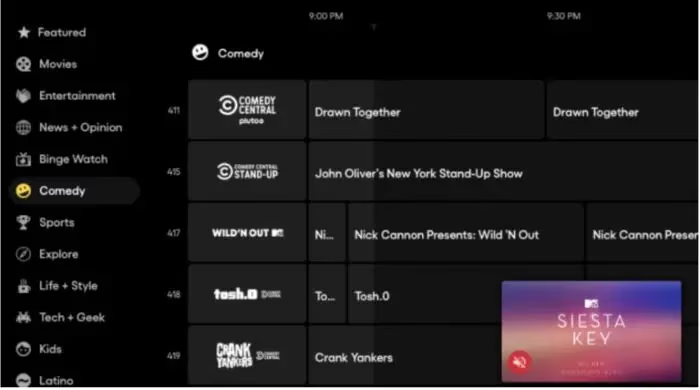
- The Live TV Guide displays all channels in a scrollable grid — showing current and upcoming programs across 100+ channels
- Genre and category filters narrow results fast — choose from Action, Comedy, Drama, Reality, and other popular categories
- My List acts as a personal watchlist — save titles with the ”+” button and access them anytime from the main menu
#What Is Pluto TV?

Pluto TV is a popular free streaming service owned by Paramount Streaming. It offers over 100 live channels and thousands of on-demand movies and TV shows. The content spans categories like news, sports, entertainment, comedy, reality and more.
Pluto TV is completely free and ad-supported – no subscription or credit card required. You can watch on nearly any device, including web browsers, mobile apps, smart TVs, streaming players and game consoles.
Some key features of Pluto TV include:
-
100+ live channels like CBS News, CNN, Fox Sports, MTV and more
-
On-demand library with thousands of movies and shows
-
Curated themed channels and collections
-
Spanish-language content
If you’re looking to cut the cord and save money on cable, Pluto TV provides an impressive lineup of content at no cost. The trade-off is you’ll need to sit through some ad breaks, similar to traditional TV. See how Pluto TV compares to other free streaming services like Sling TV, Xumo, Amazon Freevee, and Tubi.
#What Are the Best Ways to Search Pluto TV?
While you can always browse the Pluto TV interface to stumble upon new content, sometimes you want to find something specific. Here are five simple methods to quickly search and locate movies, shows or channels on Pluto TV:
#Method 1: Browse the Live TV Guide
One of the easiest ways to see what’s currently airing on Pluto TV is by scanning the Live TV Guide. Here’s how to access it:

-
Launch the Pluto TV app or visit the website
-
Navigate to the Live TV tab
-
Browse the channel guide to see what’s on now
The Live TV Guide displays a grid with rows for each channel and columns for the time slots and titles. You can scroll through to see everything currently airing. Click a title for more details or to start watching.
#Method 2: Use the On-Demand Search
To find on-demand movies and shows to watch anytime, use the Pluto TV search function. Follow these steps:
-
Open the Pluto TV app or website
-
Click the Search icon (magnifying glass)
-
Type in a keyword like a title, actor, genre, etc.
-
Browse the results and select a title to view more info
-
Click Watch to start streaming on-demand
The Pluto TV search works well to find specific on-demand titles you’re interested in. You can search by movie or show name, actor, genre and more.
#Method 3: Filter by Category or Genre
Another way to find new content is by filtering the on-demand library by category or genre. Here’s how:
-
Navigate to the On-Demand section
-
Select a main category like Movies, TV Shows, etc.
-
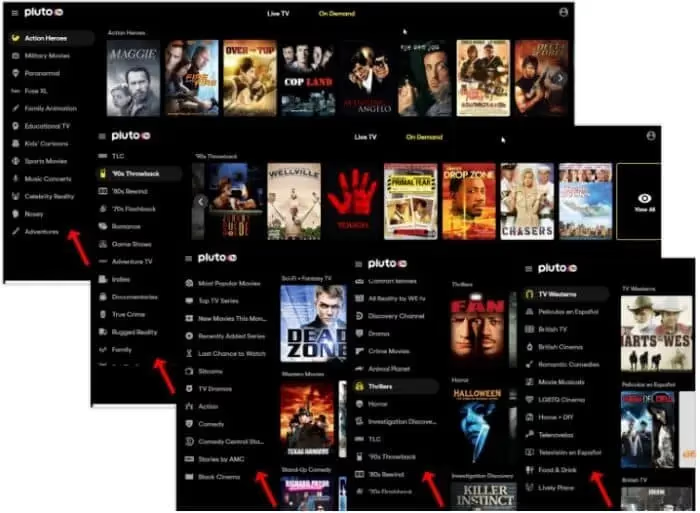
Use the genre filters at the top to narrow the results
-
Examples: Action, Comedy, Drama, Reality, etc.
-
Click on a title to see more details and watch
Filtering by genre makes it easy to browse movies or shows in a category you’re in the mood for. Pluto TV offers filters for popular genres.
#Method 4: Save to My List
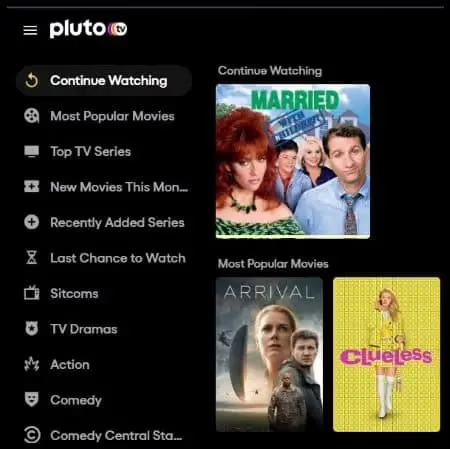
For titles you want to save for later, use the My List feature. It acts as a watchlist where you can collect content to easily access anytime. Here’s how to use it:
-
Find a movie or show you want to save
-
Click the ”+” icon to add to My List
-
Access My List from the main menu
-
Click a title to watch or remove it from the list
Adding titles to My List makes it simple to keep track of content you’re interested in watching. You can quickly pull up your list to find saved movies and shows.
#Method 5: Do a Web Search
If you can’t find what you’re looking for within the Pluto TV interface, try a web search. Follow these steps:
-
Open Google or another web search engine
-
Type in “Pluto TV” and the name of the title
-
Examples: “Pluto TV The Terminator” or “Pluto TV Yellowstone”
-
Check if any results indicate the title is on Pluto TV
-
Open the Pluto TV link and start watching
A web search can help you check if a specific title is currently available on Pluto TV. If it pulls up a result from Pluto’s site, that usually means you can watch it there. Not all titles be found this way, but it’s worth checking for harder to find content.
#Frequently Asked Questions
#How much does Pluto TV cost?
Pluto TV is completely free with no subscription or credit card required. The service is entirely ad-supported, which means you watch short commercial breaks in exchange for access to all content.
#What devices can I watch Pluto TV on?
Pluto TV is available on web browsers, iOS and Android mobile devices, Roku, Fire TV, Apple TV, Chromecast, Android TV, Samsung and Vizio smart TVs, plus PlayStation and Xbox consoles. The experience is consistent across platforms, though smart TV apps sometimes receive updates a bit later than mobile versions.
#Can I watch Pluto TV offline?
No, Pluto TV does not offer offline viewing. You need an active internet connection to stream both live channels and on-demand content. For reliable playback, a minimum speed of 4 Mbps is recommended.
#How often is new content added to Pluto TV?
Pluto TV adds new channels and on-demand titles on a regular basis, typically multiple times per month. Paramount-owned content like CBS shows and Paramount movies tends to cycle through frequently. Check the “Recently Added” section in the on-demand library to spot fresh arrivals.
#Why does my Pluto TV keep freezing?
Freezing usually stems from a weak internet connection, an outdated app version, or a device running low on memory. Restart your device, update the Pluto TV app, and test your internet speed as first steps. If the problem persists, try these troubleshooting tips for Pluto TV freezing.
#Does Pluto TV have a search function on all devices?
The search function is available on most platforms, including web, mobile, Roku, and Fire TV. On some older smart TV models the search icon may be located in the side menu rather than the top bar. If you cannot find the search option, updating the app usually resolves it.
#Does Pluto TV have ESPN?
No, Pluto TV does not carry ESPN or other major live sports networks. It does offer some sports-related channels like Fox Sports, CBS Sports HQ, and Stadium. See our guide for more details on sports content and ESPN on Pluto TV.
#How can I fix Pluto TV if there is no sound?
Start by checking that your device volume is unmuted and turned up, then verify your audio output settings are correct. If sound still does not work, try our Pluto TV no sound troubleshooting guide for step-by-step fixes including reinstalling the app.
#Bottom Line
-
Pluto TV offers 100+ live channels and thousands of on-demand titles, all completely free
-
Use the Live TV guide to quickly see what’s currently airing on each channel
-
Search for specific on-demand titles using keywords like name, actor, or genre
-
Filter the on-demand libary by category or genre to find new content to match your mood
-
Save interesting titles to My List which acts as a watchlist to access later
-
Do a web search for “Pluto TV” and a title name to check if harder to find movies/shows are available
With these five methods, you’ll be able to quickly search and find content on Pluto TV. Whether you want to see what’s live now, watch a specific movie, or discover new titles in your favorite genre, these tips make it simple to navigate the vast library.
While the amount of free content on Pluto TV is impressive, remember that it is ad-supported. This means you’ll need to sit through regular commercial breaks, similar to cable TV. But for cord-cutters looking to save money, it’s a small tradeoff to access so much entertainment at no cost.
If you encounter any issues while using Pluto TV, such as freezing or no sound, check out our troubleshooting guides for easy fixes. And if you want to explore other free streaming options, take a look at our recommendations for the best Pluto TV alternatives.