Watching videos, playing games, or browsing the web is much more enjoyable on a big screen TV than a tiny phone. It’s easy to mirror your Android phone or tablet to any TV, and this guide walks you through every method. Whether you have a smart TV, a streaming device, or neither, you’ll find the right way to get your Android screen on the big screen.
- Chromecast mirroring — cast your full Android screen through the Google Home app in under 30 seconds
- Miracast works without internet — connect directly between your phone and TV with no Wi-Fi network required
- Samsung Smart View — one-tap mirroring from the quick settings panel on any Galaxy phone
- Wired HDMI gives the lowest latency — use a USB-C to HDMI adapter for lag-free gaming and presentations
- Troubleshooting starts with Wi-Fi — most wireless mirroring failures come from devices being on different networks
#What Is Screen Mirroring?
Screen mirroring displays your Android’s entire screen on your TV in real-time. Whatever shows on your phone will show on the big screen, including:
-
Photos and videos
-
Games
-
Apps
-
Website content
This allows you to enjoy your phone’s media and apps on your TV. It’s perfect for:
-
Watching movies or shows
-
Gaming on the big screen
-
Viewing vacation pics with family
-
Giving presentations
Screen mirroring is different from screencasting, where you play individual videos and songs on the TV but can multitask on your phone, and streaming, which refers to viewing content directly via the internet.
#Why Should You Mirror Your Android to TV?
The main benefits of mirroring your Android screen to TV include:
-
Convenience – Instantly display content without transferring files
-
Enjoyment – Games, videos and pics are better on the big screen
-
Sharing – Show online content to friends and family with ease
-
Productivity – Give presentations and demos right from your phone
#Wireless Screen Mirroring Methods
There are several ways to mirror your Android phone to your TV wirelessly. The main methods use Chromecast, Miracast, or media streamers like Roku. Your options depend on the devices you own.
#Chromecast
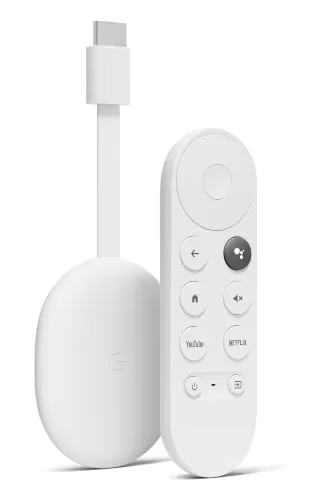
Chromecast is a popular streaming device from Google that plugs into your TV’s HDMI port. To start mirroring:
-
Connect Chromecast to your TV and set it up
-
Ensure phone and Chromecast are on same Wi-Fi network
-
Open the Google Home app and tap the Chromecast device
-
Tap “Cast my screen” at the bottom
Your entire Android screen will display on the TV until you stop casting. Many video apps like Netflix and YouTube also have a Cast button to play content on the TV while using your phone for other things.
If you need to, you can also turn off Chromecast when you’re done mirroring.
#Miracast
Miracast is a wireless standard that allows screen mirroring between compatible devices without an internet connection. Most newer Android phones and many smart TVs have Miracast built-in.
To start mirroring with Miracast:
-
Go to your Android’s Settings > Display > Cast
-
Tap menu and enable “Enable wireless display”
-
On your TV, go to Inputs and select Miracast. TV and phone should connect and start mirroring
#Smart View (for Samsung)
Samsung Galaxy phones have a convenient Smart View feature for screen mirroring to Samsung smart TVs. To use it:
-
Pull down quick settings menu on your Galaxy phone
-
Tap Smart View. Your TV should be listed
-
Select name of TV and mirroring will begin
If you run into issues, check out our guide on troubleshooting Smart View not working.
#Media Streamers (Roku, Fire TV)
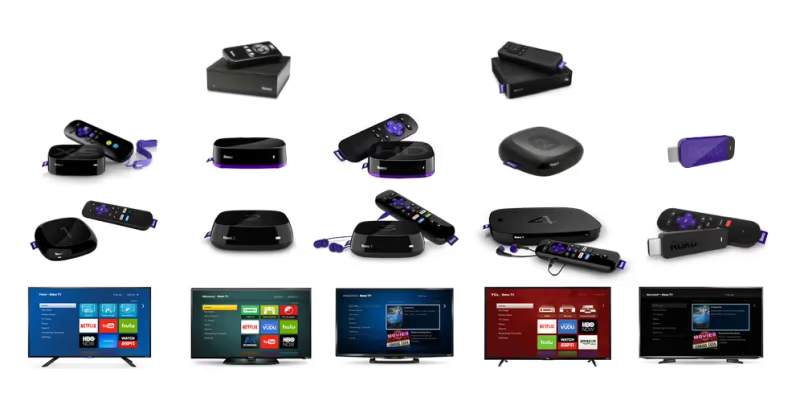
Many media streamers like Roku and Amazon Fire TV support screen mirroring for Android devices. The setup process is similar on these devices:
-
Connect media streamer to TV and go to its Settings menu
-
Enable screen mirroring mode
-
On Android device, go to Settings > Display > Cast and select media streamer
Some media streamers require you to install their mobile app to initiate screen mirroring. Follow in-app instructions and prompts to get it working.
If you’re using Roku, see our post on how to mirror Android to Roku for more tips.
#Wired Screen Mirroring with HDMI
For a stable, high quality connection, you can mirror your Android phone to your TV with an HDMI cable. To do this, you’ll need:
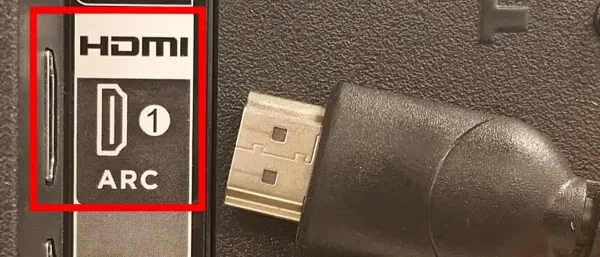
-
Phone that supports HDMI output (via USB-C or MHL)
-
HDMI cable
-
USB-C to HDMI or Micro USB to HDMI adapter
Once you have the proper cable and adapters, mirroring is simple:
-
Connect adapter to your phone then plug in HDMI cable
-
Plug other end of HDMI cable into a free port on TV
-
Change TV input to the corresponding HDMI port
-
Your Android screen should appear
If it doesn’t work, check that your phone supports HDMI Alt Mode. Some phones require you to enable a “screen mirroring” permission.
#How Do You Fix Screen Mirroring Problems?
If screen mirroring isn’t working, here are some troubleshooting tips:
-
Check that devices are compatible (smart TV or Chromecast + Android)
-
Ensure devices are on the same Wi-Fi network
-
Restart devices and try connecting again
-
Move Android and TV closer together if using wireless method
-
Use 2.4Ghz not 5Ghz Wi-Fi band for better range & stability
For more help, see our guides on how to turn off screen mirroring and common Smart View problems.
#Tips to Enhance Your Screen Mirroring Experience
To make screen mirroring even better:
-
Reduce Android screen brightness to save battery
-
Use Do Not Disturb to prevent notification pop-ups on TV
-
Rotate your Android to horizontal orientation for the best fit on TV
-
Mirror to a TV with Game Mode for minimal input lag when gaming
-
Use an Ethernet cord, not Wi-Fi, on your TV or Chromecast for stable connection
#Bottom Line
-
Screen mirroring displays your Android’s screen on your TV in real-time
-
You can mirror wirelessly with Chromecast, Miracast, Smart View, or media streamers
-
HDMI provides a stable wired connection if your phone supports it
-
Restart devices, use right frequency band, and check compatibility to troubleshoot issues
-
Reduce brightness, use Do Not Disturb and Game Mode to optimize the experience
#Frequently Asked Questions
#Can I use my phone while screen mirroring?
Wireless mirroring through Chromecast or Miracast lets you use your phone normally while the screen displays on your TV. HDMI mirroring is different because it mirrors everything in real time, so you cannot multitask on the phone. If you need to answer texts or check other apps during a presentation, go with a wireless method.
#How do I know if my phone supports screen mirroring?
Open your Android Settings, go to Display or Connected Devices, and look for a Cast or Wireless Display option. Most Android phones running version 5.0 or later have this built in. Samsung Galaxy phones have Smart View in the quick settings panel, which makes it even faster to check.
#Can I mirror my Android phone to a TV without Wi-Fi?
Yes. A USB-C to HDMI adapter and cable lets you mirror without any network at all. Miracast also creates a direct wireless connection between your phone and TV, bypassing your Wi-Fi router entirely.
#Does screen mirroring cause audio delay?
Wireless mirroring can introduce a slight audio delay, usually around 100-200 milliseconds. For casual viewing this is barely noticeable, but it can be distracting during gaming. Wired HDMI mirroring eliminates this delay completely, making it the better choice for anything that needs precise audio sync.
#Will screen mirroring work with my iPhone?
These Android methods are not compatible with iPhone. Apple devices use AirPlay instead, which works with Apple TV and AirPlay 2-compatible smart TVs. You can also mirror your iPhone to a Sony TV using built-in AirPlay support on newer models.
#What is the difference between screen mirroring and screencasting?
Screen mirroring duplicates your entire phone display on the TV in real time. Screencasting sends a specific video or audio stream to the TV while letting you do other things on your phone. The Cast button in apps like YouTube and Netflix uses screencasting, not mirroring.
#Can I mirror my Android screen to an Apple TV?
You can cast your Android screen to an Apple TV using third-party apps like AirScreen. Apple’s AirPlay protocol is not natively supported on Android, so these apps act as a bridge between the two platforms. Expect slightly more setup than using a Chromecast.