Most people ask, ‘How to mirror iPhone to TV without Apple TV?’ Now and then. Undoubtedly, this question is really common among Apple users. As you are showing interest in this blog, you might face the same issue. So, can you use Airplay with no Apple TV? If you do not know what Airplay is, keep reading the article.
- Lightning Digital AV Adapter — costs around $49 and mirrors your iPhone screen to any TV with an HDMI port, with zero latency
- AirBeam TV — available for $9.99 per brand (Samsung, LG, Sony, Panasonic, Philips) with a free trial before purchase
- AirServer — turns any Windows or Mac PC into an AirPlay receiver, eliminating the need for Apple TV hardware
- Raspberry Pi with RPlay — requires a 4GB+ Micro SD card and basic command-line setup but costs under $50 total
- Wired vs wireless — HDMI adapter provides the most stable connection while wireless apps offer more flexibility at the cost of minor Wi-Fi dependency
#About Airplay & Apple TV
Airplay is a kind of streaming service that Apple Company has come up with. This wireless streaming service enables users to stream multimedia content from Mac or iOS devices to Apple TV. This way, users can enjoy movies, video games, and many more on their big screens.
As you all know, Apple TVs are quite expensive. Hence, many people could not afford to purchase this TV. However, that’s not an issue as one can employ Airplay with no Apple TV.
In other words, one can mirror iOS devices to TVs other than Apple ones. So, let’s learn more about how to mirror iPhone to TV without Apple TV. Get acquainted with other applications that will make your life a comfortable breeze.
PS: Here, we will show you how to fix AirPlay not showing.
#How Do You Mirror iPhone to TV without Apple TV Using an AV Adapter?
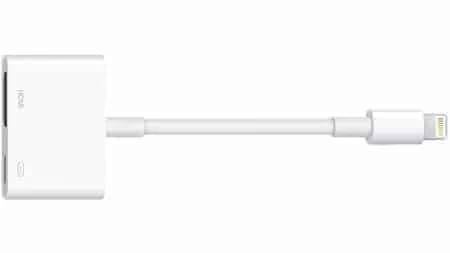
One of the easiest ways to resolve the query ‘how to mirror iPhone to TV without Apple TV’ is through an AV adaptor. Users must buy a genuine AV adaptor to carry out this process. They will also need an HDMI cable.
#Steps on How to Mirror iPhone to TV without Apple TV
Follow the instructions below to mirror your iOS device to your non-Apple TV.
#Step 1: Connect the Adaptor
First, you need to connect the AV adaptor to the lightning port of the iPhone. This port is the one that one uses for charging the device.
#Step 2: Attach the Other End
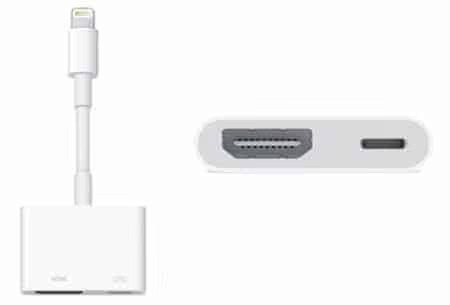
Next, you have to attach the other end of the cable to the HDMI slot of the AV adaptor.
#Step 3: Connect the Cable
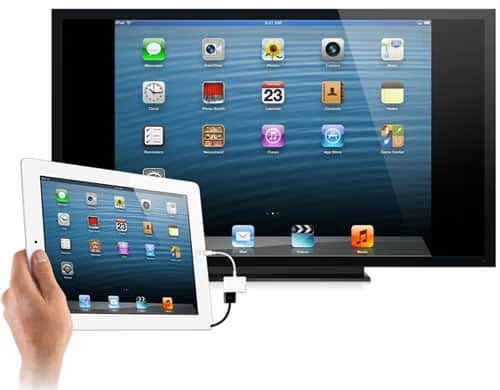
Now, attach the cable’s other end to the HDMI port on the TV’s back.
#Step 4: Charge Your Device
As the adaptor comes and arrives with an extra port, one can even charge the device while connecting the same to the television if there’s a need to.
#Step 5: Look for the HDMI Channel
Now, you need to switch the TV on. After that, go through the available HDMI channels. Keep on surfing these channels unless you arrive at the one where you are plugged in.
#Step 6: Enjoy Your Videos
Next, play videos on your mobile device. After playing the video, you will find that your query ‘how to mirror iPhone to TV without Apple TV’ has been resolved successfully. So, enjoy your videos by mirroring them on your TV with no requirement of Apple TV.
Besides, click to try the top Vizio TV remote.
#Can You Mirror iPhone to TV with AirBeam TV Instead of Apple TV?
The technique mentioned above is widespread and simple on how to mirror iPhone to TV without Apple TV. But, this method could be hefty on pockets as one has to buy an HDMI cable and an adaptor.
In addition, you can face inconvenience due to the shorter cable length. So, we have another effective solution for mirroring iPhone to TV with no Apple TV.
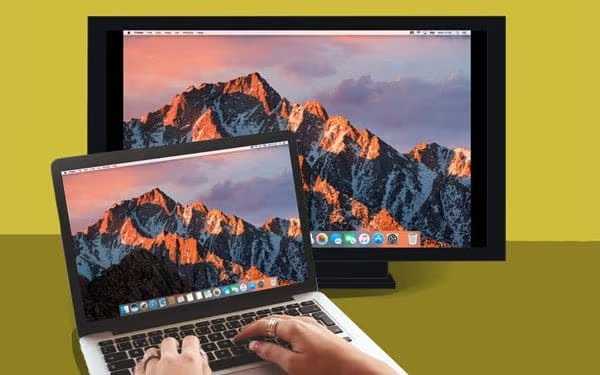
A great way to mirror iPhone to TV is through an application known as AirBeam TV. This application enables users to connect their Macs to other available smart televisions.
Meanwhile, AirBeam works for some specific televisions. That’s why it is advisable to check the compatibility of your device before moving on any further.
#Unique Characteristics of AirBeam TV:
-
No requirement for cables
-
Works as AirPlay with no Apple TV
-
Users can select the network quality on their own
-
Play games and watch movies on big screens hassle-free
AirBeam TV works well on TVs from well-known brands like Panasonic, Sony, LG, Samsung, and Philips. One can download this application for these supported companies at $9.99. The rate is reasonable as compared to getting the cable.
However, one should check the free trial to ensure that the application works perfectly with the TV set before you buy this application.
#Steps on How to Mirror iPhone to TV without Apple TV through AirBeam TV
To mirror iPhone to TV from the Samsung brand, go through the steps listed follows:
#Step 1: Switching on the TV
Initially, you need to switch on your Samsung TV. After that, connect the TV to the Wi-Fi network that works on your phone.
#Step 2: Navigate the Menu
Next, tap on the Menu bar icon to begin the process.

#Step 3: Choose the TV
In the tab ‘Devices,’ choose the TV once it appears on the list.
#Step 4: Begin Mirroring
After selecting the device, you will be able to mirror your device to the TV. Now, you have successfully mirrored your device to Samsung TV.
One can work on ‘how to mirror iPhone to TV without Apple TV’ through Raspberry Pi. Before you start off, this technique is complex as compared to other methods. For this, you need certain things, which include:
-
Raspberry Pi
-
Computer
-
Ethernet cable or Wi-Fi dongle
-
Micro SD card with storage space larger than 4GB
-
Mouse and keyboard
-
HDMI screen or TV
-
USB charger (Micro)
-
HDMI cable
#Steps on how to mirror iPhone to TV without Apple TV through Raspberry Pi
To mirror iPhone to TV through Raspberry Pil, follow the steps as instructed below.
#Step 1: Get the Raspbian
Initially, get the Raspbian picture here and extort it from the archive. After that, plug the Micro SD card into your system. Before you begin, it is better to format the SD card.
Now, write the Raspbian picture to your SD card. For this, one can employ Nero or Win32DiskImager. Once the writing process is done, unplug the card.
#Step 2: Set up the Raspberry Pi
Next, you have to plug in your mouse, keyboard, USB charger, HDMI cable, Ethernet cable or Wi-Fi cable, and the SD card to the Raspberry Pi.
After the program runs off, one has to put in the login credentials as “Pi,” the username, and “raspberry,” the default password.
After this, wait for some time to display the configuration tab. Next, enlarge the system and look for the Advanced tab. Before you reboot, choose memory split and type in “256”.
If you are using the Wi-Fi dongle, enter “startx” to run the desktop and connect your network. If not updated to the latest version, do so manually. For this, run the command prompt and put in the following codes:
sudo apt-get update
sudo apt-get upgrade
sudo rpi-update Once updated, you have to reboot the Raspberry Pi program.
#Step 3: Run the program
After rebooting, put in the below-mentioned command.
sudo apt-get install libao-dev avahi-utils libavahi-compat-libdnssd-dev youtube-dl
wget-O rplay-1.0.1-armhf.deb http://www.vmlite.com/rplay/rplay-1.0.1-armhf.deb
sudo dpkg-i-rplay-1.0.1-armhf.deb
#Step 4: Begin RPlay
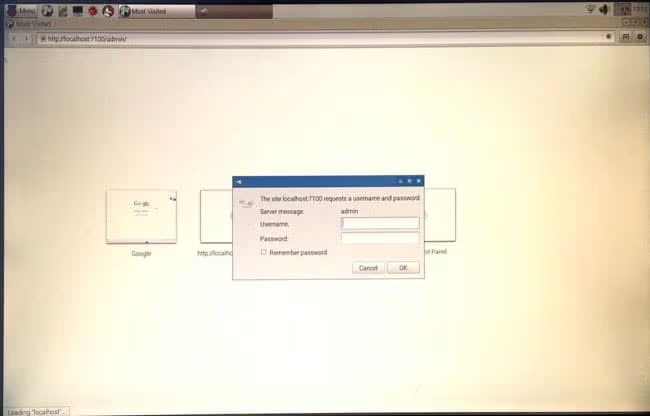
After running the commands, boot the Raspberry Pi once again. Open the desktop and run any web browser to browse http://localhost:7100/admin.
Enter “admin” as both the password and the username. Now, enter the page end and enter the license key as S1377T807217798N4133R.
#Step 5: Start Mirroring
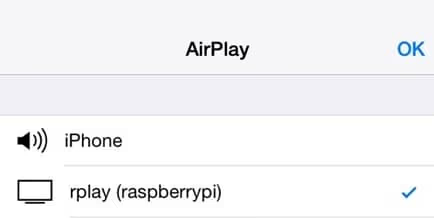
Now, connect your phone to RPlay and select Raspberry RPlay from AirPlay. It will begin the mirroring process. So, take pleasure in AirPlay with no Apple TV.
#Mirror AirPlay with no Apple TV through AirServer
To keep things simple, it is best to act on ‘how to mirror iPhone to TV without Apple TV’ through AirServer. This screen mirroring tool enables users to mirror AirPlay with the requirement of Apple TV.
#Steps on How to Mirror iPhone to TV without Apple TV through AirServer
#Step 1: Take a Trial
Firstly, you need to download the application – AirServer. It is better to try out its free trial before you begin. Once downloaded, install the program on your Windows or Mac PC.
#Step 2: Look for the Option ‘AirPlay.’
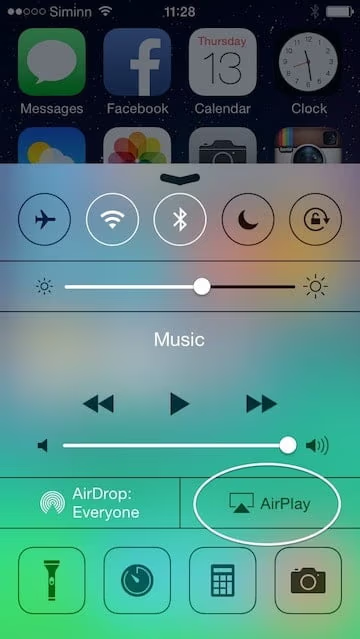
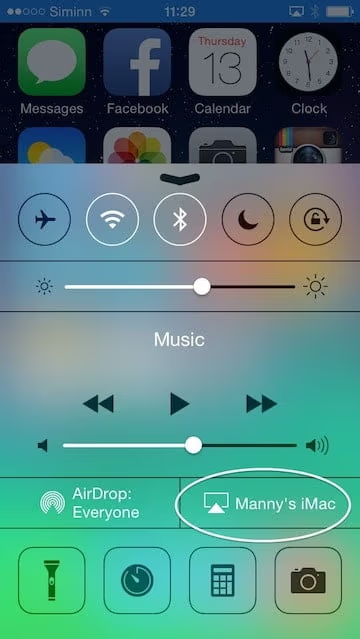
After that, swipe the screen of your iPhone up. If the receiver of AirPlay is in the right place, a tab will appear called ‘AirPlay.’
#Step 3: Select Your Device
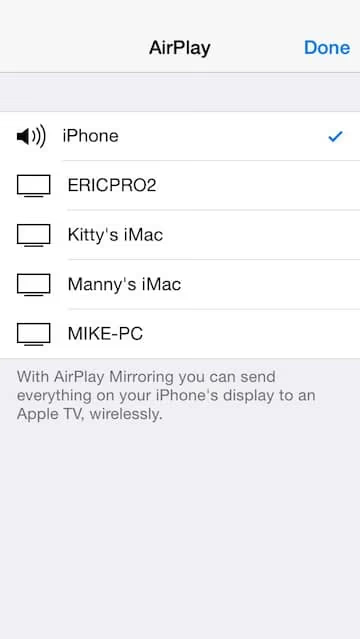
Now, you will see lots of AirPlay receivers. From the options available, choose the device where you have installed AirServer. Once selected, your device will connect to it.
#Step 4: Turn the Mirroring ON
After selecting the device, you need to turn the mirroring ON. After this, you will see your device on the system along with AirServer. Plus, the system name will also appear on the iOS device.
#Step 5: Enjoy Your Videos
Now, your phone screen will be mirrored on the system. So, enjoy your videos on a big display now hassle-free.
Also read: Apple TV Black Screen – 8 Best Ways to Fix It.
#FAQ
#1. Can I mirror my iPhone to a non-smart TV?
Yes, you can mirror your iPhone to a non-smart TV using methods like Lightning Digital AV Adapter or HDMI cable and Lightning to HDMI adapter.
#2. Is there any lag or delay while mirroring the iPhone screen?
The presence of lag or delay can vary depending on the method used and the quality of your Wi-Fi network. Wired connections generally provide a more reliable and lag-free experience compared to wireless methods.
#3. Are there any additional accessories required for wireless screen mirroring?
For wireless screen mirroring, you may need devices like Apple TV, Chromecast, Miracast device, or a smart TV with built-in mirroring capabilities.
#4. Can I mirror specific apps or content from my iPhone?
Yes, some mirroring methods allow you to select specific apps or content to mirror on your TV, giving you more control over what you display.
#5. How do I stop mirroring my iPhone screen on the TV?
To stop mirroring your iPhone screen on the TV, open the Control Center on your iPhone, select the AirPlay or screen mirroring option, and choose to stop mirroring or disconnect from the TV.
#Bottom Line
Mirroring your iPhone to a TV without Apple TV is entirely possible with various methods available. Whether through wired connections, wireless technologies like AirPlay or Chromecast, or utilizing third-party apps, you can enjoy a smooth mirroring experience and watch your favorite content on the big screen.