Finding your lost Roku remote can feel impossible when it disappears into couch cushions or gets buried under laundry. Don’t rush out to buy a replacement just yet. This guide covers multiple tricks for locating a lost Roku remote in seconds. Once you find it, get back to streaming Disney Plus, Soap2Day, or playing Jackbox on your Roku device.
- Roku mobile app Ping Remote — triggers a 60-second loud sound from the lost remote over Wi-Fi
- Voice Remote Pro hands-free — say “Hey Roku, where’s my remote?” without picking up your phone
- Physical Remote Finder button — available on Roku Ultra and select streaming players, no app needed
- Custom ping sounds — change the default tone in Settings > Remotes & Devices for faster identification
- Battery requirement — all ping methods need the remote to have charge and stay within wireless range
#How Do You Ping a Lost Roku Remote From the App?
The fastest way to make your lost Roku remote loudly announce its location is by using the official Roku mobile app for iOS or Android.
#Here’s how to ping your remote from the Roku app:
-
Download and open the Roku app if you don’t already have it. Ensure your phone is connected to the same WiFi network as your Roku device.
-
Navigate to Devices and select your Roku player or Roku TV.
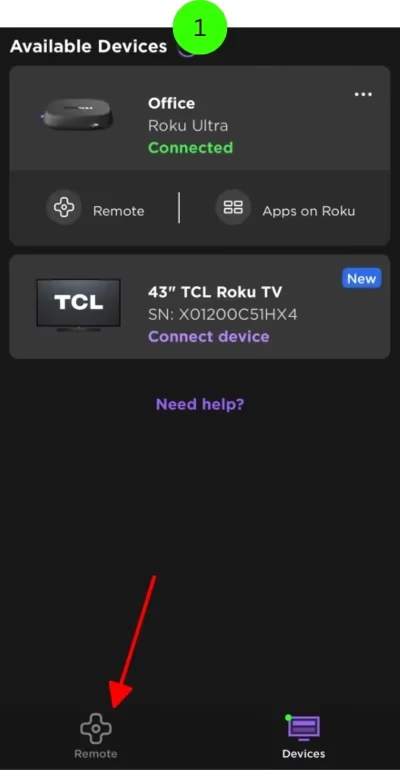
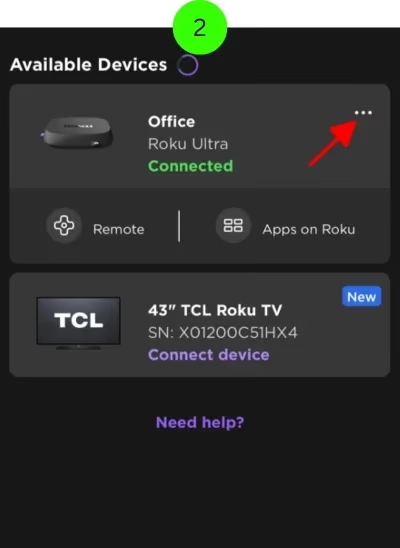
- Tap the three-dot menu icon next to the device name and select Ping Remote.
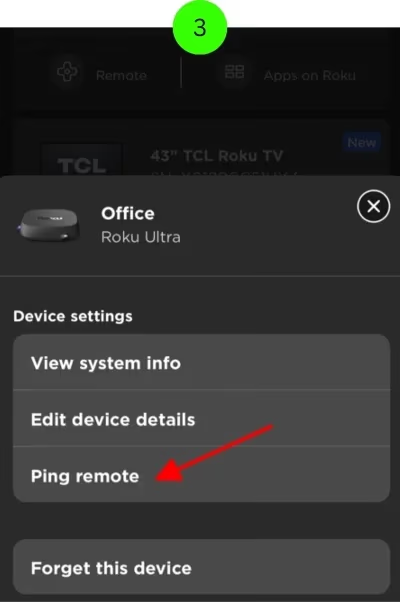
- The app will now trigger a loud sound to play from your lost remote for 60 seconds so you can easily track it down by ear. If you don’t locate it in the first 60 seconds, simply select Ping Remote again to replay the sound.
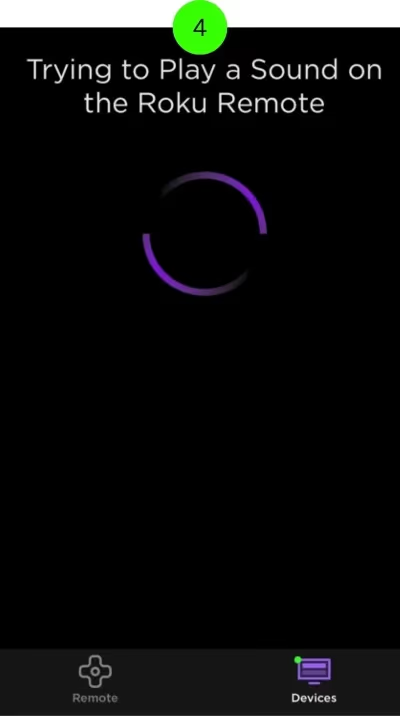
This ping trick works even for remotes buried deep under couch cushions or in messy drawers. Just keep pinging until you track it down.
If you forgot your Roku PIN while setting up the mobile app, check out our guide on resetting it.
💡Pro Tip: If your remote’s battery is fully drained or out of wireless range, the ping sound won’t emit. Try the other finding methods instead.
#Can You Use Voice Commands to Find a Roku Remote?
If you own the Roku Voice Remote Pro with hands-free voice capabilities enabled, finding a lost remote is even easier.
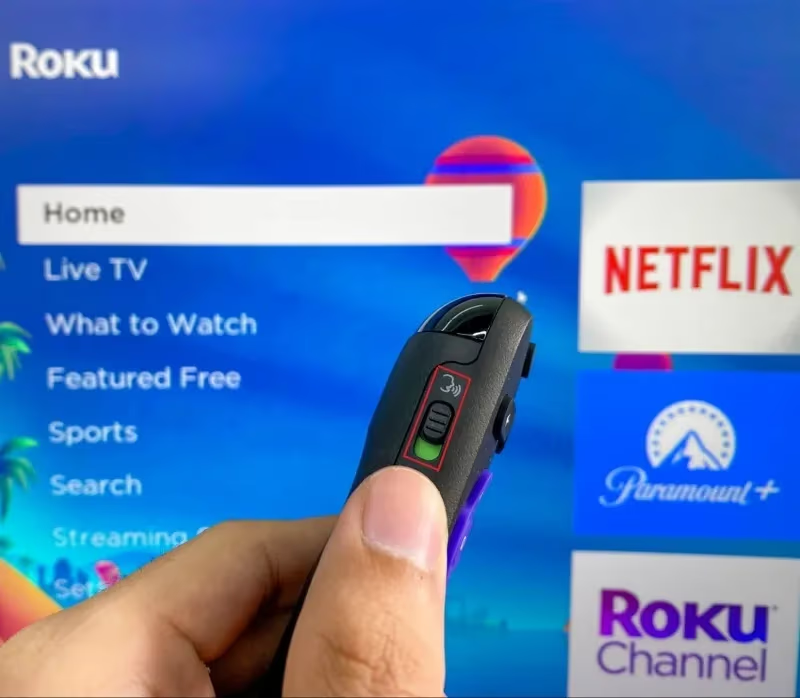
You don’t need your phone or even have to leave the couch. Just clearly say the wake command:
“Hey Roku, where’s my remote?”
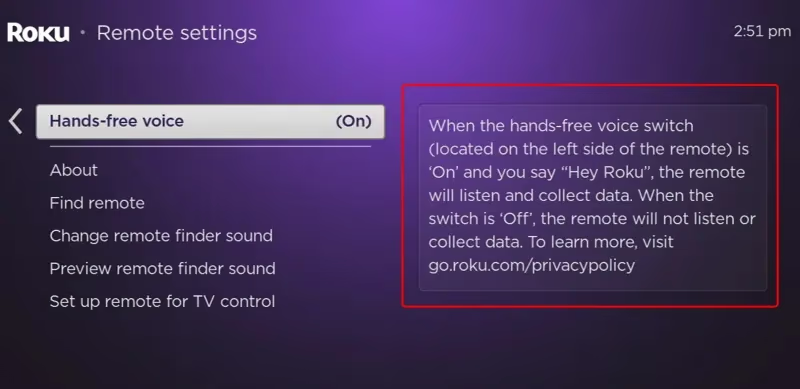
This triggers your Roku remote to immediately emit a loud sound wherever it ended up for easy retrieval just by following your ears. It’s like having a high-tech metal detector for finding household objects!
💡 Pro Tip: For optimal performance, speak loudly and enunciate this command. Also ensure your remote has adequate battery charge.
#Ping Remotes Using Device Buttons
Many Roku streaming media players have a dedicated physical Remote Finder button built right onto the device itself.
Popular models like the Roku Ultra or Roku Streaming Stick have this button on the side or top.
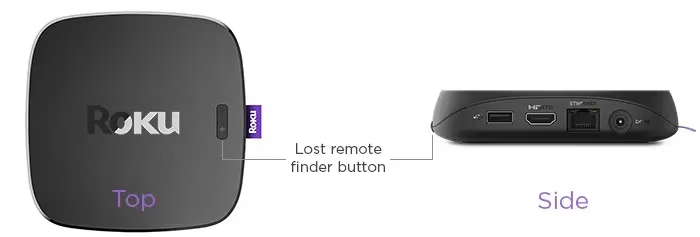
Simply press this Remote Finder button and it sends out a signal causing your paired Roku remote to play a ping sound, no phone required. Useful when the remote slips down couch cracks or drops behind furniture.
#Customize the Ping Sound for Identification
If you use the remote finding features frequently, consider customizing the exact sound your remote makes when pinged for quicker identification.
Here’s how to change this sound in Roku settings:
-
Press the Home button and go to Settings > Remotes & Devices
-
Select your remote
-
Choose Change Remote Finder Sound
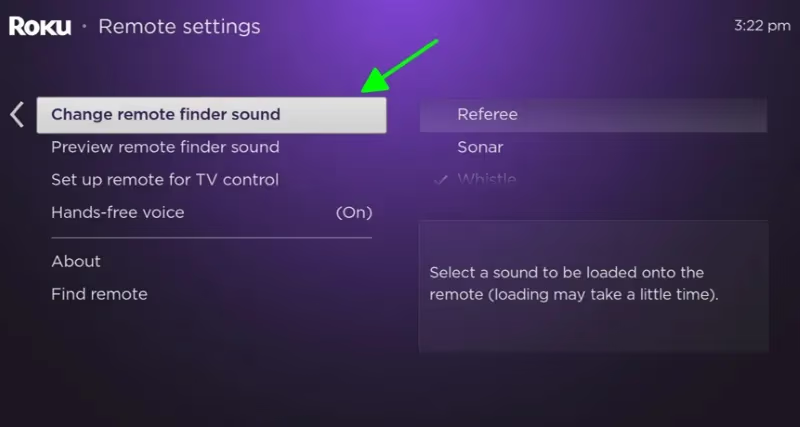
- Pick from the list of sound options and press OK to preview on remote
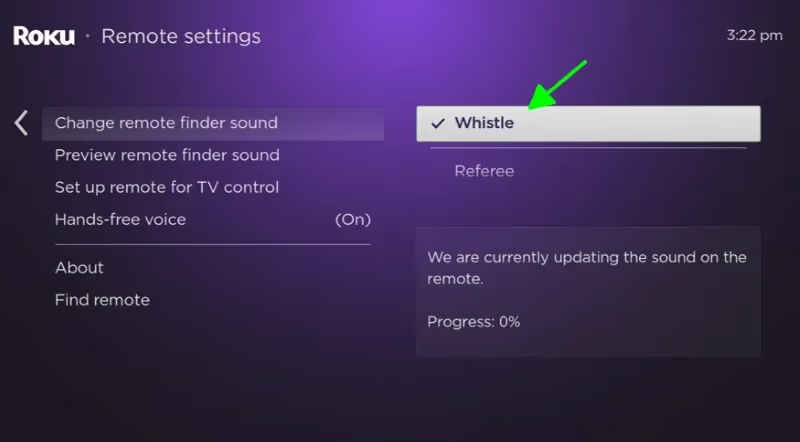
- Select the desired sound and confirm
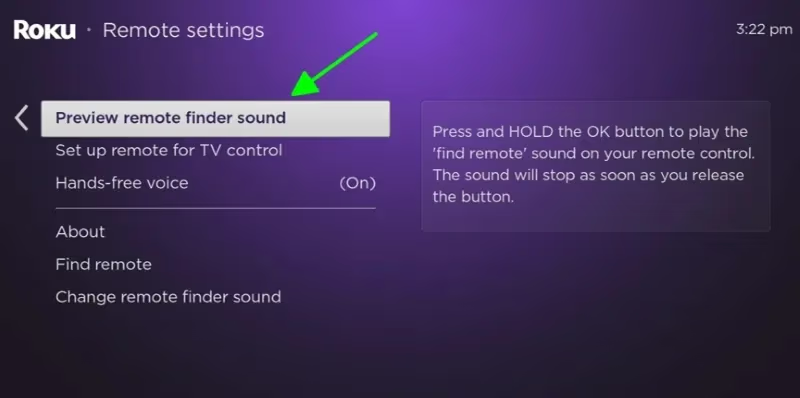
Now when you ping your remote, you’ll recognize that distinct sound right away. No more guessing if that beep is your garage opener or missing remote!
#Frequently Asked Questions
#What happens if my lost Roku remote has a dead battery?
The ping feature requires battery power to emit a sound. If the battery is fully drained, the remote won’t respond to any ping command from the app, voice, or device button. Your best option at that point is to retrace your steps and check common hiding spots like couch cushions, under furniture, and between seat gaps.
#Why is my Roku remote not making any sound when I ping it?
Make sure the remote has battery charge and sits within range of your Wi-Fi router. The ping sound plays from a small speaker inside the remote itself, so walk around the room and listen carefully. If you still hear nothing, try re-pairing the remote through Settings > Remotes & Devices on your Roku.
#Do all Roku remotes support the remote finder feature?
No. Only the Voice Remote Pro and Enhanced Voice Remote support the ping sound. Older IR remotes and basic Roku remotes lack a built-in speaker, so they cannot produce any audio signal. Check your remote model number on the back label to confirm compatibility.
#Can I find my Roku remote using Alexa or Google Home?
Alexa and Google Assistant cannot directly trigger a ping sound on Roku remotes. The voice find feature only works through the Roku Voice Remote Pro’s built-in microphone. If you rely on a smart speaker, your next best option is the Roku mobile app’s Ping Remote button.
#How do I change the ping sound on my Roku remote?
Go to Settings > Remotes & Devices on your Roku, select your remote, and tap Change Remote Finder Sound. You can preview each tone before confirming. Picking a unique sound helps you tell it apart from other household beeps and alerts.
#How far away can the Roku remote ping feature work?
The ping feature works within your Wi-Fi network range, typically 30 to 50 feet indoors depending on walls and interference. If the remote landed in a garage or outdoor area beyond your router’s reach, the signal may not get through. Moving your router closer or removing obstacles can help extend that range.
#Can I use the Roku app as a temporary remote?
Yes, the Roku mobile app on iOS and Android doubles as a fully functional remote. It connects to your Roku over Wi-Fi and gives you access to navigation, volume, voice search, and channel launching. Many users keep it as a permanent backup even after finding their physical remote.
#Bottom Line
-
Use voice commands, mobile apps, device buttons, and sound customizations to easily locate lost Roku remotes.
-
Ping tricks help avoid buying unnecessary remote replacements.
-
Change the ping sound ID your specific remote.
-
Keep remotes charged and in wireless range for optimal finding capability.
-
Roku offers many advantages over traditional viewing methods. Learn more in our comparisons of Roku vs DirecTV, Roku vs Cable, Chromecast vs Roku, Firestick vs Roku, and Apple TV vs Roku.
Next time your Roku remote goes missing, try these methods before ordering a replacement. You should have it back in your hand within minutes.