YouTube TV offers an unlimited cloud DVR, allowing subscribers to record an endless number of shows and movies. However, many users wonder if there is a way to remove recordings from their library. This guide covers how recording deletion works on YouTube TV, what your options are, and how to manage your DVR library effectively.
- Saved recordings cannot be manually deleted — YouTube TV’s unlimited DVR stores all recordings for 9 months before auto-removing them
- Upcoming recordings can be canceled — tap the checkmark icon on a show’s page to stop future episodes from recording
- Storage is unlimited — YouTube TV does not impose a storage cap, so there is no need to free up space
- The 9-month expiration is firm — no setting or workaround extends the retention period beyond 9 months
- Removing a show from your library stops new recordings — but previously recorded episodes remain until they expire
#Can You Delete Recordings on YouTube TV?
You can delete scheduled recordings that have not happened yet, but you cannot manually delete recordings that have already been saved to your library. This is a deliberate design choice by Google, which owns YouTube TV.
Here’s a quick overview:
-
Upcoming Recordings: You can remove these from your library before they record. This prevents the recording from happening.
-
Saved Recordings: There is no way to manually delete recordings after they have been saved. They automatically expire after 9 months.
YouTube TV’s cloud DVR is fundamentally different from traditional cable DVR boxes. With a cable DVR, you had limited storage (typically 50-200 hours) and needed to delete old recordings to make room for new ones. YouTube TV removed that limitation entirely. Every subscriber gets unlimited cloud DVR storage, which means there is no technical reason to offer a delete button.
#How Do You Cancel Upcoming Recordings on YouTube TV?
To stop an upcoming recording from happening, follow these steps:
#On the YouTube TV Website:
-
Go to tv.youtube.com and sign in.
-
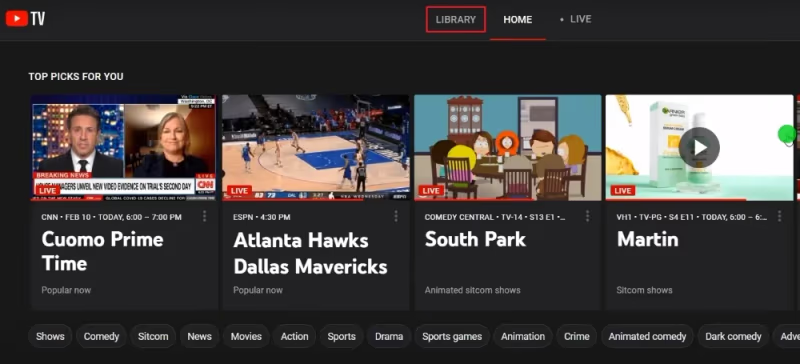
Click on “Library”.
-
Find the upcoming recording you want to delete.
-
Click on the show or movie title to access its page.
-
Click on the checkmark icon to remove it from your library. This cancels the scheduled recording.
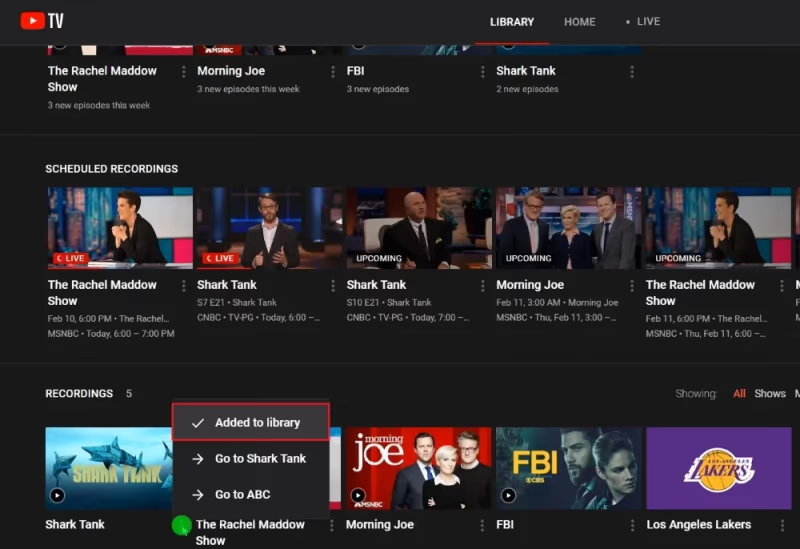
When you remove a show from your library, YouTube TV stops recording new episodes of that program. Any episodes already recorded will remain accessible until their 9-month expiration date passes.
#On the YouTube TV Mobile App:
-
Open the YouTube TV app and sign in if needed.
-
Tap on “Library” at the bottom of the screen.
-
Find the upcoming recording you want to cancel.
-
Tap the title to go to its page.
-
Tap the checkmark icon to cancel the recording.
Once you remove an upcoming recording, it will no longer automatically record when it airs. The checkmark icon toggles between added (filled) and removed (outline), so you can always re-add a show later if you change your mind.
If YouTube TV is not working properly on your Firestick or Samsung TV, refer to these YouTube TV Firestick fixes and YouTube TV Samsung TV fixes.
#Why Can’t You Manually Delete Saved Recordings?
YouTube TV does not allow manually deleting saved recordings due to the unlimited cloud DVR system:
-
No storage cap exists. Unlike a traditional DVR with a 500 GB or 1 TB hard drive, YouTube TV stores everything in the cloud with no limit. There is nothing to “free up.”
-
Automatic expiration handles cleanup. Recordings are automatically deleted after 9 months, so the system manages storage on its own without user intervention.
-
Licensing agreements play a role. Some industry analysts believe that content licensing terms prevent YouTube TV from allowing on-demand deletion, as networks want recorded content to remain available for a set period.
-
Google prioritizes simplicity. Fewer user controls means fewer support tickets and a simpler experience across devices.
If you want to stop seeing a particular show in your library, the best approach is to remove it from your library (tap the checkmark icon). The already-recorded episodes will still appear until they expire, but no new episodes will be added.
#When Do Recordings Expire on YouTube TV?
All YouTube TV recordings are stored for exactly 9 months (270 days) from the date they were recorded. On the day after the 9-month mark, recordings are automatically removed from your library with no way to recover them.
There is no way to store recordings past this 9-month limit. If you want to keep a program permanently, consider these alternatives:
- Purchase the show through YouTube, Google Play, Amazon, or iTunes for permanent access.
- Check other streaming services. Popular programs are often available on platforms like Hulu, Netflix, Peacock, or the network’s own app.
- Use a different DVR solution. Some users pair YouTube TV with a separate recording device for content they want to keep indefinitely.
Keep in mind that the 9-month clock starts from the original air date of each episode, not from when you first watched it. Watching or not watching a recording has no effect on its expiration.
#How Do You Organize Your YouTube TV Library?
While you cannot delete individual recordings, YouTube TV provides several ways to keep your library organized:
- Remove shows you no longer watch. Tap the checkmark icon on any show’s page to remove it from your library. Existing recordings remain but no new ones are added.
- Use the search function. Rather than scrolling through hundreds of recordings, search for specific titles directly.
- Sort by “New” or “Most Recent.” The Library tab lets you filter content so recently recorded shows appear first.
- Create separate profiles. Each household member can have their own profile with their own library, reducing clutter for everyone.
If you need to change your location on YouTube TV to access different local channels, check out this guide on how to change location.
#Bottom Line
-
You can easily cancel scheduled, upcoming recordings by visiting a show’s page and tapping the checkmark icon. This prevents it from recording when it airs.
-
Saved recordings cannot be manually deleted. They expire and are removed automatically after 9 months from the recording date.
-
Removing a show from your library stops future recordings but does not delete past ones.
-
YouTube TV’s unlimited cloud DVR is designed to manage storage automatically, so there is no need to manually clean up your library.
#FAQ
#Can you permanently delete a recorded show on YouTube TV?
No, you cannot permanently delete a recorded show from YouTube TV. Once a program has been recorded to your cloud DVR, it stays in your library until the 9-month automatic expiration period ends. The only recordings you can remove are upcoming scheduled ones that have not aired yet.
#How long do YouTube TV recordings last before they expire?
All YouTube TV DVR recordings last exactly 9 months (270 days) from the date they were recorded. After that period, the recordings are automatically and permanently removed from your library. There is no setting to extend this window.
#Does removing a show from your library delete existing recordings?
No, removing a show from your library does not delete episodes that have already been recorded. It only prevents YouTube TV from recording new episodes going forward. Previously recorded episodes remain accessible in your library until they reach their 9-month expiration date.
#Is there a storage limit on YouTube TV’s cloud DVR?
YouTube TV offers unlimited cloud DVR storage for all subscribers at no extra cost. You can record as many shows, movies, sports events, and live programs as you want without ever hitting a storage cap. This is one reason why manual deletion is not offered.
#Can you recover a YouTube TV recording after it expires?
No, once a recording expires after the 9-month retention period, it is permanently deleted and cannot be recovered. If you want to watch the content again, you will need to find it on another streaming service, purchase it digitally, or wait for a rerun and re-record it.
#Will reinstalling the YouTube TV app delete your recordings?
Reinstalling the YouTube TV app does not delete your recordings. All DVR content is stored in Google’s cloud servers and tied to your account, not to the app on your device. Logging back in after reinstalling will restore full access to your library and all saved recordings.
#What happens to shared recordings if one family member removes a show?
Each YouTube TV family group member has their own individual library. If one person removes a show from their library, it only affects their account. Other family members who added the same show will continue to see their recordings and receive new ones as scheduled.