Knowing how to delete apps on LG Smart TV is a useful approach for any user. If you already own an LG TV or are expecting to buy one, such tweaks are very handy. Mentioned below are the steps you can take if you want to delete unwanted apps from your TV.
- Deleting apps takes under 30 seconds — press Home, highlight the app, press Up to reveal the X icon, and confirm
- Pre-installed system apps cannot be removed — LG Content Store, Web Browser, and other core apps are locked by the OS
- Removing unused apps frees storage — LG webOS TVs typically have 8 GB of internal storage shared across all apps
- New apps are available through the LG Content Store — you need a stable internet connection to browse and install them
- Turning off auto-updates prevents clutter — this stops apps from being added or changed without your permission
#Understanding Your LG Smart TV Interface
Before starting the deletion process, it helps to have a basic understanding of your LG Smart TV interface.
#Discovering the Home Dashboard
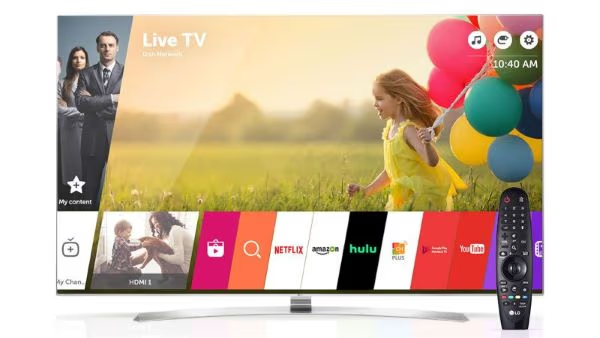
The Home Dashboard is your starting point. Here, you’ll find a panoramic view of all your connected devices and favorite apps. Picture it as the control center of your LG Smart TV, where everything is just a click away.
#Navigating Through Apps
The next step is to familiarize yourself with the apps installed on your TV. They are usually located on a horizontal bar in the Home Dashboard. Navigating through them is as easy as using your remote to scroll left or right.
#How to Delete Apps on LG Smart TV?
First, let’s learn how to delete apps on LG Smart TV. If you have unwanted apps, it is obviously handy to know how to uninstall the app on LG Smart TV.
With that said, the steps are pretty simple and are mentioned below for your reference.
-
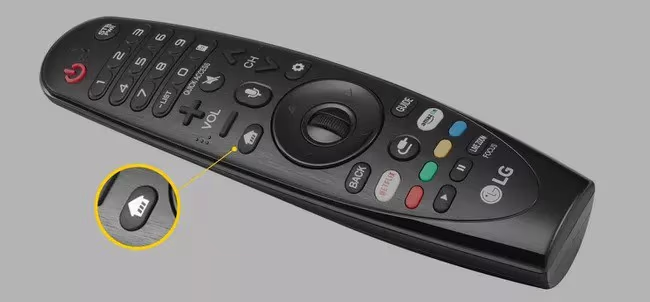
When the TV is on its home screen, you should press the remote’s “Home” button.
-
After that, you should see a list of apps. All you need is to look for an app or apps that should be removed.
-
Now, you should see the app icon. Just press the “Up” button to proceed. You will be able to see the “X” mark. Then, you should highlight that and then hit the “Enter” key on the remote to proceed.
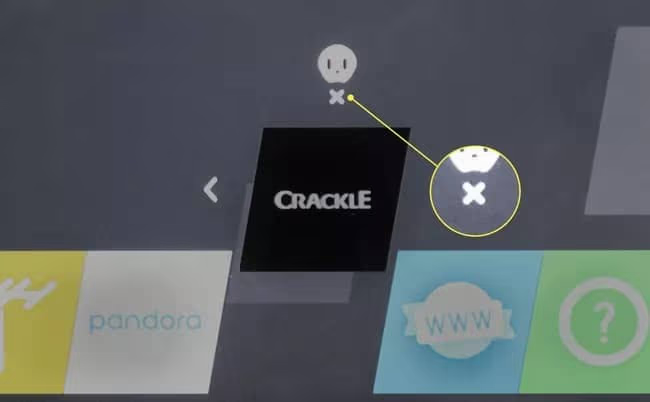
- Now, you will be prompted with a confirmation message. Just click on Okay, and that will confirm the action.
It’s that simple. That’s how to delete apps on LG TV. With the steps that are mentioned above, you will be able to delete any app you feel is unwanted. As you delete unwanted apps, you can gain more free space.
As a result, you can install newer apps whenever you need them. Anyway, having free space on your TV is a good move for the sake of speed and smooth functionality.
Besides, let’s figure out how to get HBO Max on LG Smart TV.
#How to Install New Apps on Your LG Smart TV?
Important: In order to download apps and install them on your LG Smart TV, a strong internet connection is compulsory. Otherwise, you might experience some interruptions. So, keep that in mind when installing apps.
Now that you know how to delete apps on LG TV. Let’s learn how to add new apps. You might need to install new apps due to various reasons and expect better functionality from your TV. So, let’s get started.
PS: if you are experiencing the issues like LG TV stuck on the logo screen, here are the top solutions for you.
#Steps to Install New Apps on LG Smart TV:
-
First, you should turn on the LG Smart TV on which you are going to install apps.
-
After that, when the device is on its home screen, go to the “Home” button on the remote.
-
You will then notice the launcher. You can simply look for the tab labeled LG Content Store.
-
After that, click on the option called “LG Store.”
-
In that, you will be able to find several different selections to choose from. Those categories will offer various content. You can choose apps based on their functionality and what they offer.
-
And you should look for the option called “Apps and Games.”
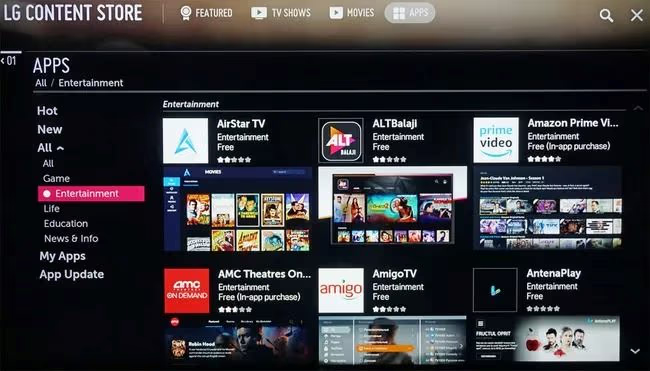
- Then you will then be directed to a search box. You can enter the name of the app you intend to add. Also, you can browse through that selection if there’s no particular app to choose from. Browsing through that selection will give you a rough idea about a suitable app for you.
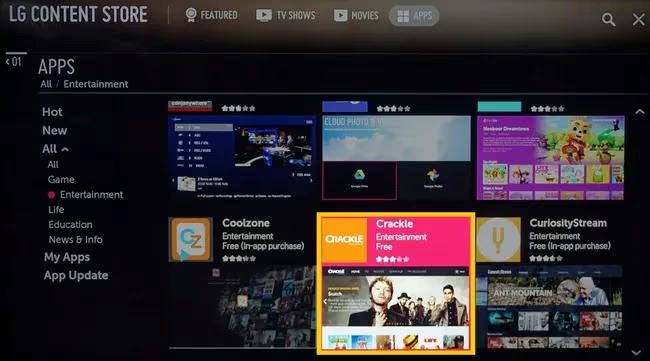
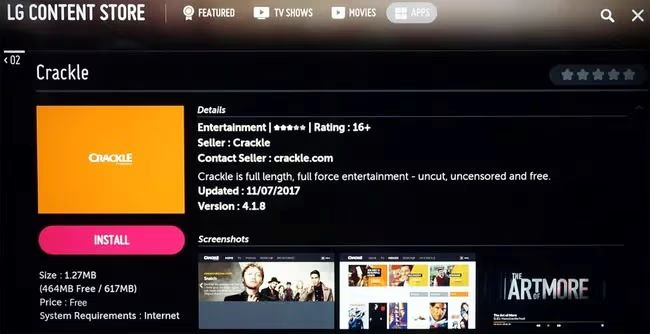
- After choosing an app from that list, you can click on the option called “Install”. That will initiate the installation process. As mentioned before, this requires a strong and steady internet connection to install the app properly. Also, the size of the app and the overall speed of the internet connection will determine the duration.
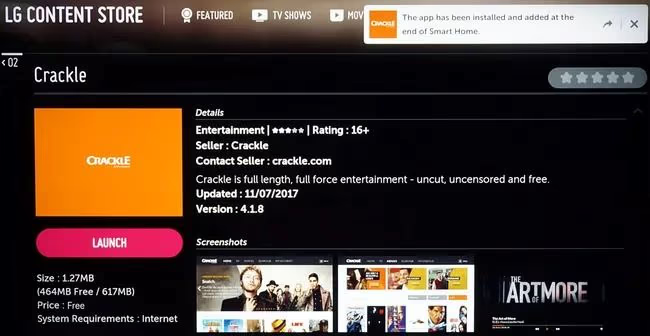
- You will be able to see an option called “Launch” once the installation is completed. When you hit that option, you can see that the app is opened on the TV. The app will also be added to the home screen of the TV, so you can access it quickly whenever you need it.
You already know how to delete apps on LG Smart TV. So, you can delete them if they aren’t needed anymore.
Also read: How to turn on WiFi on LG TV and how to fix LG Smart TV not connecting to WiFi?
#Troubleshooting Tips for Deleting Apps
Sometimes, you may run into a few hiccups while trying to delete apps.
#What if the App Doesn’t Delete?
If the app doesn’t delete, it might be due to a software glitch. Try turning your TV off and on again or reset the TV settings. If the problem persists, contact LG customer support.
#Why Can’t I Delete Some Apps?
Certain pre-installed apps cannot be deleted because they are integral to the functioning of your LG Smart TV. These include the likes of LG Content Store and Web Browser.
#How Can You Prevent Unwanted Apps on LG Smart TV?
Now that you know how to delete apps, let’s discuss how you can manage your apps more efficiently and prevent clutter in the future.
#Managing Your App List
Regularly review and organize your apps. Delete the ones you no longer use, and keep those that are frequently used at the front for easy access.
#Turning Off Auto Updates
Some TVs have an auto-update feature that can result in unwanted apps. By turning this feature off, you maintain control over the apps that are installed on your TV.
#Frequently Asked Questions
#Can I reinstall an app after deleting it from my LG TV?
Yes, you can reinstall any app you’ve deleted by visiting the LG Content Store. Search for the app by name, hit Install, and it will be back on your home screen within minutes. Your previous app data may or may not be retained depending on the app.
#Why is my LG Smart TV running slow after installing many apps?
Too many apps running at once can slow down your TV. Try deleting unnecessary apps or closing those you aren’t using. LG webOS devices share a limited pool of RAM, so keeping fewer apps active helps the system respond faster. A quick restart can also clear cached data that builds up over time.
#Can I delete pre-installed apps on my LG Smart TV?
Some pre-installed apps can be removed, but others integral to the system cannot. Core apps like the LG Content Store, Web Browser, and system settings are locked by LG. If you see no X icon when you highlight the app, it is a protected system app.
#How do I add more apps to my LG Smart TV?
You can download more apps from the LG Content Store on your TV. Press the Home button, open the LG Content Store, browse or search for the app you want, and select Install. A stable internet connection is required for the download to complete without errors.
#Can I move apps around on my LG Smart TV home screen?
Yes, you can rearrange apps by selecting them and moving them to your desired location on the Home Dashboard. Long-press the app icon with your Magic Remote, then drag it left or right to reposition it. This is helpful for placing your most-used apps at the front of the row.
#Does deleting an app on LG TV remove my account data?
Deleting an app removes the local installation files from your TV, but it does not delete your account on that service. For example, uninstalling Netflix will not cancel your Netflix subscription or erase your watch history. When you reinstall the app, simply log in again to pick up where you left off.
#What should I do if the LG Content Store is not loading?
First, check that your TV is connected to the internet and the connection is stable. Restart your TV by unplugging it for 30 seconds and plugging it back in. If the store still won’t load, go to Settings > General > About This TV and check for a software update, since outdated firmware can cause store access issues.
#How much storage does an LG Smart TV have for apps?
Most LG Smart TVs running webOS have about 8 GB of built-in storage, though the operating system itself uses a portion of that space. The actual amount available for apps varies by model and firmware version. You can check remaining storage in Settings > General > About This TV on most models.
#Bottom Line
Learning how to uninstall the app on LG Smart TV is handy for any user, as mentioned at the beginning. That will allow you to gain more free space to install new apps when required.
Having adequate free space is necessary for the smooth performance of your LG Smart TV. Also, when installing a new app, you must have a good internet connection with minimal interruptions.