Casting Zoom from your iPhone to a TV takes about 30 seconds once both devices share the same Wi-Fi network. The whole process uses AirPlay, Apple’s built-in wireless display protocol, so you do not need any third-party apps or cables. This guide walks through every step and covers the fixes for the most common problems people run into.
- AirPlay screen mirroring is the fastest method — it works with Apple TV, Samsung, LG, Sony, and Vizio smart TVs made after 2018
- Both devices must be on the same Wi-Fi network — a 5GHz band connection reduces video lag during calls
- Zoom audio routes to the TV automatically — no separate Bluetooth pairing or HDMI cable needed
- Battery drain increases by roughly 20-30% — keep your iPhone plugged in for calls longer than 45 minutes
- Horizontal orientation fills the entire screen — rotate your iPhone sideways after connecting for the best view
#What TVs Support AirPlay Screen Mirroring?
Not every TV works with AirPlay. You need either an Apple TV 4K streaming box or a smart TV with AirPlay 2 built in. Apple maintains a full list of AirPlay 2-compatible TVs on its website, but here is a quick breakdown by brand.
Samsung Smart TVs from 2018 onward (models NU6900 and above) include AirPlay 2. LG Smart TVs running webOS 4.0 or later support it as well. Sony Bravia TVs with Google TV or Android TV built in gained AirPlay 2 starting in 2019. Vizio SmartCast TVs from the V-Series, M-Series, and P-Series (2018+) also work.
If your TV is older or does not support AirPlay 2, an Apple TV 4K plugged into any HDMI port turns it into a compatible receiver. A Roku device will not work for this because Roku uses its own casting protocol rather than AirPlay. You can learn more about mirroring an iPhone to a TV without Apple TV if you want alternative options.
#How Do You Cast Zoom from iPhone to TV Step by Step?
Before you start, make sure your iPhone runs iOS 14 or later and your TV is powered on with AirPlay enabled in its settings.
#Connect Both Devices to the Same Wi-Fi Network
Open Settings > Wi-Fi on your iPhone and confirm the network name. Then check your TV’s network settings to verify it uses the same one. A mismatch here is the number one reason screen mirroring fails.
#Open Your Zoom Meeting
Launch the Zoom app on your iPhone and join or start your meeting as usual. You can begin mirroring before or after joining the call.
#Access Control Center
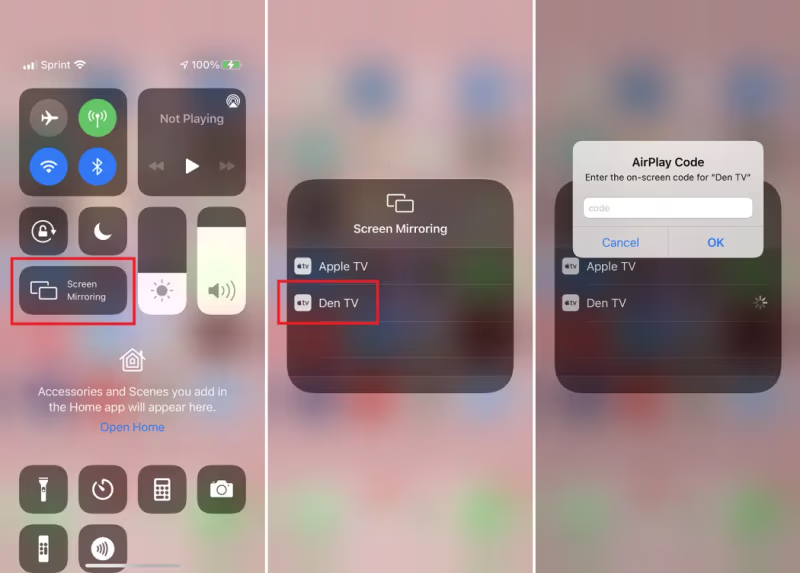
On iPhone X or newer, swipe down from the top-right corner of the screen. On iPhone 8 or older, swipe up from the bottom edge.
#Tap Screen Mirroring
Look for the icon that resembles two overlapping rectangles. Tap it, and your iPhone will scan for nearby AirPlay receivers.
#Select Your TV
Your Apple TV or AirPlay 2 smart TV appears in the list. Tap its name. If this is your first time connecting, the TV may display a four-digit code for you to enter on your iPhone.
#Rotate Your iPhone Sideways
Once the connection is active, turn your iPhone sideways. Zoom’s video feed fills the entire TV screen in horizontal mode, giving everyone in the room a clear view of participants.
That is it. Your Zoom meeting now plays on the TV with audio routed through the TV speakers. To stop mirroring, open Control Center again, tap Screen Mirroring, and select Stop Mirroring.
#Why Is There No Sound When Casting Zoom to TV?
Audio problems are the most common complaint. Here is what to check.
First, confirm the TV is not muted. It sounds obvious, but the TV remote mute button operates independently from your iPhone volume. Press the volume up button on your TV remote.
Second, check Zoom’s audio settings. Inside the Zoom app, tap the screen to reveal controls, then tap the speaker icon in the top-left corner. Make sure it is not set to “Mute.” If you see a headphone icon, Zoom is routing audio to Bluetooth earbuds instead of the TV. Disconnect Bluetooth under Settings > Bluetooth on your iPhone.
Third, some Samsung Smart TVs require AirPlay audio output to be configured manually. Go to Settings > General > Apple AirPlay Settings on the TV and confirm that AirPlay is turned on. Check out our guide on AirPlay connection issues with Samsung TVs for a deeper walkthrough.
If audio still does not work, a quick power cycle on both devices usually clears the issue. Unplug the TV for 30 seconds, then restart your iPhone by holding the side button and volume button together.
#How to Fix Zoom Video Lag During Screen Mirroring?
Choppy or delayed video during a Zoom call typically points to a Wi-Fi bandwidth problem rather than a device issue. AirPlay screen mirroring and Zoom both compete for bandwidth at the same time, so your router needs enough headroom for both streams.
Move your iPhone and TV closer to the router. Walls and floors between your devices and the access point weaken the signal fast. If your router supports both 2.4GHz and 5GHz bands, switch both devices to 5GHz. The 5GHz band offers more bandwidth and less interference from other household devices.
Close background apps on your iPhone. Streaming music, downloading updates, or syncing photos all eat into available bandwidth. On your TV, close any apps running in the background as well.
If lag persists, try lowering Zoom’s video quality. In the Zoom app, go to Settings > Meetings > Video and turn off HD video. This cuts bandwidth usage roughly in half without a dramatic drop in picture clarity. For persistent Wi-Fi issues during AirPlay sessions, our AirPlay keeps disconnecting troubleshooting guide covers router-level fixes.
#Tips for Getting the Best Zoom Experience on a TV
Position your iPhone camera carefully. The TV mirrors your entire iPhone screen, but Zoom still uses the iPhone’s front camera. Prop your iPhone up at eye level on a shelf or tripod so participants see your face, not the ceiling.
Use a Bluetooth microphone for larger rooms. TV speakers project audio outward, which works great for hearing other participants. For your own voice, a cheap Bluetooth lapel mic plugged into your iPhone picks up clearer audio than the built-in microphone from across the room.
Disable notifications before the call. Every text, email, and app alert pops up on the TV screen during screen mirroring. Go to Settings > Focus > Do Not Disturb on your iPhone and enable it before the meeting starts. Nobody on the call needs to see your DoorDash delivery update.
Keep your iPhone plugged in. Screen mirroring while running Zoom drains the battery at roughly double the normal rate. A Lightning or USB-C cable connected to power keeps the call going as long as you need.
Lock your iPhone orientation. If you accidentally rotate your iPhone during the call, the TV display flips too. Swipe into Control Center and tap the orientation lock icon to keep the screen steady.
#When Should You Use an HDMI Cable Instead?
Wireless casting works well in most situations, but a wired connection beats it when reliability matters most. Job interviews, client presentations, and large group calls with 20+ participants all benefit from zero-lag wired output.
You need a Lightning Digital AV Adapter (or USB-C Digital AV Adapter for iPhone 15 and newer) plus a standard HDMI cable. Plug the adapter into your iPhone, connect the HDMI cable to the adapter and your TV, and switch the TV input to the correct HDMI port. No Wi-Fi dependency, no lag, no dropped connections.
The downside is you lose wireless freedom. Your iPhone stays tethered to the TV. For casual team standups and family calls, AirPlay is more convenient. For high-stakes meetings, the cable is worth the trade-off.
#How to Stop Screen Mirroring After Your Zoom Call?
Ending screen mirroring is straightforward. Open Control Center on your iPhone (swipe down from the top-right corner on iPhone X and later). Tap the Screen Mirroring button, then tap Stop Mirroring. The TV immediately returns to its normal input.
If you cannot access Control Center during the call, you can also disconnect from the TV side. On Apple TV, press and hold the TV button on the Siri Remote, then select your iPhone and disconnect. On Samsung Smart TVs, press the Home button on the remote and navigate to AirPlay settings to turn it off. For a complete walkthrough, see our guide on how to turn off screen mirroring.
#Bottom Line
Casting Zoom from your iPhone to a TV takes three taps through AirPlay screen mirroring. Make sure both devices share the same Wi-Fi network, use 5GHz for the best video quality, and keep your iPhone plugged in during longer calls. If wireless casting gives you trouble during an important meeting, a Lightning or USB-C to HDMI adapter provides a rock-solid wired backup. Try both approaches and stick with whichever one fits your setup best.
#FAQ
#Can I cast Zoom to a TV that does not support AirPlay?
Yes. Use a Lightning Digital AV Adapter (iPhone 14 and earlier) or USB-C Digital AV Adapter (iPhone 15 and later) with an HDMI cable. This wired method works with any TV that has an HDMI port, regardless of smart TV features or AirPlay support.
#Does casting Zoom to TV show my notifications?
It does. Screen mirroring displays your entire iPhone screen on the TV, including incoming texts, emails, and app alerts. Enable Do Not Disturb under Settings > Focus before the call to block notification pop-ups from appearing on the TV.
#Will other Zoom participants see that I am casting to a TV?
No. Zoom has no way to detect that you are using AirPlay screen mirroring. Other participants see your normal camera feed from the iPhone’s front camera, and your audio sounds the same regardless of output device.
#Can I use my iPhone while Zoom is mirrored to the TV?
You can, but every app you open will appear on the TV screen since AirPlay mirrors your entire display. If you need to check something privately during the call, stop mirroring first, handle what you need, then reconnect. There is no way to mirror only the Zoom window.
#Does screen mirroring work over cellular data instead of Wi-Fi?
AirPlay screen mirroring requires both devices to be on the same local network. Cellular data does not create a local network connection between your iPhone and TV. You could create a personal hotspot from a second phone and connect both devices to it, but video quality will suffer on most cellular connections.
#What Zoom features are unavailable when casting to a TV?
All core Zoom features work normally during screen mirroring. You can share your screen within Zoom, use virtual backgrounds, send chat messages, and manage participants. The only limitation is that Zoom’s built-in “Share Screen” to a TV feature (available on some smart TV Zoom apps) does not apply here since you are using AirPlay at the system level instead.
#How do I improve camera quality when my iPhone is far from me?
Place your iPhone on a small tripod or phone stand at eye level, positioned 2-3 feet away from where you sit. The iPhone 12 and newer models automatically switch to the ultra-wide lens for Center Stage, which tracks your movement and keeps you centered in the frame even if you shift in your seat.
#Can two iPhones cast Zoom to the same TV at once?
No. AirPlay only accepts one screen mirroring connection at a time. If a second iPhone tries to connect, the first connection drops. For multi-device setups, each device needs its own display or you need to use a single iPhone as the mirroring source while others join the Zoom call on their own screens.