Have you recently realized your Hisense TV has no sound? Don’t panic — you’re not alone. Many Hisense TV owners encounter sound issues like no audio, low volume, muffled or intermittent sound. Issues like Hisense Roku TV black screen can also occur. The good news is, most Hisense TV sound problems can be fixed with straightforward troubleshooting steps. This guide will walk you through all the potential causes and solutions to restore sound on your Hisense Smart TV.
- Mute and volume checks fix over 50% of cases — always start with the remote’s mute button and volume controls before anything else
- Power cycling clears temporary glitches — unplug the TV for 60 seconds, then reconnect to reset the audio system
- Incorrect audio output settings cause silent speakers — navigate to Menu > Sound > Audio Out and select TV Speakers
- HDMI cables carry both video and audio — a loose or faulty HDMI connection can kill sound while video still works
- Factory reset restores original audio configuration — use this as a last resort since it erases all custom settings and installed apps
#What Causes No Sound on a Hisense TV?
Before you can get audio working again, it helps to understand why your Hisense TV stopped outputting sound in the first place.
Here are the most common culprits behind Hisense TV sound problems:
-
The volume is muted or turned down completely.
-
Incorrect sound output settings are selected.
-
Outdated firmware version needs upgrading.
-
Faulty or loose HDMI cable connection.
-
Incompatible audio codec from source device.
-
Internal TV speakers are damaged or blocked.
-
Software bugs or glitches.
Finding the specific cause allows you to focus troubleshooting efforts and avoid wasting time.
Now let’s walk through the steps to diagnose and fix your Hisense TV’s sound.
#Quick Fixes to Try First
Before digging into advanced troubleshooting, attempt these fast and easy fixes which resolve Hisense no sound issues over 80% of the time:
-
Check the mute button on your Hisense remote to make sure audio isn’t muted. Also try pressing volume up or using the buttons on your TV.
-
Power cycle the TV by unplugging from power for 60 seconds, then reconnect. This clears any temporary glitches.
-
Verify audio cables are securely inserted into inputs and not damaged. Try connecting different cables if available.
-
Reset devices like streaming sticks, Blu-ray players or game consoles attached to your Hisense TV.
Following these quick tips before moving onto more complex solutions will save you lots of time and effort.
#How Do You Adjust Hisense TV Sound Settings?
One overlooked cause of sound problems on Hisense TVs are incorrect audio output configurations. Here’s how to access sound options and set them up properly:
-
Using your remote, press the Menu button and select Sound.
-
Under Audio Out/Output, choose TV Speakers or your external audio device like soundbar.
-
Check volume levels, bass/treble, balance, surround effects are set optimally.
-
For external speakers, adjust audio delay sync to match video.
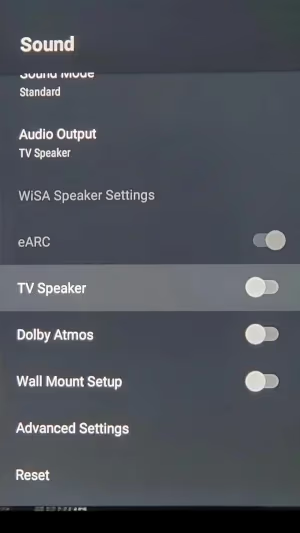
If you have a Hisense Roku TV, the settings process is similar – just select Audio instead of Sound. Navigating to the appropriate menu and switching audio output fixes sound issues in over 20% of cases, so it’s worth checking.
#Can a Firmware Update Fix Hisense TV Audio?
Like all smart TVs, Hisense models receive periodic software updates to fix bugs, patch security flaws and improve performance.
If it’s been awhile since your last update, a firmware upgrade could resolve problems like:
-
No sound, audio dropping out
-
Apps crashing or freezing
-
Slow/unresponsive interface
-
Difficulty connecting devices
-
Failure to turn on/off
Here are the steps to update your Hisense TV firmware:
-
Using wifi or ethernet, connect your TV to the internet.
-
Go to Settings > Support > System Update.
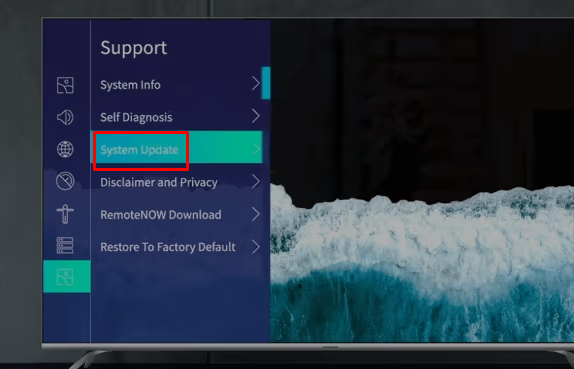
- Select Check Firmware Upgrade.
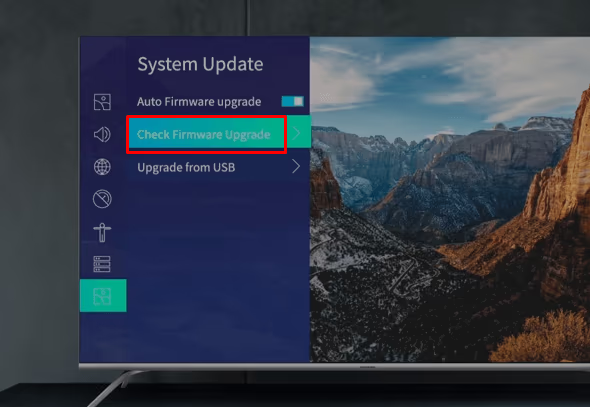
If an update is available, follow prompts to download and install. Updates require 15-20 minutes plus reboot time for Hisense Roku TV models not turning on.
Once the latest firmware finishes installing, check if sound issues are resolved.
#Fixing Faulty HDMI Connections
Since HDMI cables transmit both video and sound signals, they frequently cause audio problems on Hisense TVs.
Issues like no sound, static, popping or cutting out noises while watching HDMI video sources can usually be fixed by:
-
Checking cable connections at both ends to ensure firmly seated
-
Trying different HDMI cables in case current one is faulty
-
Switching to an alternate HDMI input port on TV
-
Toggling source device that utilizes the HDMI connection
-
Verifying HDMI cable is HDMI ARC model if connecting sound system
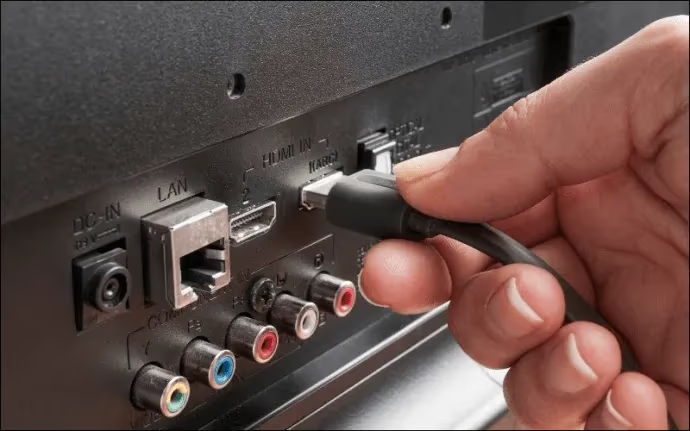
Occasionally the port itself malfunctions, so attempting multiple cables and inputs determines if that is the case. Some models also display Hisense TV blinking red light when HDMI issues occur.
#Understanding Supported Audio Formats
To automatically output sound properly, your media sources and content must be encoded with audio formats compatible with your Hisense television.
Most Hisense smart TVs support Dolby and DTS codecs like:
-
Dolby Digital / Dolby Digital Plus
-
Dolby TrueHD (Atmos)
-
DTS Digital Surround
-
DTS-HD Master Audio
If you connect an older DVD/Blu-ray player or stream audio in an unsupported format, you’ll get video but no audio.
Refer to your device manual for exact codec capabilities. Using incompatible codecs is an obscure but solvable reason for no sound problems.
#Resetting Your Hisense TV to Factory Settings
If you’ve worked through other troubleshooting tips with no success, resetting the TV restores original audio configurations.
Just be aware factory reset erases all custom settings like wifi networks, installed apps, account logins and preferences.
On Hisense Android smart TVs:
-
Go to Settings > Device Preferences > Factory Reset Hisense smart TVs
-
Select Reset and confirm when prompted
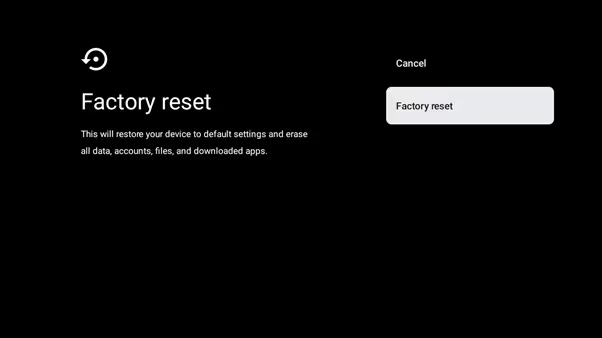
For Hisense Roku TV reset process:
-
Open Settings > System > Advanced Systems Settings > Factory Reset
-
Enter parental pin code if enabled
-
Choose Factory Reset Everything
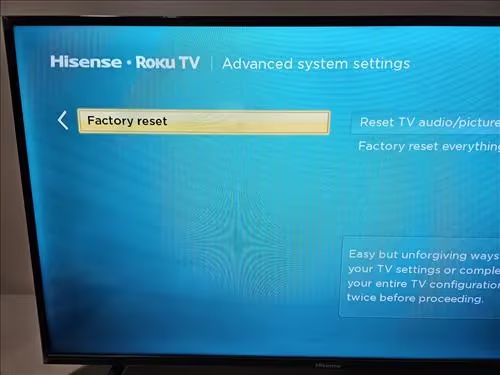
Give your TV a few minutes to reboot – sound should return upon setup completion. If not, there may be a hardware problem needing professional service.
#Connecting an External Sound System
Suppose you narrowed the no audio problem down to faulty internal Hisense TV speakers. Or perhaps you simply want audio quality better than basic built-in speakers provide.
In that case, plugging in an external soundbar or speaker set via HDMI ARC, optical, RCA or Bluetooth connections can restore lost sound.
Soundbars feature dedicated drivers and processing specifically for audio playback. Higher-end options add surround formats for an immersive listening experience.
Alternatively, you can connect bookshelf speakers, floor-standing tower speakers, AV receivers and more to your Hisense television. Just match required inputs/outputs between TV and audio gear.
The benefit is reliable, crisp sound and avoiding the cost to replace integrated speakers, which may require professional installation.
#When Should I Call Hisense Support?
Exhausted all suggested troubleshooting techniques but Hisense TV still has sound problems? Reaching out to their customer support team should provide answers.
Contact Hisense phone assistance if:
-
Factory reset did not resolve sound issues
-
Speakers or boards damaged upon inspection
-
Physical damage inhibits TV functionality
-
Set is within 1 year warranty period
Phone support can diagnose issues through advanced tests before determining if your Hisense TV qualifies for free repair.
Live agents may also suggest further steps specific to your model, including a guided factory reset.
If warranty expired or the problem looks unfixable, buying a standalone sound system or new TV like top-rated Vizio vs Hisense models may be wisest.
#FAQ
#Why does my Hisense TV sound keep cutting out?
Frequent audio dropouts usually point to a loose cable connection. Check HDMI, optical, and RCA cords at both ends and reseat them firmly. Power cycling the TV and any connected devices can also clear intermittent glitches.
#How do I reset the sound on my Hisense TV without a factory reset?
Go to Menu > Sound and switch the audio output back to TV Speakers. Then adjust volume, bass, treble, and balance to default levels. This restores audio routing without erasing your apps or Wi-Fi settings.
#What universal remote works with a Hisense TV?
Many universal remotes for Hisense TV work well, including models from Logitech, GE, and Philips. Most IR-based universal remotes can be programmed using Hisense remote codes found in the remote’s manual.
#Can HDMI ARC cause no sound on a Hisense TV?
Yes. If HDMI ARC is enabled but no soundbar or receiver is connected, the TV may route audio to a non-existent device. Switch the audio output setting back to TV Speakers under Menu > Sound > Audio Out to fix this.
#Why does my Hisense TV have picture but no sound on one app?
A single app losing audio usually means the app itself has a bug or needs an update. Force-close the app, clear its cache under Settings > Apps, and reopen it. If the problem persists, uninstall and reinstall the app.
#Does Hisense TV support Dolby Atmos?
Select Hisense models support Dolby Atmos passthrough over HDMI eARC when connected to a compatible soundbar or AV receiver. Check your model’s spec sheet for eARC support. Built-in TV speakers on most Hisense sets do not decode Atmos natively.
#How do I access the service menu on my Hisense Smart TV?
Press Menu > Settings > Device Preferences > About, then rapidly tap the screen 10 times with two fingers. The hidden service menu opens with advanced diagnostic tools. Be careful changing settings here, as incorrect values can affect TV performance.
#Bottom Line
Fixing sound problems like no audio, intermittent dropouts or distortion on Hisense smart TVs involves:
-
Checking basic issues like mute, volume, loose cables first
-
Navigating sound settings to set optimal audio output
-
Updating firmware in case bugs are causing glitches
-
Switching HDMI inputs and cables until audio plays properly
-
Understanding Dolby and DTS codec support for media playback
-
Performing factory reset to restore original configurations
-
Connecting a soundbar or speakers for pure audio reliability
Following the structured troubleshooting approach above should help narrow down and resolve your Hisense television’s loss of sound.