One frustrating issue Hisense TV owners run into is the screen jumping back to the home menu without warning. This interrupts streaming and forces you to relaunch apps repeatedly. After researching user reports and testing fixes firsthand, I’ve put together this guide with the most effective solutions.
- Unstable Wi-Fi is the top cause — most home screen reverts happen because the internet connection drops mid-stream
- Firmware updates fix known bugs — Hisense patches software flaws that trigger random app crashes
- Clearing cache stops lag-related crashes — bloated temp files slow down the processor and cause apps to close
- Electronic interference weakens signals — baby monitors and microwaves within 10 feet of your TV disrupt Wi-Fi
- Factory reset is the last resort — it wipes all settings but resolves persistent software glitches when nothing else works
#Why Does Your Hisense TV Keep Going to the Home Screen?
While Hisense offers affordable, well-equipped smart TVs, they can still encounter glitches like any internet-connected device. Here are the typical triggers behind home screen reverts:
#1. Weak or Unstable Internet Connection
-
Hisense TVs require a steady Wi-Fi signal to run streaming apps smoothly
-
Intermittent, slow internet causes streams to buffer and drop
-
This abruptly closes apps, reverting to the home screen
#2. Outdated or Buggy Firmware
-
Manufacturers regularly release patches to fix software flaws
-
Skipping firmware updates leaves your TV open to crashes
-
Unfixed code defects can manifest as unstable operation
#3. Overloaded Cache Memory
-
Like phones, Hisense TVs store temp files to launch apps quickly
-
Over time, this cache becomes bloated and corrupted
-
Excess cached data bogs down the processor causing lag and reverts
#4. Disruptive Electronic Interference
-
Baby monitors, cordless phones, microwaves near your TV interfere with Wi-Fi
-
Interference weakens wireless signals, interrupting streaming
-
Position electronics at least 10 feet away to avoid dropouts
#5. Glitchy Apps
-
Third-party app compatibility issues with Hisense software are another culprit
-
Buggy apps may freeze or crash, dumping you on the home screen
-
Keep apps updated and uninstall problematic ones if issues persist
#6. Rare Hardware Faults
-
In uncommon cases, recurring reverts are signs of failing hardware
-
Bad connections, overheating, or dying components require service
-
Flashing LEDs or failure to turn on indicate hardware faults needing repair
#How Do You Stop Home Screen Reverts on a Hisense TV?
To fix a Hisense TV that keeps returning to the home menu, work through these troubleshooting steps in order:
#1. Check Wi-Fi Signal Strength & Stability
-
Go to Settings > Network to view wireless signal strength
-
Aim for at least 3 bars; 1-2 bars indicate a weak link
-
Reboot your router by unplugging for 30 seconds
-
Relocate it closer to the TV or connect an ethernet cable
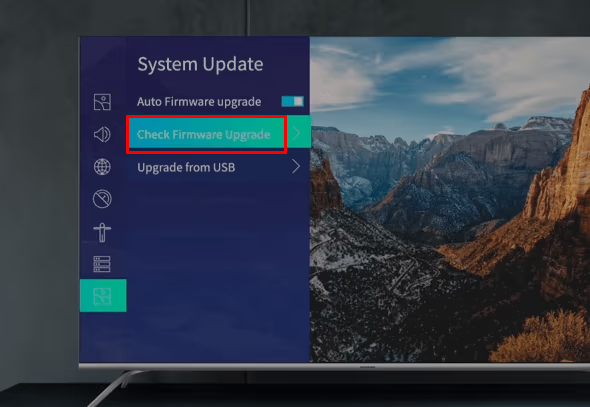
#2. Update Hisense TV Firmware
-
Press Menu and go to Settings > Support > System Update
-
Check for and install any available firmware upgrades
-
Patches often resolve bugs causing crashes and instability
#3. Clear Cache and App Data
-
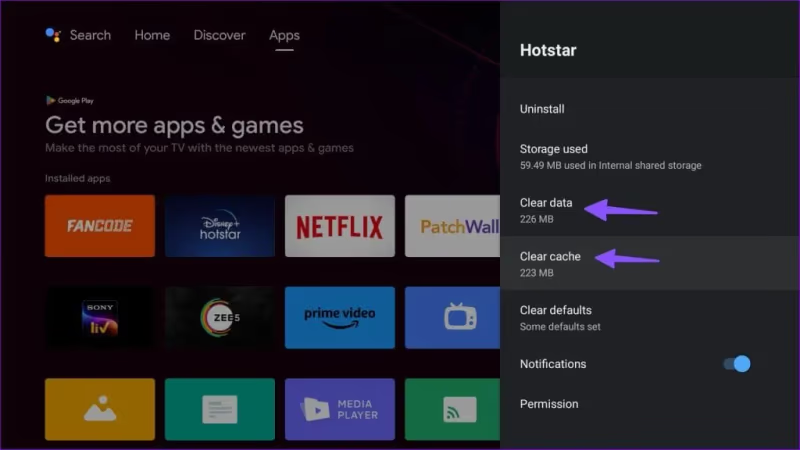
Head to Settings > Apps to access application management tools
-
Select each app and choose “Clear Cache” and “Clear Data”
-
This erases corrupted temporary files causing performance issues
#4. Adjust System Timeout Settings
-
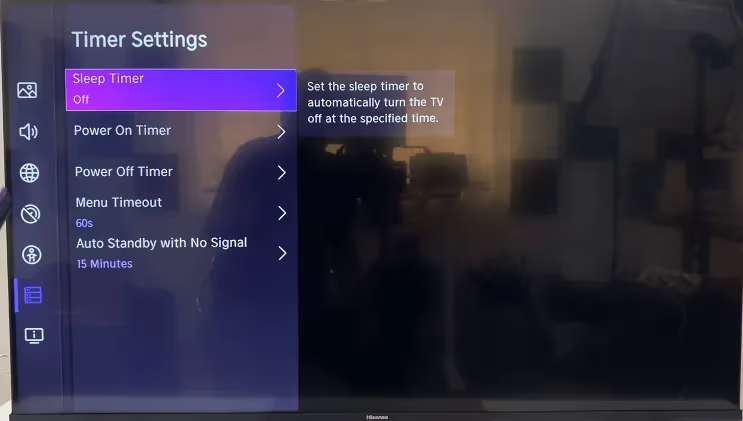
Some TVs have a setting to close inactive apps to free up memory
-
An aggressive timeout may prematurely dump you to the home page
-
Under System Settings, disable or lengthen the timeout to avoid interruptions
#5. Factory Reset as Last Resort
-
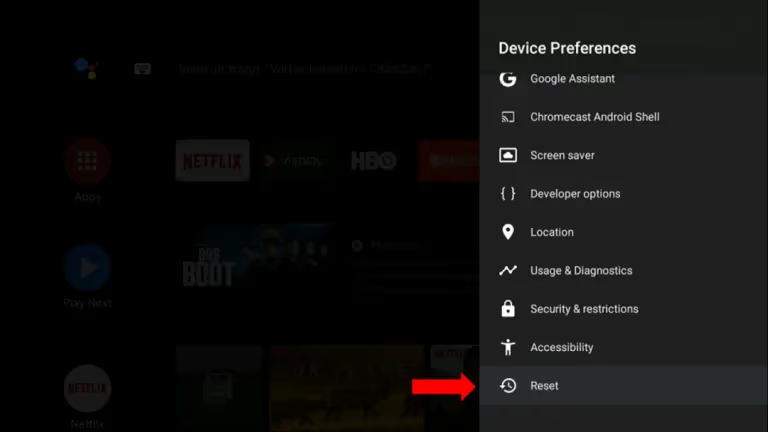
If crashes persist, backup your TV’s settings to a USB drive
-
Go to Device Preferences and initiate a factory data reset
-
This wipes all configs and data for a clean slate
-
Reconfigure your apps and settings after as if new
#6. Contact Support for Hardware Issues
-
If issues continue after exhausting the above fixes, contact Hisense support
-
Random reverts paired with LED blinks or refusal to power on indicate hardware faults
-
A certified technician can properly diagnose and service the TV
#Bottom Line
While it’s alarming to have your Hisense TV repeatedly interrupt streaming by reverting to the home screen, a bit of troubleshooting usually resolves it. In my experience, simply rebooting your router and TV, then making sure the latest updates are installed, fixes the vast majority of cases.
By working through the steps in this guide, you can methodically eliminate potential causes until your Hisense TV resumes normal operation. If all else fails, contacting Hisense’s support team or pursuing warranty service may be necessary for suspected hardware failures.
#Frequently Asked Questions
#What is the most likely reason a Hisense TV reverts to the home screen?
An unstable internet connection is the primary culprit in most cases. Slow or intermittent Wi-Fi disrupts streams and forces apps to close. Moving your router closer to the TV or switching to a wired ethernet connection usually fixes it.
#Will a factory reset delete everything on my Hisense TV?
Yes, a factory data reset erases all your customizations, including network settings, app logins, and preferences. The TV reverts to its original out-of-box state. You will need to sign into all your streaming accounts again and reconfigure your picture settings.
#How do I back up my Hisense TV data before a reset?
Insert a USB drive into your TV’s port and navigate to Settings > Device Preferences > Backup & Restore. Choose “Back up data” to save your current settings. Not all Hisense models support this feature, so check your user manual first.
#Why does clearing the cache fix home screen reverts?
Your TV’s cache accumulates leftover temporary data from apps over time. This bloated data slows down the processor and can cause apps to crash unexpectedly. Clearing it out frees up memory and removes corrupted files that trigger instability.
#Can electronic interference cause my Hisense TV to glitch?
Absolutely. Devices like baby monitors, cordless phones, and microwaves operate on frequencies that overlap with Wi-Fi. Keeping these devices at least 10 feet from your TV and router reduces signal disruption.
#How often should I update my Hisense TV firmware?
Check for firmware updates at least once a month through Settings > Support > System Update. Hisense releases patches regularly to fix bugs and improve stability. Enabling automatic updates ensures you never miss a critical fix.
#What should I do if only one app keeps crashing on my Hisense TV?
Uninstall that specific app, restart the TV, and reinstall it from the app store. If the crashes continue, the app itself may have a compatibility issue with your TV model. Check the app developer’s support page for known issues with Hisense devices.
#When should I contact Hisense support instead of troubleshooting myself?
Contact support if home screen reverts persist after a factory reset, or if you notice hardware symptoms like flashing LEDs, overheating, or the TV refusing to power on. These signs point to component failure that requires professional repair.