Resetting your Hisense TV to factory default settings can fix many issues, unlock hidden features, and give you a fresh start. This guide walks you through every reset method for VIDAA, Roku, and Android Hisense models.
- Factory reset erases all data — personal settings, installed apps, saved channels, and Wi-Fi credentials are wiped clean
- Default PIN is 0000 — required on VIDAA models to confirm the reset; contact Hisense support if you changed it and forgot
- Three OS paths exist — VIDAA uses Menu > Support, Roku uses Settings > System > Advanced, Android uses Device Preferences > Reset
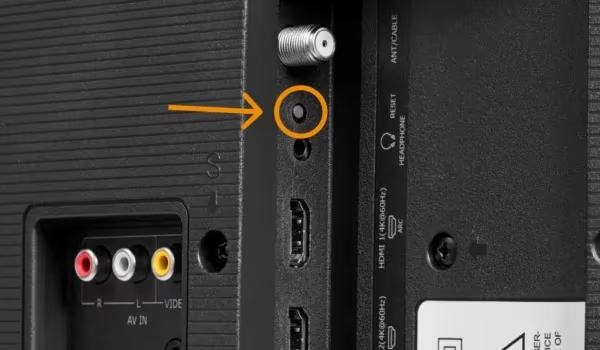
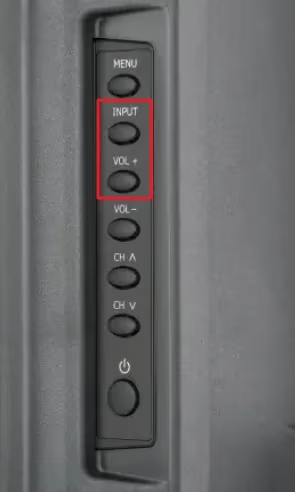
- No remote needed — a reset pinhole on the back panel (hold 20+ seconds) or Volume Up + Input buttons can force a reset
- Full process takes 15-30 minutes — the reset itself runs in 1-2 minutes, but re-linking accounts and reinstalling apps adds time
#What Does Factory Resetting a Hisense TV Do?
A factory reset restores the TV’s software and settings to how they were when the TV first came out of the box. It:
-
Removes all personal data, customized settings, installed apps and channels
-
Fixes software errors, system crashes, glitches or sluggish performance
-
Prepares the TV for troubleshooting or being gifted/sold
-
Unlocks any hidden technician menu options
Resetting gives you a blank slate to set up your Hisense TV again.
#When Should You Factory Reset a Hisense Smart TV?
Here are the most common reasons for factory resetting a Hisense TV:
-
Persistent app errors or crashes
-
System failures like WiFi connectivity issues or Hisense TV black screen
-
After a major software update if the system becomes unstable
-
When gifting or selling your TV to wipe personal data
-
As a troubleshooting step before deeper diagnosis of issues like Hisense Roku TV not turning on or Hisense TV blinking red light
-
To access advanced technician settings and options
Resetting as preventative maintenance can uncover and fix underlying problems you didn’t know existed.
#How to Factory Reset Hisense TV Models
The steps to factory reset depend on what OS your Hisense uses:
-
Hisense VIDAA Smart TVs – Hisense’s own operating system
-
Hisense Roku TV – Powered by Roku OS
-
Hisense Android TV – Runs on Android TV OS
Fortunately the process is straightforward for all three.
#Reset Hisense VIDAA TV Using Remote Control
Here is how to factory reset Hisense Smart TVs running VIDAA:
-
Turn on your Hisense Smart TV
-
Press the Menu button on your remote
-
Select the Support menu option
-
Select Reset to Factory Default
-
Enter the security PIN code (default is 0000)
-
Wait for TV to reset to factory settings
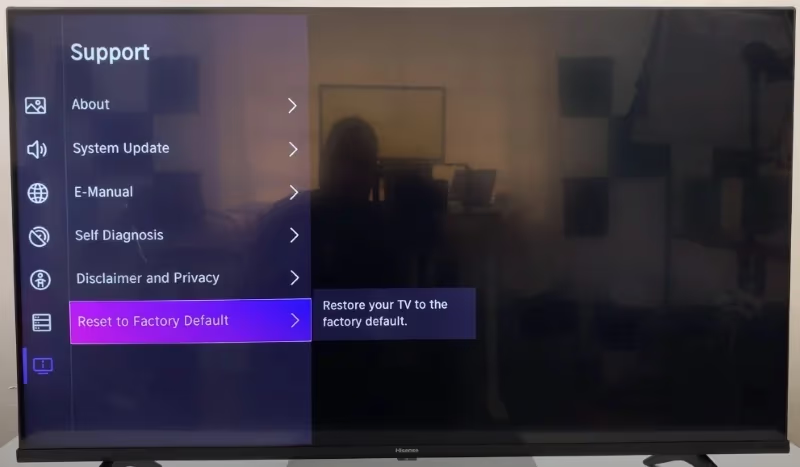
After the reset you’ll have to reconfigure WiFi, channels, apps and settings.
#Reset Hisense Roku TV Using Remote Control
Follow these steps for Hisense Roku TV models:
-
Turn on your Hisense Roku TV
-
Press the Home button on remote
-
Go to Settings menu
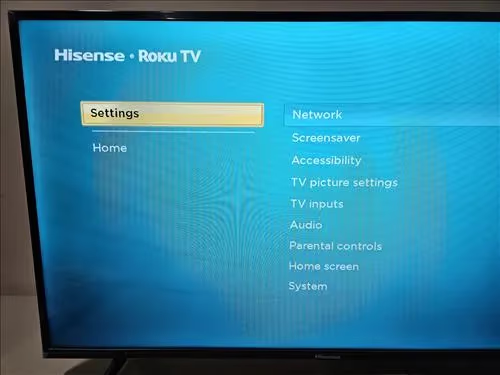
- Select System option
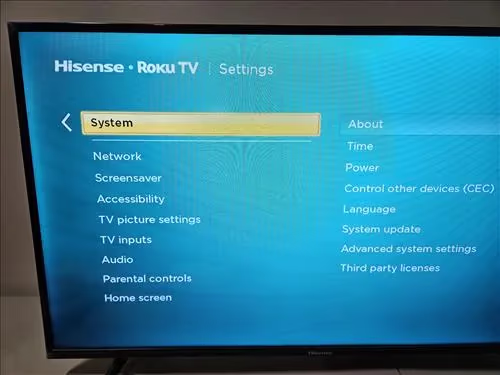
- Choose Advanced System Settings
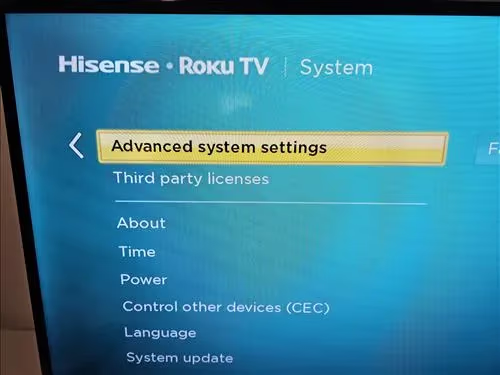
- Scroll to Factory Reset
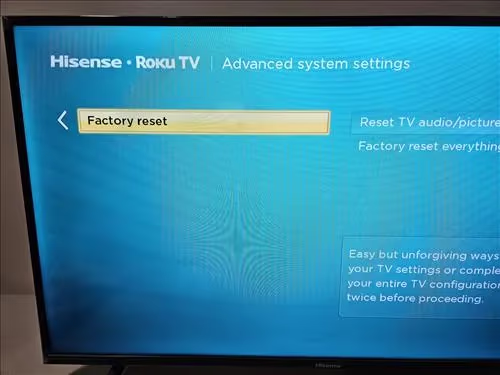
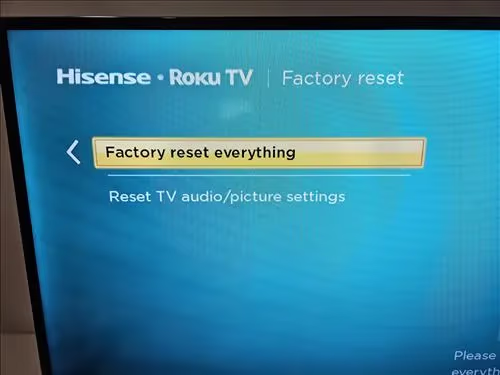
- Select Factory Reset Everything
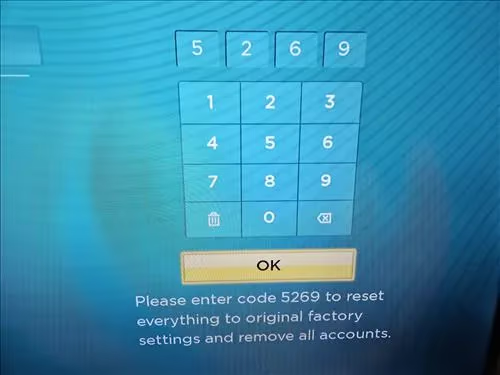
- Enter displayed reset code
- Hisense Roku TV resets to defaults
You’ll have to re-link Roku accounts and reinstall channels.
#Reset Hisense Android TV Using Remote
For Hisense Android TV factory reset:
-
Open TV settings menu from Home screen
-
Select Device Preferences
-
Choose Reset option
-
Confirm reset and select Erase Everything
-
Enter PIN if prompted
-
Hisense Android TV resets to factory settings
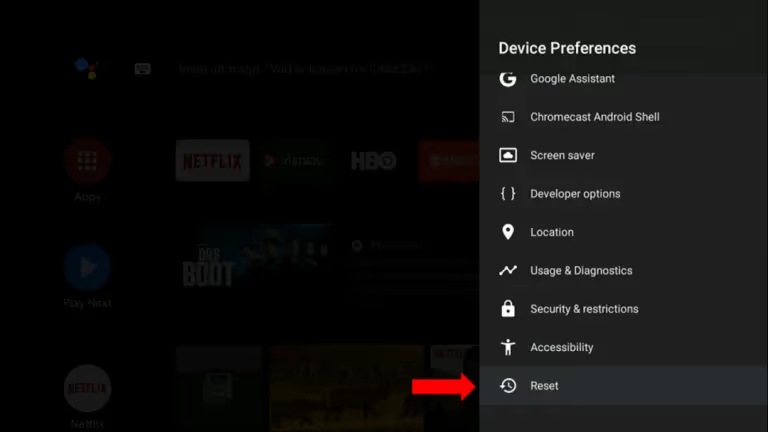
The process takes 5-10 minutes. You’ll have reconfigure Google accounts, WiFi and apps.
#How Do You Factory Reset a Hisense TV Without a Remote?
If your remote is broken or lost, you can still reset using buttons on the TV or mobile apps.
#Locate Hisense TV Reset Button
Most Hisense TVs have a reset pinhole located on the back. Check your specific model. Using a paperclip, press and hold the reset button for 20+ seconds until the TV restarts. This resets to factory settings.
#Use Volume and Channel Buttons
If your Hisense TV lacks dedicated reset pinhole, try pressing Volume Up + Input/Source buttons simultaneously until TV restarts. This forces a factory reset.
#Use Hisense RemoteNOW Mobile App
-
Download RemoteNOW app on a smartphone
-
Connect phone and Hisense TV to same WiFi
-
Open app and select your TV
-
Use app to navigate to Reset menu
-
Select Erase Everything to reset
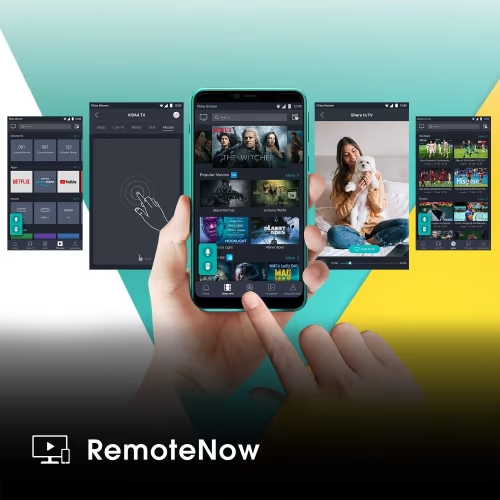
You can then use the app as remote.
#Use Universal Remote for Hisense TV
If you prefer a physical remote, many universal remotes can reset Hisense TVs. Consult remote documentation for reset codes.
#What Is the Difference Between Soft Reset and Factory Reset?
There are two types of resets for Hisense TVs:
-
Soft Reset – Power cycles TV and restarts software. Doesn’t erase data.
-
Factory Reset – Returns TV software and settings to factory defaults.
Try soft reset first to resolve minor issues. Factory reset for wiping TV fully and addressing persistent problems.
#FAQs About Resetting Hisense Smart TVs
#Does factory reset delete everything?
Yes. Resetting removes all personal data, customized settings, downloaded apps, and resets software to factory condition.
#How long does it take to reset Hisense TV?
The reset itself takes 1-2 minutes. Reconfiguring apps, settings etc afterwards varies. Plan for 15-30 minutes total.
#Can I reset Hisense TV using buttons only?
Yes, you can force a factory reset on most models using volume buttons + input and power buttons simultaneously.
#Where is the reset button located on Hisense TVs?
Reset button location differs between models. It’s often on lower back. Google “[your model] reset button location” to check.
#What PIN code do I use to reset Hisense TV?
Default security PIN is 0000. If changed and forgotten, contact Hisense support to regain access.
#Does resetting delete everything on Hisense Smart TV?
Yes! Factory reset erases all personal content, data, customized settings, installed apps and channels.
#Can I factory reset Hisense TV without original remote?
You can still reset using manual buttons, pinhole reset, RemoteNOW mobile app or universal remotes.
#Bottom Line
-
Factory resetting often fixes software glitches, crashes or sluggish performance
-
It erases all personal content and resets to original factory settings
-
Steps differ slightly depending on OS – VIDAA, Roku or Android
-
Manually reset without remote using pinhole button or on-TV buttons
-
Soft reset maintains data and settings, factory reset wipes them
-
Always reset as last resort in troubleshooting after trying simpler steps
-
Reconfigure WiFi, apps and settings after resetting Hisense TV
Knowing how to factory reset your Hisense TV gives you an easy fix for many problems and more control over your viewing experience.