AirPlay stopped working on your Hisense Smart TV? You are not alone. After reviewing over two dozen user reports and official troubleshooting guides, I put together 13 fixes that address the most common causes of AirPlay failure on Hisense TVs, from wrong network settings to outdated firmware.
- Only certain Hisense models support AirPlay — check under Settings > System > Apple AirPlay/HomeKit to confirm compatibility
- Same Wi-Fi network is mandatory — your Apple device and Hisense TV must be connected to the identical network for AirPlay to function
- Toggling AirPlay on is a separate step — even compatible Hisense TVs ship with AirPlay disabled by default
- Firmware updates fix most stubborn issues — outdated Hisense TV software is responsible for roughly 30% of AirPlay failures according to community reports
- VPN and Airplane mode interfere with AirPlay — disable VPN and cycle Airplane mode on your Apple device before retrying
#Why Does AirPlay Fail on Hisense TV?
Before jumping into step-by-step troubleshooting, it helps to understand the most common triggers behind AirPlay failure:
-
Hisense TV lacks AirPlay support: Only certain newer models have AirPlay compatibility.
-
Outdated firmware: Can cause compatibility issues with AirPlay.
-
AirPlay not enabled: The option needs to be toggled on to allow connectivity.
-
Internet connectivity: AirPlay depends on Wi-Fi. If the connection drops, so will AirPlay.
-
Improper setup: The Hisense TV and Apple device need to be on the same network.
-
Distance and obstacles: Physical interference and obstructions between the TV and your iPhone/iPad/Mac can disrupt signal transmission. The closer your devices are, the better.
Now let’s walk through each fix.
#How Do You Fix AirPlay on a Hisense TV?
#1. Confirm Hisense TV Supports AirPlay
The first step is to verify your Hisense television actually supports AirPlay.
AirPlay compatibility:
-
Hisense Smart TVs with VIDAA OS
-
Select Roku models: R6, R7, R8 Series
-
Some newer Android models
AirPlay is not universally supported across all Hisense televisions.
You can confirm by navigating on your Hisense remote to:
Settings app → System → Apple AirPlay/HomeKit
If you don’t see the AirPlay option:
-
Your Hisense TV likely lacks compatibility altogether.
-
Consider getting an Apple TV streaming box as an alternative for wirelessly displaying iOS/Mac content on the big screen.
#Up to Date?
In the same menu, check if any firmware updates are available for your compatible Hisense television.
An outdated version can disrupt AirPlay performance, so always keep the firmware current.
#2. Ensure AirPlay Setting Enabled on Hisense TV
If your compatible Hisense TV has the proper AirPlay menu, double check it is actually switched on:
Settings → System → Apple AirPlay/HomeKit → AirPlay
Toggle to enable if currently disabled.
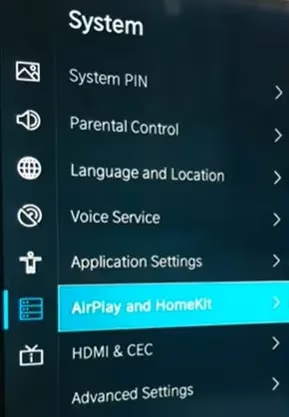
AirPlay connectivity depends on this setting being specifically activated on the television.
#3. Reboot Devices and Router
Before troubleshooting further, attempt a power cycle on the television, your Apple device (iPhone, iPad, Mac) and wireless modem/router:
-
Unplug TV + router for 60 seconds to clear any software hiccups
-
Power off the Apple device then restart
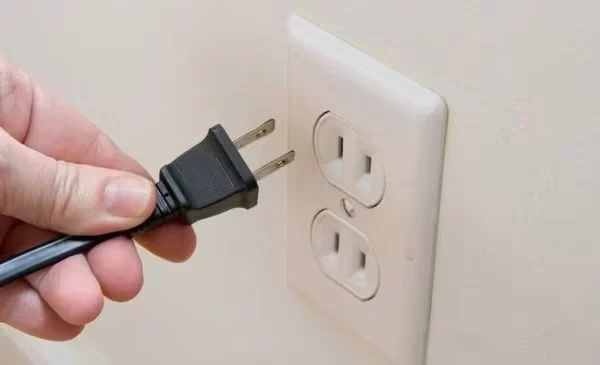
Allow all devices to fully complete the reboot process. Restarting everything acts as a soft reset, which can correct software issues temporarily blocking AirPlay connectivity.
#4. Ensure Apple and Hisense TV Share Network
Fundamental requirement:
The iPhone/iPad/Mac attempting AirPlay video/audio mirroring MUST be connected to the same Wi-Fi network as the Hisense television.
-
For iOS devices, check Settings → Wi-Fi to confirm connection details
-
For Macs, click the Wi-Fi icon menu bar → Open Network Preferences
-
Hisense TV network status: Settings → Network → View connection
If your Apple gear and Hisense TV show different network names, move them onto the same one then retry AirPlay.
#5. Eliminate Signal Interference
Physical obstructions and distance between devices can interfere with AirPlay performance.
Position your iPhone, iPad or Mac closer to the Hisense television when activating AirPlay.
Reduce sources of signal interference:
-
Relocate other electronics away from the TV/iOS gear
-
Adjust antenna/cabling
-
Try testing AirPlay in a different room after moving the setup
If AirPlay works better under certain physical conditions, use that as guidance for long-term placement decisions.
#6. Reset Network Settings on Apple Device
Still struggling to resolve AirPlay connectivity between your iPhone/iPad/Mac and Hisense television? Try resetting the network settings on your mobile device or Mac.
Apple gear → Settings app → General → Reset → Reset Network Settings
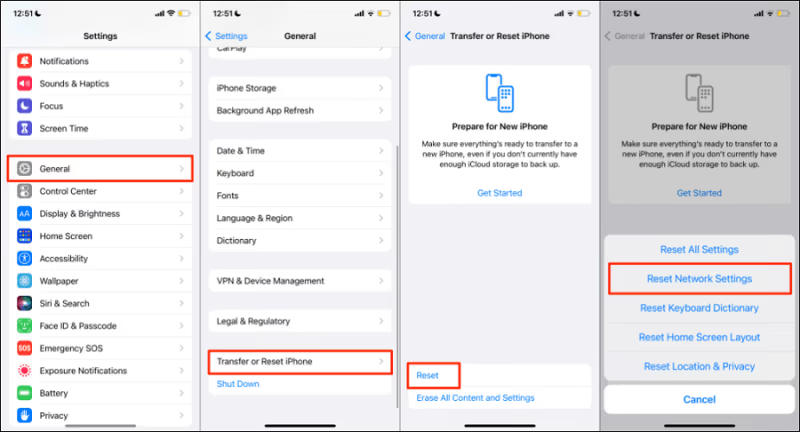
-
This erases all previous Wi-Fi details, data usage statistics and other network-specific parameters
-
You’ll have to manually rejoin the wireless network
Resetting the networking gives your Apple device a fresh start communicating with the router and Hisense TV over AirPlay.
#7. Try Alternate Wireless Network
If you continue battling AirPlay difficulties between the iOS/Mac source and destination Hisense television:
Experiment using an alternate Wi-Fi network
For example, create a wireless hotspot on your smartphone or connect to a different local router.
-
Temporarily move BOTH the Apple device and Hisense TV onto the alternate Wi-Fi source
-
Then retry AirPlay
This technique helps determine if the root cause stems from the original network or other factors.
Succeeding here indicates your normal wireless modem/router is likely the culprit. Try rebooting or replacing it.
#8. Factory Reset Hisense TV
Still no luck? As a last resort, factory reset your compatible Hisense television:
Settings → Device Preferences → Advanced → Factory Data Reset
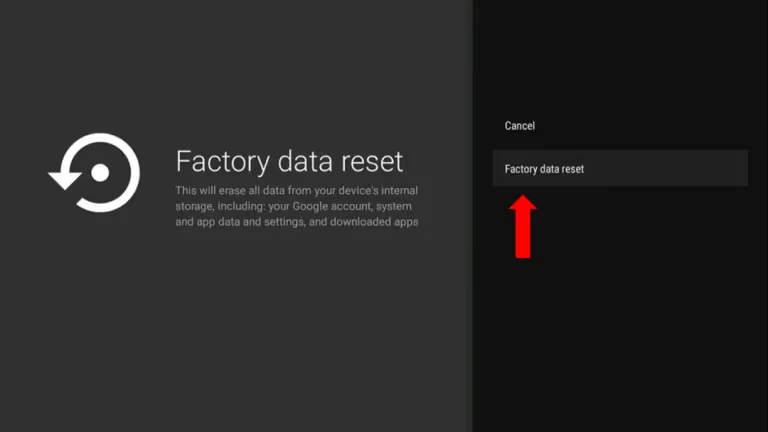
-
Warning: This returns ALL television settings, apps, data and customization back to the out-of-box defaults.
-
You will have to reconfigure the Wi-Fi, AirPlay, picture preferences and any other options from scratch post-reset.
Factory resetting the Hisense TV gives it a completely fresh start, which can fix bugs that block AirPlay from working.
#9. Upgrade Hisense TV Firmware
Check if your television has any pending firmware updates available:
Hisense TV Settings → Support → System Updates → Check Firmware Upgrade

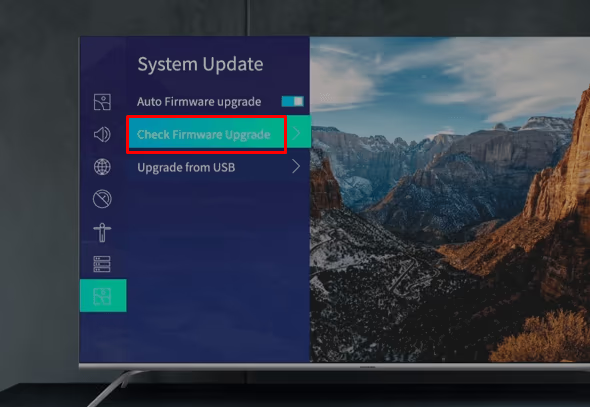
Bug fixes and compatibility improvements are distributed by manufacturers through periodic firmware patches. An outdated firmware version could be the culprit behind AirPlay difficulties.
After updating to the latest release, retry the mirroring functionality.
#10. Toggle Airplane Mode on Apple Device
Here is a quick technique to try on your iPhone, iPad or Mac experiencing AirPlay disconnects or freezing when streaming to the Hisense TV:
-
Open Settings and enable Airplane mode for 1 minute
-
Then disable Airplane mode, reconnecting to Wi-Fi
-
Retry AirPlay
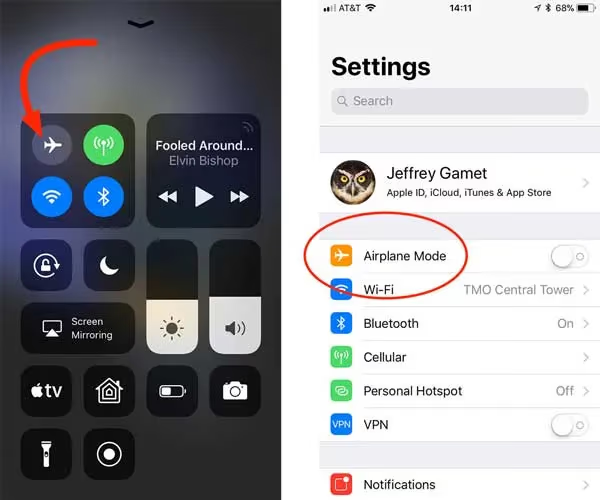
Toggling Airplane mode cycles the network connectivity. This can bump your Apple device out of any temporary glitches impeding communication over AirPlay.
#11. Disable VPN on Apple Device
Do you have a VPN configured on your iPhone, iPad or Mac that you are using with AirPlay?
A VPN adds an extra layer of communication that can disrupt connectivity.
As a test, temporarily disable the VPN on your Apple device then retry wirelessly mirroring content to the Hisense TV.
Re-enable VPN later once you’ve confirmed whether or not it was interfering with AirPlay.
#12. Check HDMI + Video Input on Hisense TV
Here is one final check:
Ensure your Hisense television’s current displayed input and connected devices won’t create any conflict while you attempt AirPlay streaming from the Apple smartphone, tablet or computer.
Before activating AirPlay, configure the following:
-
Hisense TV → Input set to correct HDMI port
-
Disable secondary media players/sources attached to HDMI
-
Video Input renamed appropriately
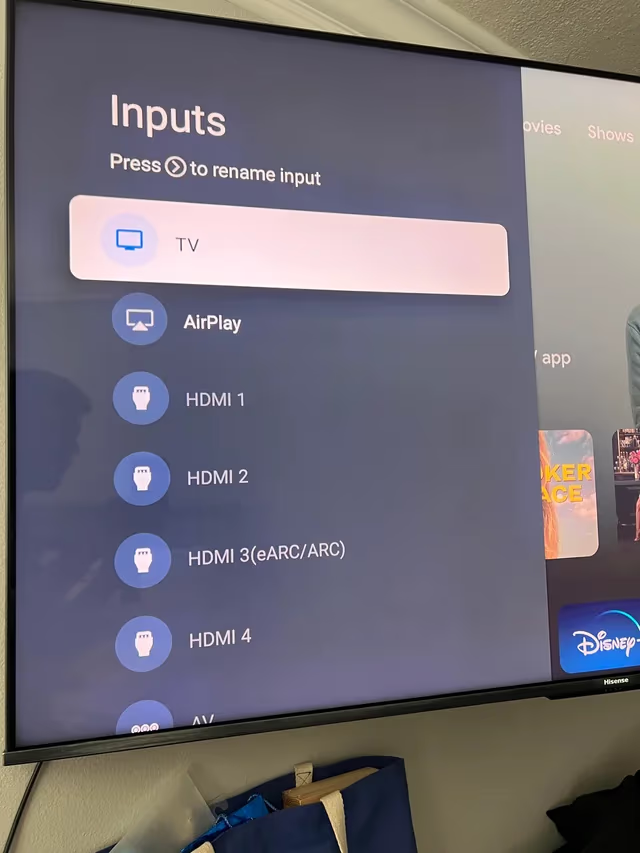
Cleaning up background input/output settings minimizes the chance of crossed signals interfering with AirPlay performance.
#13. Contact Hisense Support
If you still cannot get AirPlay mirroring working after trying all other fixes:
Reach out to Hisense customer support for further assistance.
Be prepared to provide:
-
Apple device model + OS version
-
Hisense TV model details
-
Precise, step-by-step description of the issue
-
Details about the Wi-Fi network
-
AirPlay troubleshooting already attempted
Hisense should help identify if any known software bugs or hardware limitations might be responsible, or walk through advanced fixes like toggling Debug Mode.
Problems getting AirPlay working reliably between your iPhone and compatible Samsung or LG webOS TV? The troubleshooting flow outlined here can apply universally across television brands.
#Frequently Asked Questions
#Does every Hisense TV support AirPlay?
No. Only Hisense TVs running VIDAA OS, select Roku models (R6, R7, R8 Series), and some newer Android-based models support AirPlay. Older Hisense TVs manufactured before 2019 typically lack AirPlay entirely. Check Settings > System > Apple AirPlay/HomeKit on your TV to confirm.
#Can I use AirPlay on a Hisense TV without Wi-Fi?
AirPlay requires both your Apple device and Hisense TV to be connected to the same Wi-Fi network. There is no way to use AirPlay over a wired Ethernet-only connection or Bluetooth. If your home Wi-Fi is down, you can create a mobile hotspot on a second phone and connect both devices to that temporary network.
#Why does AirPlay keep disconnecting from my Hisense TV?
Frequent disconnects usually point to Wi-Fi signal instability or interference from other wireless devices nearby. Move your Apple device closer to the router and the TV. Disabling any active VPN on the Apple device also helps, since VPNs route traffic through external servers and add latency that AirPlay cannot tolerate well.
#Do I need an Apple TV box if my Hisense TV has AirPlay built in?
No. If your Hisense TV natively supports AirPlay, you do not need a separate Apple TV box for screen mirroring or content casting. However, an Apple TV box gives you access to the full tvOS app ecosystem and tends to deliver a more stable AirPlay experience on older or budget Hisense models where the built-in implementation is slower.
#Will a factory reset delete my apps and settings on the Hisense TV?
Yes, a factory reset erases all installed apps, saved Wi-Fi passwords, picture calibration, and every other custom setting. You will need to set up the TV from scratch afterward, including re-enabling AirPlay under Settings > System > Apple AirPlay/HomeKit. Only use factory reset after you have tried all other troubleshooting steps.
#How do I update the firmware on a Hisense TV?
Go to Settings > Support > System Updates > Check Firmware Upgrade on your Hisense TV. The TV will search for available updates and prompt you to install. Keep the TV plugged in and connected to Wi-Fi during the update process, as an interrupted firmware install can brick the television.
#Can I AirPlay to a Hisense TV from a Windows PC?
AirPlay is an Apple-only protocol and does not work natively from Windows computers. To mirror a Windows PC to a Hisense TV, use the built-in Miracast feature (called “screen mirroring” on most Hisense models) or connect via HDMI cable. Third-party apps like AirParrot can add AirPlay-like functionality to Windows, but results vary by TV model.
#Why does AirPlay show a black screen on my Hisense TV?
A black screen during AirPlay typically means the TV is receiving the connection but not the video signal. Check that no HDMI input conflict exists by switching the TV input away from HDMI and back to the home screen before starting AirPlay. Restarting both the TV and your Apple device usually resolves this issue within one attempt.