Max (formerly HBO Max) works on every current Insignia smart TV platform, including Fire TV, Roku, and Google TV models sold at Best Buy. The app is free to download, though you need a Max subscription to stream content.
This guide walks through installation on each Insignia TV type, covers common sign-in problems, and explains what to do when the app stops working.
- Max supports all Insignia TV platforms — Fire TV, Roku TV, and Google TV models all have the official app in their stores
- Installation takes under 5 minutes — search for “Max” in your TV’s app store, download, and sign in
- Max replaced HBO Max in 2023 — the app name changed but your existing HBO Max login still works
- 4K HDR streaming requires a 25 Mbps connection — standard HD content works fine at 5 Mbps
- Insignia Fire TV is the most common model — Best Buy sells primarily Fire TV editions starting around $80
#How Do You Install Max on an Insignia Fire TV?
Insignia Fire TV models run Amazon’s Fire OS, so the Max app comes from the Amazon Appstore. Here is the process:
- From the home screen, scroll to the Find row and select it.
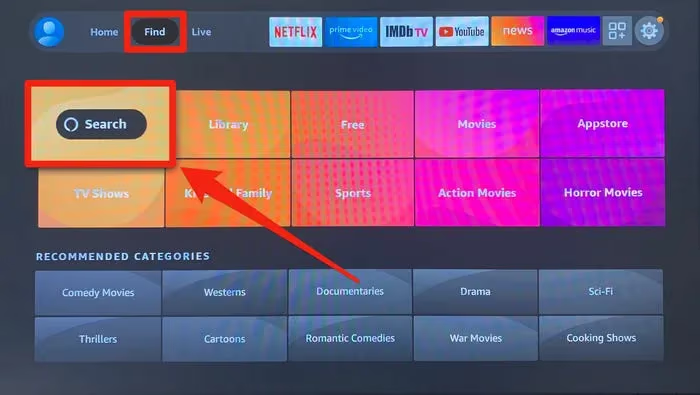
- Select the Search icon and type Max.
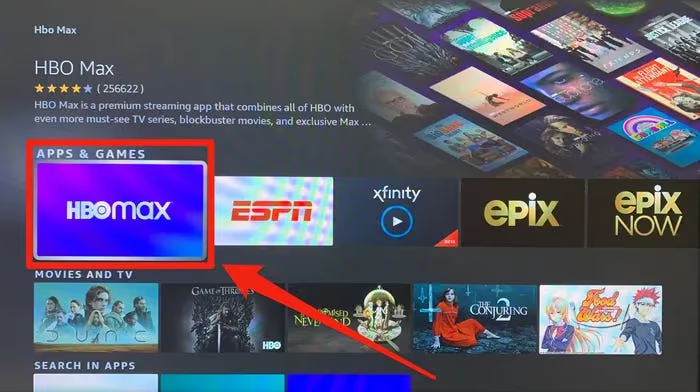
- Highlight the Max app in the results and press Get.
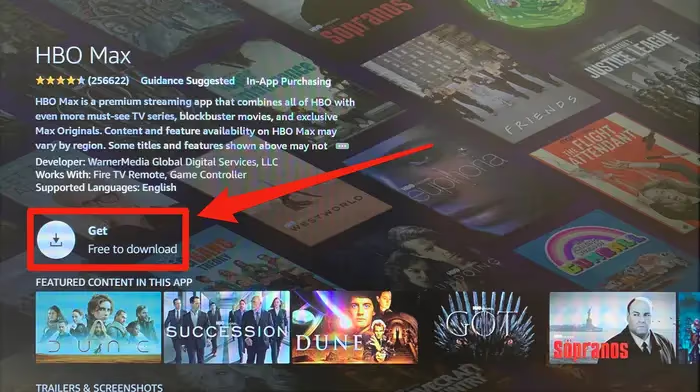
- Wait for the download to finish, then select Open.
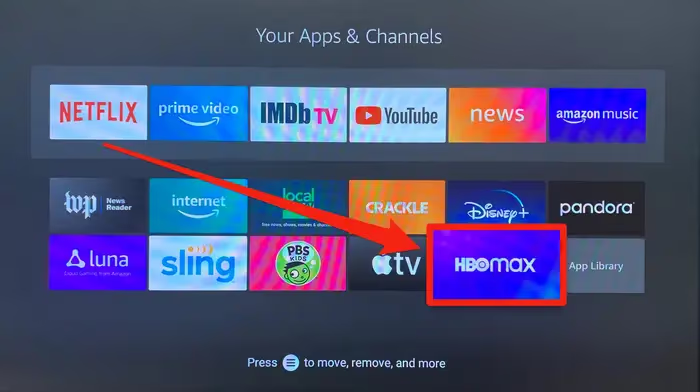
-
Sign in with your Max account credentials or use your cable provider login.
-
Browse the catalog and start streaming. Select titles display a 4K UHD or HDR badge when available in higher quality.
If Max freezes or won’t load on your Insignia Fire TV, check out our Fire TV troubleshooting guide for tested fixes.
#Setting Up Max on an Insignia Roku TV
Insignia Roku TVs use the Roku Channel Store. The steps differ slightly from Fire TV.
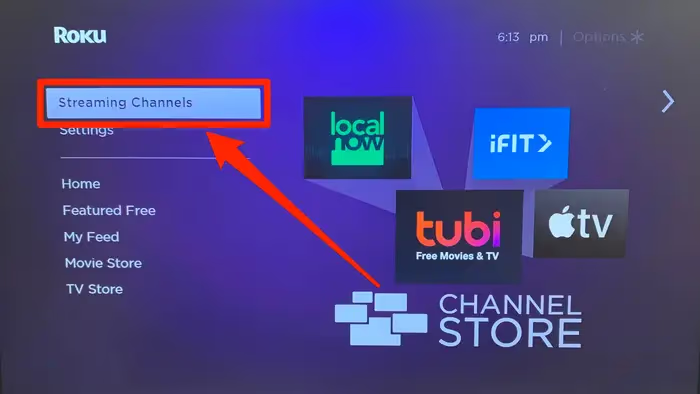
- Press the Home button on your Roku remote, then scroll to Streaming Channels.
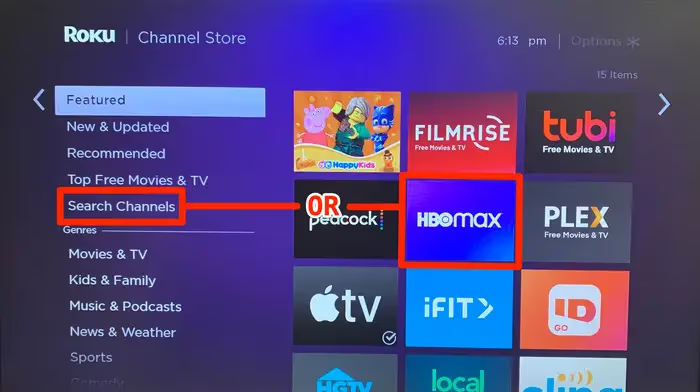
- Use the search bar to type Max and select it from the results.
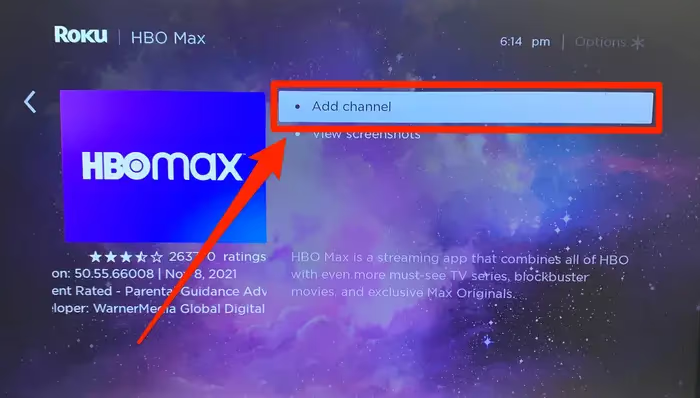
- Click Add Channel and confirm when prompted.
-
Return to the home screen. The Max channel now appears in your channel list.
-
Open Max, sign in, and start watching.
One useful Roku feature: you can subscribe to Max directly through the Roku Channel Store if you don’t already have an account. Roku bills your payment method monthly, so there’s no separate sign-up process. You can also turn on subtitles and closed captions within the Max app for any title.
#How Do You Install Max on an Insignia Google TV?
Newer Insignia models run Google TV instead of Fire OS. These TVs use the Google Play Store for app downloads.
-
From the Google TV home screen, select Apps in the top navigation row.
-
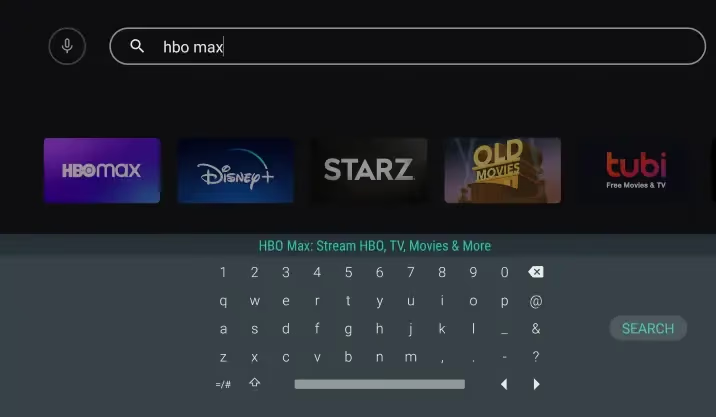
Open the Search bar and type Max.
-
Select the Max app and press Install.
-
Once installed, open Max from your apps list.
-
Sign in with your email and password, or scan the QR code displayed on screen using your phone.
Google TV also lets you add Max to your watchlist directly from the home screen, which pulls Max content into your personalized recommendations. If the app crashes or freezes after installing, clear the app cache through Settings > Apps > Max > Clear Cache.
#Which Insignia TV Model Do You Have?
Not sure which platform your Insignia TV runs? Here is how to tell:
Insignia Fire TV models show the Fire TV logo during startup and have an orange-themed interface. The remote includes a dedicated Alexa voice button. This is the most common type Best Buy sells, and it covers the NS-24DF310NA21, NS-32DF310NA19, NS-50DF710NA21, and similar model numbers.
Insignia Roku TV models display the purple Roku home screen on boot. The remote has a Home button with the Roku logo. Look for model numbers like NS-32D220NA20 or NS-39D310NA21 that include “Roku” in the product name.
Insignia Google TV models appeared in late 2023 and 2024. They show the Google TV interface with a row of app recommendations at the top. The remote has a Google Assistant button.
If your Insignia TV runs an older non-smart platform without a built-in app store, you can still watch Max by connecting an Amazon Fire TV Stick or Roku streaming device to any HDMI port.
#What Are the Max Subscription Plans and Pricing?
Max offers three tiers as of 2026:
| Plan | Monthly Price | Ads | Streams | Resolution |
|---|---|---|---|---|
| With Ads | $9.99/mo | Yes | 2 | 1080p |
| Ad-Free | $16.99/mo | No | 2 | 1080p |
| Ultimate Ad-Free | $20.99/mo | No | 4 | 4K UHD + Dolby Atmos |
Only the Ultimate plan includes 4K and Dolby Atmos support, which matters if you own a 50-inch or larger Insignia 4K TV. The Ad-Free plan caps at 1080p regardless of your TV’s capabilities.
You can subscribe through the Max website, the app on your TV, or bundle Max with other services. For example, you can add Max as an add-on through Hulu and manage everything with one bill.
#Troubleshooting Max on Insignia TVs
When Max stops working on your Insignia TV, work through these fixes in order:
#Check Your Internet Connection
Max needs at least 5 Mbps for HD and 25 Mbps for 4K. Run a speed test from your TV’s network settings or use your phone on the same Wi-Fi network. If speeds are below 5 Mbps, restart your router and move it closer to the TV.
#Force Close and Reopen the App
On Fire TV, go to Settings > Applications > Manage Installed Applications > Max > Force Stop. On Roku, press Home five times, then Up, Rewind, Rewind, Fast Forward, Fast Forward. On Google TV, go to Settings > Apps > Max > Force Stop.
#Clear the App Cache
Fire TV and Google TV both let you clear cached data through the app settings menu. This fixes most playback errors and loading failures without losing your login. Roku does not have a cache clearing option, so uninstall and reinstall the channel instead.
#Update the App and TV Firmware
Outdated app versions cause compatibility issues. Check for Max updates in your TV’s app store. Also check for firmware updates under Settings > System > About > System Update (Fire TV) or Settings > System > System Update (Roku). Keeping your TV firmware current prevents many streaming problems, including those that cause your Insignia TV to get stuck on the loading screen.
#Factory Reset as a Last Resort
If nothing else works, a factory reset restores your TV to its original state. You will need to set up Wi-Fi, reinstall apps, and sign into all your accounts again. Go to Settings > Device & Software > Reset to Factory Defaults on Fire TV, or Settings > System > Advanced System Settings > Factory Reset on Roku.
For a complete list of Max issues on Fire TV devices, see our guide on Max’s official troubleshooting page.
#Bottom Line
Getting Max running on an Insignia TV takes about 5 minutes regardless of which platform your TV uses. Search for “Max” in your app store, download it, and sign in. If the app acts up later, clearing the cache or reinstalling it fixes most problems. For 4K content, you will need both the Ultimate plan and an internet connection of 25 Mbps or faster.
You can also stream Max on other devices around your home, including PS5 consoles and LG Smart TVs.
#Frequently Asked Questions
#Is Max free on Insignia smart TVs?
The app download is free, but you need a paid Max subscription to watch content. Plans start at $9.99 per month for the ad-supported tier. There is no permanent free tier, though Max occasionally offers 7-day trials for new subscribers.
#Can you get Max on an older Insignia TV without a smart platform?
Yes, but not through a built-in app. Connect an Amazon Fire TV Stick, Roku Express, or Chromecast with Google TV to an open HDMI port on your Insignia TV. These devices cost between $25 and $50 and give you access to Max plus hundreds of other streaming apps.
#Why does the app still show “HBO Max” instead of “Max”?
Your TV’s app store may be displaying a cached version of the listing. The service rebranded from HBO Max to Max in May 2023, but some older Insignia Fire TV and Roku models still show the old name. The app itself functions the same regardless of what the icon says. Installing any available update will refresh the name and logo.
#Does Max support Dolby Atmos on Insignia TVs?
Dolby Atmos through the Max app requires the Ultimate Ad-Free plan ($20.99/mo) and an Insignia TV or external soundbar that supports Atmos passthrough via HDMI eARC. Most Insignia TVs have basic stereo speakers that cannot decode Atmos, so you would need an external audio system to benefit from this feature.
#What should you do if Max buffers constantly on your Insignia TV?
Buffering almost always points to a network issue rather than an app problem. Switch from Wi-Fi to a wired Ethernet connection if your TV has an Ethernet port. If it doesn’t, move your router closer to the TV or use a Wi-Fi extender. Also check whether other devices on your network are consuming bandwidth with large downloads or video calls.
#How do you sign in to Max without typing a long password on your TV remote?
Use the activation code method. Open Max on your TV, select “Sign In,” and choose “Sign in on web.” The app displays a code. On your phone or computer, go to activate.max.com, enter the code, and log in there. Your TV signs in automatically within a few seconds.
#Can you watch live sports on Max through an Insignia TV?
Yes. Max carries select live sports including NBA, MLB, NHL, and NCAA events depending on the current broadcast schedule. Live content streams the same way as on-demand titles. You do not need a special plan for live sports, though the Ultimate plan gives you better picture quality during games.