Having issues streaming HBO Max on your Vizio Smart TV? You’re not alone. Issues like app crashes are also commonly seen when streaming HBO Max on platforms like Samsung smart TVs.
As an electronics technician with over 10 years of experience, I’ve helped countless people debug streaming issues on smart TVs. In this guide, I’ll walk you through all the potential fixes when HBO Max won’t load on Vizio televisions.
- Vizio SmartCast TVs from 2016 onward — older models do not support HBO Max at all
- Power cycling fixes most glitches — unplug for 60 seconds and hold the power button for 10 seconds
- Internet speed of 5 Mbps minimum — test on both Wi-Fi and ethernet to rule out network problems
- Clearing app cache and data — resolves endless loading screens and corrupted app states
- A streaming stick bypasses TV software issues — Roku or Firestick plugged into HDMI works as a reliable fallback
#What Are the Most Common HBO Max Problems on Vizio TVs?
Before jumping into the troubleshooting steps, here’s a quick rundown of the most frequent HBO Max problems reported by Vizio Smart TV owners:
-
Compatibility errors: HBO Max may not work on older Vizio models. It requires Vizio SmartCast TVs from 2016 onwards.
-
Connectivity issues: Problems like slow internet, WiFi interference, VPN usage etc. can prevent HBO Max from working properly.
-
App crashes/freezes: Outdated app versions or software bugs often cause the HBO Max app to crash or freeze on launch.
-
Error codes: You may encounter cryptic HBO Max error codes like M30004 that need deciphering.
-
Account login failures: Incorrect HBO Max login credentials entered on your Vizio TV can cause access issues.
The good news? All of these common HBO Max problems can be fixed with the right troubleshooting steps.
Now let’s get into the debugging steps…
#How Do You Fix HBO Max Issues on Vizio TVs?
Follow these 11 steps below to resolve practically any HBO Max streaming issue you may encounter on your Vizio Smart TV:
#1. Check HBO Max System Requirements
Before troubleshooting further, verify if your Vizio TV model supports HBO Max:
-
HBO Max only works on Vizio SmartCast TVs from 2016 onwards.
-
It requires an internet speed of at least 3 Mbps for SD quality and 5 Mbps for HD.
-
The TV must be HDCP 2.2 compliant to stream protected HD content.
-
HBO Max is currently available only in the United States. It also requires an internet speed of at least 3 Mbps for SD quality and 5 Mbps for HD. If speeds are lower, you may face frequent HBO Max buffering issues.
If your Vizio TV fails to meet any of the above requirements, HBO Max won’t function properly. You’ll have to upgrade your TV hardware or internet plan in that case.
#2. Perform a Power Reset
Start troubleshooting HBO Max by power cycling your Vizio Smart TV:
-
Unplug the TV power cord and wait 60 seconds.
-
While unplugged, long press the power button on the TV itself for 10 seconds to discharge residual voltage.
-
Plug the cord back in, power up the TV and check if HBO Max works now.
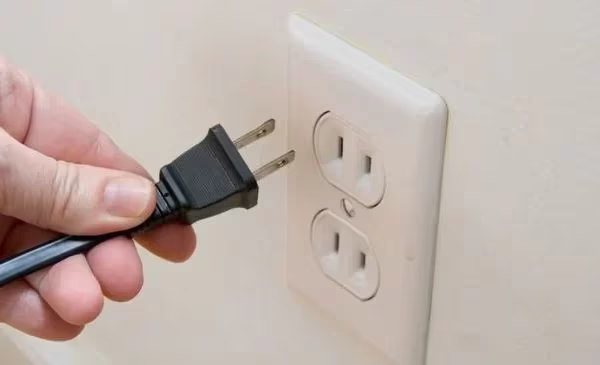
Power cycling forces a hard reboot, clearing any software glitches preventing HBO Max from running.
#3. Check Your Internet Connection
Lack of stable high-speed internet can disrupt streaming on internet-based apps like HBO Max. Verify a few things:
-
Use a smartphone speed test app to confirm your WiFi speeds exceed 5 Mbps.
-
Try streaming on another device like a laptop to isolate the issue – if HBO Max buffers there too, it’s a network problem.
-
Connect your Vizio TV via ethernet instead of WiFi and test HBO Max again.
-
If speeds are consistently low, contact your ISP regarding network issues or plans with higher bandwidth.
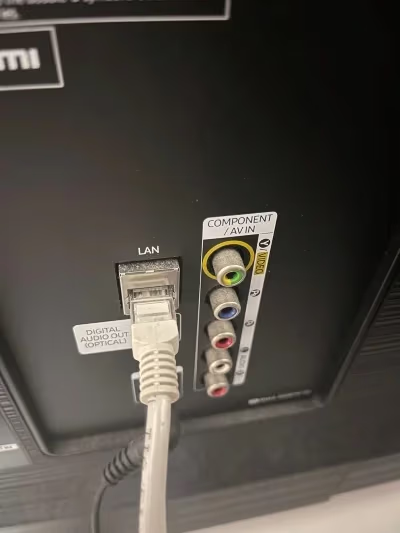
With maxed-out internet speeds confirmed on both WiFi and ethernet, you can eliminate connectivity problems as the culprit.
#4. Restart Your WiFi Router
Intermittent internet dropouts can also impact HBO Max streaming. Restarting your WiFi router and modem eliminates temporary network glitches:
-
Unplug both modem and router power cords for 60 seconds.
-
Plug the power cords back in and give the devices 5 minutes to stabilize connections.
-
Load HBO Max on your Vizio TV to see if router reboot resolved the issue.
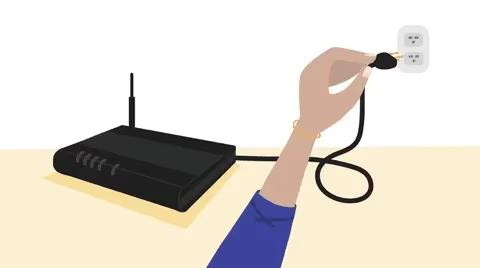
Make sure no devices are actively using the internet before restarting your home network hardware.
#5. Update Your TV and HBO Max App
Having outdated firmware or app versions is one of the most common reasons for streaming issues:
-
Navigate to Settings > System > Check for Updates and install the latest Vizio Smart TV firmware.
-
Check the app store on your TV for any pending HBO Max app updates and install them.
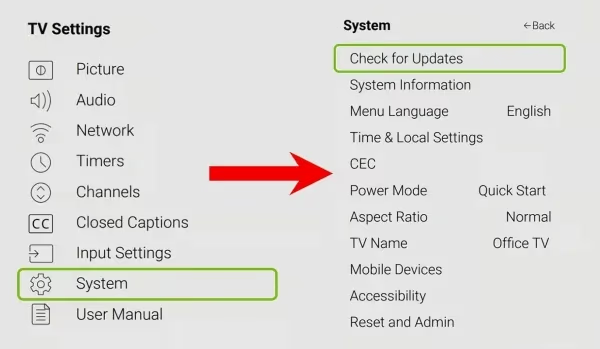
Keep both TV software and HBO Max app updated regularly to enjoy the smoothest streaming experience.
#6. Clear HBO Max App Data and Cache
Corrupted app data/cache is another culprit behind streaming failures like endless loading screens. Here’s how to clear HBO Max cache on Vizio:
-
Go to Settings > Apps > See All Apps.
-
Select the HBO Max app > Clear Cache and Clear Data.
-
Force close HBO Max and relaunch – streaming should now work.
This flushes out old metadata allowing the app to repopulate the information correctly on next load.
#7. Disable VPN Connections
HBO Max actively blocks VPN usage to enforce regional restrictions. Turn off any active VPN connections on your home network:
-
Temporarily disable the VPN app on your router, streaming device etc if enabled.
-
Similarly turn off the VPN app on devices like laptops/phones connected to the same WiFi.
-
Test if HBO Max loads without VPN turned on – if yes, VPN was causing the issues.
You’ll have to stream HBO Max without VPN workarounds to bypass geo-blocks since that violates their terms. Services like Hulu allow easier region hopping in comparison.
#8. Reset Your HBO Max Account Password
One reason for endless loading issues is incorrect login credentials being passed to the HBO Max servers:
-
Open the HBO Max website and select forgot password to reset your account password.
-
On your Vizio TV, delete any saved HBO Max profiles under Settings.
-
Re-enter your updated login details to see if it works now.
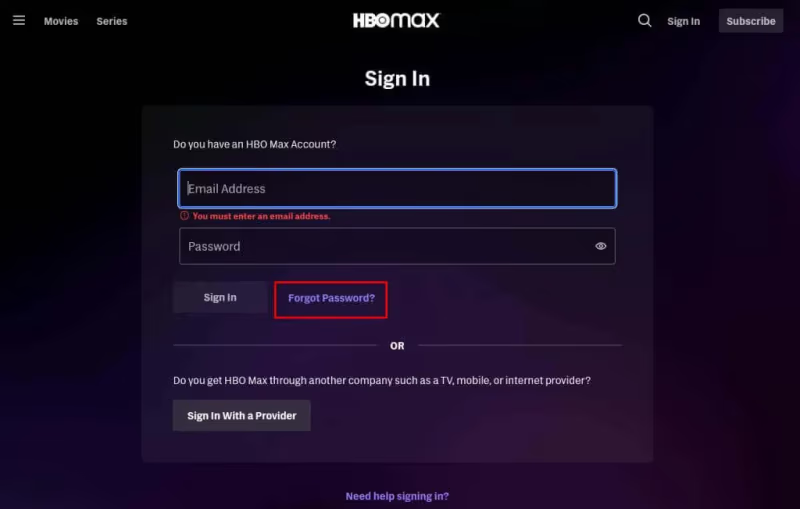
This eliminates account authentication issues that can prevent streaming from starting.
#9. Factory Reset the Vizio TV
If all else fails, restore your Vizio television to factory settings:
-
From Settings, navigate to System > Reset & Admin
-
Select Reset TV to Factory Defaults – this will erase all your data and settings.
-
Complete the initial TV setup again, re-install HBO Max and try streaming.
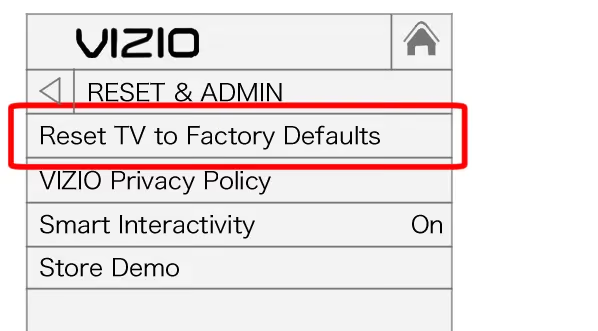
Factory reset erases any underlying software gremlins that could be plaguing the HBO Max app.
#10. Contact HBO Max Support
After exhausting all standard troubleshooting steps above, reach out directly to HBO Max support:
-
From your web browser, visit the HBO Max support webpage.
-
Click on Get Support and choose your preferred contact option – call/chat.
-
Provide relevant details about the streaming issues encountered.
-
HBO Max technicians can further diagnose the problem from server-side logs and assist accordingly.
The HBO Max tech team has additional tools to pinpoint elusive software glitches on their end.
#11. Setup a Streaming Device
As a last resort if HBO Max continues exhibiting problems only on your Vizio TV:
-
Plug a 4K streaming stick like Roku/Firestick into your TV’s HDMI port
-
Install HBO Max on the streaming stick and attempt playback there.
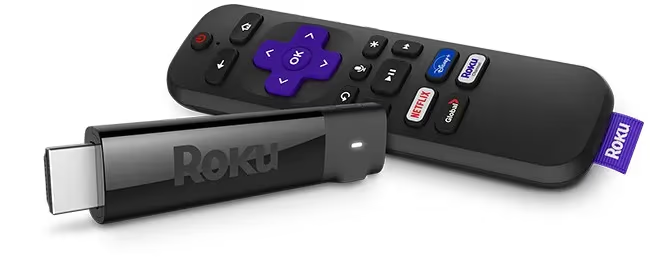
Streaming media devices have dedicated hardware and software built for stable video streaming.
And that’s it! Between the troubleshooting steps above and directly contacting HBO Max support, you should be able to get HBO Max working perfectly on your Vizio television.
Now kick back and enjoy uninterrupted streaming of your favorite shows!
#Frequently Asked Questions
#Why does HBO Max crash or freeze on my Vizio TV?
An outdated app version is the most common cause. Open your TV’s app store, check for pending HBO Max updates, and install them. If that doesn’t help, clear the app cache under Settings > Apps > HBO Max > Clear Cache.
#What does HBO Max error code M30004 mean?
M30004 points to an internet connectivity problem. Restart your router, confirm your speeds hit at least 5 Mbps, and try connecting your TV via ethernet instead of Wi-Fi.
#Which Vizio TV models support HBO Max?
Only Vizio SmartCast TVs manufactured from 2016 onward are compatible. Older Vizio models lack the SmartCast platform and cannot run the HBO Max app natively. You can still watch by plugging a Roku or Firestick into the HDMI port.
#Does a VPN stop HBO Max from working?
Yes. HBO Max blocks VPN and proxy connections to enforce regional licensing. Disable any VPN on your router or connected devices before launching the app.
#How do I clear the HBO Max cache on a Vizio TV?
Go to Settings > Apps > See All Apps, select HBO Max, then tap Clear Cache and Clear Data. Force close the app and relaunch it. This removes corrupted temporary files that cause loading failures.
#How do I factory reset a Vizio Smart TV?
Navigate to Settings > System > Reset & Admin > Reset TV to Factory Defaults. Keep in mind this erases all saved apps, logins, and custom settings, so use it only after other fixes have failed.
#What internet speed does HBO Max need?
HBO Max requires at least 5 Mbps for HD streaming. For 4K content, plan on 25 Mbps or higher. Run a speed test on your phone while connected to the same network your TV uses to verify.
#Bottom Line
That wraps up every fix for resolving HBO Max problems on your Vizio Smart TV model.
As you can see, HBO Max-Vizio issues can usually be pinpointed to software bugs, network problems or compatibility errors. With the right systematic debugging, you can get back to streaming your favorite blockbuster movies and HBO originals.
Here are some key takeaways from this guide:
-
Power reset your TV and router as a first troubleshooting step
-
Maintain latest firmware and HBO Max app versions
-
Check internet speeds both over WiFi and ethernet connections
-
Factory reset clears any persisting software glitches
-
Streaming devices bypass smart TV-specific software issues
-
HBO Max support can diagnose server-side problems
Hopefully the detailed step-by-step instructions above resolved your HBO Max playback issues completely. But feel free to drop any questions/feedback in the comments section below!