HBO Max not working on your Fire Stick? Many Fire Stick users run into buffering, playback failures, app crashes, and error messages. In most cases, you can fix these issues with a few troubleshooting steps.
This guide covers 10 tested solutions to get HBO Max working again on your Fire Stick, Fire Stick 4K, Fire TV Cube or any Amazon streaming device.
If you are having issues accessing HBO Max on other devices like Samsung smart TVs or LG TVs, we have dedicated troubleshooting guides to help get it working properly.
- Clearing HBO Max cache fixes most playback failures and app crashes on Fire Stick
- Internet speed of 5 Mbps minimum is required for SD streaming, 25 Mbps for 4K UHD content
- Reinstalling the app removes corrupted data that a cache clear alone cannot fix
- Disabling Energy Saving Mode prevents Fire OS from throttling streaming app performance
- Factory reset is the last resort and erases all data, but resolves persistent issues other fixes cannot
#Why Does HBO Max Have Issues on Fire Stick?
Before jumping into the fixes, let’s first understand why you may face problems streaming HBO Max on Fire devices:
-
Slow Internet Connection – Internet issues like low bandwidth, latency or loss of connectivity can lead to buffering and playback failures.
-
Outdated HBO Max App – An outdated app version can have bugs and compatibility issues leading to crashes or errors.
-
Corrupt App Cache/Data – Over time, cached app data gets corrupted and causes erratic behavior like freezes or failed loading.
-
Account Issues – Incorrect login details, subscription problems or authorization errors can also stop HBO Max from working.
-
Hardware Problems – Faulty hardware components in your Fire Stick may prevent apps from functioning smoothly.
-
OS Bugs – Software bugs in Fire OS can also interfere with streaming apps like HBO Max.
Here are the step-by-step solutions.
#1. Check Your Internet Connection
The first thing to check is your home internet connection. HBO Max recommends a minimum speed of 5 Mbps for smooth SD streaming and 25 Mbps for 4K UHD.
Test your current speeds with these methods:
-
Use Fast.com’s speed test right on your Fire Stick browser
-
Install the free Speedtest app to check upload/download speeds
-
Power cycle your modem and router if speeds are consistently low
Getting speeds lower than 5 Mbps? Contact your ISP regarding slow internet issues before proceeding.
If your speeds are fine, optimize your network:
-
Restart your router and modem
-
Move Fire Stick closer to the router
-
Use 5 GHz Wi-Fi band instead of 2.4 GHz if available
-
Connect your Fire Stick directly to router using Ethernet
-
Disconnect other devices using your internet
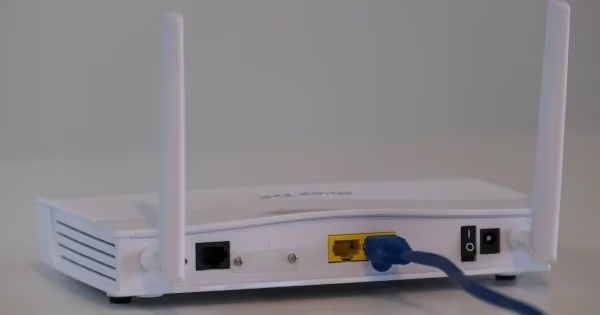
These tips will help establish a fast and stable connection for smooth HBO Max streaming.
#2. Update The HBO Max App
Outdated apps can cause a lot of problems, so make sure you’re running the latest version of HBO Max.
Here’s how to update:
-
From your Fire Stick home screen, select the Search option
-
Type in “HBO Max”
-
Click on the HBO Max icon
-
Select “Update” if available.
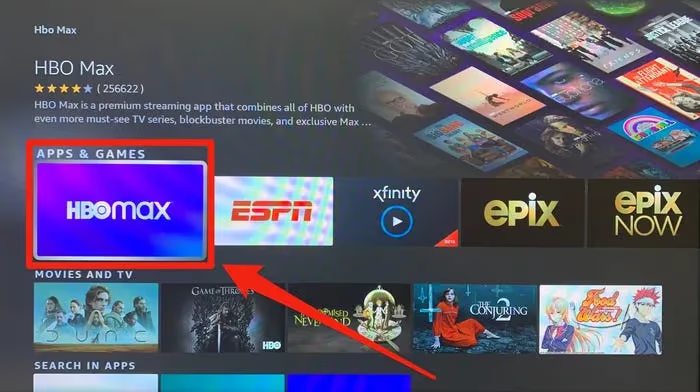
This will install the newest fixes and optimizations to prevent issues from occurring when streaming movies/shows.
If your HBO Max app keeps crashing unexpectedly, this post covers some tips on preventing HBO Max from crashing.
#3. Clear HBO Max Cache
Over time, cached data and app files get corrupted and cause erratic behaviors like freezing/crashing.
Clearing the cache forces a refresh, fixing such issues.
From your Fire Stick Home screen:
-
Select the Settings option
-
Select Applications > Manage Installed Applications
-
Select HBO Max > Clear Cache
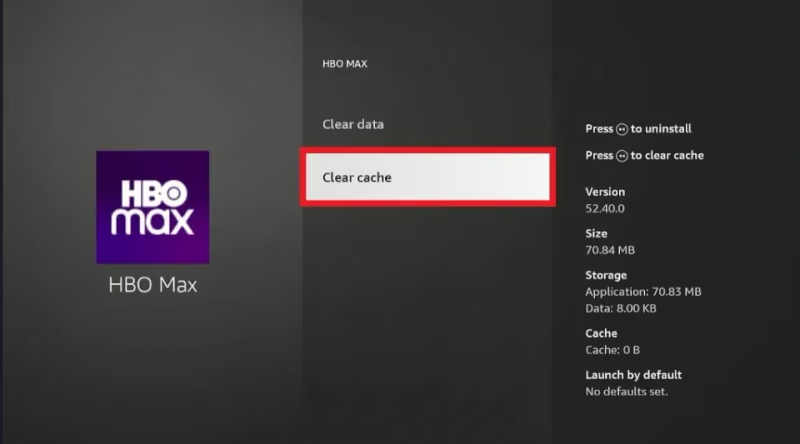
Give HBO Max a minute to reload its files and then try streaming again. In most cases, this solves playback problems straight away.
#4. Remove and Reinstall HBO Max
If you still face issues, the app may have leftover corrupted data that wasn’t cleared with the cache. Reinstalling provides a 100% clean slate.
-
On your Fire Stick, select Settings > Applications > Manage Installed Applications
-
Choose HBO Max
-
Select Uninstall to remove the app and all its data
-
Restart your Fire Stick
-
Search for “HBO Max” and reinstall it
-
Login to HBO Max with your account details
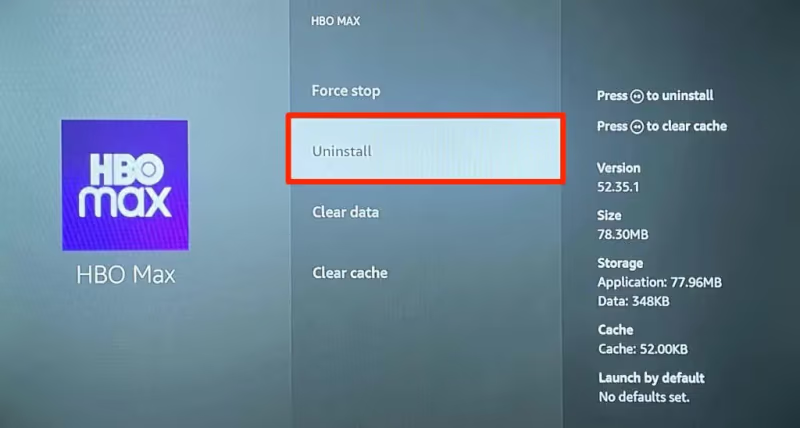
Reinstalling gives you a fresh HBO Max app free from problematic cached files. This often resolves stubborn streaming failures.
If you want to bundle HBO Max with your Hulu subscription, check out this guide on how to add HBO Max to Hulu.
#5. Force Close Background Apps
Too many apps running in the background can slow down your Fire Stick significantly. This leads to choppy playback and buffering with streaming apps.
-
On your Fire Stick, go to Settings > Applications > Manage Installed Applications
-
Sort apps by Size or Last Used
-
Select unused apps and choose Force Stop
-
Clear their cache if available
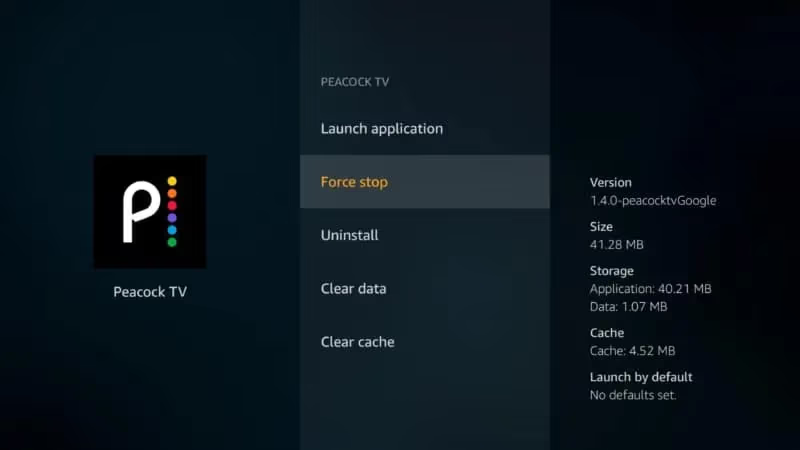
Freeing up resources can help HBO Max run much smoother without getting throttled from background processes taking over system resources.
#6. Restart Your Fire TV Device
A restart refreshes the entire Fire OS environment and clears any temporary glitches causing HBO Max to misbehave.
On any Fire Stick remote:
-
Press and hold down the Select and Play/Pause buttons
-
Your Fire device will power down
-
When the Fire logo reappears, release the buttons
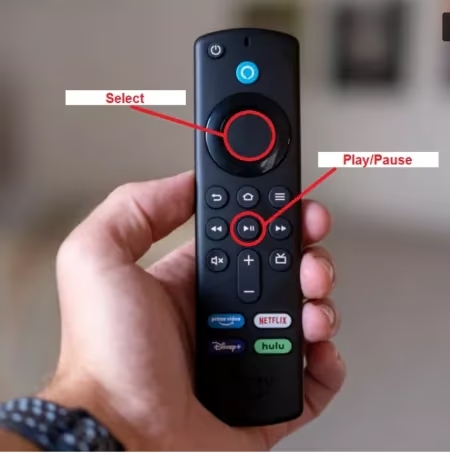
Allow 30 seconds before restarting HBO Max to let the OS settle. This reboot solves most app problems.
#7. Turn Off Energy Saving Mode
Fire devices have an Energy Saving setting that caps performance to save power. This can starve streaming apps from resources needed for smooth media playback.
Disabling energy saving forces maximum performance so HBO Max can function properly.
-
Go to Settings > Preferences > Power
-
Turn Energy Saving Mode off
-
Restart your Fire Stick
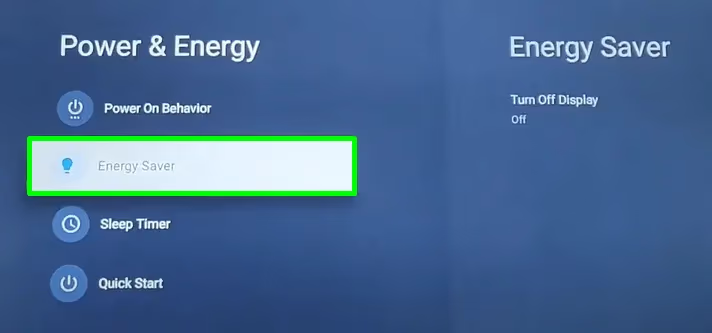
With power restrictions lifted, you’ll have a much better HBO Max experience.
#8. What Video Display Settings Work Best for HBO Max?
Sub-optimal video configurations can overload your device leading to choppy streams.
But optimizing display settings makes it easier for your Fire Stick to smoothly process and render HBO Max content.
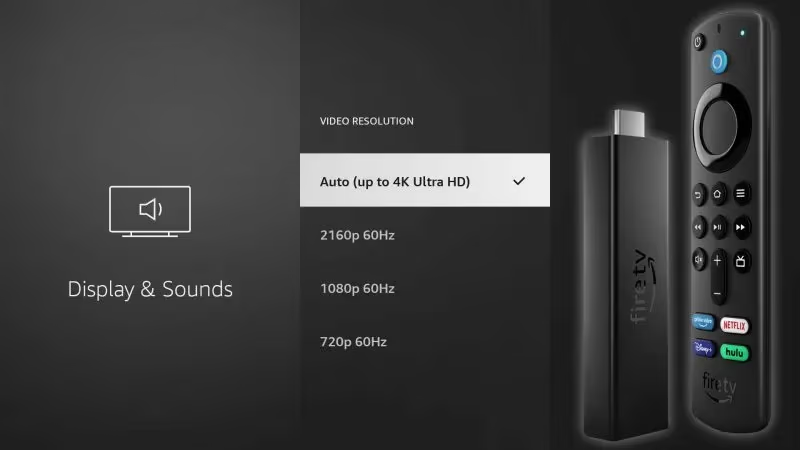
Recommended settings for smooth streaming:
-
Resolution – 1080p
-
Refresh rate: 60 Hz
-
Color depth: 8-bit
Adjust under Settings > Display & Sounds if necessary. These deliver good visuals without being too taxing for streaming.
#9. Contact HBO Max Support
If you still face HBO Max problems after trying everything, there may be an outage or server-side issue.
Reach out to HBO Max support through:
-
Live chat from their contact page
-
Direct Message them on Twitter
-
Call the helpline (855) 442-6629
Provide details of the issue you’re facing along with debug logs if asked. Their technical team can investigate and resolve persistent streaming failures.
#10. Reset Your Fire Stick
WARNING: Resetting your Fire device erases all data and defaults settings. Only use this fix as a last resort.
That being said, a factory reset often resolves even the most stubborn HBO Max problems that don’t get fixed with the above steps.
It essentially gives you a brand new Fire OS environment devoid of any problematic configurations that could affect apps like HBO Max.
From your Fire Stick Home Screen:
-
Select Settings > My Fire TV > Reset to Factory Defaults
-
Select Reset and confirm again when prompted
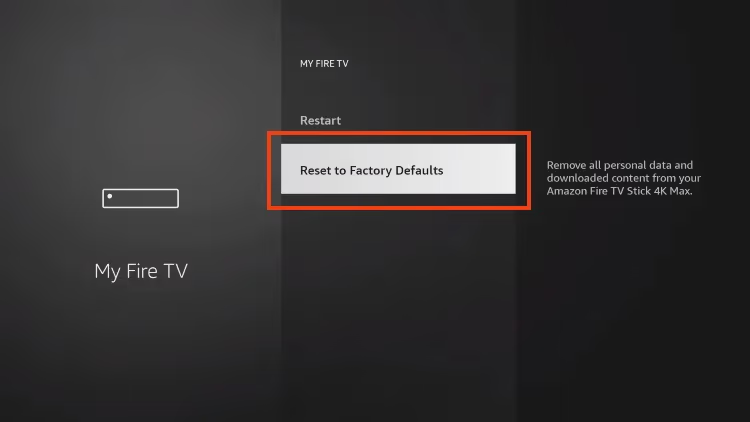
Set up your Fire Stick from scratch being sure to optimize settings as covered earlier. Reinstall HBO Max to see if the nuclear reset treatment finally fixed things!
That covers all 10 fixes for HBO Max on Fire Stick.
If you are having issues with other streaming apps like Hulu or Disney+ not working on your Fire Stick, check out these guides on fixing Hulu playback problems and troubleshooting Disney+ stuck on loading screen.
Start with the cache clear and work your way down the list. Most Fire Stick owners get HBO Max running again within the first three fixes.
#FAQ
#Why does HBO Max keep buffering on my Fire Stick?
Buffering usually happens because your internet speed drops below the 5 Mbps minimum HBO Max needs for SD streaming. Move your Fire Stick closer to the router or switch to the 5 GHz Wi-Fi band. If speeds are fine, clear the HBO Max cache to remove corrupted temporary files that slow down playback.
#Is HBO Max compatible with all Fire Stick models?
HBO Max works on Fire TV Stick 2nd generation and newer. Older 1st generation Fire Sticks do not support the app due to hardware limitations. Check your model under Settings > My Fire TV > About.
#How do I fix HBO Max error codes on Fire Stick?
Most HBO Max error codes point to a connectivity or account issue. Restart your Fire Stick and router first, then sign out and back into your HBO Max account. If the error persists, uninstall and reinstall the app to reset all local data.
#Can I use a VPN with HBO Max on Fire Stick?
Yes, but HBO Max actively blocks many VPN servers. If the app stops working after you enable a VPN, try switching to a different server location or disconnect the VPN entirely. Not all VPN providers support Fire Stick natively, so check compatibility before subscribing.
#Why does HBO Max crash when I open it on Fire Stick?
App crashes typically result from corrupted cached data or an outdated app version. Clear the cache first under Settings > Applications > Manage Installed Applications > HBO Max. If crashes continue, uninstall and reinstall the app.
#Does HBO Max work better on Fire Stick 4K than the standard model?
The Fire Stick 4K has a faster processor and more RAM, so apps generally load quicker and stream more reliably. HBO Max 4K HDR content also requires the 4K model or Fire TV Cube since the standard Fire Stick maxes out at 1080p.
#How do I check if HBO Max servers are down?
Visit the DownDetector HBO Max page to see real-time outage reports from other users. You can also check the official HBO Max Help Twitter account for service status updates. If many users report problems at the same time, the issue is on HBO Max’s end and you just need to wait.