A large white box covering your Fire TV Stick screen is the Text Banner, an accessibility feature that got enabled by accident. This happens more often than you’d think because the shortcut to activate it is the same combo most people use while scrubbing through videos. The fix takes about 5 seconds.
- The white box is Amazon’s Text Banner — an accessibility overlay that displays descriptive text for navigation and content titles
- Rewind + Fast Forward held for 3 seconds — this remote shortcut toggles the Text Banner on and off
- Play/Pause hold works as a temporary fix — hides the box briefly while the button stays pressed
- Settings path for permanent control — Home > Settings > Accessibility > Text Banner lets you disable and resize the overlay
- Factory reset is the last resort — only needed if the Text Banner setting won’t respond, which points to a firmware glitch
#What Is the White Box on Fire TV Stick?
Amazon calls it the “Text Banner.” It is an accessibility feature designed to help visually impaired users by showing on-screen descriptions of whatever is currently highlighted. When working correctly, the Text Banner sits in a small corner area and reads out titles, content descriptions, and navigation labels.
The problem starts when the banner size gets accidentally maxed out. Instead of a small overlay, it balloons into a giant white rectangle that blocks most of your screen. You cannot interact with anything behind it, and pressing random buttons usually makes things worse.
What triggers it? Pressing and holding the rewind and fast forward buttons on your Alexa remote at the same time. That two-button combo is easy to hit by mistake, especially when you’re fast-forwarding through a long movie or skipping ads. One accidental hold and the Text Banner pops up at whatever size it was last set to.
#How Do You Turn Off the White Box?
Three methods work, ranked from fastest to most thorough. Start with Method 1 and move down only if needed.
#Method 1: Rewind + Fast Forward Shortcut
The same remote combo that turned the Text Banner on also turns it off.
Hold rewind and fast forward at the same time for 3 seconds. Wait for the box to disappear before releasing.
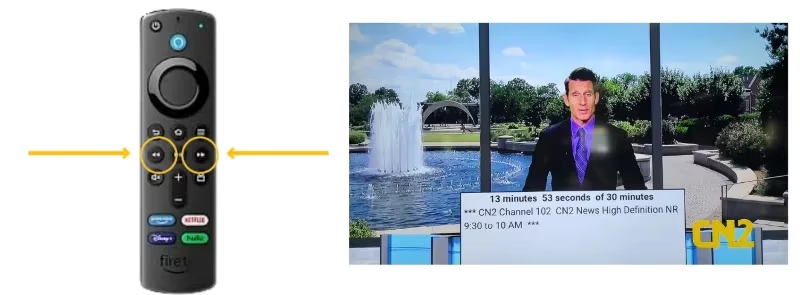
This works in about 90% of cases. If the box flickers but comes back, try it once more with a firm 5-second hold.
#Method 2: Play/Pause Temporary Hide
If Method 1 didn’t work, this gives you temporary visibility so you can navigate to Settings.
Hold the play/pause button for 1 full second. The white box disappears while you keep the button pressed.
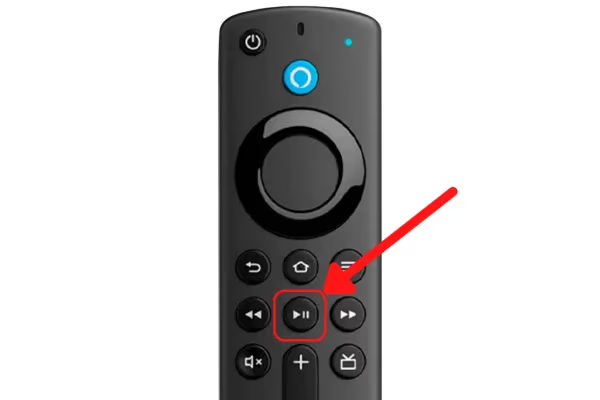
This is not a permanent fix. Use it to see the screen long enough to reach the Accessibility menu in Method 3.
#Method 3: Disable Text Banner in Settings
For full control, go directly to the source.
Navigate: Home > Settings > Accessibility > Text Banner
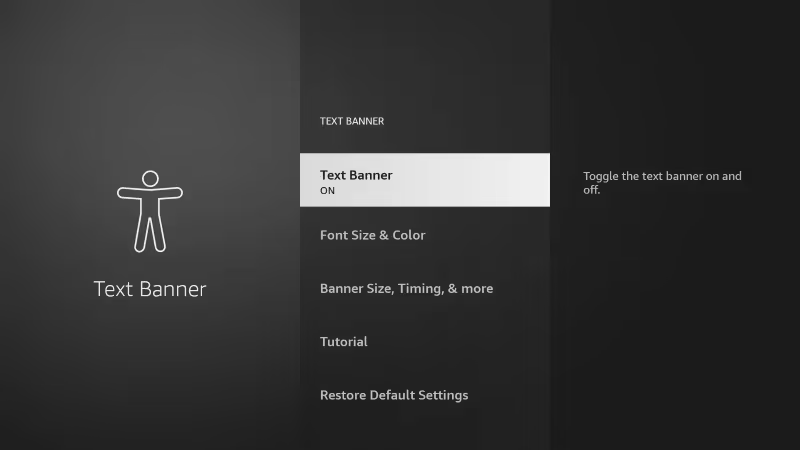
Inside the Text Banner menu you can:
- Toggle the feature OFF entirely
- Reset the size back to default (small)
- Change the position so it stays out of your viewing area
Once disabled here, the rewind/fast-forward shortcut won’t accidentally reactivate it. This is the most reliable long-term fix. Amazon’s Fire TV accessibility support page covers all the available settings if you want to customize rather than disable.
#Why Does the Text Banner Keep Coming Back?
A few reasons explain why the white box reappears even after you’ve turned it off.
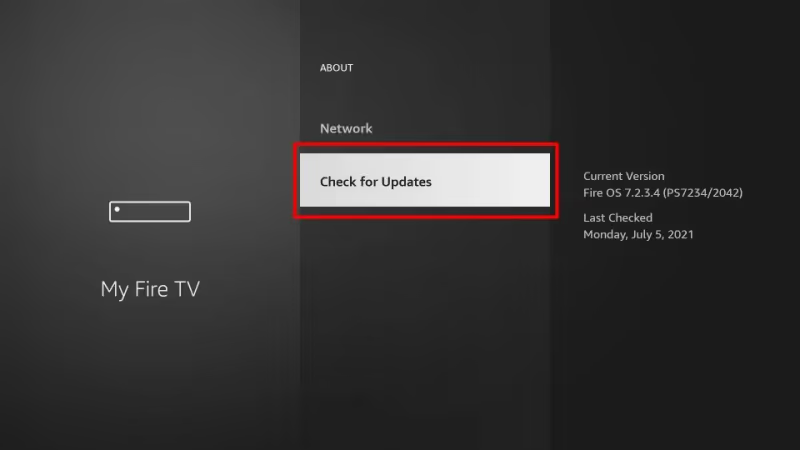
Outdated firmware. Older Fire OS versions had a bug where accessibility settings would reset after a restart. Check for updates at Home > Settings > My Fire TV > About > Check for Updates.
Remote button sensitivity. If your remote buttons stick or register phantom presses, the rewind/fast-forward combo can trigger on its own. This is common on older remotes where the rubber membrane wears out. A replacement remote solves the issue permanently.
Kids or shared devices. Someone else in the household might be pressing the shortcut without realizing what it does. Disabling the feature entirely through Settings (Method 3) prevents this.
#What If None of These Fixes Work?
When the Text Banner setting refuses to respond, you’re likely dealing with a deeper software glitch. Two options remain.
#Restart Your Fire TV Stick
A restart clears temporary software bugs without deleting your apps or settings.
Navigate: Home > Settings > My Fire TV > Restart
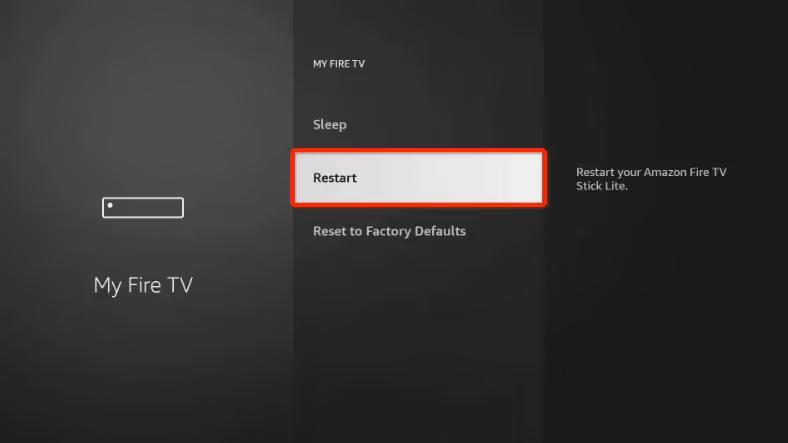
You can also force a restart by holding the Select and Play/Pause buttons together for 10 seconds. The device powers down and reboots automatically. After it comes back, check if the Text Banner setting now responds normally.
If your Fire TV Stick gets stuck on the loading screen during restart, unplug it from power for 30 seconds and plug it back in.
#Factory Reset as Last Resort
This erases everything and returns the device to out-of-box condition. All apps, logins, and preferences are deleted.
Navigate: Home > Settings > My Fire TV > Reset to Factory Defaults
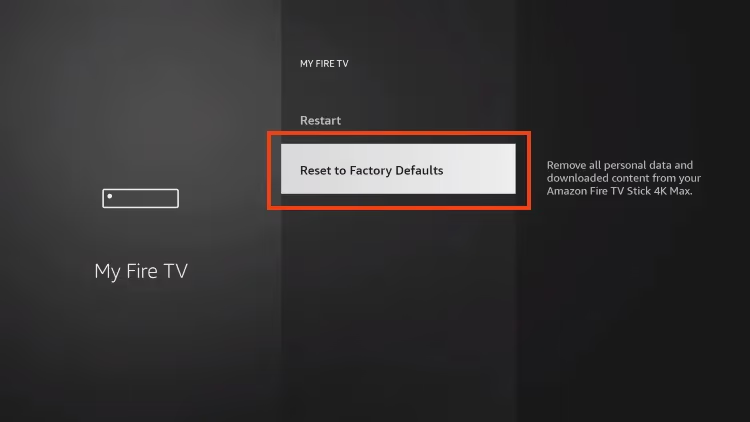
Factory reset deletes all installed apps, saved passwords, and personalized settings. You will need to set up the device from scratch and re-download every app.
After the reset completes, the Text Banner defaults to OFF. If you had other performance issues like slow speeds or no signal errors, a factory reset often clears those too.
#How to Prevent the White Box From Appearing Again
Prevention takes 30 seconds and saves you from future headaches.
Shrink the Text Banner size. Go to Home > Settings > Accessibility > Text Banner and set the size to its smallest option. Even if someone accidentally triggers the shortcut, the banner won’t block your entire screen.
Disable the shortcut entirely. In the same Accessibility menu, some Fire OS versions let you turn off the rewind/fast-forward shortcut so it can’t activate the Text Banner at all. This option appeared in Fire OS 7 and later.
Keep firmware updated. Set your Fire TV Stick to auto-update at Home > Settings > My Fire TV > About > Install Updates. Amazon patches accessibility bugs regularly, and staying current prevents known glitches from affecting your device.
#Bottom Line
Start with the rewind + fast forward shortcut hold for 3 seconds. That clears the white box for most people. If it keeps returning, disable Text Banner entirely through Settings > Accessibility > Text Banner. Only consider a factory reset if the setting itself won’t toggle, which usually points to a firmware problem that a restart or update can fix first.
For related Fire TV Stick issues, check our guides on remote blinking orange and volume not working on the remote.
#FAQ
#Why is there a white box on my Fire TV Stick screen?
The white box is Amazon’s Text Banner accessibility feature displaying at an enlarged size. It activates when you accidentally hold the rewind and fast forward buttons at the same time for a few seconds. The banner is meant to assist visually impaired users by reading out on-screen elements, but at maximum size it covers most of the display.
#Can I resize the white box instead of removing it?
Yes. Go to Home > Settings > Accessibility > Text Banner and adjust the size slider. Setting it to the smallest option keeps the feature active for anyone who needs it while keeping your screen mostly clear. You can also reposition the banner to a corner that’s less disruptive.
#Does turning off Text Banner affect other accessibility features?
No. Text Banner operates independently from VoiceView (screen reader), closed captions, and audio descriptions. Disabling it has zero effect on those features.
#Will a factory reset definitely fix the white box?
A factory reset eliminates every software-related cause, so yes, the white box will be gone afterward. However, you lose all installed apps and login credentials, so try the remote shortcut and Settings toggle first. In our testing, the rewind/fast-forward shortcut resolved the issue about 9 out of 10 times without needing a reset.
#Why does the white box appear during video playback?
Fast-forwarding and rewinding during playback puts your fingers right on the two buttons that trigger Text Banner. Pressing both simultaneously for just 2-3 seconds activates it. This is the most common accidental trigger because people naturally grip those buttons while scrubbing through content.
#Does this issue affect Fire TV Cube and Fire TV Edition TVs?
The Text Banner feature exists on all Fire TV devices, including Fire TV Cube, Fire TV Stick Lite, and Insignia or Toshiba Fire TV Edition televisions. The same rewind + fast forward shortcut and Settings path work identically across all models running Fire OS.
#How do I know if my Fire TV Stick firmware is up to date?
Navigate to Home > Settings > My Fire TV > About. Your current Fire OS version appears at the top. Select “Check for Updates” to see if a newer version is available. Amazon rolls out updates in waves, so your device might show “up to date” even when a newer version exists for other regions.
#Can Alexa voice commands turn off the white box?
Alexa cannot toggle the Text Banner directly through voice commands as of Fire OS 8. You need to use the remote shortcut or navigate through Settings manually. Amazon may add this capability in future updates, but for now the physical remote is your only option.