If your Amazon Firestick is stuck on the loading screen, you are not alone. This is one of the most common Fire TV Stick issues, and it usually comes down to a connection problem or a software glitch. The good news? Most fixes take less than five minutes.
- Restart your Firestick first — holding the power button for 20 seconds clears most temporary software glitches
- HDMI port problems cause 30%+ of loading failures — switching to a different port on your TV often fixes the issue immediately
- Outdated apps and firmware trigger freezes — check for pending updates under Settings > My Fire TV > About
- Always use the original Amazon power adapter — third-party cables deliver inconsistent power and cause boot loops
- Overheating locks the device on the loading screen — if the Firestick feels hot, unplug it for 10 minutes before restarting
#Why Is Your Firestick Stuck on the Loading Screen?
If your Firestick is stuck on the loading screen and you can’t access any of its features, the problem likely lies in a connection issue. Here are some reasons why you might be experiencing this:
#1. Poor Internet Connection
If your Firestick is stuck on the loading screen, you might have a poor internet connection. To check this, try using a different Wi-Fi network or cable. You can also try using another router or modem and changing the power source and HDMI cable port.
#2. Outdated Firestick Apps
Be sure to check for app updates. If you have an outdated version of an app installed, this could cause your Firestick to crash. Try updating the app and see if it helps resolve the problem.
Don’t use a remote with a dead battery. If your remote is not charged or has a dead battery, you may encounter issues navigating through menus on your Firestick. It can also cause problems when installing software updates.
#3. The Amazon Firestick TV Is Not Connected to Any HDMI Device
The following reason for the Firestick being stuck on the loading screen might be that Amazon Fire TV Stick is not connected to any HDMI device. Suppose you have a cable box or DVD player connected to your TV.
Try to connect the Firestick TV after removing those devices from the HDMI port on your television. After that, try connecting again and see if it works now.
#4. HDMI Issues
If you’ve checked the HDMI cable and it’s still not working, the problem could be with the HDMI port on your TV. The HDMI ports on Firestick TVs are notoriously fragile, and they can quickly become damaged if you don’t take proper care of them. You should also check that there isn’t any dust or dirt in your cable.
#5. Issues With the Remote
Another typical reason your Firestick is stuck on the loading screen is a faulty remote. To resolve this, you will have to check the batteries and ensure that the remote is not damaged.
Also, check the remote is not blocked by anything and that it is in the correct mode (TV or Fire TV Stick). Make sure you are pointing at your Firestick.
If you wonder whether you can use both devices on one TV, check out our guide on using Roku and Firestick on the same TV.
#How Do You Fix a Firestick Stuck on the Loading Screen?
You are now well aware of the possible reasons why your Firestick is stuck on the loading screen. Below are some troubleshooting tips to resolve the problem.
Also, knowing how to reset Amazon Fire Stick without a remote is helpful if your remote stops responding during the process.
#1. Restart Your Firestick TV Device
The easiest and the most common way to fix your Firestick stuck on the loading screen is to restart the device. Turn it off and then turn it back on again. This will reload the software and clear any issues that may be occurring.
If you use an Amazon Firestick, you can hold the button for 20 seconds. Hold it until a menu asks if you want to shut down or restart.
Select restart at this point to clear out any issues with your current setup and get started again.
#2. Check and Change HDMI Ports
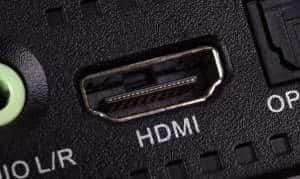
Changing the HDMI port is the next thing you should try. This means connecting your Firestick TV to a different HDMI port on your TV.
If it still doesn’t work, try a different HDMI cable. You may want to try using one of the other ports on your TV as well.
If your Firestick is new, try unplugging it and plugging it back in. You can also wait a few minutes and see if the problem clears up on its own. If not, it could be something else on your TV that needs attention.
Looking for a replacement remote? Here is our guide on the best Firestick remote replacement options.
#3. Check if the Firestick TV Supports HDCP
HDCP is used on devices that output video content. Firestick TV can play HDCP-protected content, but it may not support some devices that use HDCP encryption technology.
If your device doesn’t support HDCP and you try to play an HDCP-protected movie or TV show, the picture might be distorted. You might also see a black screen or an HDCP error message.
You can fix this problem by removing the HDMI cable between your device and Firestick TV and then reconnecting it. If you’re still having issues, try connecting your Firestick TV to a different HDMI port. If that doesn’t work, contact the manufacturer of your device and ask if it supports HDCP encryption technology.
#4. Check Whether Your Firestick TV Is Overheating
The next tip to resolve the Firestick stuck on the loading screen is to check if the device is overheating. Place your hand on top of it for a few seconds and see how warm it feels. If the Firestick is warm to the touch but cool enough to handle, it should be fine.
If it feels very hot, unplug the device and let it cool down for at least 10 minutes before plugging it back in.
#5. Use the Original Power Cable and Adapter Provided by Amazon
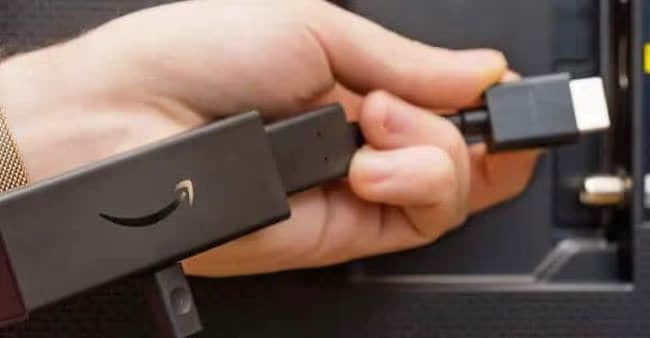
The next thing to check is if your Fire TV Stick is using its original power cable. It should be plugged into an outlet near your TV. If it isn’t, try plugging it into another outlet on the same circuit as your other devices.
If the Fire TV Stick still doesn’t work, try switching out the power adapter for another one. You may have accidentally damaged yours while plugging or unplugging it from an outlet.
Still having trouble? Try resetting the Fire TV Stick by holding the “Home” button for about 20 seconds. If that doesn’t work, unplug your device from power and let it sit for at least 10 minutes before plugging it back in.
#6. Check if the Remote Is Working
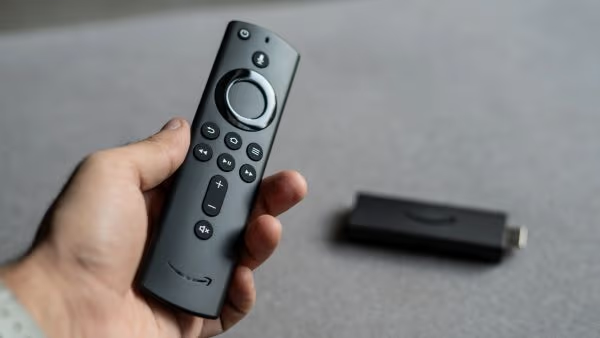
If the remote is not working, check the batteries and make sure they are correctly installed. If the batteries are working, open the remote and inspect the internals. If everything looks fine inside, you may need to replace the remote entirely.
If your Firestick TV has been damaged, that shouldn’t stop you from getting it back up and running. You can try resetting your Firestick TV by turning off power for about ten minutes before turning it back on again.
#What Preventive Steps Keep Your Firestick Running Smoothly?
The best way to deal with Firestick issues is to prevent them before they happen.
#Regularly Updating Software
Keeping your Firestick software up to date will ensure good performance and a bug-free experience.
#Proper Use of HDMI Port
Handle the HDMI port with care and keep it clean to avoid any connectivity issues.
#Regular Cache Clearing
Clearing cache regularly can free up memory and avoid overloading, leading to a smoother Firestick experience.
Also read: Firestick Remote Volume Not Working – 14 Solutions Here!
#FAQs
#Why is my Firestick stuck on the loading screen?
There could be several reasons, including a slow internet connection, outdated software, cache overload, or a faulty HDMI port. The most common cause is a weak or dropped Wi-Fi signal during boot.
#How do I restart my Firestick when it won’t load?
Hold the power button on your remote for 20 seconds until the restart menu appears. If the remote isn’t responding, unplug the Firestick from power, wait 30 seconds, and plug it back in.
#Can a bad HDMI port cause the loading screen issue?
Yes. A faulty or dirty HDMI port is one of the top reasons a Firestick gets stuck. Try switching to a different HDMI port on your TV, and use a different HDMI cable if the problem continues.
#Does clearing cache help fix a frozen Firestick?
Clearing the cache frees up memory that apps have stored over time. Go to Settings > Applications > Manage Installed Applications, select the problematic app, and clear its cache. This often resolves freezing and loading problems.
#What should I do if my Firestick is overheating?
Unplug the device immediately and let it cool for at least 10 minutes. Make sure the Firestick has proper ventilation and isn’t tucked behind the TV where heat builds up. Using the included HDMI extender cable can help with airflow.
#Will a factory reset fix the loading screen problem?
A factory reset erases all data and returns the Firestick to its original settings. This is a last resort, but it does fix most persistent loading screen issues. Go to Settings > My Fire TV > Reset to Factory Defaults.
#Can using a third-party power adapter cause boot issues?
Third-party adapters often deliver less power than the original Amazon adapter. The Firestick needs a stable 5V/1A power supply, and underpowered adapters can cause boot loops or leave the device stuck on the loading screen. Always use the adapter that came in the box.
#Bottom Line
There are several reasons why your Firestick is stuck on the loading screen. The most common cause is an error with the software or firmware installed on the device.
If this happens, follow the troubleshooting tips above starting with the easiest fix: a restart. Our tips will help you fix a Firestick stuck on the loading screen. If none of these steps work, contact Amazon Support for assistance. In some cases, they may ask you to factory reset the device before they can troubleshoot further.