Have you noticed your FireStick slowing down recently? Is it lagging, freezing, or just not performing like it used to? You’re not alone. Many FireStick users face performance issues over time. The good news is there are plenty of troubleshooting tips you can try to get your FireStick running faster again. This guide covers the top 15 fixes to speed up a slow FireStick.
- Restart your FireStick first — a simple reboot clears temporary glitches and frees up RAM instantly
- Clear app cache regularly — cached data fills the limited 8GB storage and causes noticeable lag
- Switch to 5GHz WiFi — the 5GHz band offers faster speeds and less interference than 2.4GHz
- Force stop background apps — unused apps running in the background consume RAM and slow everything down
- Factory reset as a last resort — this erases all data but returns the FireStick to peak performance
#Why Is My FireStick So Slow?
There are a few key reasons why your FireStick may have slowed down:
-
Insufficient storage space – FireSticks have limited onboard storage. Filling up space can cause lagging.
-
Too many background apps – Lots of apps running at the same time eat up RAM and slow performance.
-
Software issues – Outdated firmware or buggy apps can degrade speeds.
-
Network congestion – Weak WiFi signals and bandwidth contention with other devices lead to buffering and lag.
-
ISP throttling – Some ISPs intentionally limit streaming bandwidth, which may require using a VPN.
Understanding the probable cause will help you pinpoint the right fix. Now let’s get into the top ways to troubleshoot and speed up a slow FireStick.
#What Are the Basic Troubleshooting Steps?
Before trying more advanced fixes, first cover the basics. These often resolve common performance issues on their own:
1. Restart Your FireStick
Rebooting clears temporary glitches and frees up RAM, which can dramatically speed up your FireStick.
- Go to “Settings” > “My Fire TV” > “Restart”
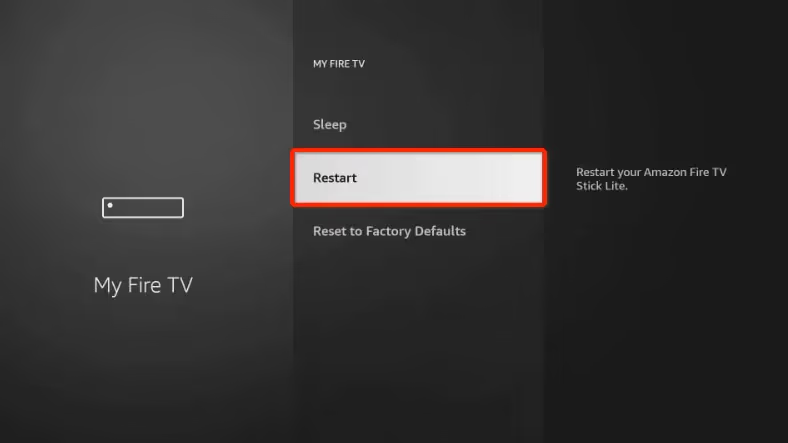
Or press and hold select button for 10 seconds and choose Restart.
Learn what to do about a white box appearing on your FireStick screen.
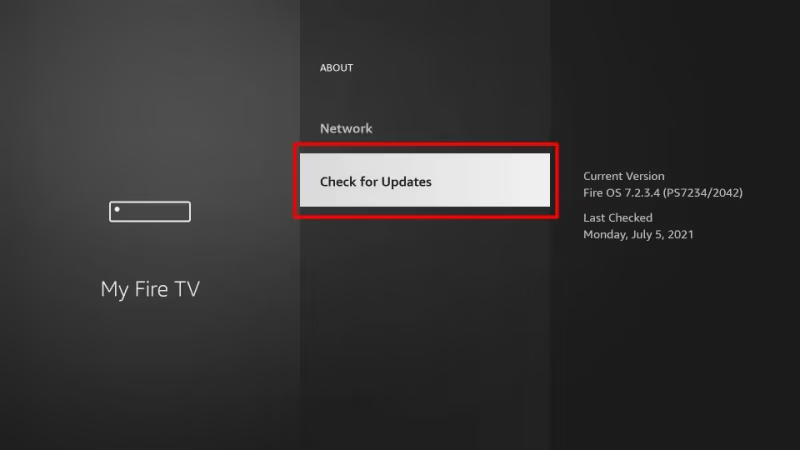
2. Check for Software Updates
Updating to latest firmware improves performance, fixes bugs, and boosts speeds.
- Go to “Settings” > “My Fire TV” > “About” > “Check for Updates”
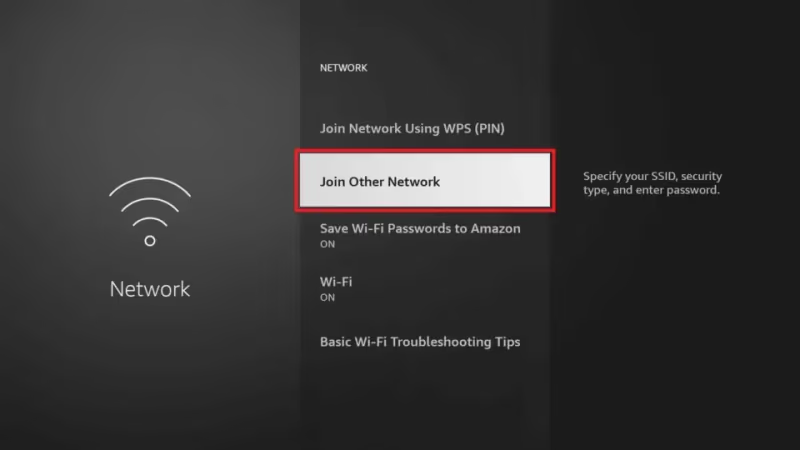
3. Switch to 5GHz WiFi Band
Reduce buffering and connection drops by switching to 5GHz band.
- Go to “Settings” > “Network” > “WiFi” > “Join Other Network”
4. Use Ethernet Connection
For the fastest and most reliable speeds, connect your FireStick directly to your router with an Ethernet cable.
#How Do You Clear Cache and Free Up Storage?
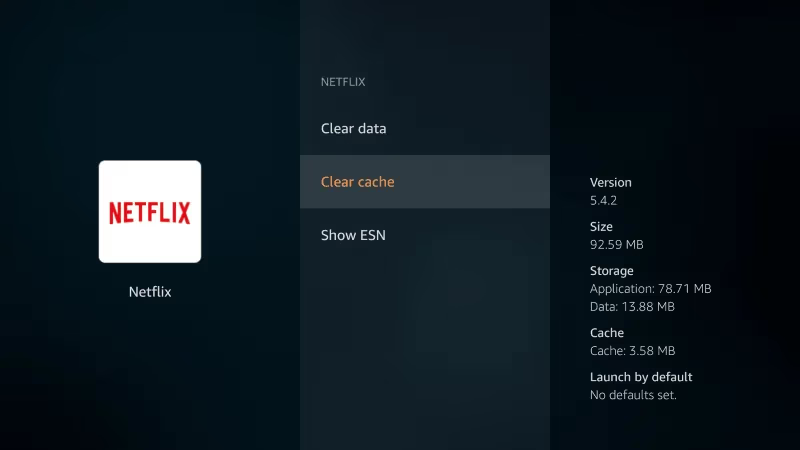
5. Clear App Cache
Cached data from apps fills up storage space and leads to lagging.
- Go to “Settings” > “Applications” > “Manage All Applications”
Then select each app and choose “Clear Cache” option.
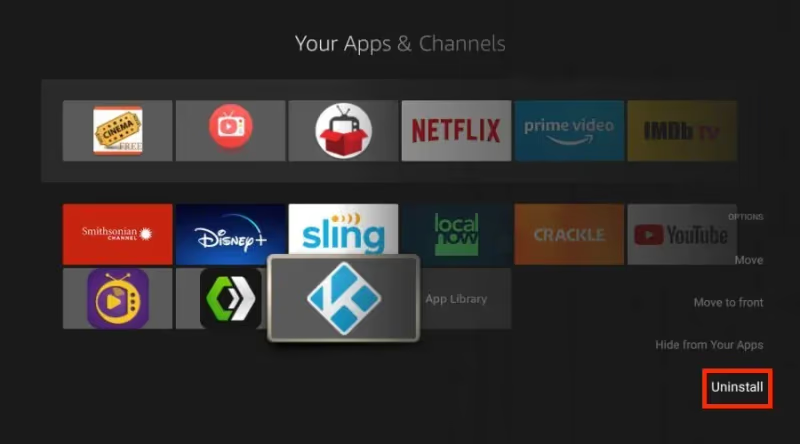
6. Uninstall Unused Apps
Remove apps you no longer need to free up valuable storage space and RAM. Check if there are monthly fees for FireStick.
- Press and hold select button on app icon then choose “Remove from Home”
7. Force Stop Apps
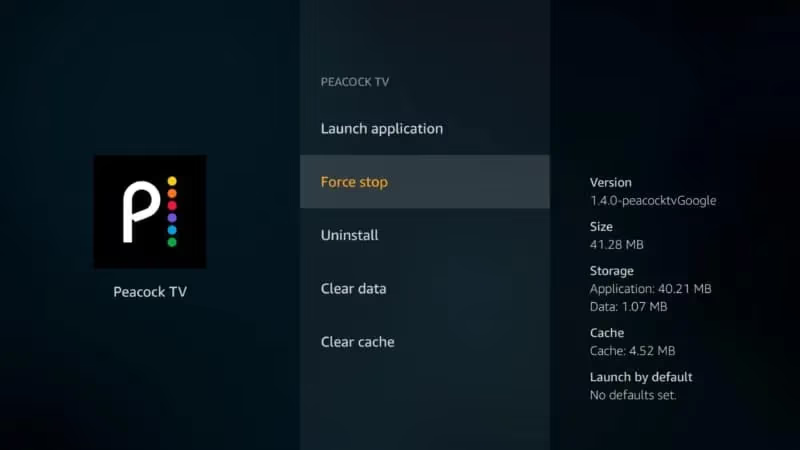
Apps running in the background drain resources. Force stop them to boost speeds.
- Go to “Settings” > “Applications” > “Manage All Applications”
Select each app no longer in use and choose “Force Stop”.
#Reduce Resource Usage
8. Disable Background App Refresh
Prevent apps from auto updating in background which slows things down.
- Go to “Settings” > “Preferences” > “Background App Refresh” > Toggle OFF
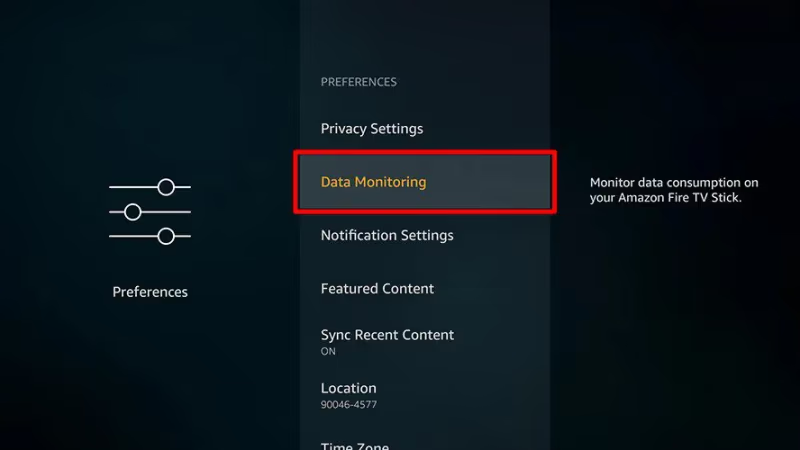
9. Turn Off Data Monitoring
Stop FireStick from monitoring internet usage to regain more system resources.
- Go to “Settings” > “Preferences” > “Data Monitoring” > Toggle OFF
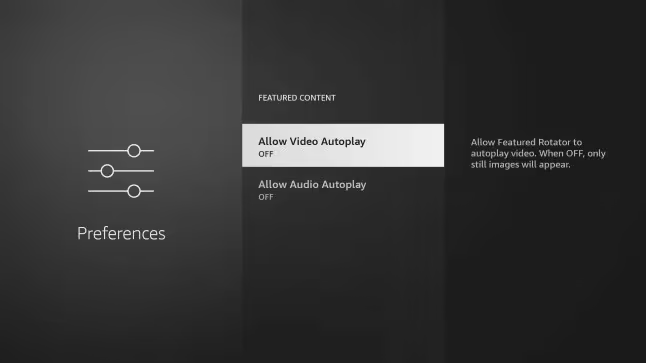
10. Stop Video Autoplay
Disable featured video autoplay slider on home screen to reduce resource load.
- Go to “Settings” > “Preferences” > “Featured Content” > Toggle OFF “Video Autoplay”
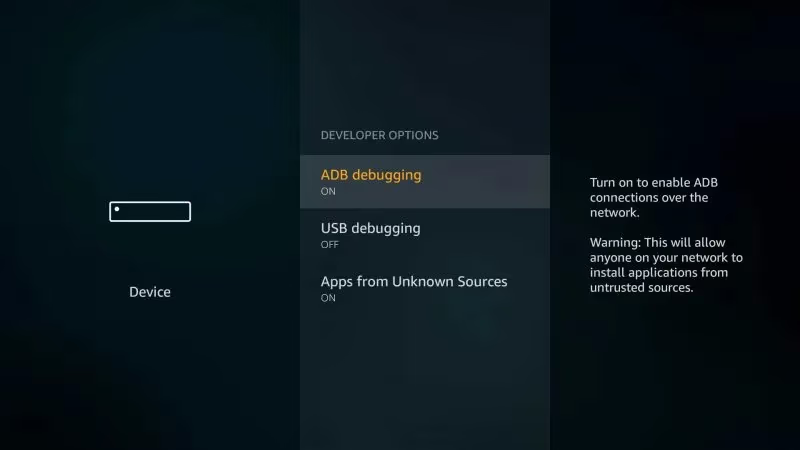
11. Disable ADB Debugging
If developer options are enabled, disable ADB debugging to free up system resources.
- Go to “Settings” > “My Fire TV” > “Developer Options” > Toggle OFF “ADB Debugging”
#Adjust Video Stream Quality
12. Lower Video Resolution
Higher video quality uses more bandwidth and taxes the FireStick CPU.
- In YouTube, Netflix and other apps, manually select lower quality stream.
13. Enable Data Saver
Stream at a reduced data rate to ease resource contention.
- Go to “Settings” > “Data Monitoring” > Toggle ON “Data Saver”
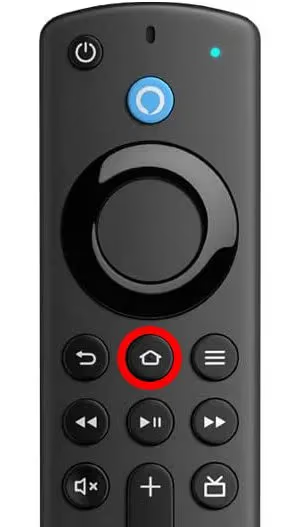
14. Close Background Apps
Having too many apps open bogs down performance. Frequently close all apps not in use. Learn how to fix a FireStick stuck on loading screen.
- Press and hold the home button then select “Close All”
#Reset FireStick
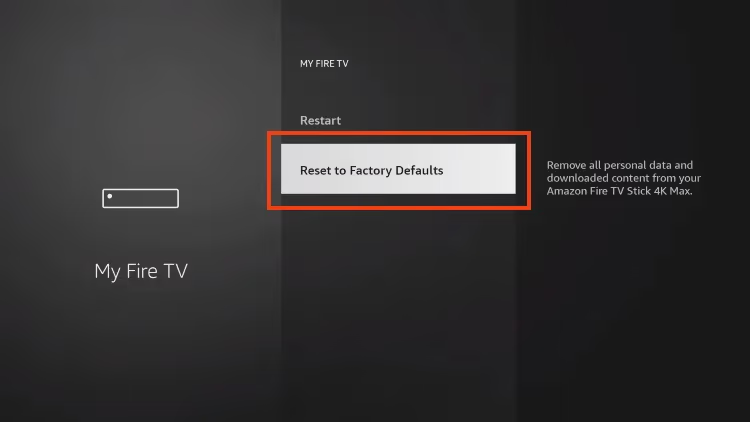
15. Factory Reset
Start fresh by resetting FireStick to factory default state. You’ll lose all data.
- Go to “Settings” > “My Fire TV” > “Reset to Factory Defaults”
16. Upgrade Your FireStick
If the above tips don’t help, upgrade to a newer generation FireStick 4K model for better specs.
#Use a VPN to Boost Speeds
A fast VPN often resolves buffering issues by encrypting traffic, which prevents ISP throttling. It also boosts speed by routing data through the least congested pathways.
Top Recommendation: ExpressVPN consistently ranks as the fastest VPN service in independent speed tests. It offers unlimited bandwidth and works well with FireStick:
-
Get ExpressVPN (includes 30 day money back guarantee)
-
Install & open ExpressVPN app on FireStick
-
Connect to fastest server location for your ISP
You’ll notice an immediate boost in speeds which allows for smooth Ultra HD streaming.
#FAQ
#Why is my FireStick buffering and lagging?
Buffering and lagging usually come from weak WiFi signals, ISP throttling, outdated firmware, too many running apps, or insufficient storage. Start by restarting your FireStick and clearing the app cache. If the problem continues, switch to a 5GHz WiFi network or connect via Ethernet.
#Will a VPN help speed up my slow FireStick?
A fast VPN often improves buffering by encrypting traffic, which hides streaming activity from your ISP. It also routes your data through less congested pathways, improving overall data flow. This works best when ISP throttling is the root cause.
#Should I upgrade to the FireStick 4K?
The latest generation 4K models have faster processors and more RAM than older sticks. Upgrading makes sense if you’ve already tried clearing cache, restarting, and removing unused apps without seeing improvement. The performance difference is noticeable right away.
#Is restarting my FireStick the same as resetting it?
No. Restarting just reboots the device and temporarily clears software glitches. Resetting erases all your data, accounts, and settings, restoring the FireStick to its factory default state. Only use a factory reset as a last resort after trying all other fixes.
#How much free storage does a FireStick need?
FireStick 4K models come with 8GB of storage. Keep at least 3-5GB free to avoid lag. You can check available storage under Settings > My Fire TV > About.
#Does clearing cache delete my apps or data?
Clearing cache only removes temporary files stored by each app. Your apps, login credentials, and personal settings stay intact. It’s a safe first step that frees up storage without losing anything important.
#How often should I restart my FireStick?
Restarting once a week keeps performance steady by clearing accumulated temporary files and freeing RAM. If you use your FireStick heavily every day, restarting every few days is even better. You can also set up a routine through Alexa to automate restarts.
#Bottom Line
By following the solutions in this guide, you should see a noticeable improvement in speeds on your FireStick. Start with the quick fixes like restarting, clearing cache, and closing background apps before moving on to more involved steps like a factory reset.
For any remaining issues, using a fast VPN like ExpressVPN almost always resolves buffering problems and boosts speeds immediately.