Having trouble with the sleep timer function on your Amazon Fire TV Stick? This guide covers how to enable, customize, and troubleshoot the Firestick sleep timer so your device powers down on schedule.
- Default sleep timer is 30 minutes — adjustable from 5 minutes up to 4 hours in Settings
- Quick Settings shortcut — press and hold the Home button for 3 seconds, then tap the moon icon
- Alexa voice control works — say “Alexa, turn off Firestick in 30 minutes” to schedule sleep remotely
- Fire TV mobile app — free on iOS and Android, lets you activate sleep mode without the physical remote
- Fire tablets lack native support — third-party apps like Sleep Timer or AutoSleep Timer fill the gap
#What Is the Firestick Sleep Timer?
The sleep timer is a function that allows you to automatically turn off your Firestick after a set amount of time. This helps save energy and prevents your TV from staying on all night if you fall asleep watching shows.
By default, the Firestick sleep timer is set to 30 minutes. But you can customize it to power down anywhere from 5 minutes up to 4 hours.
Benefits include:
-
Saves electricity
-
Avoids overheating issues
-
Prevents screen burn-in on TVs
Having trouble getting the sleep timer to work properly? Just follow our step-by-step instructions below.
#How to Enable the Sleep Timer on Firestick
Enabling the sleep timer only takes a few seconds. Just follow these quick steps:
-
Press and hold the Home button on your Firestick remote for 3 seconds. This will bring up the Quick Settings menu.
-
Select the icon that looks like a crescent moon. This activates the Sleep Timer.
-
By default, it is set to power down after 30 minutes. But you can customize the exact shut-off time in the Settings.
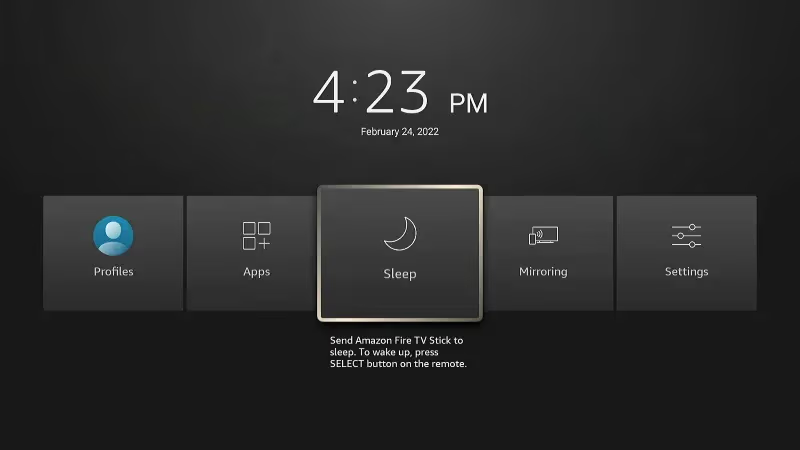
And that’s all there is to it! Your Firestick will now automatically go to sleep after 30 minutes of inactivity.
#Customizing the Shut Off Time
Want to increase or decrease the amount of time before your Firestick sleeps? Just head to the Settings menu.
To change the sleep timer duration:
-
From the Home screen, select the Settings icon.
-
Choose Sleep Timer from the list.
-
Select your desired shut-off time:
5 minutes
-
10 minutes
-
15 minutes
-
30 minutes
-
60 minutes
-
90 minutes
-
120 minutes
-
180 minutes
-
240 minutes
-
Confirm your selection.
Now your Firestick will power down after your chosen amount of inactive time.
Pro Tip: Set the sleep timer before starting a long movie or TV show marathon. This way your device won’t stay on all night wasting energy if you nod off halfway through.
#Activating Sleep Via Firestick Remote
Don’t want to wait for the sleep timer duration when you’re ready to power down your Firestick?
Use this quick shortcut instead to instantly put your device into sleep mode:
-
Press and hold the Home button on remote for 3 seconds.
-
Select the Moon icon in top right corner of the Quick Settings menu.
-
Your Firestick will immediately go to sleep.
To wake it back up, just press any button on the remote.
#Using Your Phone to Set Sleep Timer
Can’t find your physical Firestick remote? No problem! Use the free Fire TV mobile app instead.
Just download it from the App Store or Google Play store.
Once installed:
-
Open the app and select the Remote icon.
-
Choose your Firestick device.
-
Tap the Gear icon in the top left corner.
-
Select Sleep.
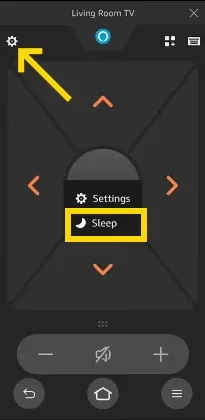
This instantly activates your Firestick’s sleep mode.
#Using Amazon Alexa to Set Sleep Timer
Have an Alexa device like an Echo Dot? Use handy voice commands to easily manage your Firestick sleep timer. Check out this guide on how to turn off the voice assistant on your Samsung TV for related tips.
Just say:
-
“Alexa, turn off Firestick in 30 minutes”
-
“Alexa, put Firestick to sleep in one hour”
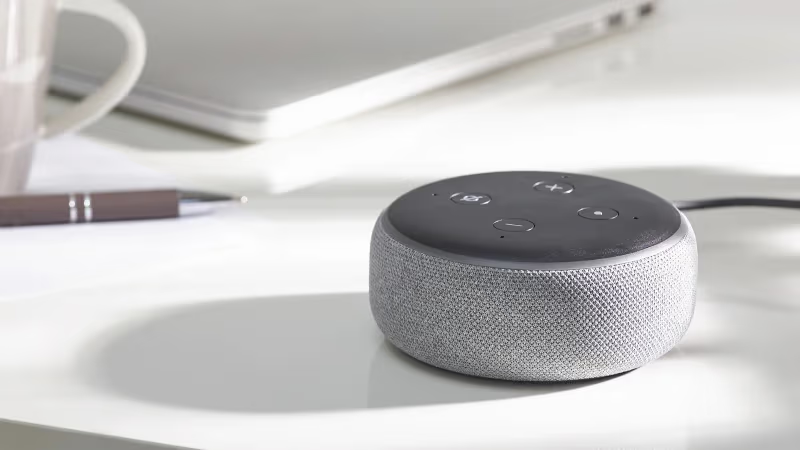
Alexa will automatically schedule sleep mode on your Firestick.
#Troubleshooting Firestick Sleep Timer Issues
Having issues getting your physical remote to work? As an alternative, consider getting a Firestick remote replacement or using the Fire TV mobile app instead.
Sleep timer missing
-
Update to latest Firestick software
-
Check sleep timer settings again
Sleep timer not turning off device
-
Reboot your Firestick
-
Pair remote to sync
-
Check TV sleep function
Amazon Alexa not responding
-
Re-link Alexa & Fire TV accounts
-
Ensure devices are on same WiFi
-
Try repositioning Alexa closer
Can’t find remote
-
Use Fire TV app or Alexa instead
-
Purchase a replacement remote
Other issues
For any other problems with the sleep timer, contact Amazon Firestick customer support through live chat in the companion mobile app or consult official troubleshooting guides.
#Firestick vs Fire TV Sleep Timer
The above instructions work for enabling sleep timers across Firestick models and Fire TV cubes.
Both the Firestick and the Fire TV lines support the same sleep timer features accessed through the Quick Menu by long pressing the physical remote’s Home button.
So whether you own a Firestick, Firestick 4K, or a Fire TV Cube you can utilize the handy sleep scheduling functions.
#Can You Set a Sleep Timer on Fire Tablets?
Wondering if Amazon’s Fire tablets also offer sleep timer functionality?
Unfortunately Fire tablets do not support sleep timers natively like Firestick and Fire TV models do.
However, there are a couple potential workarounds:
-
Download a third party sleep timer app from the Amazon Appstore
-
Enable auto screen lock in the Display settings
But there is no direct equivalent to the Quick Menu sleep activation like on Fire TV devices.
#Sleep Timer Alternatives for Fire Tablets
Since Amazon tablets don’t have built-in sleep timers, here are a couple recommended third party apps to schedule automatic sleep instead:
Sleep Timer
-
Free app
-
Choose exact shut off times
-
Supports multiple timers
AutoSleep Timer
-
Paid app
-
30+ timing options
-
Night clock mode
These handy apps can act as substitutes to the missing native sleep function on Fire devices.
#Bottom Line
The Firestick sleep timer takes about 5 seconds to set up through Quick Settings, and it works across every Fire TV device including the Firestick 4K and Fire TV Cube. If the physical remote is out of reach, the Fire TV app and Alexa voice commands both get the job done.
Start by adjusting the default 30-minute timer to match your typical viewing session length. If you run into problems after a software update, a quick reboot usually fixes it.
For more Fire TV tips, check out how to fix Hulu not working on Firestick or troubleshoot Apple TV lagging issues.
#Frequently Asked Questions
#Why does my Firestick keep going to sleep on its own?
Your Firestick has an inactivity timer that triggers sleep mode after a set period with no input. Go to Settings and increase the auto shut-off duration to a longer interval. If the problem continues, disable background app refreshing, as some apps can interfere with the inactivity detection.
#Why does my sleep timer keep resetting to default?
This usually happens when the Firestick is running outdated software. Check for Fire OS updates under Settings > My Fire TV > About > Check for Updates. After updating, set your preferred timer duration again and it should stick.
#Can you remove the sleep timer from Firestick?
No, the sleep timer is built into Fire OS and cannot be uninstalled. You can set it to the maximum 4-hour duration if you want to minimize interruptions during long viewing sessions.
#Does the Firestick sleep timer also turn off the TV?
Yes. When the sleep timer activates, it sends a CEC (Consumer Electronics Control) signal through HDMI that powers down your TV along with the Firestick. This requires HDMI-CEC to be enabled on both your TV and Firestick. If your TV stays on while the Firestick sleeps, check that HDMI-CEC is turned on in your TV’s settings menu.
#How long is the default Firestick sleep timer?
The default is 30 minutes. You can change it to 5, 10, 15, 30, 60, 90, 120, 180, or 240 minutes depending on your viewing habits.
#Can I use Alexa to set a Firestick sleep timer?
Yes, any Alexa-enabled device on the same Wi-Fi network can control your Firestick’s sleep timer. Say something like “Alexa, turn off Firestick in one hour” and it will schedule the shutdown automatically. This also works with the Alexa voice button on newer Firestick remotes.
#Why doesn’t my Fire tablet have a sleep timer?
Fire tablets run a different version of Fire OS that does not include the Quick Settings sleep timer found on Fire TV devices. Your best option is to download a third-party sleep timer app from the Amazon Appstore, or use the auto screen lock feature under Display settings to turn off the screen after a set period of inactivity.