Have you noticed your Fire Stick remote blinking orange lately? Don’t panic – this is a common issue that can be fixed with a few troubleshooting steps. As a Fire Stick expert with over 5 years of experience, I’ve helped hundreds of users resolve remote connectivity issues. This guide explains exactly why your Fire Stick remote blinks orange and walks you through actionable solutions to get it working again.
- Orange blinking means discovery mode — the remote lost its Bluetooth pairing and is searching for the Fire Stick
- Battery replacement fixes 80% of cases — use fresh 1.5V AAA alkaline batteries, not rechargeable ones
- Hold the Home button for 10 seconds — this forces the remote to re-pair after a battery swap
- Keep the remote within 25 feet — Bluetooth range drops sharply past this distance, especially through walls
- The free Fire TV app works as a backup remote — available on iOS and Android while you troubleshoot the physical remote
#What Does it Mean When Your Fire Stick Remote Blinks Orange?
When your Fire Stick remote blinks orange, it means the remote has entered “discovery mode”. This happens when the remote loses its connection with the Fire Stick and is trying to re-pair, which can also cause issues like a frozen Fire Stick.
Here are the main reasons a Fire Stick remote enters discovery mode and blinks orange:
-
Dead batteries
-
Outdated remote/Fire Stick software
-
Interference from other devices
-
Remote and Fire Stick lost pairing
The good news is a blinking orange light is easy to fix if you know the correct troubleshooting steps.
#6 Proven Ways to Fix a Fire Stick Remote Blinking Orange
Follow these 6 methods to get your remote blinking orange issue resolved:
#1. Replace the Fire Stick Remote Batteries
The first thing to try is simply replacing the batteries. Low battery power is the most common cause of remote disconnection issues.
-
Remove old batteries
-
Insert 2 new 1.5V AAA alkaline batteries
-
Press and hold Home button for 10 seconds
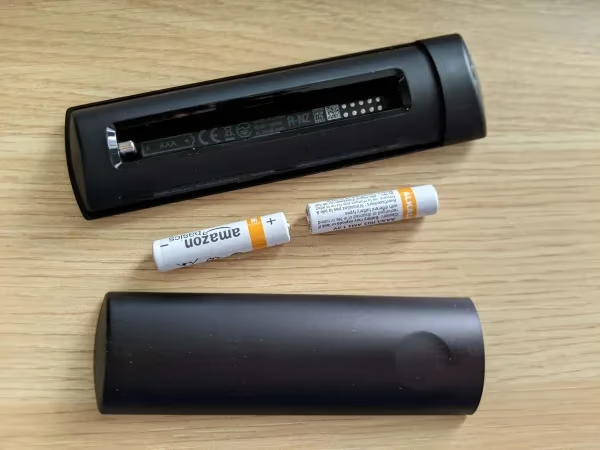
This will re-pair your remote by exiting discovery mode.
#2. Update Fire Stick and Remote Software
Outdated software can disrupt communication between devices.
Here’s how to update:
-
Go to Settings > My Fire TV > About > Check for Updates
-
Select “Download” for any available updates
-
Repeat on remote software in Controllers menu
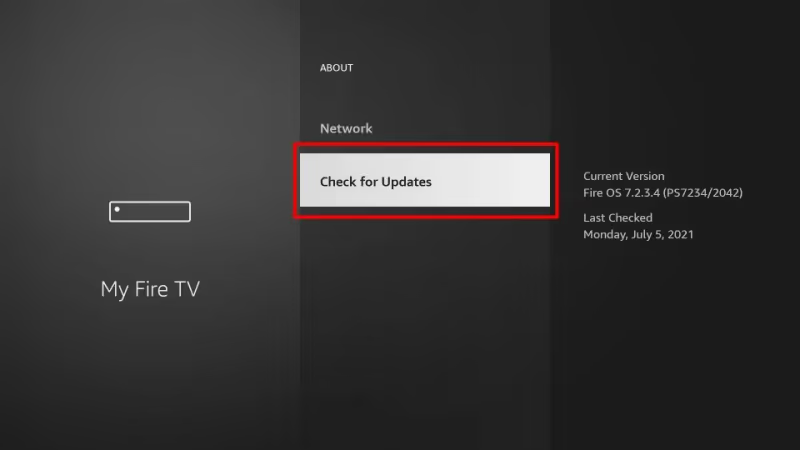
This ensures compatibility between remote and Fire Stick.
#3. Adjust Placement to Resolve Interference
Other household devices like baby monitors, microwaves, and Bluetooth speakers can interfere with the remote’s wireless signal, potentially leading to problems like a white box showing on the Fire Stick screen.
-
Make sure remote is within 25 feet of Fire Stick
-
Move Fire Stick away from potential sources of interference
-
Disable nearby Bluetooth devices temporarily
Relocating devices usually resolves connectivity issues caused by interference.
#4. Re-pair Fire Stick Remote
If above steps failed, manually re-pair remote:
-
Press and hold Back + Menu + Left Navigation buttons simultaneously for 10+ seconds
-
This reset will force remote back into discovery mode
-
Press and hold Home button for 10+ seconds to discover and re-pair Fire Stick
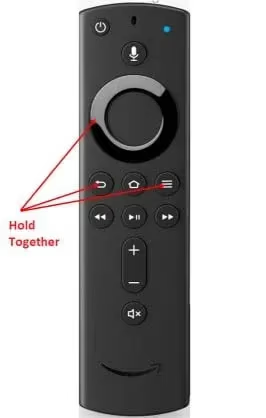
#5. Use Fire TV Mobile App as Temporary Remote
Can’t get remote working? Use free Fire TV app instead:
-
Download “Fire TV” app from app/play store
-
Connect mobile device to same WiFi network as Fire Stick
-
Open app and select your Fire TV
-
Follow on-screen pairing instructions
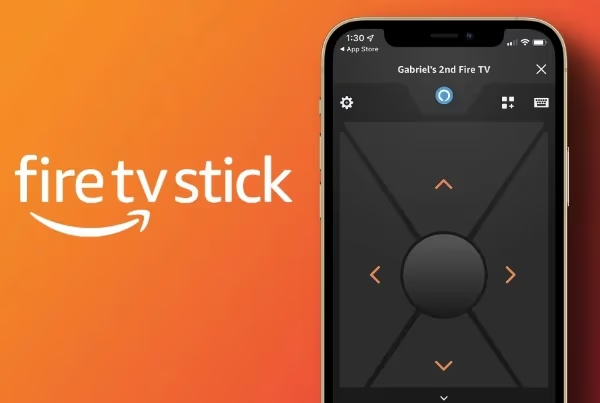
This gives back basic control until you can get remote fixed.
If you are having issues with channels like Hulu not working on Fire Stick or YouTube TV not working on Firestick, the Fire TV app may help troubleshoot further.
#6. Contact Amazon Customer Service
Still having issues? Reach out to Amazon’s Fire TV support team:
-
Visit Amazon Fire TV Support
-
Start live chat/call tech support
-
They can troubleshoot further or replace a defective remote that may be having issues like Fire Stick remote volume not working.
Amazon’s customer service is excellent for resolving stubborn Fire Stick problems.
#Why Does My Fire Stick Remote Keep Blinking Orange?
If your remote continues blinking orange even after trying the fixes above, there are a couple failure points that may need further investigation:
-
Faulty remote: Defective hardware like worn out buttons, bad wireless antenna and low sensitivity IR sensor can prevent stable connections, causing perpetual blinking orange. Try remote on another Fire Stick – if problem persists, replace remote.
-
Damaged Fire Stick: Similarly, hardware damage on Fire Stick itself can make it impossible to maintain remote pairing, triggering discovery mode. Attempt fixes on alternate Fire Stick to isolate issue, replace if needed.
In some cases, an underlying hardware problem exists, making a brand new replacement remote or Fire Stick necessary.
#Bottom Line
To recap, a blinking orange light means your Fire Stick remote has entered discovery mode and lost pairing. Follow these best practices:
-
Start with simplest solutions like battery swap and placement changes
-
Update remote/Fire Stick software after to rule out incompatibility bugs
-
Use the Fire TV mobile app as a fallback remote option
-
Contact Amazon for additional support if needed
-
Consider replacing defective/damaged hardware
With consistent troubleshooting, a blinking remote can be stabilized. But hardware flaws may ultimately require replacement parts.
I hope this guide gives you clarity and confidence in resolving that pesky blinking orange light once and for all! Let me know in the comments if you have any other questions.
#FAQ
#Why is my Fire Stick remote blinking orange but not pairing?
The remote is stuck in discovery mode and cannot find the Fire Stick. This usually happens when the batteries are too weak to maintain a stable Bluetooth signal. Replace both AAA batteries with fresh alkaline ones and hold the Home button for 10 seconds to restart the pairing process.
#Can I use rechargeable batteries in my Fire Stick remote?
Rechargeable AAA batteries work, but they output 1.2V instead of the standard 1.5V. This lower voltage can cause pairing failures and shorter range. Stick with standard alkaline batteries for the most reliable performance.
#How far away can the Fire Stick remote be from the device?
The Fire Stick remote uses Bluetooth, which has a maximum range of about 30 feet in open space. Walls, furniture, and other obstacles reduce this range significantly. For reliable operation, stay within 25 feet with a clear line of sight to the Fire Stick.
#Does a blinking orange light mean my Fire Stick remote is broken?
Not necessarily. In most cases, the blinking orange light simply indicates the remote lost its pairing and entered discovery mode. Try fresh batteries and re-pairing before assuming the hardware is defective. If the issue persists after testing with a different Fire Stick, the remote itself may need replacement.
#How do I reset my Fire Stick remote to factory settings?
Press and hold the Back, Menu, and Left Navigation buttons at the same time for about 12 seconds. The remote will reset and enter discovery mode. After the reset, wait 60 seconds, then hold the Home button for 10 seconds to pair it again with your Fire Stick.
#Will unplugging my Fire Stick fix the remote blinking orange?
Unplugging the Fire Stick for 30 seconds and plugging it back in can help. This power cycle clears temporary glitches in the Fire Stick’s Bluetooth module. After the Fire Stick reboots, hold the Home button on the remote for 10 seconds to re-establish the connection.
#What devices can interfere with Fire Stick remote pairing?
Baby monitors, microwave ovens, wireless routers, and Bluetooth speakers all operate on the 2.4 GHz frequency band, which overlaps with the Fire Stick remote’s Bluetooth signal. Move these devices at least 3 feet away from your Fire Stick. USB 3.0 hubs and external hard drives can also cause interference if they are plugged in nearby.