Your Amazon Firestick shows “no signal” on screen, and you need it fixed now. This guide covers every troubleshooting step to resolve lost signal issues for good.
The Firestick by Amazon is one of the most popular media streaming devices on the market, letting you access Netflix, Hulu, Prime Video and more on any TV with an HDMI port. Still, many Firestick owners run into “no signal” errors that interrupt viewing.
There are several potential causes behind the no signal message:
-
Loose power or HDMI cable connections
-
Incompatible or damaged cables/ports
-
Wi-Fi network issues interrupting video buffering
-
Problems with HDCP copy protection handshake
-
Outdated/unsupported Firestick firmware
-
Overheating hardware
With some targeted troubleshooting, these lost signal issues can usually be resolved in minutes. The steps below will walk you through diagnosing and fixing no signal problems on your Amazon Firestick.
- Loose HDMI or power cables cause the majority of Firestick no signal errors and take under 30 seconds to fix
- Wrong TV input selection is the most overlooked cause, especially on TVs with 3 or more HDMI ports
- Power cycling the Firestick for 60 seconds clears most software glitches that trigger signal loss
- HDCP handshake failures between the Firestick and older TVs can block video output entirely
- Internet speeds below 25 Mbps cause buffering and pixelation that mimic no signal errors on 4K streams
#How Do You Check Power and HDMI Connections?
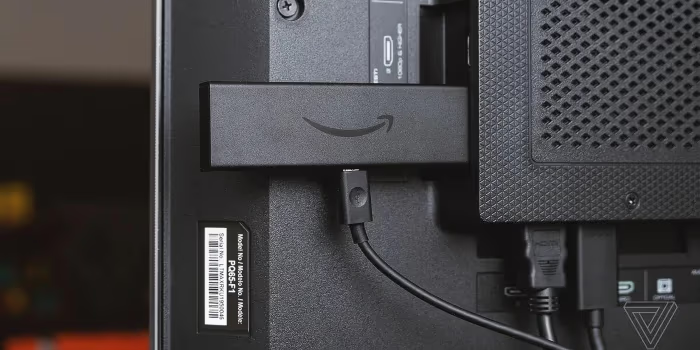
The most common source of a lost signal error is a loose connection somewhere along the physical cables and ports that deliver the video signal to your TV screen.
First, verify that the wall adapter powering your Firestick is fully plugged into both the outlet and the Firestick itself. Try disconnecting and reconnecting these plugs firmly.
Next, check that the HDMI cable between the Firestick and TV is properly seated at both ends, with no bent pins or other visible damage. Swap in a different HDMI cable if possible.
If using an HDMI extension cable or adapter, bypass it to rule out compatibility issues by plugging the Firestick’s HDMI cable directly into the TV port.
#Is Your TV Compatible With the Firestick?
The Amazon Firestick works with most modern HDTVs, but very old TV models may not support the video output. Extremely new 8K models could also have handshake issues.
The copy protection protocol HDCP may cause problems if your TV firmware is outdated. Test this by connecting a different streaming device or game console to the same TV input.
If they display properly, the TV likely supports HDCP, pointing to a compatibility problem with the Firestick itself. You may need to upgrade to a newer Firestick model designed for your TV type.
#Step 3: Verify Internet Connectivity
While it may not seem related to video signals, your home Wi-Fi network forms the backbone for streaming content to your Firestick.
A weak router signal, unstable internet connectivity, or low bandwidth can all disrupt the Firestick’s video buffering ability. This shows up as constant lag, pixelation artifacts or lost signal messages.
As a test, connect another phone, tablet or computer to the same Wi-Fi network and load a YouTube video. Buffering lag or low resolutions on other devices means your home internet is likely at fault.
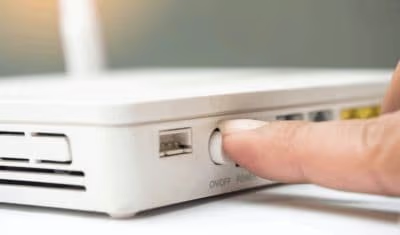
Try rebooting the Wi-Fi router and positioning the Firestick closer, with fewer obstructions between the devices. For consistent 4K streaming, an internet plan with at least 25 Mbps download speeds is recommended.
#Step 4: Select Proper TV Input Source
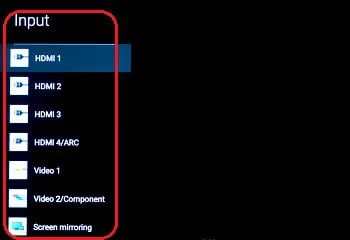
On TVs with multiple HDMI ports, choosing the wrong video input can obviously cause lost signal issues. This easy mistake is often overlooked when troubleshooting.
Using your TV remote, press the Input or Source button, then cycle through the options until you see the correct HDMI port that your Firestick is connected to. The port should be clearly labeled if you are unsure.
#What Screen Resolution Should You Set on a Firestick?
To maintain signal integrity, the output video resolution from the Firestick must match what your TV supports.
The device will try to auto-configure the best resolution, but sometimes manual tweaking is needed.
To change this in the Firestick settings menu, use your remote to navigate to:
Settings > Display & Sounds > Video Resolution
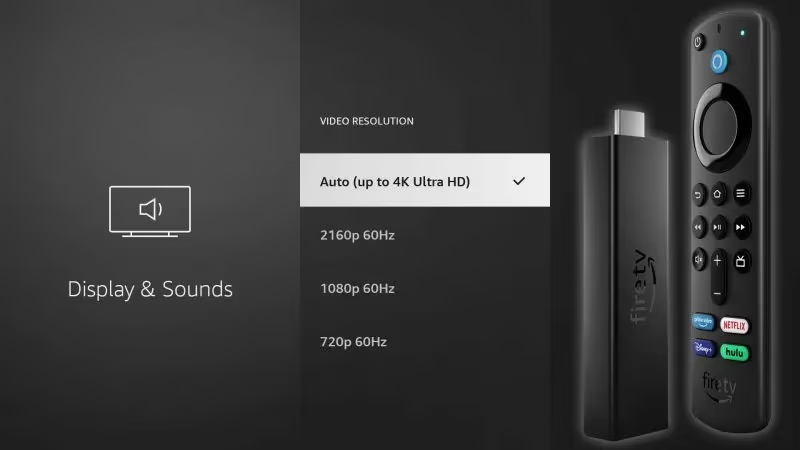
Try lowering the displayed resolution if your TV is older. For modern 4K HDR TVs, set this to 2160p.
#Step 6: Reset and Update Firestick Software
Like any streaming media player, the Firestick software can suffer glitches that interrupt video playback. Resetting and updating gives it a clean slate.
First perform a hardware reboot by unplugging the Firestick from power, waiting one minute, then reconnecting power.
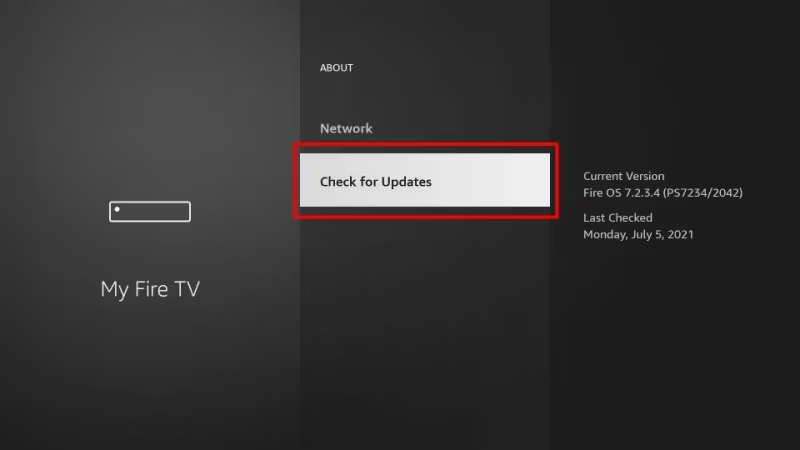
Next, use your remote to navigate to Settings > My Fire TV > Check for Updates to download the latest firmware. Install any available updates.
#Step 7: Try Alternate Cables and Ports
If you have verified a strong Wi-Fi signal and updated Firestick software, the issue may come down to a faulty HDMI port or worn out cable.
Try swapping to different cables, including the one originally bundled with your Firestick. Test all connections to eliminate loose plugs or damaged ports.
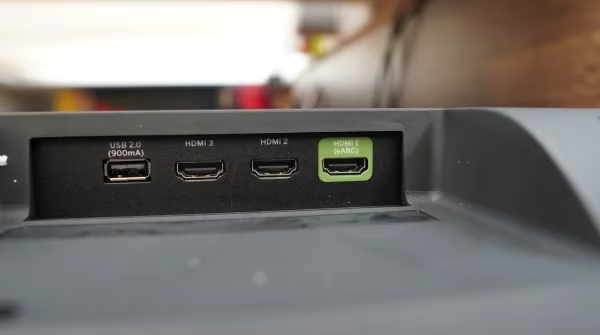
Use alternate HDMI inputs on the TV if available, in case one video input has developed technical problems. Inputs are usually labeled HDMI 1, HDMI 2, etc.
#Step 8: Inspect Hardware Closely for Damage
Carefully examine the physical HDMI ports on both the Firestick and TV for any signs of damage like bent pins inside the port, scratches near the opening, or accumulated dust/debris inside.
Also check the length of the HDMI cable for any nicks, crimps or exposed copper wiring which can interrupt the video signal.
Finally, confirm your Firestick is not overheating from blocked ventilation, which can cause temporary signal loss or hardware failures. Keep all vents clear while the device is powered on.
#Bottom Line
-
Lost Firestick signal issues typically stem from loose connections, Wi-Fi problems, software bugs or hardware damage. For example, a black screen issue on Vizio TVs can be caused by connectivity problems. Carefully follow troubleshooting steps to isolate the root cause.
-
Reset your Firestick and update to the latest software version after ruling out internet issues.
-
Inspect all ports, cables and connectors for dust contamination or physical damage.
#FAQ
#Why does my Firestick work on one TV but not another?
Older TVs may lack HDCP support or run outdated firmware that cannot complete the copy protection handshake. Some Vizio smart TVs have been reported to struggle with the Firestick’s video output requirements. Try updating the TV firmware before swapping devices.
#Do I need internet just to use the Firestick home screen?
Yes. The Firestick requires an active internet connection for all operations, including accessing the home screen and loading app icons. Even local media playback through USB needs an initial internet connection during setup.
#Can a bad HDMI cable cause intermittent no signal errors?
Absolutely. A damaged or low-quality HDMI cable can work fine at 1080p but fail at 4K because higher resolutions demand more bandwidth from the cable. Replace any cable older than five years with a certified High Speed or Ultra High Speed HDMI cable rated for 4K at 60Hz.
#How do I know if my Firestick is overheating?
The Firestick will display an on-screen temperature warning before shutting down, but intermittent signal drops can happen before that threshold. Touch the device while it is running. If it feels hot to the touch rather than just warm, move it away from other electronics and make sure the vents are not blocked by a wall or TV mount.
#Will a factory reset fix no signal problems?
A factory reset wipes all apps, settings and login data, so only use it as a last resort. It can fix signal issues caused by corrupted software or conflicting display settings. Navigate to Settings > My Fire TV > Reset to Factory Defaults, but back up your app list first since you will need to reinstall everything.
#What HDMI port should I use for the Firestick?
Use HDMI 1 if your TV has it, since most TVs designate HDMI 1 as the primary input with full bandwidth support. Some TVs label a port as HDMI ARC or HDMI eARC, which is designed for audio return to a soundbar and may cause compatibility issues with the Firestick. Check your TV manual if the ports are not clearly labeled.
#Does the Firestick power adapter matter?
Yes, the original 5W adapter that ships with the Fire TV Stick is calibrated for stable operation. Using a phone charger or low-output USB port on the TV itself often provides insufficient power, which leads to random reboots and signal drops. Always use the included adapter plugged into a wall outlet.
#Can Wi-Fi interference cause a no signal error?
Wi-Fi problems do not directly cause a “no signal” HDMI error, but they can make the Firestick appear unresponsive with a black screen that looks identical. If your Firestick home screen loads but streaming apps show a blank screen, the issue is likely Wi-Fi congestion or low bandwidth rather than an HDMI signal problem.