Have an older TV and want all the smart functionality? A Fire TV Stick is the easiest and most affordable way to add apps, streaming, and voice control to non-smart TVs. This guide walks you through setup, connection options, and tips to get the most out of your new smart TV capabilities.
- Fire TV Stick costs under $50 — a fraction of the $300+ needed for a new smart TV with similar features
- Works on any TV with HDMI — older TVs without HDMI can connect through a $10-15 HDMI-to-AV converter
- Access to 500,000+ apps — including Netflix, Prime Video, Hulu, Disney Plus, and Spotify
- Alexa voice control built in — search content, control smart home devices, and set timers hands-free
- Setup takes about 5 minutes — plug into HDMI, connect to WiFi, and sign in with your Amazon account
#What is a Firestick and How Does It Work?
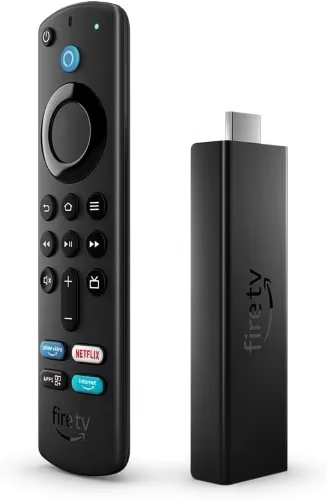 A Firestick, officially called the Amazon Fire TV Stick, is a small streaming device that plugs into the HDMI port of any TV. It brings smart features like:
-
Streaming apps – Access Netflix, Prime Video, Disney Plus not working on Vizio smart TVs, Hulu, YouTube and more
-
Voice control – Use Alexa voice commands to search for content, control TV functions, smart devices and more
-
Web browsing – Use sites like troubleshooting Peacock not working and how to change the language on Disney Plus directly on your TV
-
Music apps – Listen to Spotify, Pandora, Amazon Music and others
-
Games – Casual games and in-app purchases available
The Firestick runs Fire OS, Amazon’s custom Android-based operating system, and connects via WiFi to the internet to enable these smart functions. It’s an incredibly easy and affordable way to convert standard TVs into smart TVs with streaming and voice control access.
#Why Use a Firestick on a Non-Smart TV?
There are a few key reasons to use a Firestick even if you don’t have the latest smart TV:
-
Cost savings – Buying a streaming stick for under $50 is much cheaper than upgrading your entire TV
-
Added functionality – Get smart capabilities without having to replace your existing TV
-
Portability – Carry your Firestick to use streaming apps anywhere there’s an HDMI TV, like fixing Firestick stuck on loading screen in a hotel
-
Expandability – Add Bluetooth devices like speakers to enhance the experience
In short, a Firestick gives you access to virtually everything that a new smart TV can do for a fraction of the cost. It’s an inexpensive way to get more life out of an older TV.
#What You’ll Need to Connect a Firestick
Connecting and setting up a Firestick is quick and easy. Here are the basics you’ll need:
-
Amazon Fire TV Stick
-
TV with HDMI port (or Component/Composite adapters)
-
WiFi network connection
-
Amazon account
Optional but recommended accessories include:
-
RCA to 3.5mm cable for connecting external speakers via headphone jack
-
Echo Dot or other Alexa-compatible Bluetooth speakers
#How to Connect a Firestick to Any TV
Follow these simple step-by-step instructions to get your Firestick set up.
#1. Connect the Firestick Power Cable
Plug the Firestick’s included power cable into the micro USB port and connect it to a wall outlet or power strip. The Firestick won’t turn on without consistent power.
Note: Some TVs have a USB port that may provide enough consistent power. But for best results, use the wall adapter.
#2. Connect the Firestick to an Available HDMI Port
Plug the Firestick directly into any open HDMI port on the back or side of your TV. Make note of which HDMI input you used as you’ll need to switch to that input next.
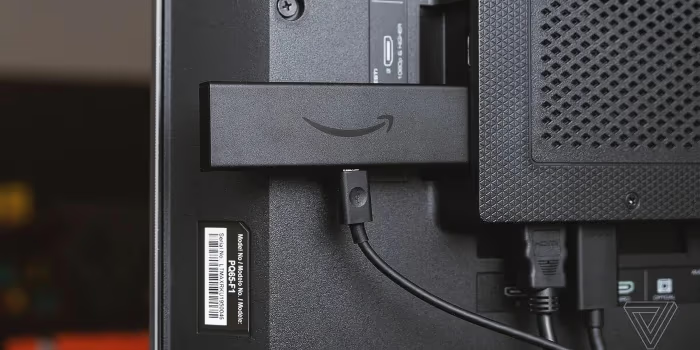
#3. Switch Your TV Input to the Firestick’s HDMI
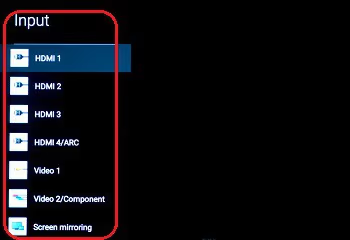
Using your TV remote, select the HDMI input that corresponds to the port you plugged the Firestick into. You should see a Fire TV loading screen once you’ve selected the correct input.
#4. Connect Your Firestick to a WiFi Network
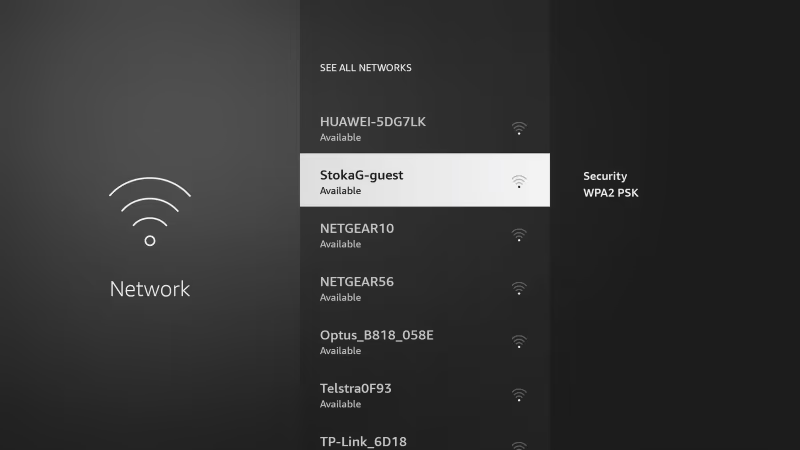
Follow the on-screen instructions to select and connect your WiFi network. Your Firestick will not have functionality without an active WiFi connection.
#5. Login With Your Amazon Account
You’ll need an Amazon account to login and activate all of the Firestick’s streaming and Alexa capabilities. Enter your email and password to link your Firestick.
Once your account is verified, you’ll see the Fire TV home screen with all of your available apps and streaming channels. Feel free to browse and enjoy your new smart TV!
#Connecting Firesticks to TVs Without HDMI
Don’t have an accessible HDMI port? No problem! You can still connect using an HDMI to AV/Component converter.
These inexpensive adapters convert the Firestick’s HDMI signal into one that works with older TVs. You’ll get nearly full functionality, though max video resolution tops out at 1080p.
#What You’ll Need
-
TV with Composite or Component ports
#Steps to Connect
-
Connect Firestick to HDMI input on converter box
-
Connect converter’s AV/Component cables to corresponding ports on back of TV
-
Plug converter box into power outlet
-
Switch TV input to AV/Component
-
Follow WiFi connection and Amazon login steps above
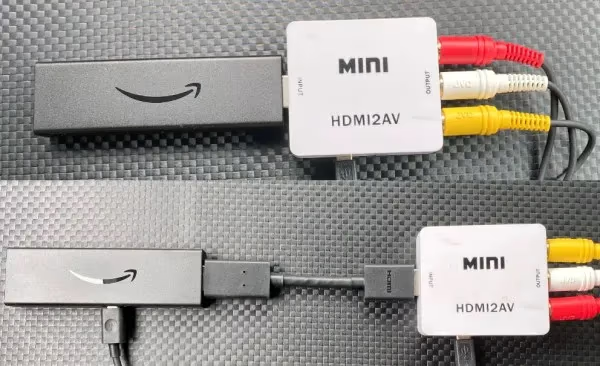
And that’s all there is to it! The converter handles passing the signal from the Firestick into a format your older TV can handle.
#Getting the Most Out of Your Firestick Smart TV
Once you have your Firestick set up, there’s an endless world of entertainment and information at your fingertips. Here are some things to try with your new smart TV:
#Use Apps for Cable-Free Streaming
With your Firestick, you can cut the cord and access all your favorite shows without a cable subscription using these top streaming apps:
-
📺 Netflix – On-demand movies and original programming
-
📺 Hulu – Next day streaming of cable shows without ads on Hulu Plus
-
🎥 Prime Video – Included free for Prime members; huge catalog of movies and shows to buy or rent
-
🏈 NFL Sunday Ticket – Stream live local and primetime NFL games
-
🎧 Spotify – Millions of free and paid streaming songs and podcasts
And many more! Most streaming subscriptions allow you to cancel anytime.
#Browse the Web and Watch Videos
Thanks to Firefox and Silk built into Fire OS, you can directly browse the web and watch videos from sites like:
-
🖥️ YouTube – Watch videos, vlogs and tutorials
-
📰 Reddit – Read the news and latest viral content
-
👪 Facebook – Keep up with friends and family
-
🌐 Regular websites – Check sports scores, recipes, weather and anything else you’d search on your phone or computer
Use the Firestick remote to click links and navigate pages just like a computer.
#Listen to Music, Radio and Podcasts
In addition to streaming from Spotify or Pandora, you also have access to:
-
🎶 Amazon Music – over 2 million free songs or unlock 50 million more with a Prime membership or Amazon Music Unlimited subscription
-
🎙️ TuneIn Radio – Stream over 100,000 real radio stations from around the world
-
🎧 Podcasts – Amazon has a built-in podcast app for popular serial and episodic shows
Use your TV’s speakers, connect external speakers via Bluetooth or plug speakers into the headphone jack with an RCA to 3.5mm cable.
#Control Your Smart Home Devices
If you have smart home devices like lights or locks, you can now voice control them through your Firestick using Alexa. Just hold the voice button and say commands like:
-
“Alexa, turn on the kitchen lights”
-
“Alexa, lock the front door”
-
“Alexa, set a sleep sounds timer for 30 minutes”
This also works for controlling TV functions like changing the volume, inputs, and more. Alexa makes your TV smarter!
#Stream Photos and Video Clips From Your Phone
Want to show off pics and videos from your phone right on the big screen? Install the Fire TV mobile app for iPhone or Android to mirror content from your mobile device directly to your TV.
#Use Bluetooth Speakers for Better Sound
The Firestick has a built-in Bluetooth adapter that supports wireless pairing with external speakers. Pairing is straightforward for devices like:
-
🗣️ Echo Dot – Affordable Alexa speaker with surprisingly good sound
-
🎶 Sonos One – Top rated portable smart speaker for crystal clear audio
-
🎧 Edifier Bookshelf Speakers – Great sounding Bluetooth bookshelf speakers on a budget
-
🎵 JBL Flip Series – Popular splashproof Bluetooth speakers with bold sound
Pair once then simply use the power button or voice commands to connect whenever you want to stream audio through your external speaker.
#Travel With Your Firestick
Going on vacation or a work trip? Bring your Firestick to stream your subscriptions and saved watch list from any hotel TV during your travels.
Just connect to the hotel WiFi and login with your Amazon account. You’ll have on-the-go access to all your favorite media plus Alexa while away from home.
#Tips and Tricks
-
Use private listening mode by plugging headphones into the remote to hear sound without disturbing others
-
Sideload nearly any Android app using Downloader
-
Try Silk instead of using apps for websites
-
Hold the voice button and say “Alexa sleep in 30 minutes” to set an auto power-off sleep timer
-
Make entertainment, smart home, lighting and other routines with Alexa to trigger groups of actions
#Bottom Line
-
Fire TV Sticks conveniently and inexpensively add smart streaming capabilities to non-smart TVs
-
All you need is a TV with HDMI (or AV/Component ports with an adapter) along with WiFi and Amazon login
-
Firesticks give access to thousands of apps plus Alexa smart home control
-
Setup is quick and easy following the step-by-step instructions
-
You can greatly expand your viewing options with web browsing, music streaming, mobile device mirroring and more
So don’t waste money replacing your older TV, upgrade it on the cheap with Firestick!
#Frequently Asked Questions
#Can you still use a Firestick if the TV is over 10 years old?
Yes, as long as you can connect via HDMI, AV, or component ports, a Firestick will work to add streaming capabilities. There is no actual age cutoff for the TV itself.
#Do Firesticks come with an Alexa voice remote?
Most standard Firestick packages include a remote control with a built-in microphone for Alexa voice commands. The Fire Stick 4K Max also adds volume and power controls so you can manage your TV without a second remote. All current models ship with the Alexa Voice Remote.
#Does a Firestick require WiFi even if I only want to watch regular TV?
A Firestick will not function at all without an internet connection via WiFi. It was designed solely as a streaming device rather than a broadcast receiver, so WiFi is mandatory.
#Can I connect Bluetooth headphones to the Firestick?
Yes. The Firestick supports Bluetooth pairing, so you can connect wireless headphones like AirPods or Sony WH-1000XM5s to redirect TV audio to your ears. Go to Settings > Controllers & Bluetooth Devices > Other Bluetooth Devices to pair. This is especially handy for late-night watching without waking anyone up.
#Do I need an Amazon Prime account?
No, a Prime account is not required. A free Amazon account is the only thing needed to activate a Firestick. That said, Prime members do get access to thousands of free movies, shows, songs, and books through Prime Video and Prime Music.
#Can a Firestick remote also control TV functions?
The Firestick Alexa Voice Remote Pro and the remote included with the 4K Max have IR blasters and dedicated power/volume buttons. These let you control TV volume, switch inputs, and power on or off without needing your original TV remote.
#What internet speed do I need for a Firestick?
Amazon recommends at least 3 Mbps for SD streaming and 5 Mbps for HD content. For 4K Ultra HD streaming on the Fire Stick 4K or 4K Max, you will want at least 15 Mbps. A 5 GHz WiFi band typically gives better performance than 2.4 GHz for video streaming.
#Can I use a Firestick on a computer monitor?
Yes, any monitor with an HDMI input will work. You will need external speakers since most monitors lack built-in audio. Pair Bluetooth speakers or headphones through the Firestick settings, or use the monitor’s 3.5mm audio out if it has one.