Exodus Redux is one of the most popular Kodi add-ons for streaming movies, TV shows, music, and more. If you want to know what Exodus Redux is or how to install it on Kodi and Fire TV Stick, this guide walks you through every step.
- Exodus Redux works on any Kodi-supported device including Windows, Mac, Linux, Android, iOS, and Fire TV Stick
- Two installation methods exist with the standard repository method and the Kodi Bae Repository as a backup option
- Enable Unknown Sources first in Kodi settings before attempting to install any third-party add-on
- AutoUpdate is on by default so Exodus Redux stays current, but you can also trigger manual updates through Video Add-ons
- Clear the cache regularly through Tools > Cache Functions to fix buffering, lagging, and other playback issues
#What Is Exodus Redux?
If you are new to Kodi and have recently purchased a Fire TV Stick, you might not know about Exodus Redux. But first, here is a quick overview of both platforms.
Kodi is an open-source, free media player that lets you manage your local collection of TV shows, movies, photos, and music. Fire TV Stick is a media device that lets you install apps, stream videos, play music, and more on your television.
Both platforms support add-ons that expand your entertainment options. Exodus Redux is one of the most well-known add-ons, thanks to its all-in-one feature set. You can create a library of your favorite shows, movies, music, cartoons, and other content with a single add-on.
The original Exodus add-on disappeared from the market and left many users without their go-to streaming tool. After some time, developers built a new version and named it Exodus Redux. This updated add-on is lightweight, runs smoothly on Fire TV Stick without slowing down the device, and includes many of the features users loved in the original.
#How Do You Install Exodus Redux on Kodi?
If you are new to Kodi, the installation process might seem confusing at first. Read each step carefully before taking action.
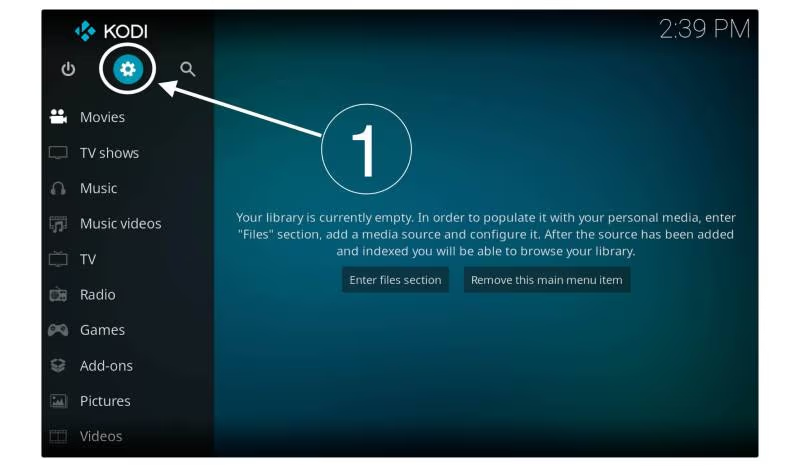
#1: First, open Kodi and click on ‘Gear Box’ or ‘Settings’ on the left panel with the power button.
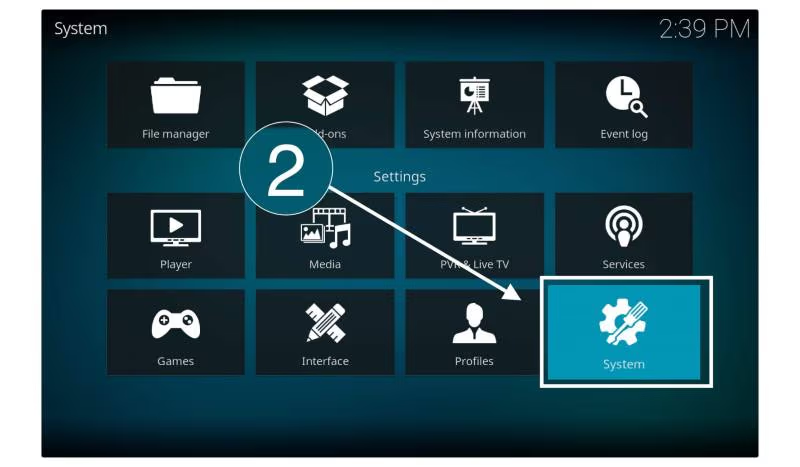
#2: Search for the ‘System’ settings and click on them.
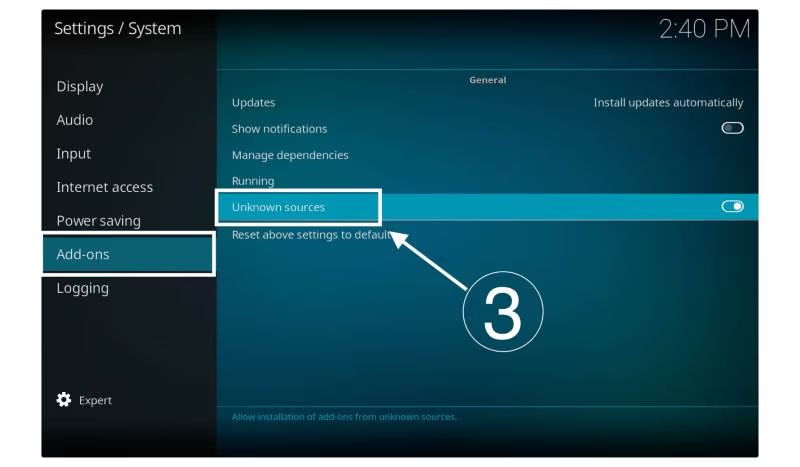
#3: After that, click on the Add-ons option on the left side of the panel and select ‘Unknown sources’ from the drop-down menu.
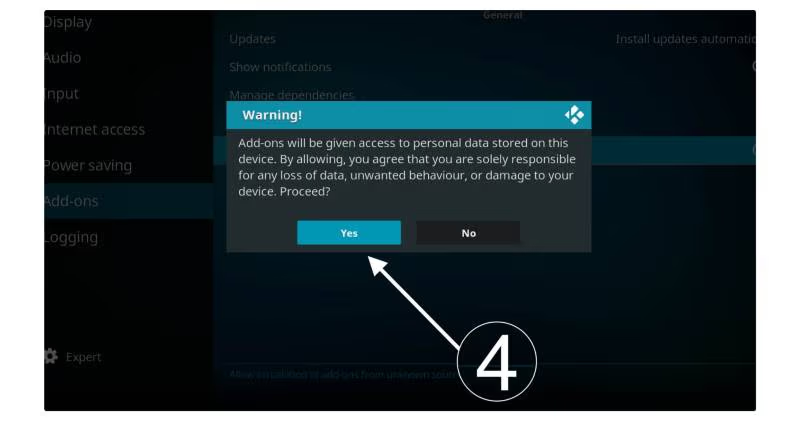
#4: A window will pop up with a warning that add-ons will access your data. Ignore that warning message and click on the ‘Yes’ button.
#5: Now, go back to ‘Settings’ again and select ‘File Manager.’
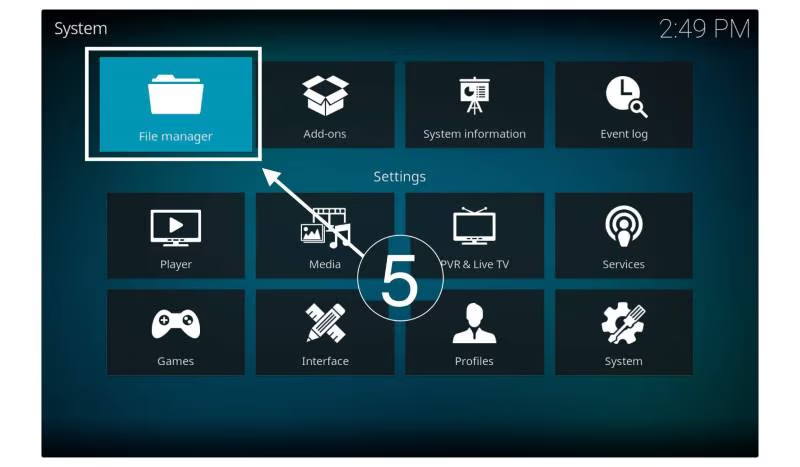
#6: Choose the ‘Add source’ option on the left side.
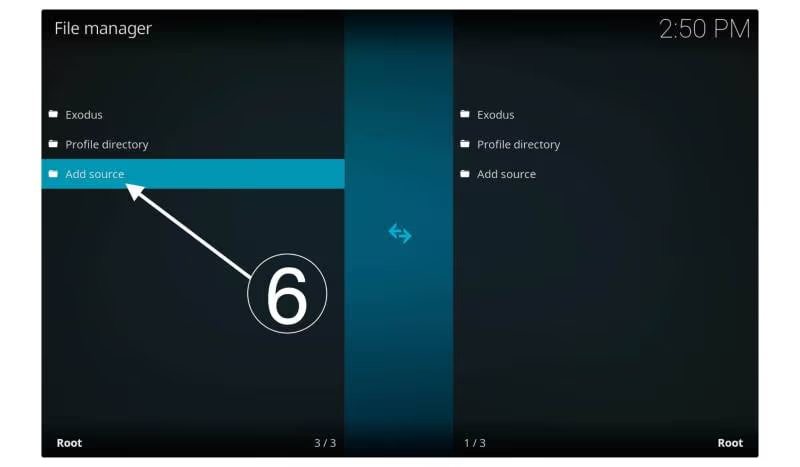
#7: A new window of ‘Add file source’ will appear. In the box, you need to choose ‘None’ to enter the path for the media location.
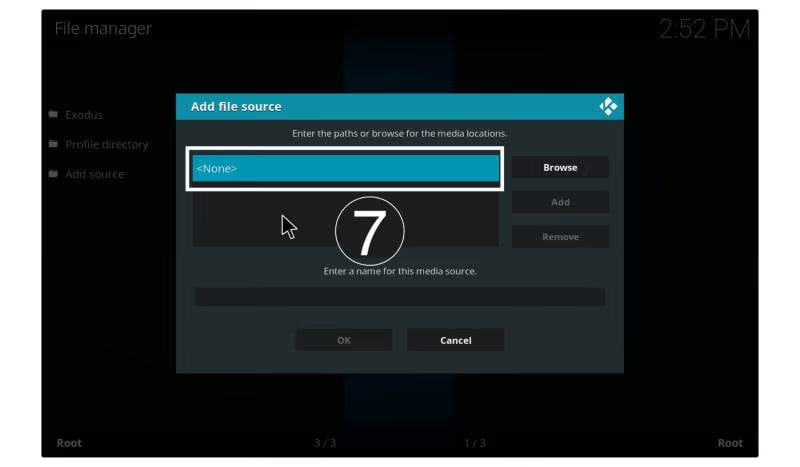
#8: You will be asked to enter the source link. Type ‘https://i-a-c.github.io/’ in the box and click ‘OK.’
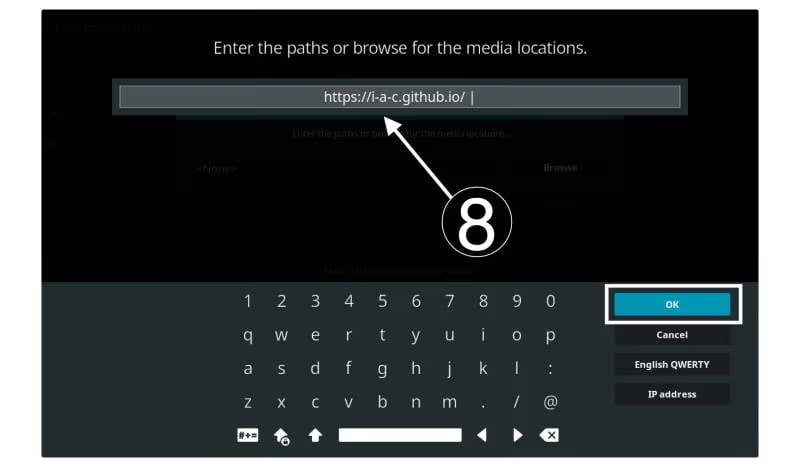
#9: After that, you will be asked to enter the name of the media source. Enter any name of your choice and click on ‘OK.’
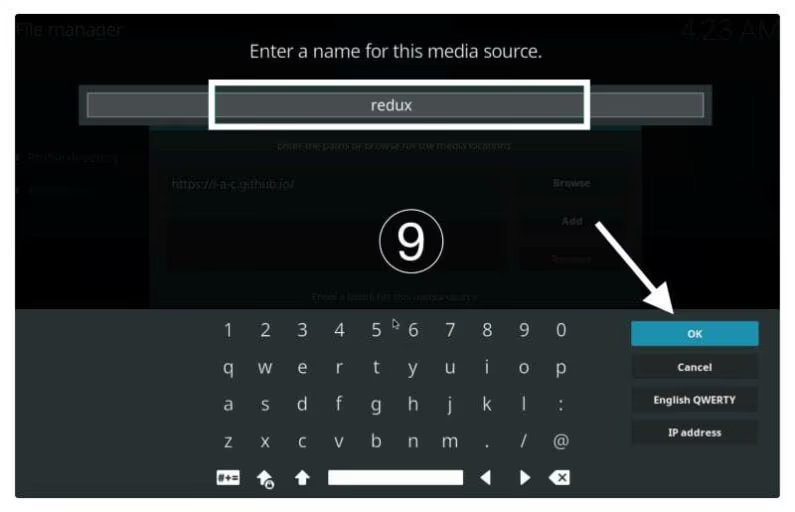
#10: Click the ‘OK’ button to add the media source.
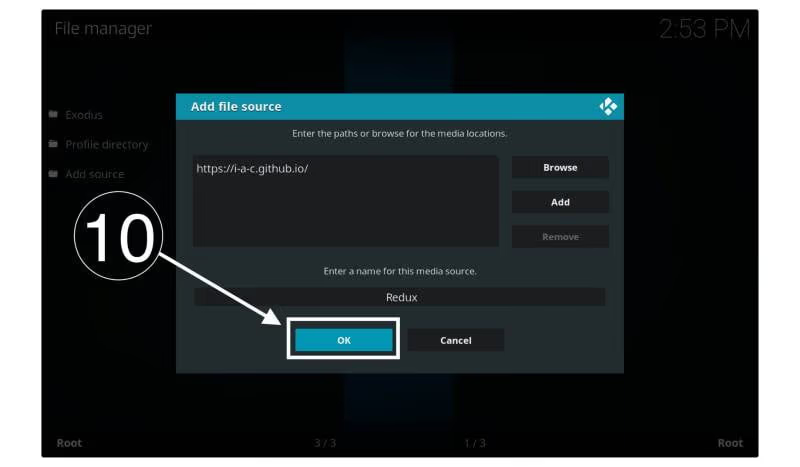
#11: Go back to the ‘Settings’ page and, this time, select ‘Add-ons.’
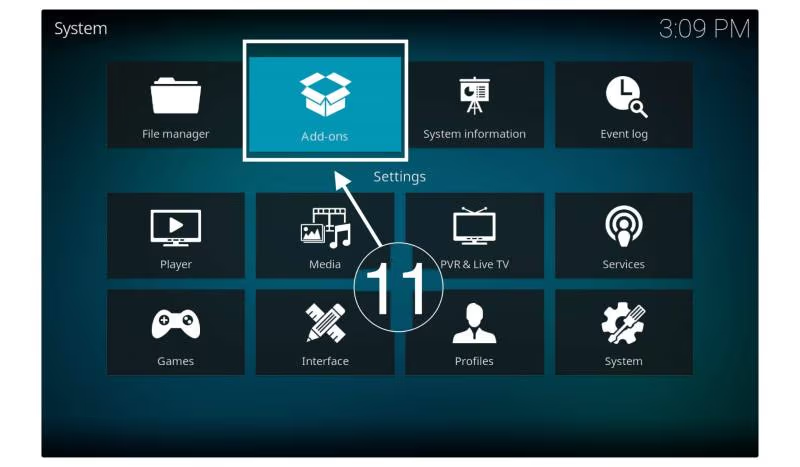
#12: Navigate to the ‘Install from zip file’ option and click on it.
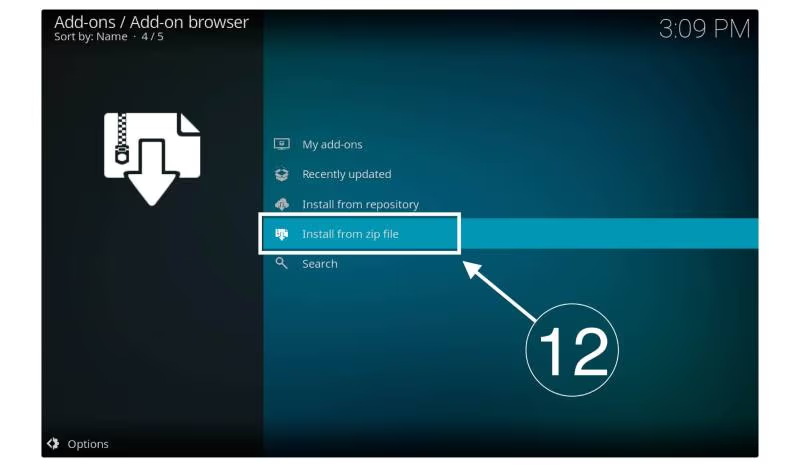
#13: A new window with a list of zip files will pop up. Select the media source that you named.
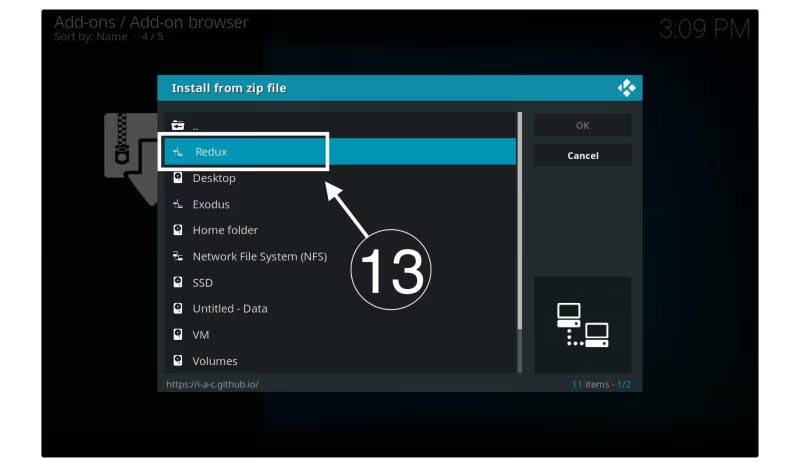
#14: After that, select the ‘repository.exodusredux.xxx.zip’ and click on the ‘OK’ button.
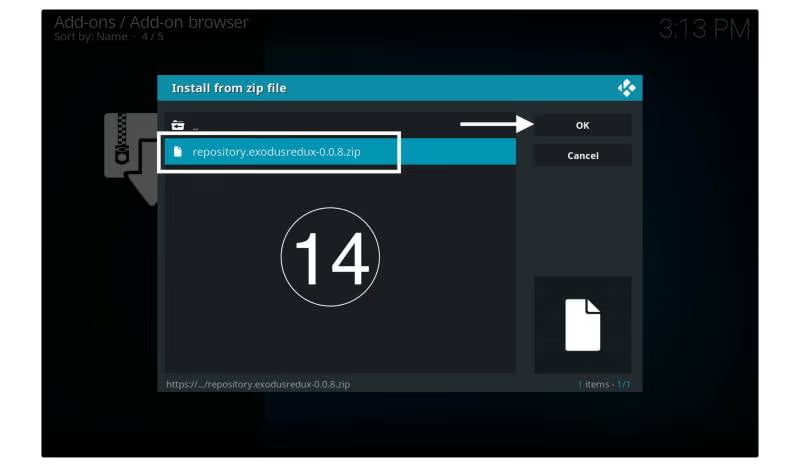
#15: Wait until it processes the zip file. Once the process finishes, you will get a notification saying ‘Exodus Redux Repo Installed.’
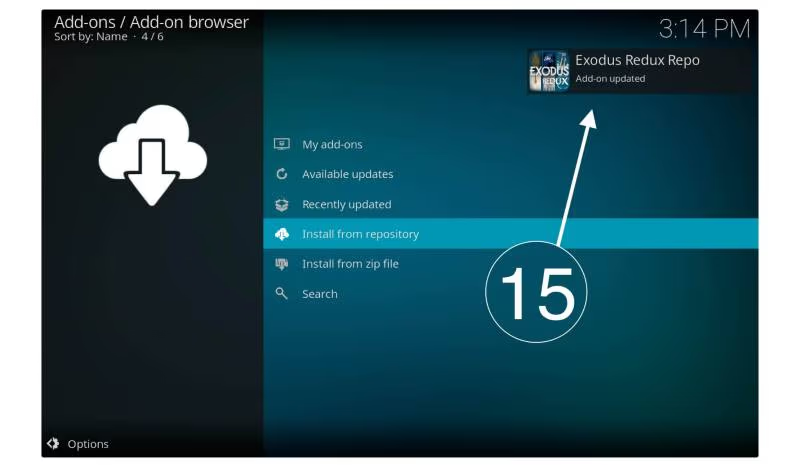
#16: Now, you need to install from a repository. Go back to the ‘Add-ons’ page and search for ‘Install from repository’ and click on it.
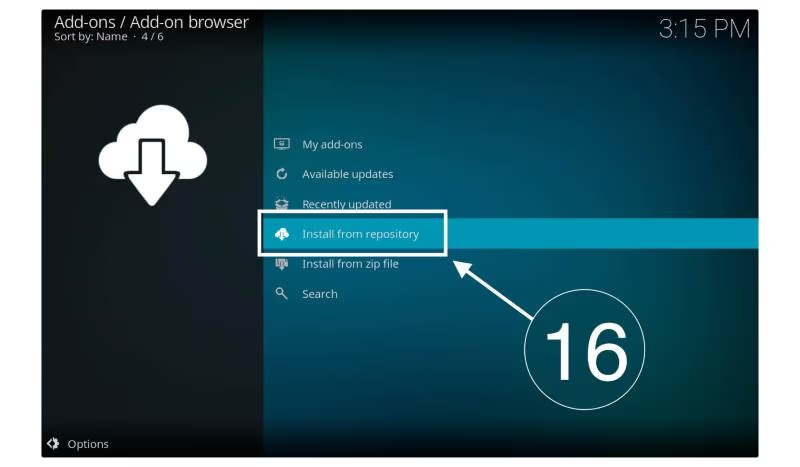
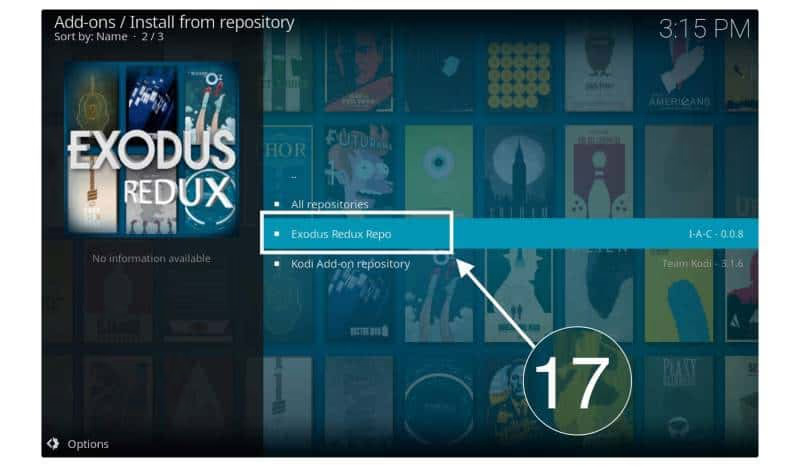
#17: Here, you can check all the repositories available. Click on the ‘Exodus Redux Repo’ option.
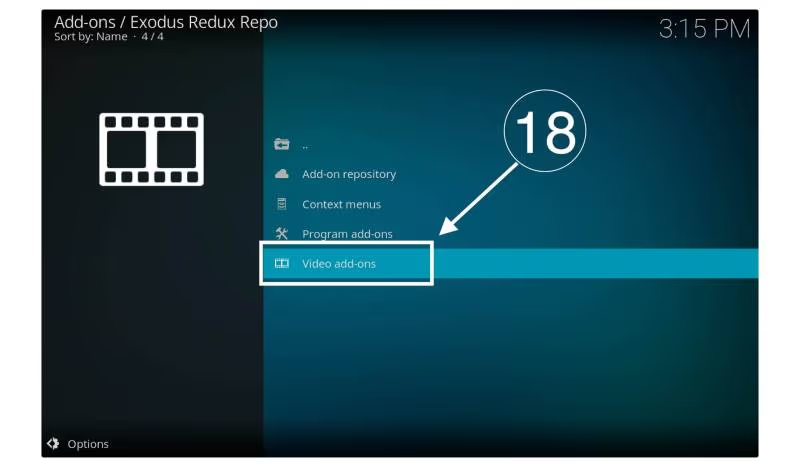
#18: After that, click on the ‘Visit Add-ons’ section.
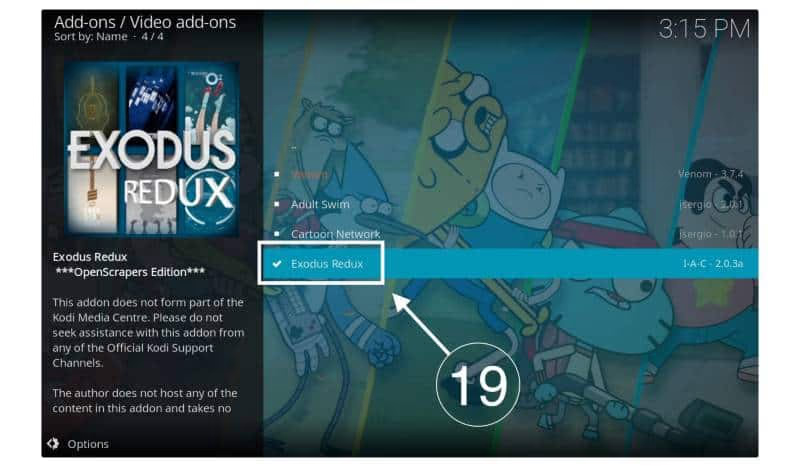
#19: You will see the list of all video add-ons available, and click on ‘Exodus Redux’ from the list.
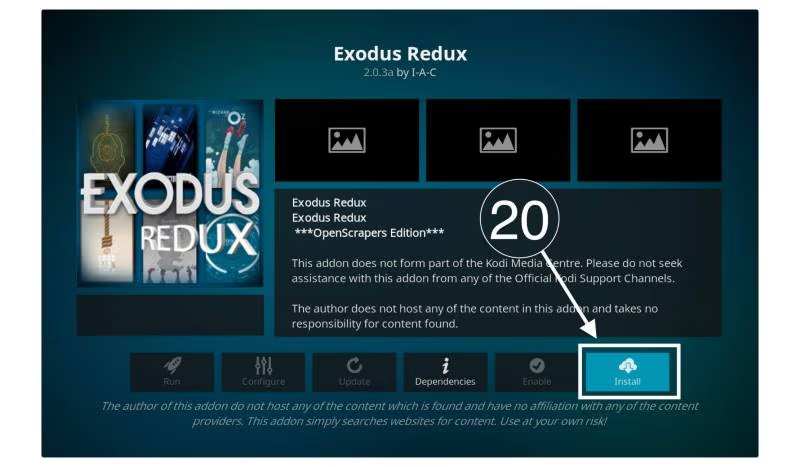
#20: In an Exodus Redux Window, navigate the install button and click on it.
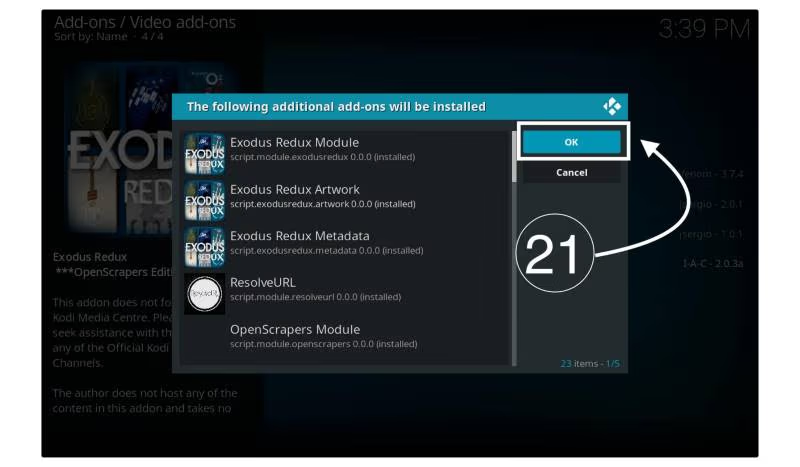
#21: A window with a list of various add-ons will pop up. Just click on the ‘OK’ button to continue the process.
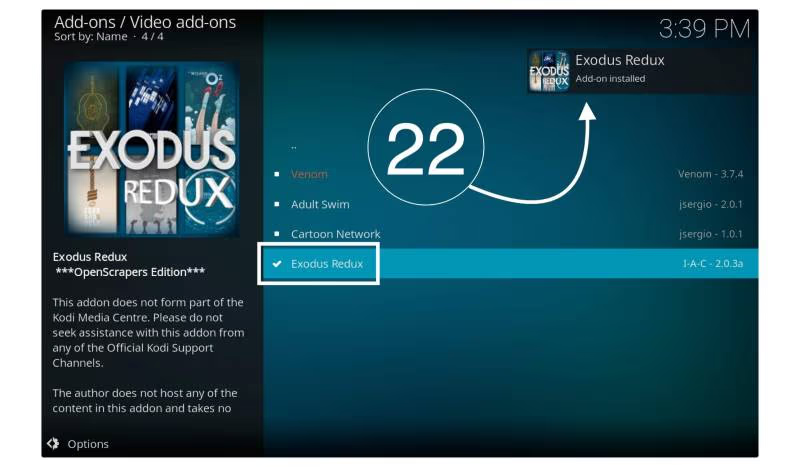
#22: Wait until the Exodus Redux installs. After installation is completed, you will see the notification saying ‘Exodus Redux Add-on Installed.’
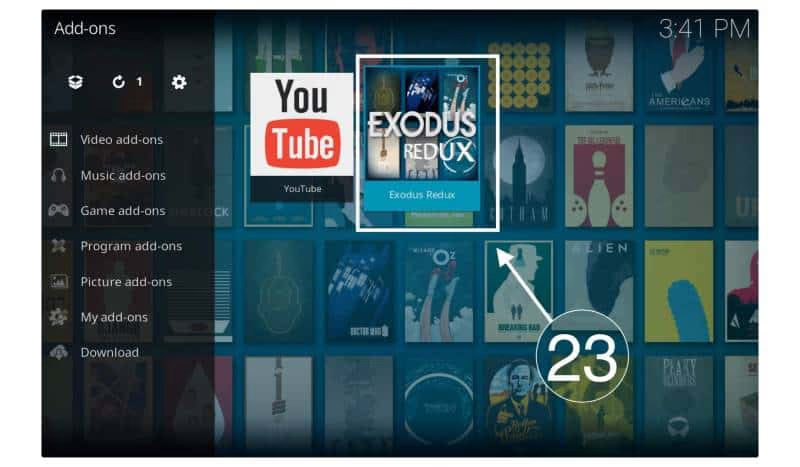
#23: Now, go back to the main interface of Kodi (Home Screen/Start Page). You will see the icon of Exodus Redux. You can also find it in the Video Add-ons section.
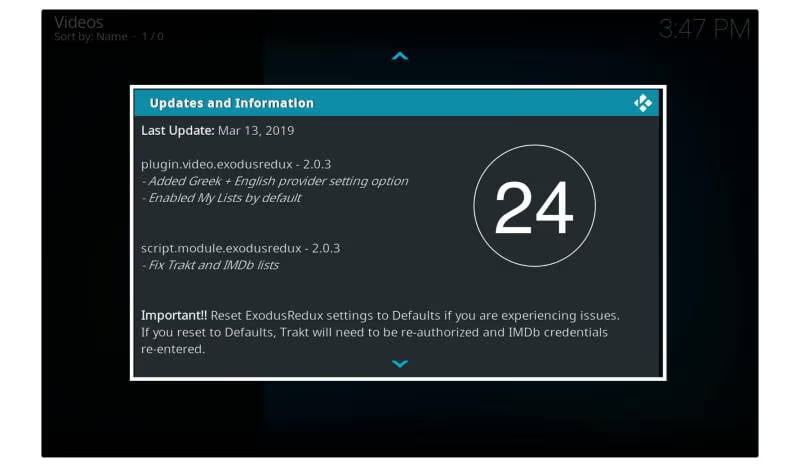
#24: Launch the add-on from the main page, and the ‘Update and Information’ window will appear. Close that window and finish the process.
You have now installed Exodus Redux on Kodi. You can watch your favorite movies and shows, listen to music, and browse content right away.
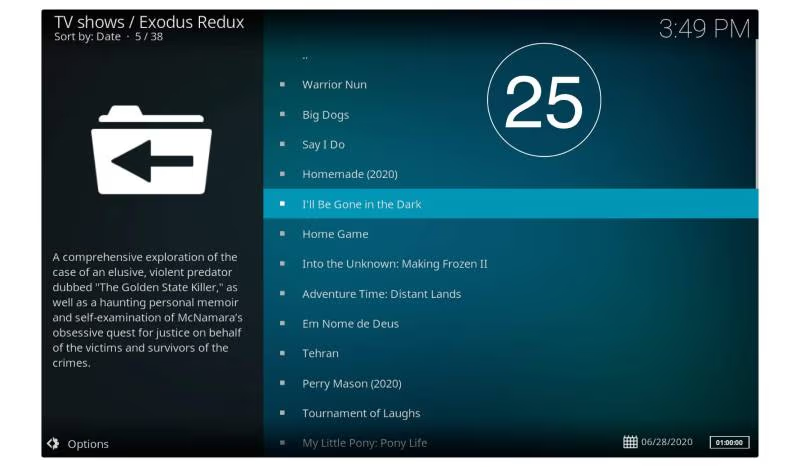
If the above steps did not work, you can try a different method. Follow the steps below to install Kodi Exodus Redux using the Kodi Bae Repository on your Fire TV Stick.
If you are looking for a good Fire TV Stick remote replacement, check out our guide on the best options available.
#How Do You Install Exodus Redux with Kodi Bae Repository?
Follow the steps below to download Exodus Redux with Kodi Bae Repository. You can find many other repositories and install this software on Kodi.
#1: As mentioned earlier, open Kodi and click on the ‘Settings’ option on the Home Page.
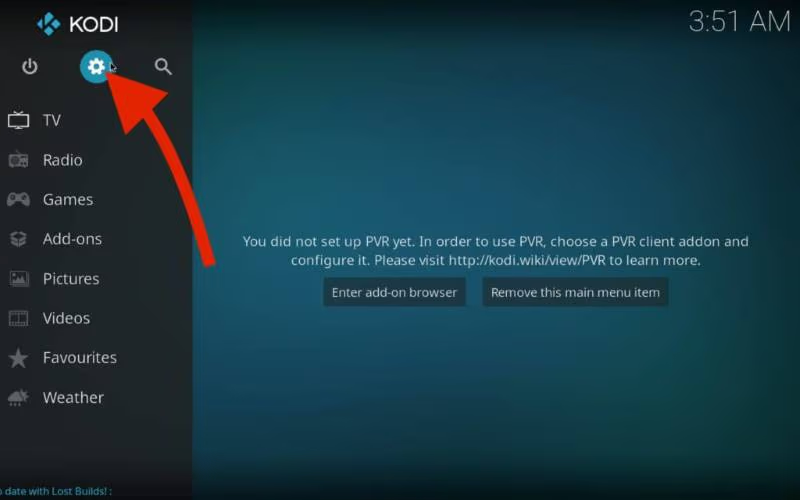
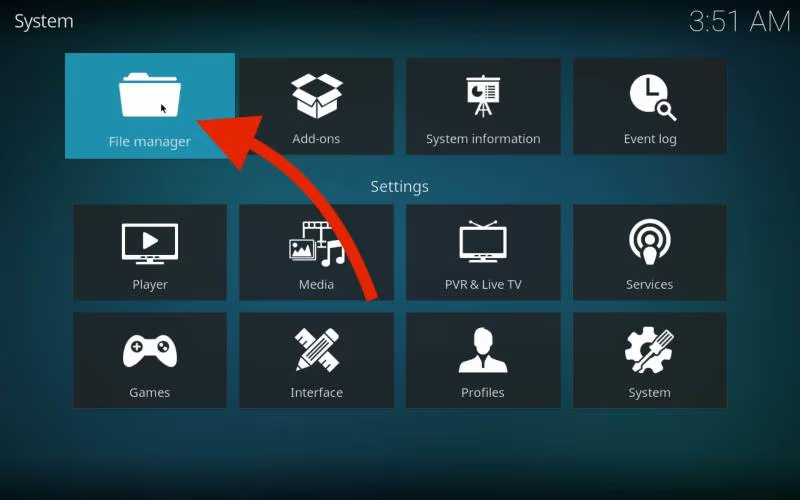
#2: Select the ‘File Manager’ option.
#3: After that, select the ‘Source’ button and click on ‘None’ in the box as the source media.
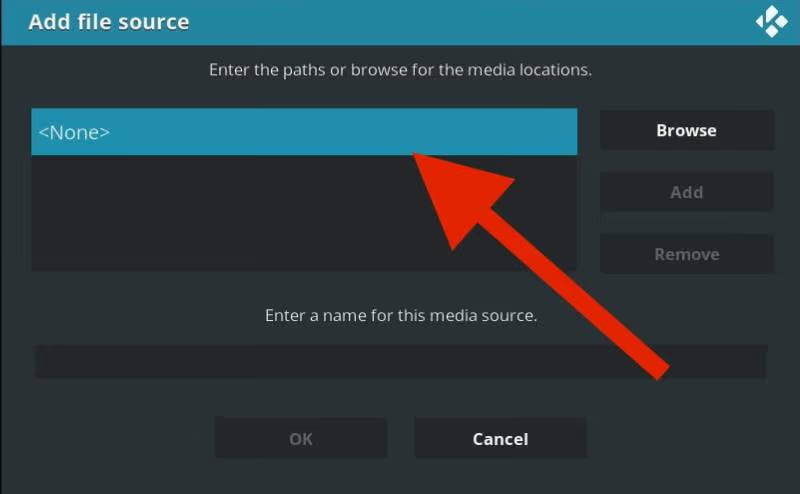
#4: A new window of media locations will pop up. You need to type https://i-a-c.github.io/ as the source location. Then click on the ‘OK’ button.
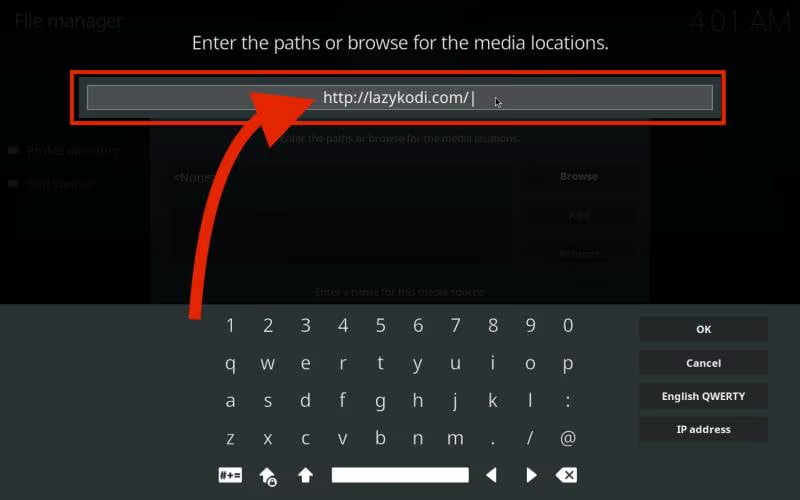
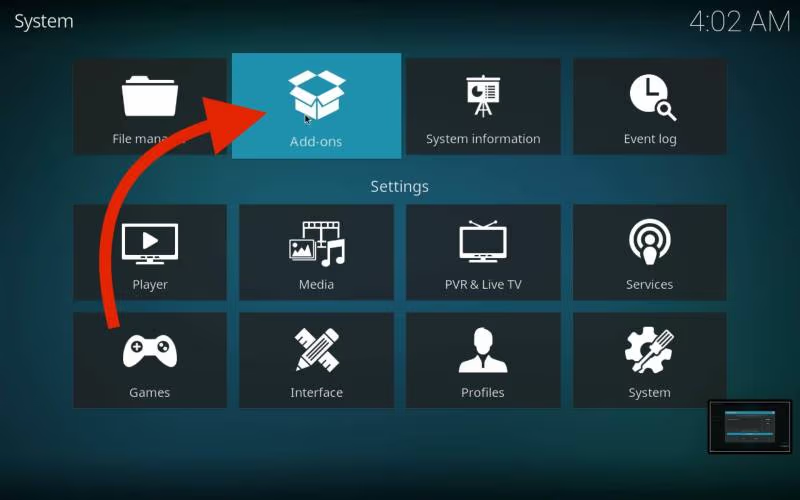
#5: Get back to the ‘Settings’ page and select the ‘Add-ons’ option.
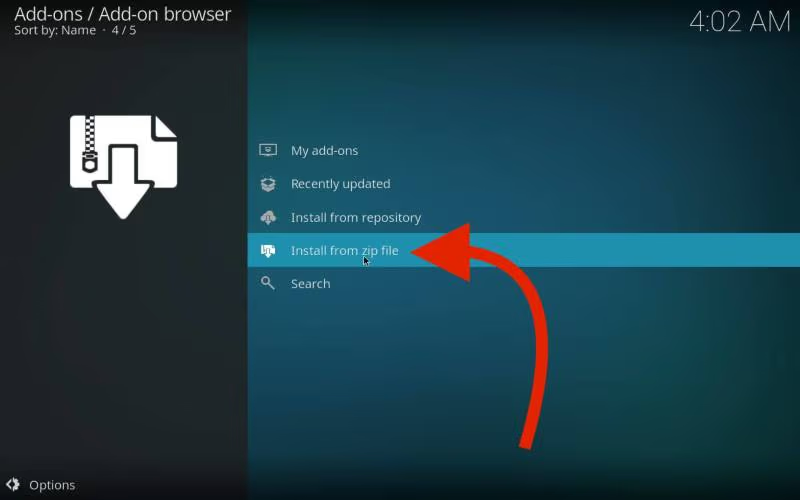
#6: Search for the ‘Install from zip’ option.
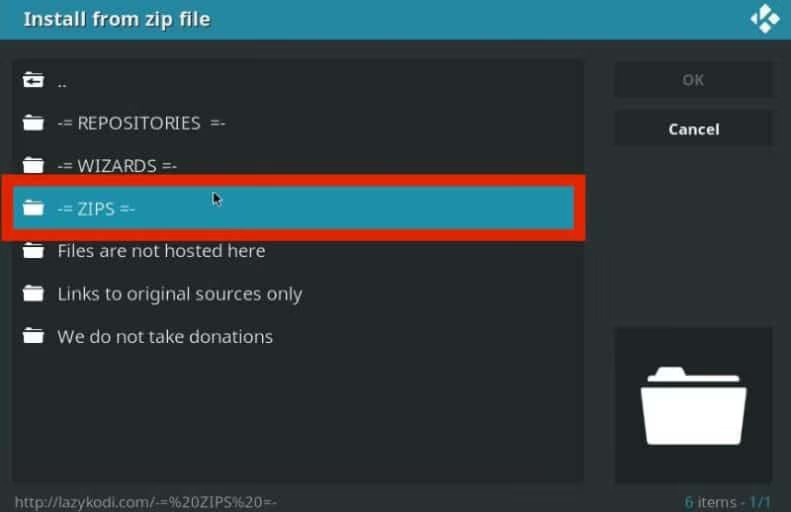
#7: A new window will pop up with the list of source names. Select the source name that you typed earlier. A new window will appear, so this time choose the ‘ZIPS’ option.
#8: Search for the ‘KodiBae.zip’ file from the list of repository zip files and click on it. Wait for the Kodi Bae Repository to be installed.
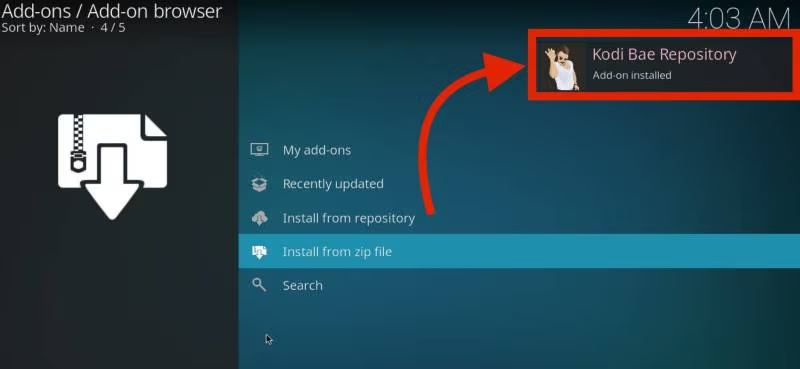
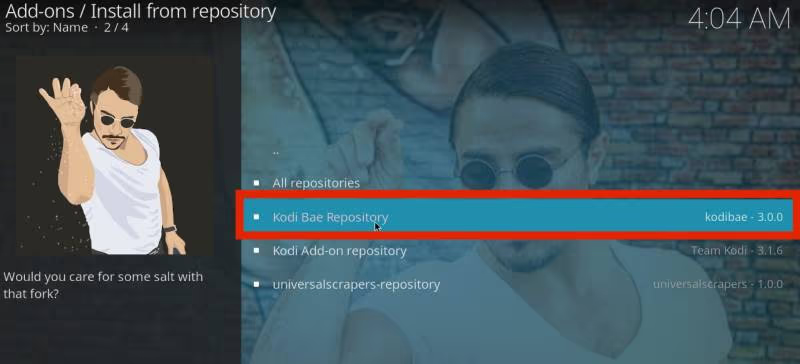
#9: After that, search for the ‘Install from repositories’ option in the same interface. It will list out all the repositories stored. You need to choose ‘Kodi Bae Repositories’ from the list.
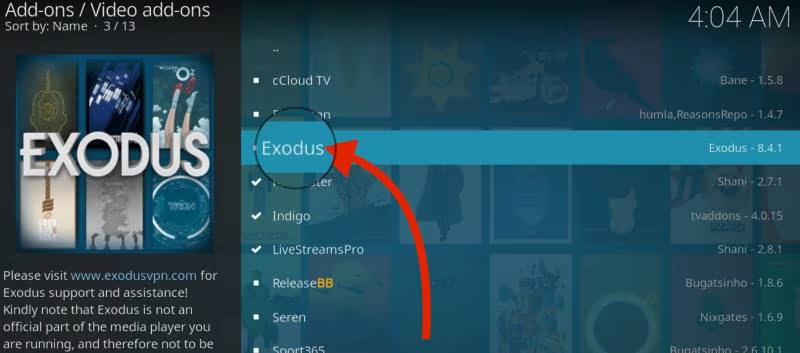
#10: It will take you to another folder. Scroll down the folder and click on Video Add-ons to open it. You will see the list of all the video add-ons. Search for the ‘Exodus’ add-on and click on it.
#11: Now, click on the ‘Install’ button to install the software.
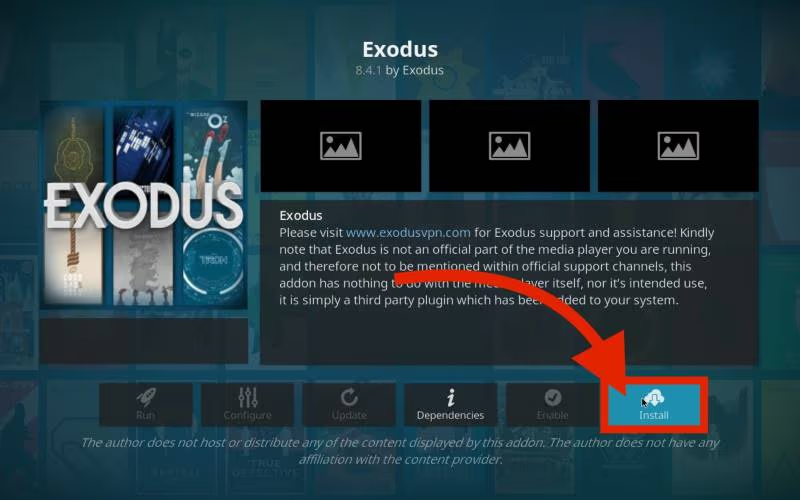
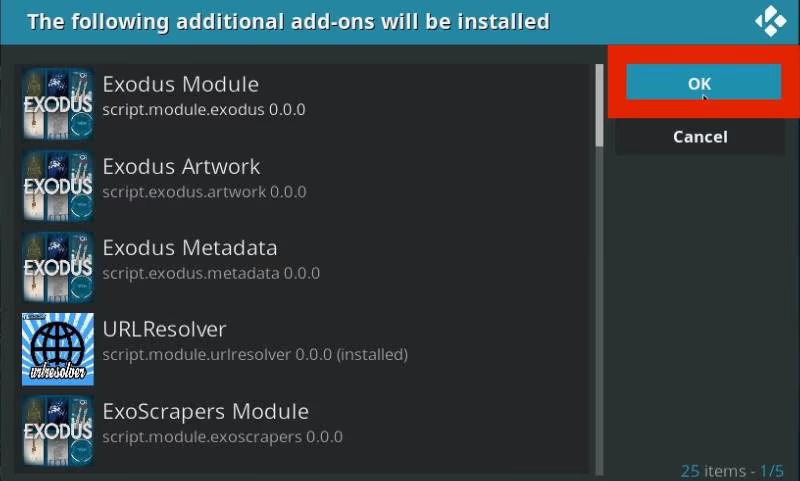
#12: A new window saying ‘Following File will be installed on Kodi’ will open after clicking on the ‘Install’ button. Then, click the ‘OK’ button and wait until the software is installed on your device.
#13: After a few seconds, the ‘Exodus Redux Add-on is installed’ notification will pop up on your screen.
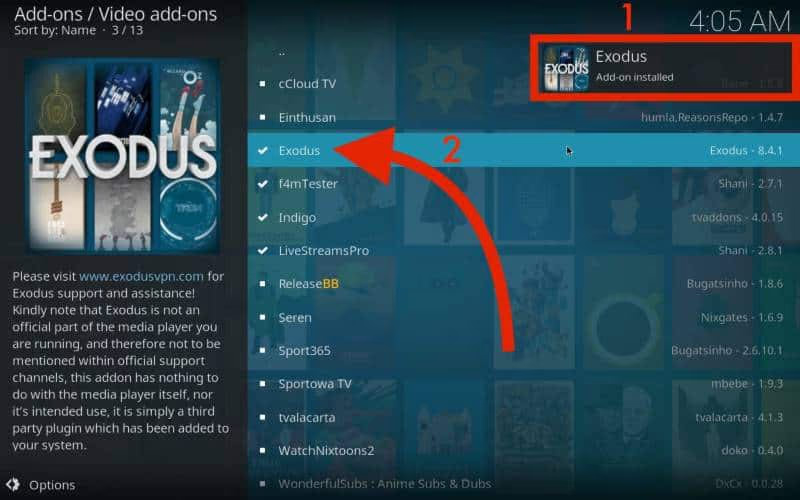
That’s it. You have installed Exodus Redux on your device using Kodi Bae Repositories.
You can also check many other add-ons in that system. If you are interested, look into Kodi alternatives or explore how to set up Hulu on Kodi for even more streaming options.
#How Do You Update Exodus Redux?
Updating Exodus Redux is not difficult because the add-on automatically enables the AutoUpdate option.
But if you accidentally unchecked this option, you can manually update the software. Here is how to check for updates and install any pending version.
#1: Open Kodi and select the ‘Add-on’ option located on the left side of the panel.
#2: Click on the box icon or ‘Package Installer’ on the left side of the window near Settings.
#3: Choose the ‘My Add-on’ option.
#4: Scroll down the menu and click on ‘Video Add-ons.’
#5: You can see the list of add-ons downloaded on your device. Select ‘Exodus Redux’ from the list.
#6: An installation window will appear. From there, you need to click on ‘Update.’
#7: Updates will appear in white text, and the latest updates will appear in green text.
#8: If you see the green-colored update text, click on it and wait until that version is downloaded.
Using Kodi on other devices? Check out our guides for installing Kodi on Samsung TV and Kodi on Roku TV.
#How Do You Clear the Cache on Exodus Redux?
If your Exodus Redux has slowed down due to errors or other issues, you can fix that problem by clearing the cache. These cached files slow down your device, which leads to issues like video buffering, lagging, and playback errors.
Follow the steps below to clear the cache.
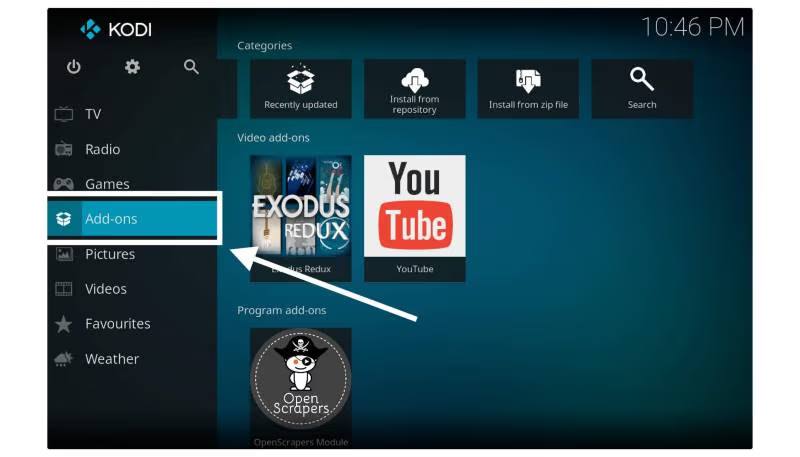
#1: Open ‘Kodi’ and select ‘Add-ons.’
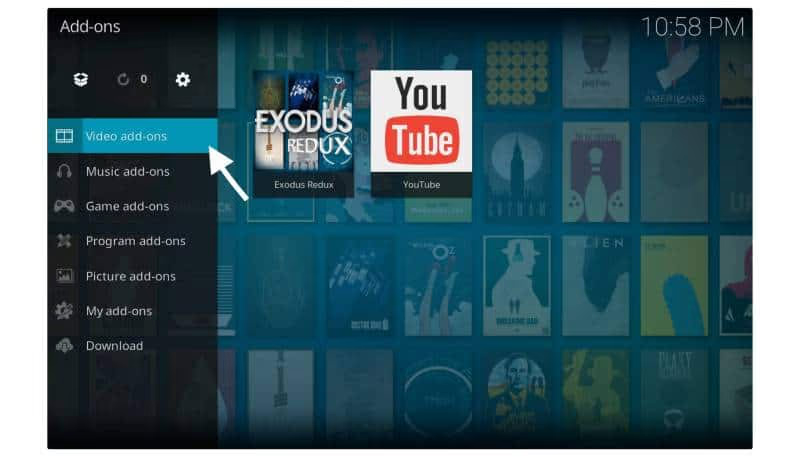
#2: Afterward, go to the ‘Video Add-ons’ section.
#3: Click on the ‘Exodus Redux’ option.
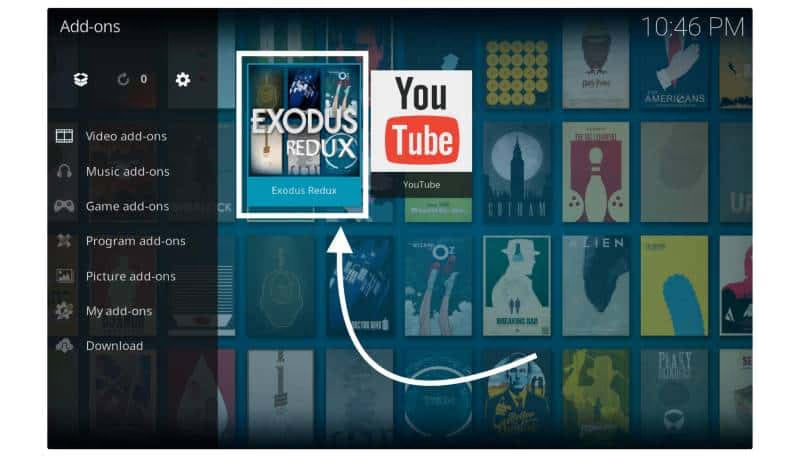
#4: Click on ‘Tools.’
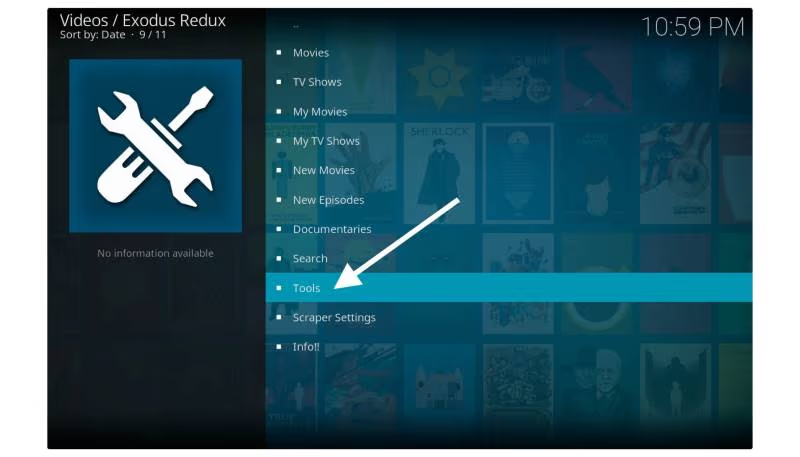
#5: Scroll down the menu, search for ‘Cache Functions,’ and click on it.
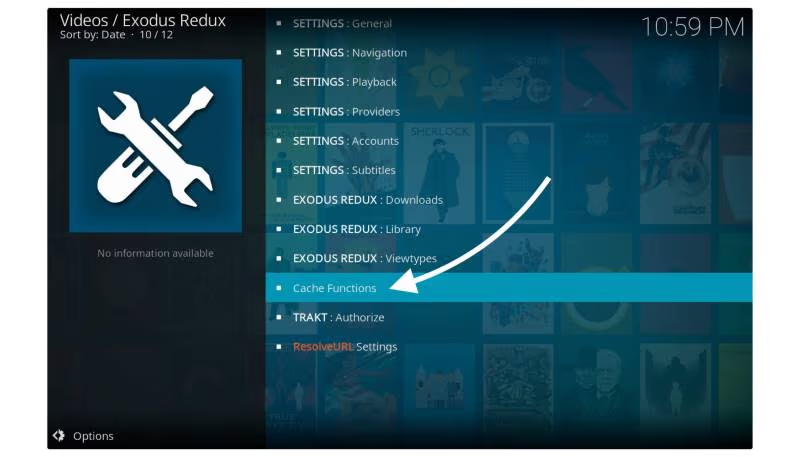
#6: Select the ‘Clear all Cache’ option.
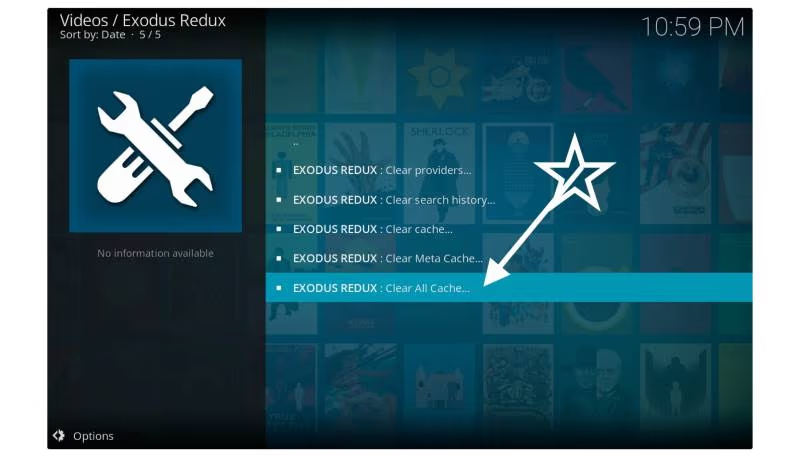
#7: Ignore the warning message and click on ‘Yes.’
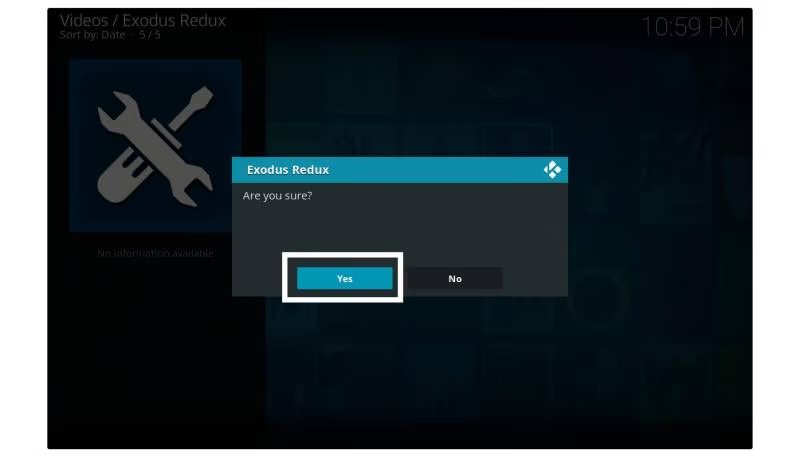
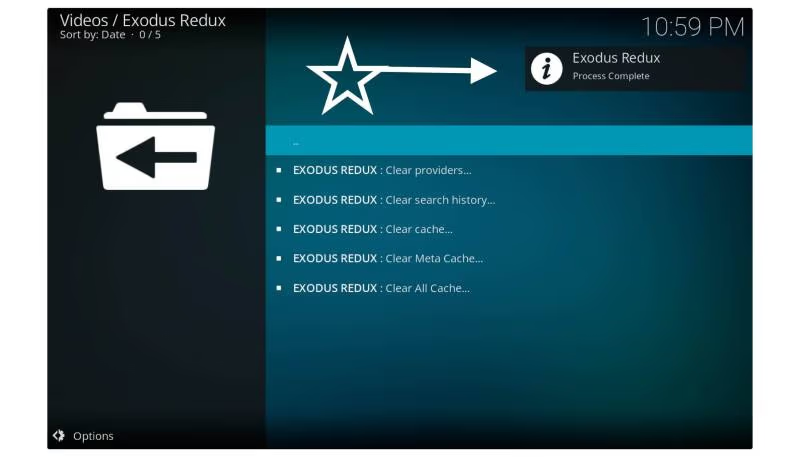
#8: You will be notified about the completion of the process.
If your Fire TV Stick is running slow in general, clearing Exodus Redux cache alone may not be enough. Check our troubleshooting guide for more tips.
#FAQs
#Is Exodus Redux legal to use?
Exodus Redux itself is a legal add-on for Kodi. The add-on does not host any content directly. It provides access to publicly available content from various online sources, so legality depends on what you stream.
#Can you install Exodus Redux on any device?
Exodus Redux works on any device that supports Kodi. This includes Windows, Mac, Linux, Android, iOS, and Fire TV Stick. As long as Kodi is installed and running, you can add Exodus Redux.
#Do you need a VPN when using Exodus Redux?
Using a VPN is recommended when streaming through Exodus Redux. A VPN encrypts your internet connection and masks your IP address, which keeps your streaming activity private and secure.
#How often should you update Exodus Redux?
Check for updates at least once a month to stay current with bug fixes and compatibility patches. Kodi updates can sometimes break older add-on versions, so keeping Exodus Redux up to date prevents playback issues.
#Can you customize the Exodus Redux interface?
Yes. Exodus Redux has settings that let you change the appearance, layout, and default content categories. You can adjust these options through the add-on’s built-in settings menu.
#What should you do if Exodus Redux stops working?
Start by clearing the cache through Tools > Cache Functions. If that does not fix the issue, uninstall the add-on completely, restart Kodi, and reinstall Exodus Redux from scratch using the steps in this guide.
#Does Exodus Redux work on Amazon Fire TV Stick?
Yes, Exodus Redux works on Fire TV Stick as long as Kodi is installed on the device. The installation steps are the same as on any other Kodi-supported platform.
#What are the best alternatives to Exodus Redux?
Popular alternatives include The Crew, Seren, Venom, and Fen. Each add-on has a different content library and interface, so try a few to find the one that fits your needs. You can also explore other media server options like Jellyfin for a different approach to home streaming.
#Bottom Line
Installing Exodus Redux on Kodi takes about 10 minutes with either the standard repository method or the Kodi Bae approach. Enable Unknown Sources first, add the correct repository URL, and follow the step-by-step instructions above.
If you run into buffering or lag, clear the cache through the Tools menu. Keep the add-on updated for the best streaming experience on your Kodi setup.