Are you wondering if you can get ESPN+ on your LG Smart TV? This guide covers everything you need to know about accessing ESPN+ and streaming live sports on your LG TV.
- No native ESPN+ app on LG TVs — LG’s webOS does not include a dedicated ESPN+ app in its store
- AirPlay is the workaround — 2018 and newer LG TVs with webOS 4.0+ support AirPlay streaming from iPhones and iPads
- ESPN+ costs $9.99/month or $99.99/year — includes UFC, NHL, MLB, MLS, college sports, and thousands of live events
- Same Wi-Fi network required — your Apple device and LG TV must be on the same network for AirPlay to work
- External devices also work — Roku, Fire TV, Apple TV, and game consoles all have native ESPN+ apps as alternatives
#What is ESPN+?
 ESPN+ is a premium streaming service from ESPN that offers thousands of live sports events, original shows, films, and more. It includes coverage of:
-
UFC
-
NHL
-
MLB
-
MLS
-
College sports
-
Top Rank boxing
-
PGA golf
-
Grand Slam tennis
-
International soccer
-
And much more
For only $9.99/month or $99.99/year, ESPN+ gives you access to an incredible amount of sports content you can’t find anywhere else.
If you want to watch ESPN channels like ESPN, ESPN2, ESPNU, etc. on your LG TV, check out guides for watching ESPN on Spectrum TV, Sling TV, FuboTV, DirecTV, and other live TV streaming platforms.
#Is ESPN+ Available on LG Smart TVs?
Unfortunately, there currently isn’t a native ESPN+ app available directly on LG Smart TVs. However, you can still watch ESPN+ using AirPlay on compatible 2018 and newer LG TV models.
Here are the key details:
-
AirPlay Support: 2018 and newer LG Smart TVs with webOS 4.0+ support AirPlay, allowing you to stream content from Apple devices.
-
How It Works: You sign up for ESPN+ on your iPhone or iPad, then mirror the video feed to your LG TV using AirPlay.
-
Other Devices: If you don’t want to rely on AirPlay, ESPN+ is natively available on Roku, Fire TV, Apple TV, Android TVs, game consoles, and more. You can also watch on laptops and mobile devices.
Now let’s walk through the step-by-step process of getting ESPN+ up and running on your compatible LG Smart TV using AirPlay.
#Step-by-Step Guide to Getting ESPN+ on Your LG TV
Follow this simple tutorial to start streaming live sports with ESPN+ on your LG 4K, OLED, or NanoCell TV with webOS.
#Step 1: Check if Your LG TV Supports AirPlay
AirPlay support is required to stream ESPN+ on your LG TV.
To verify your model supports AirPlay:
-
Navigate to the Home/Dashboard of your LG Smart TV
-
Select the “Settings” option
-
Choose “Connection” > “HomeKit”
-
If you see AirPlay 2 support listed, your TV is compatible
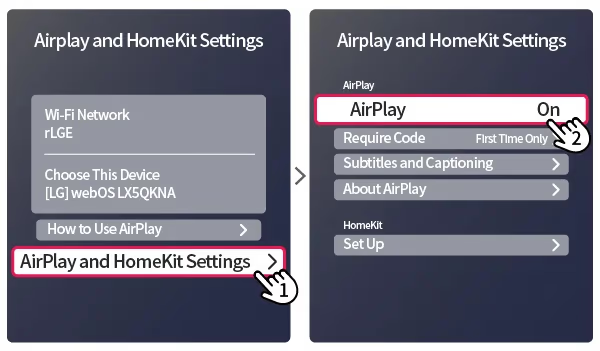
Tip: Make sure you have the latest LG firmware installed for best performance.
#Step 2: Subscribe to ESPN+
Head over to plus.espn.com on your iPhone or iPad and sign up for ESPN+ by selecting the “Get ESPN+” button.
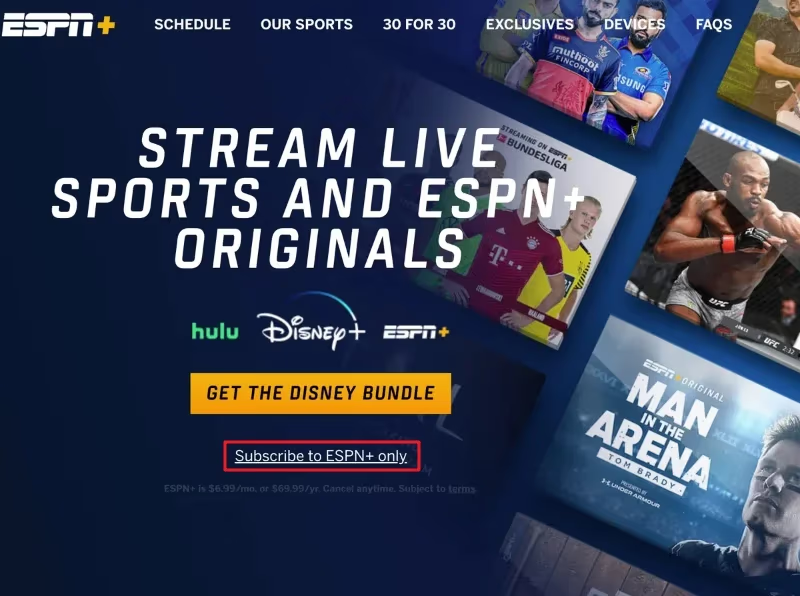
Choose either the monthly or annual subscription plan. Provide your payment details and create your ESPN+ account credentials.
#Step 3: Install the ESPN App
On the same iPhone/iPad device, download and install the ESPN app from the App Store. Open the app and log in using the ESPN+ account you just created.
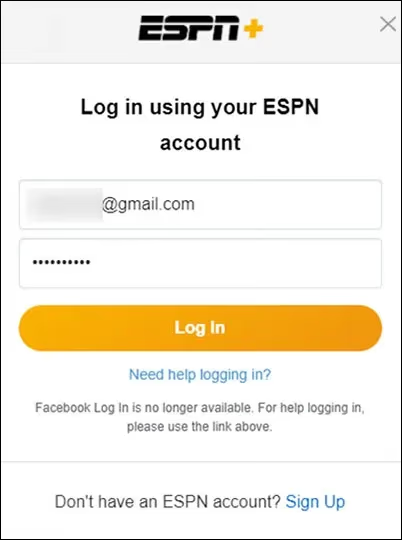
This will link your subscription status allowing you to access ESPN+ content within the app.
#Step 4: Connect iPhone/iPad and LG TV to Same Wi-Fi
Make sure both your iPhone/iPad and LG Smart TV are connected to the same Wi-Fi network in order to discover available AirPlay devices.
You can connect your TV via Wi-Fi or Ethernet. Connect your iPhone/iPad to the same network through Settings > Wi-Fi.
#Step 5: Start ESPN+ Video and Select AirPlay
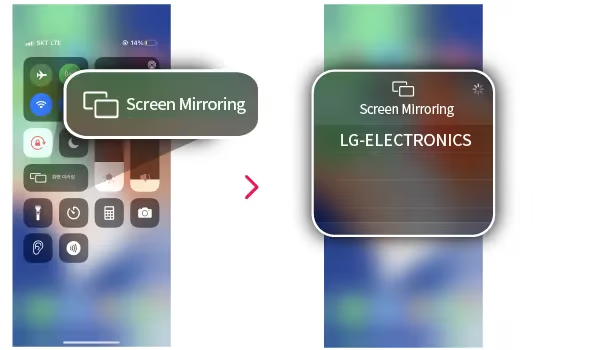
Inside the ESPN app on your iPhone/iPad, find and start playing an ESPN+ video. Tap the AirPlay icon in the player controls.
Select your LG Smart TV from the list of available devices to start streaming the ESPN+ video on your big screen TV!
#Tips for Using ESPN+ on Your LG TV
Here are some handy tips to improve your ESPN+ streaming experience on an LG Smart TV:
-
Update your LG TV firmware for best AirPlay performance
-
Use a stable, high-speed internet connection for smooth streaming
-
For live events, tune in a few minutes early in case of delays
-
Limit background app activity on iPhone/iPad to prevent lag
-
Restart apps and devices if you experience connection issues
-
Consider wired Ethernet over Wi-Fi if possible for faster speeds
And that’s all there is to it! In no time you’ll be enjoying the best live sports from ESPN+ directly on your new LG television.
ESPN+ is also available on many other smart TV brands like Samsung, VIZIO, and more.
#FAQs about ESPN+ on LG Smart TVs
#Does ESPN+ offer a free trial?
Yes! New ESPN+ subscribers can sign up for a 7-day free trial before paying. Just be sure to cancel before the end of the trial if you don’t want to continue the service.
#How many devices can stream ESPN+ simultaneously?
Your ESPN+ account allows for simultaneous streaming on up to 3 devices at once. This allowance resets every 30 days.
#Does ESPN+ allow offline downloads to watch shows later?
Yes. The ESPN app lets you download select ESPN+ programs, films, and other content to watch offline when you don’t have an internet connection handy. Useful for planes, road trips, or areas with spotty service!
I hope you found this guide helpful for accessing ESPN+ on your compatible LG 4K, OLED, or NanoCell television. Let me know if you have any other questions!