ESPN not working on your Apple TV? Thousands of Apple TV owners run into this exact problem when trying to watch live sports. The ESPN app crashes, buffers endlessly, or throws authorization errors at the worst possible time.
Most ESPN issues on Apple TV come down to a few fixable causes. This guide walks you through 17 proven troubleshooting steps so you can get back to watching sports fast.
- ESPN service outages are the #1 cause of app failures on Apple TV, and you can check status at Downdetector before troubleshooting
- Restarting your Apple TV and router fixes about 70% of ESPN streaming problems within 2 minutes
- ESPN requires at least 3-5 Mbps for HD streaming; use a wired Ethernet connection for best results
- Outdated ESPN app or tvOS firmware causes playback errors, black screens, and error codes like 0068 and 0074
- Too many devices on one ESPN account triggers authorization failures that a password change can resolve
#What Are the Common ESPN Apple TV Issues?
Apple TV users run into several recurring ESPN problems:
-
ESPN app won’t open or load content
-
Playback errors like “Error Playing Content”
-
Black screen instead of video
-
Authorization failed errors
-
Endless buffering and lag
-
other error codes like 0068, 0074, etc.
These issues happen because of ESPN service outages, software bugs, network problems, or subscription errors. For example, many Spectrum customers face ESPN channel problems on their Spectrum TV service.
All of these ESPN problems on Apple TV can be resolved with basic troubleshooting.
#Why Is ESPN Not Working on Your Apple TV?
Here are the most common reasons why you may be facing issues with ESPN on your Apple TV:
-
ESPN+ service outage - Server issues lead to authorization failed errors
-
Slow internet speed - Buffering, lag due to limited bandwidth
-
App or firmware outdated - Software bugs cause streaming failures
-
Incorrect subscription - Don’t have ESPN bundle for Apple TV
-
Too many devices logged in - Breached credentials lead to playback errors
-
VPN enabled - Causes geo-restrictions and loading problems
-
Incorrect Apple TV settings - Messes up streaming quality and speeds
-
Corrupt Apple TV firmware - Leads to app crashes and black screens
-
HDCP copyright protection issues - HDMI connectivity problems cause errors
-
Temporary ISP network problems - Leads to authorization failed errors
Figuring out the exact reason why your ESPN app is not working will help you troubleshoot the problem quicker.
#17 Fixes to Get ESPN Working Again on Your Apple TV
Follow these proven troubleshooting steps to resolve various ESPN problems on your Apple TV 4K and HD models:
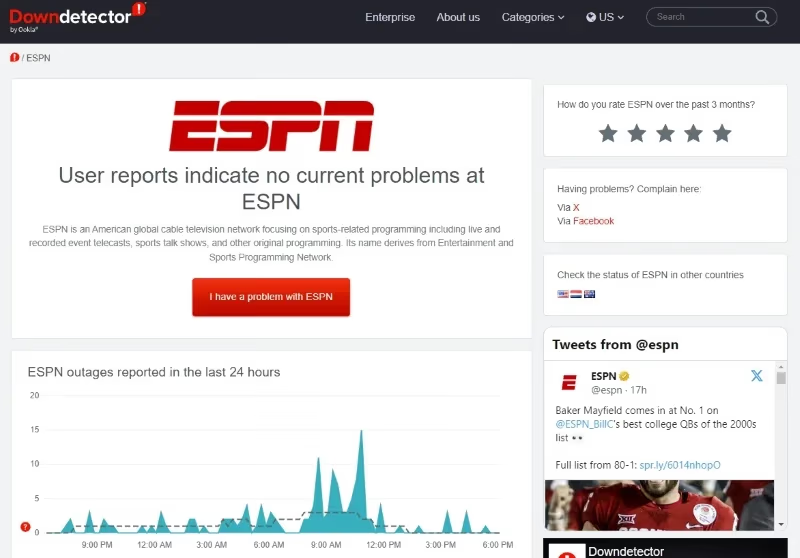
#1. Check if ESPN Service Is Having an Outage
Streaming fails when ESPN servers are down.
To check: Go to the ESPN status page on Downdetector. If high outage reports, you’ll have to wait a few hours for engineers to fix it.
#2. Restart Your Apple TV
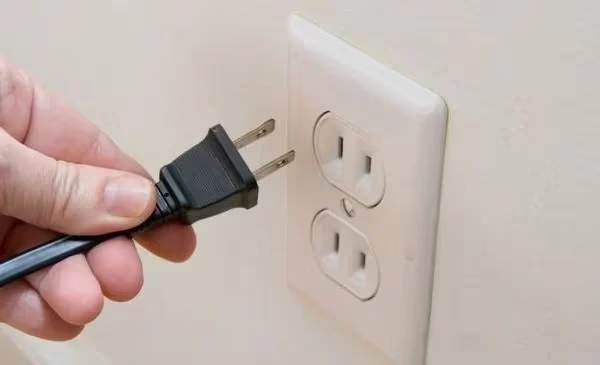
Restarting resets minor software glitches causing ESPN app failures.
How to restart:
-
Unplug Apple TV power cord for 30 seconds
-
Reconnect and wait for it to reboot
-
Launch ESPN app to test if issue resolved
#3. Reboot Your Internet Router
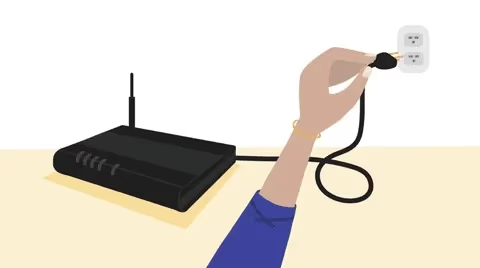
Rebooting your router resets the internet connection, resolving any temporary network issues like speed lag.
To reboot:
-
Unplug router power cable for 30 seconds
-
Plug back in and wait for internet to reconnect
-
Test ESPN app after router restarts
#4. Check Your Internet Speeds
HD ESPN streaming requires minimum 3-5 Mbps internet speeds.
Run a Speedtest to check. Upgrade internet plan if needed.
#5. Use Ethernet Instead of Wi-Fi
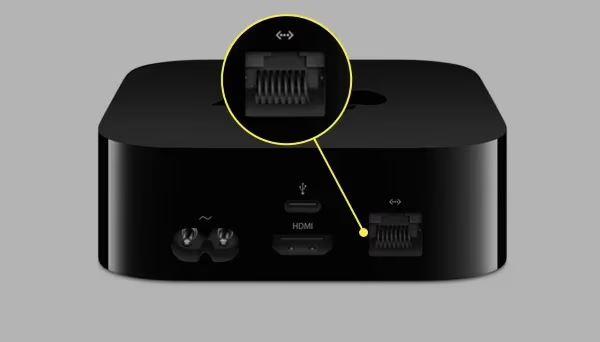
For consistent high-speeds, connect your Apple TV to router via Ethernet cable instead of using Wi-Fi. Some users have also resolved ESPN issues on Amazon Fire TV, Sling TV and other devices by using wired connection.
#6. Disable VPN on Apple TV
VPNs often cause geo-restrictions and connectivity issues.
Turn off VPN on Apple TV to resolve any location errors when streaming ESPN.
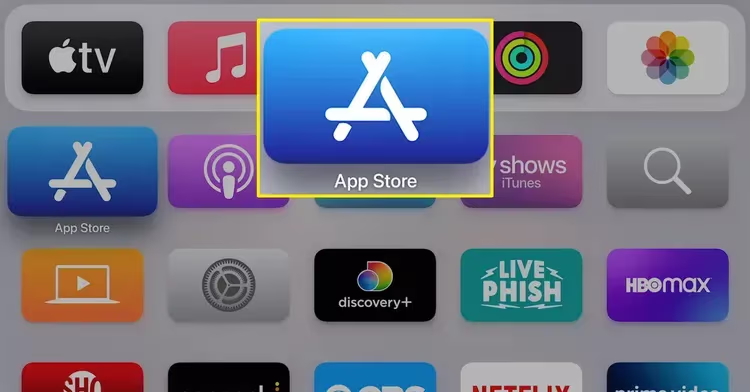
#7. Update Your ESPN App
-
Go to App Store > Search “ESPN”
-
If update available, click Update
-
Relaunch ESPN app after updating
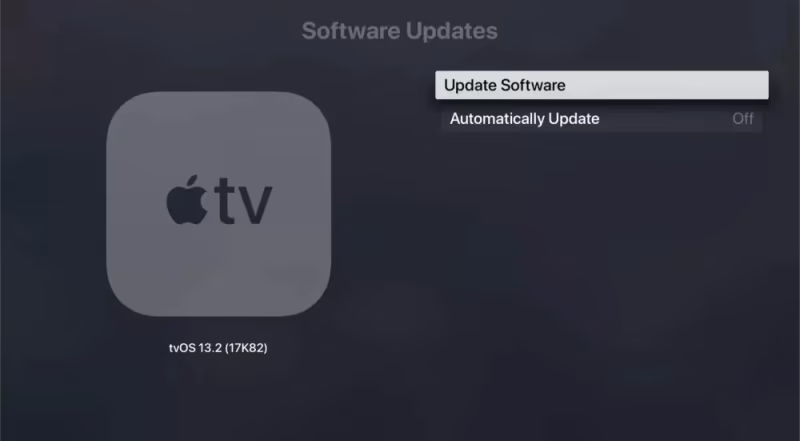
#8. Update Your Apple TV Software
-
Go to Settings > System > Software Updates
-
If update available, click Download and Install
-
Check ESPN after Apple TV updated
#9. Delete and Reinstall ESPN App
-
Delete ESPN app from your Apple TV’s Home screen
-
Reboot Apple TV
-
Redownload ESPN app and relogin
#10. Sign Out and Sign Back Into ESPN App
Sometimes signing out and signing back in resolves app issues. Open the ESPN app, go to Settings, sign out, close the app, then reopen and sign back in with your credentials.
#11. Reset Your Apple TV
This resets all settings and erases all data. You'll have to re-login and set up ESPN+ on Samsung Smart TVs, LG TVs and other models again.
How to reset Apple TV to factory settings:
- Go to Settings > System > Reset
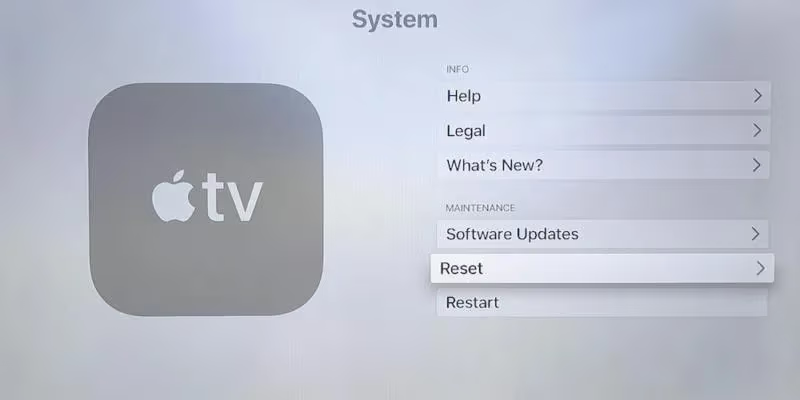
- Choose “Reset and Update” or “Erase All Content and Settings”
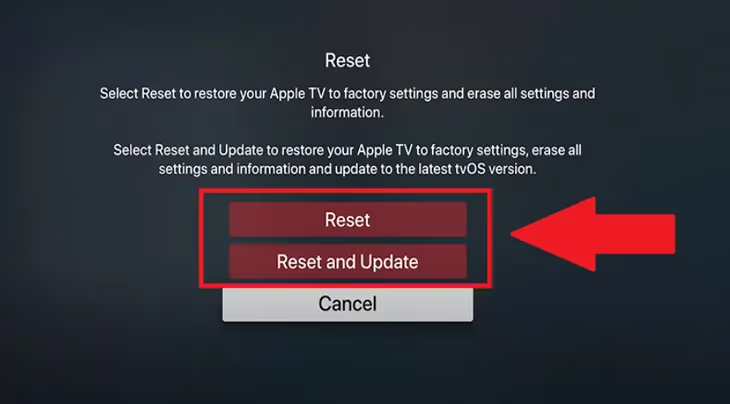
- Set up Apple TV again and test ESPN
#12. Change Your ESPN Account Password
-
Visit ESPN account on web browser
-
Click Edit next to your username
-
Go to Security > Change password
-
Sign in again on Apple TV with new password
Having too many devices logged into your ESPN account can cause streaming authorization issues. Changing password fixes this.
#13. Remove ESPN Login from Other Devices
Too many simultaneous ESPN logins can lead to streaming problems on Apple TV.
To kick out all other logged in devices:
-
Go to ESPN viewer settings
-
Click “Sign Out Of All Devices” and confirm
-
Log back into Apple TV
Now only your Apple TV will be logged in.
#14. Double Check Your ESPN+ Subscription
Don’t have the right ESPN bundle for your Apple TV? You’ll get authorization errors. Verify your subscription status in your ESPN account settings or through the App Store subscriptions page.
#15. Enable HDCP on Apple TV Port
HDCP copyright protection needs to be enabled on your Apple TV’s HDMI port.
To enable HDCP:
- Go to Settings > Video and Audio > HDMI > HDCP > On
Now ESPN will be able to verify copyright protection for streaming.
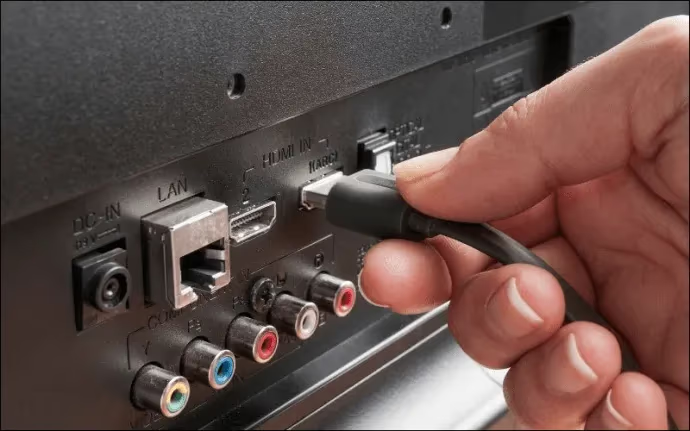
#16. Use Different HDMI Port on TV
Try connecting your Apple TV to a different HDMI port on the TV to resolve any connectivity issues causing ESPN failures.
#17. Factory Reset Your TV
As last resort, reset your TV to factory settings if software bugs are disrupting communication between TV and Apple TV.
Check detailed steps to reset for your specific TV model online.
Pro Tip: Still facing ESPN problems on Apple TV after trying all fixes? Call Apple Support or ESPN+ Customer Service.
#Bottom Line
Here is what you need to do to get ESPN working again on your Apple TV:
-
Check for ESPN+ outages before troubleshooting
-
Restart both Apple TV and your router
-
Ensure you have sufficient minimum internet speeds
-
Update ESPN app and Apple TV system software
-
Reset Apple TV if all else fails (backup data first!)
These steps cover authorization failures, playback errors, buffering issues, and black screens on Apple TV 4K and HD models. Start with the quick fixes at the top of the list, and work your way down only if needed.
#Frequently Asked Questions
#Why does my ESPN app keep crashing on Apple TV?
The ESPN app crashes on Apple TV when the app version is outdated or cached data has become corrupted. Delete the ESPN app from your Home screen, restart your Apple TV by unplugging it for 30 seconds, then reinstall the app from the App Store. This clears the corrupted data and gives you a fresh install.
#Can I watch ESPN on Apple TV without a cable subscription?
Yes. ESPN+ is a standalone streaming service that works on Apple TV without any cable package. You can subscribe directly through the ESPN app or bundle it with Disney+ and Hulu. However, live ESPN channel content (like Monday Night Football on the main ESPN network) still requires a cable or live TV streaming subscription such as YouTube TV, Hulu + Live TV, or Sling TV.
#What internet speed do I need for ESPN streaming on Apple TV?
ESPN requires at least 3-5 Mbps for standard HD streaming and 13+ Mbps for 4K content. Run a speed test at speedtest.net to check your connection. If your speeds are below these thresholds, try connecting your Apple TV directly to your router with an Ethernet cable instead of using Wi-Fi.
#How do I fix ESPN error code 0068 on Apple TV?
Error code 0068 usually means there is a problem with your ESPN account authentication. Sign out of the ESPN app on your Apple TV, change your ESPN account password through a web browser, then sign back in with the new password. If the error persists, contact ESPN+ customer service for account-specific help.
#Why is ESPN buffering on my Apple TV even with fast internet?
Buffering with fast internet usually points to a Wi-Fi signal issue or DNS problem. Move your router closer to your Apple TV, or switch to a wired Ethernet connection. You can also try changing your DNS settings to Google DNS (8.8.8.8) or Cloudflare DNS (1.1.1.1) under Settings > Network > Wi-Fi > Configure DNS.
#Does ESPN work on older Apple TV models?
ESPN+ works on Apple TV HD (4th generation) and Apple TV 4K (all versions). Older models like Apple TV 2nd and 3rd generation do not support the ESPN app because they cannot run tvOS. If you have an older model, you can use AirPlay from an iPhone or iPad to mirror ESPN content to your TV.
#How do I fix “authorization failed” errors on ESPN for Apple TV?
Authorization errors happen when your subscription cannot be verified or too many devices are logged into your account. Go to ESPN account settings in a web browser and click “Sign Out Of All Devices.” Then log back in only on your Apple TV. Also confirm that your ESPN+ subscription or cable TV provider credentials are still active and not expired.