Your Element TV won’t turn on, and the screen stays completely dark. This is one of the most common problems Element TV owners face, and the fix is usually straightforward. Below are 13 proven troubleshooting steps that cover everything from dead outlets to failed motherboard components.
- Power cycle fixes most Element TV startup failures. Unplug the TV, hold the power button for 60 seconds, wait 2 minutes, then reconnect.
- A faulty wall outlet causes 15-20% of “dead TV” reports. Always test the outlet with another device first.
- Remote control issues mimic power failures. Replace batteries and try the manual power button on the TV itself.
- Blown capacitors on the power board are the #1 hardware cause. Look for bulging or leaking caps when you open the back panel.
- Factory reset via hidden button combos can bypass software crashes. Hold Volume Up + Volume Down while plugging the TV back in.
#What Causes an Element TV Not To Turn On?
Before jumping into troubleshooting steps, it helps to understand what might cause your TV not to turn on in the first place:
-
Power source issue. Problems with the wall outlet, power cord, or internal power supply can prevent your TV receiving electricity.
-
Component failure. The motherboard, backlights, or individual components like capacitors or fuses can stop functioning correctly.
-
Connection problem. Issues with ribbon cables, HDMI ports, or loose connectors can stop signals being transmitted.
-
Remote not working. Dead batteries or remote control board failure might mean IR signals can’t reach your TV.
-
Software crash. Apps freezing, system files corrupting, and overheating can cause software crashes.
I’ll go through fixes for all these issues step by step. Many problems can be solved yourself with basic tools and patience.
#How Do You Fix an Element TV That Won’t Power On?
Follow these troubleshooting tips in order. Start with checking connections and power sources, then open up your TV to diagnose hardware faults if needed.
Here is each method to revive your faulty Element TV in more detail:
#1. Check Wall Power Source
Before pulling your Element TV apart, first make sure the wall socket you have it plugged into is working correctly.
Use a voltage meter, power outlet tester, or plug another working appliance like a phone charger into the same port to check it’s outputting electricity.
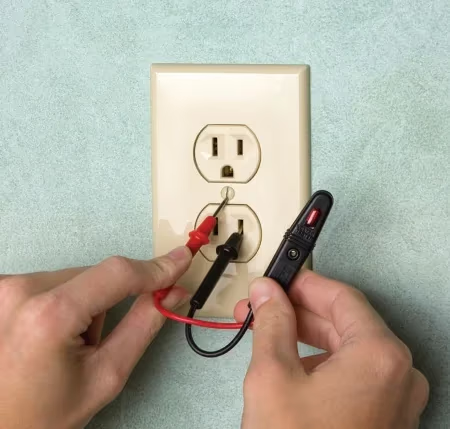
If the outlet is dead, check your circuit breaker hasn’t tripped.
If other devices work in the same socket, the issue is with your TV, so read on.
#2. Inspect Power Cord
Carefully examine the power cable running from your Element TV to the wall for any:
-
Visible cuts, splitting or abrasions
-
Areas with cracked, melted insulation
-
Bent, twisted or pinched points
-
Loose connectors at both ends
If the cable looks damaged anywhere, replace it with a new one right away.
While inspecting, also check both ends are inserted snugly into the TV port and wall outlet. Loose power cords alone can cause power issues.
#3. Try Pressing Power Button
Before grabbing your remote, attempt pressing the manual power button on the Element TV itself (if it has one).
On many models, this is:
-
Located on the side edge of the monitor
-
Underneath the Element logo on the front
-
At the rear on the lower border
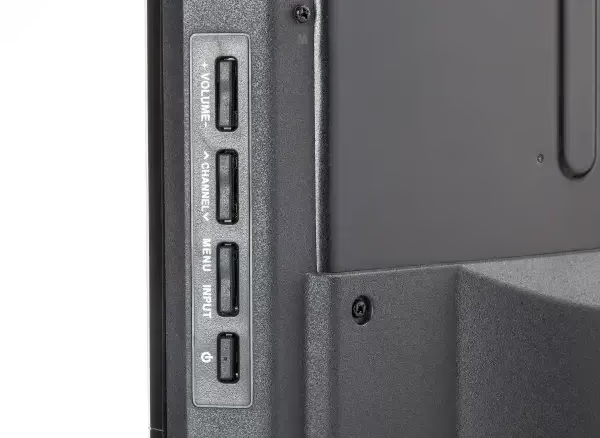
If your Element TV doesn’t have a manual power button or it fails, see our guide on using a universal remote as a workaround.
Press and hold firmly for 5 seconds to force the device to boot. If still unresponsive, try the next steps.
#4. Hard Reset With Power Cycle
A power cycle forces a hard reboot which often resolves temporary glitches stopping an Element TV from powering up.
Here’s how to hard reset your device:
-
Unplug TV power cable from the wall outlet only
-
Press and hold the manual power button for 60 seconds (drains flea power from capacitors)
-
Stop pressing the button but leave the set unplugged for 2 minutes
-
Reconnect the power cord back into the outlet
-
Power on using remote or manual button again
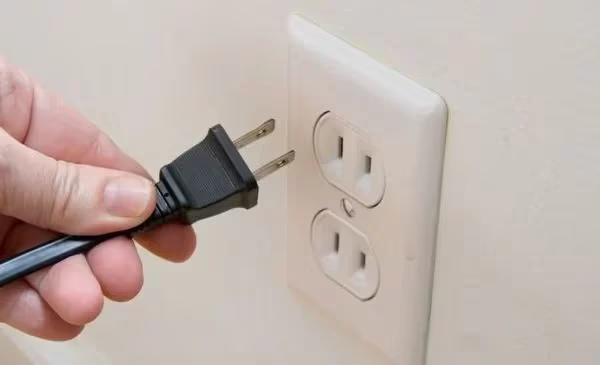
This flushes out corrupted memory that could cause startup problems. Give this a try first before dismantling.
#5. Attempt Different Power Outlet
Faults can develop in wall outlets over time so even if other appliances work, try plugging your Element TV somewhere else as an experiment.
Move cords safely and use an outlet on a completely different breaker circuit for best results.
If your TV suddenly responds after changing outlet, the issue was likely with original socket wiring. Contact an electrician to investigate and replace if needed.
#6. Replace Remote Batteries
Assuming the manual power button above didn’t revive your set, rule out any remote control issues next.
-
Hit buttons randomly trying each one to wake the device. Buttons can stick after falls.
-
Install fresh alkaline batteries in the remote. Don’t mix brands or old with new batteries together.
-
Try moving closer to the Element TV’s IR receiver which is normally centrally located near the bottom edge.
-
Point remotes directly at screen reducing angles which can cause signal loss.
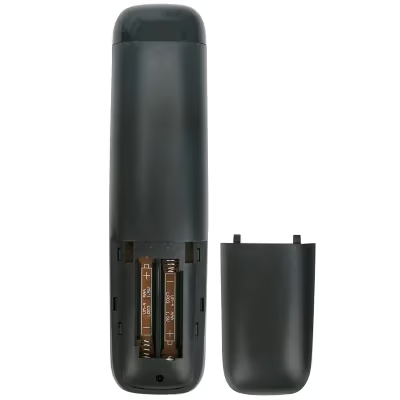
If new batteries bring no luck, continue to other steps eliminating further component faults.
#7. Update Firmware
While not a guaranteed solution, updating your Element TV firmware can allow you to bypass power glitches caused by software crashes.
-
On a web browser, find and download the latest firmware file for your exact make and model from the Element support site
-
Follow guides to install it to the TV via USB drive
-
An alternative is using Firmware Over The Air (FOTA) to install wirelessly if available.
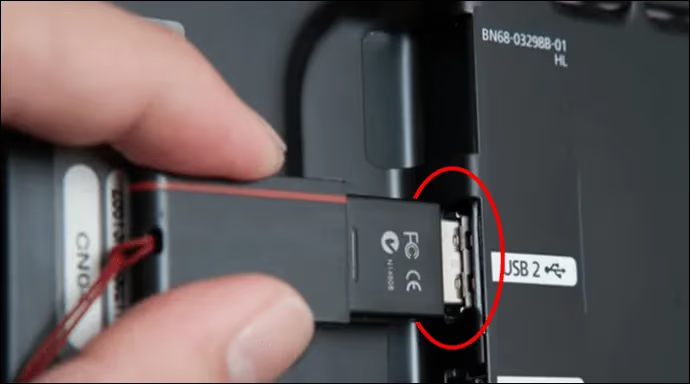
Firmware contains all the code that controls how your device functions including power settings, so it is worth a shot.
#8. Factory Reset From Hidden Menus
Resetting your Element TV restores factory condition settings which could fix problems turning on.
The standard factory reset option is often inaccessible when your device won’t start up in the first place. Luckily some models have a “force reboot” menu built in, specialized to troubleshoot power faults.
To access this on your model:
-
Unplug TV power
-
Press and hold both volume UP and volume DOWN buttons together
-
Without releasing buttons, plug the power cord back in (keeps menu active)
-
Finally let go buttons and wait for TV to reboot
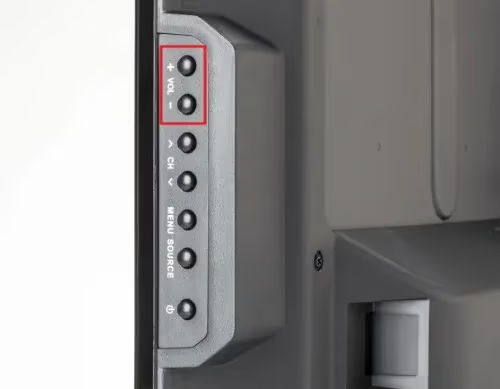
The menu varies so also try volume + channel up or mute + menu as button combos. Repeat the power cycle between tests.
If successful, this should fully wipe and fresh install your Element TV software. That should solve any software crashes stopping startup.
#9. Check External Video Device Connections
If you access Element TV content via an external video source like a games console, streaming stick, or cable box, don’t forget to check their power cables, ports, and on/off status too.
These can sometimes turn off not only themselves but connected devices using HDMI-CEC or pins that cut external electricity loads.
With TV unplugged, disconnect ALL inputs like HDMI and coaxial cables from TV ports first.
Once stripped back to only the power cable and nothing else connected, plug back in and try turning on your Element TV again as a process of elimination.
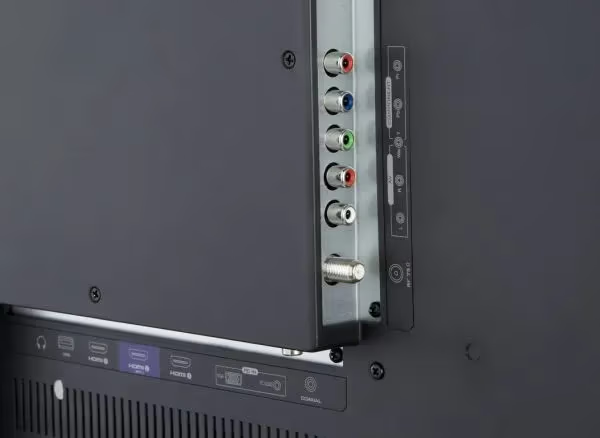
If this basic setup now works, reconnect external devices back one by one until you find the faulty unit.
#10. Reseat All Data and Power Cables
While inspecting gadget and cable connections, don’t forget to firmly check all attached cords and plugs for a faulty seat fitting that could cause power problems.
-
Check HDMI cable pressed completely into port
-
Coaxial and other data cables should click fully into their sockets
-
Ethernet network cable inserted fully into LAN socket
-
No obvious dust or debris in ports blocking signal
-
Double check power lead from previous steps again
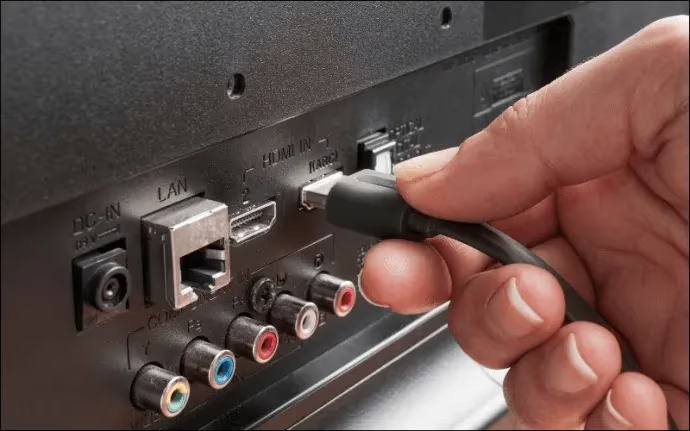
Reinsert each cable firmly or try swapping to alternative ports if available. Cables can work themselves loose over time so this is an easy fix.
#11. Open Up and Visually Inspect Insides
To proceed with deeper-level troubleshooting, gain access to the internal boards of your Element TV by unscrewing the rear cover.
Safely place the set face down on a soft towel and systematically remove each screw, noting locations for reassembly later.
CAREFULLY lift off the rear casing panel, minding protruding boards and connector ribbons. Avoid directly touching boards unless battery is removed first.
Now check:
Power board: Look closely for burnt spots on the board surface. Smell for any overheating near large transistors. Check connectors to screen panel and mainboard are snug.
LED driver board: Same checks for scorch marks and loose plugs, specifically where the LED power supply module connects, providing juice for the backlights.
T-Con board: Check the interface connectors between screen, mainboard, and LED driver for tight fit.
Main board: Examine closely near CPU chip and regulators for popped capacitors. Look for browned areas. Press to make sure chips and slots are firmly in their sockets.
Backlight LED strips: Check LEDs turn on by toggling power on momentarily. Visually inspect for cracked LEDs across panel area.
If you spot obvious blown components like ruptured capacitors, start the diagnosis process for replacement.
#12. Replace Faulty Hardware
After close inspection, you may have located a damaged connector, ruptured surface-mount capacitor, or fractured port requiring replacement.
Some soldering experience and special tools like soldering irons, suction bulbs, and flux will be needed alongside replacement parts.
If you see blown capacitors for example:
-
Desolder each side and remove damaged unit
-
Measure capacitance (uF/voltage) printed on the body as replacement guide
-
Using flux and desoldering braid, clean pads ready for installation
-
Solder matching capacitor into circuit position
-
Take care not to overheat surrounding components like ICs
For anyone uncomfortable performing detailed desoldering, seek assistance from an experienced electronics repairer or qualified TV engineer to source and replace damaged circuits and modules.
#13. Attempt Reflowing Motherboard In Oven
When all else fails, a controversial method gaining popularity online is baking TV circuit boards in a hot oven to temporarily revive dead components.
Why does this work? Power surges slowly weaken solder joints until they crack over time through thermal expansion and contraction. Heating cracks microscopically expands the solder just enough to reconnect and restore conductivity.
Use extreme caution as overbaking can further damage working parts. This is best left to experienced repairers.
If you understand the risks and decide to proceed anyway:
-
Fully discharge capacitors first as they can explode
-
Remove all connector ribbons and plugs
-
Wrap board in aluminium foil avoiding covering solder points
-
Preheat oven to 385°F
-
Bake at temperature for 6-7 mins monitoring closely
-
Allow to fully cool before reinstalling
-
Reflow may last days or weeks until solder fractures again
While a last resort, reflowing has revived many TVs given up for dead so it is worth considering when all else fails.
No sound when your TV powers on? See our Element TV no audio troubleshooting guide.
#Bottom Line
Working through these 13 troubleshooting steps should bring your faulty Element TV back from the dead.
Be systematic with each solution and your device will likely be turning on again without costly technician call outs or expensive repairs.
To summarize key solutions:
-
Verify wall power source first
-
Thoroughly inspect cords and cables
-
Attempt power cycle soft resets
-
Check and replace batteries
-
Reseat connections internally and externally
-
Source and replace damaged components
Methodically ruling out each potential fault cause through a process of diagnosis and elimination is the smartest way to revive your bricked Element TV.
If you explore all options but problems persist, don’t hesitate to reach out to experienced television repair technicians locally for tailored advice. Include your exact model details, relevant troubleshooting already attempted, and photos of any errors witnessed on screen or internally which makes diagnosing issues much faster.
See our model-specific TV guides for troubleshooting power issues on Samsung, Sharp, Sony, TCL and Vizio television sets.
#FAQ
#Why does my Element TV have a blinking red light but won’t turn on?
A blinking red light usually means the TV is receiving power but a board-level failure is preventing startup. Count the number of blinks in each cycle. Two blinks often points to a backlight failure, while four blinks typically indicates a power supply board issue. Check your owner’s manual for the specific blink code pattern for your model number.
#Can a power surge damage my Element TV permanently?
Yes. A power surge can fry capacitors, voltage regulators, and the main processor on the motherboard. If your TV stopped working after a storm or power outage, inspect the power board for bulging or leaking capacitors. Using a surge protector rated for at least 1,000 joules can prevent this type of damage in the future.
#How long should I leave my Element TV unplugged during a power cycle?
Leave it unplugged for at least 2 minutes after holding the power button for 60 seconds. The 60-second button hold drains residual electricity stored in the capacitors, and the 2-minute wait allows the memory to fully clear. Shorter waits sometimes don’t clear the issue.
#Does Element TV have a warranty for power failures?
Element TVs typically come with a 1-year limited warranty that covers manufacturing defects, including power supply failures. If your TV is under a year old, contact Element Electronics support with your proof of purchase and model number before attempting any internal repairs, as opening the back panel voids the warranty.
#Why does my Element TV turn off by itself and won’t turn back on?
This usually points to overheating or a failing power supply board. Dust buildup inside the TV blocks ventilation and triggers thermal shutoff protection. Clean the vents with compressed air and make sure the TV has at least 4 inches of clearance on all sides. If cleaning doesn’t help, the power board capacitors may need replacement.
#Is it worth repairing an Element TV that won’t turn on?
It depends on the repair cost versus a replacement. A new power supply board costs $20-50 on eBay and takes about 30 minutes to swap, making it a worthwhile fix. If the mainboard or T-Con board is fried, repairs can run $80-150 in parts alone, at which point buying a new TV may make more sense for budget Element models.
#Can HDMI-CEC cause my Element TV to not turn on?
HDMI-CEC can prevent your TV from powering on if a connected device sends conflicting signals. Unplug all HDMI devices, then try turning on the TV with only the power cable connected. If it works, plug devices back one at a time and disable CEC in the TV settings menu to stop external devices from controlling your TV’s power state.