Disney Plus stuck on the loading screen? You’re not alone. This is one of the most reported issues across smart TVs, streaming sticks, phones, and game consoles. The fix usually takes under five minutes once you identify the cause.
- Slow internet is the top cause — Disney Plus needs at least 5 Mbps for HD streaming, and speeds below that trigger loading failures
- Clearing the app cache fixes most loading freezes — corrupted data builds up over time and prevents the app from launching properly
- Disney Plus server outages cause temporary loading problems — check Downdetector before troubleshooting your own device
- VPNs and ad blockers frequently block Disney Plus — disabling them is one of the fastest fixes available
- Wrong date/time settings on your device can break Disney Plus — syncing your clock to automatic mode resolves this rare but real issue
#Why Does the Disney Plus Loading Screen Freeze?
Before jumping into the fixes, it helps to understand the root causes of this Disney+ error. Here are the most common culprits behind the loading screen hang-ups:

Internet Connectivity Issues – Slow or unstable internet is a frequent trigger, especially for buffering and loading problems. Disney Plus recommends a minimum download speed of 5 Mbps for HD content. Lower speeds often lead to loading issues.
Transient Disney Plus Server Problems – Like any service seeing massive growth (over 130 million subscribers!), Disney’s servers occasionally falter under heavy demand. Server outages or maintenance can cause temporary loading problems.
VPN/Proxy Use – Due to geographic content restrictions, some users try to access Disney Plus through a Virtual Private Network (VPN) or proxy server. This can confuse Disney Plus, leading to loading issues.
Corrupted App Data/Caches – Over time, glitched app data and caches can accumulate on your device, which may prevent Disney Plus from loading properly. Clearing these can resolve loading issues.
Software/App Updates Required – The Disney Plus app needs regular updates to fix bugs and improve performance. Being on an outdated Disney+ app version often causes loading problems.
IPv6 Network Incompatibilities – Some home networks utilizing IPv6 addressing may have compatibility issues with Disney Plus, causing the loading screen to freeze up.
Incorrect Language Settings – Incorrect language settings when accessing Disney Plus internationally can also cause conflicts.
Incorrect Date/Time Settings – Having incorrect date or time settings on your device can break Disney Plus. This is a rare but real cause of loading issues.
Ad Blockers/VPN Detections – Disney Plus has various methods to detect ad blockers, VPNs and proxy services which may be triggering the loading screen to freeze up.
Specific error codes like Disney Plus error code 41 can also cause loading issues in some instances.
Now that we know why Disney Plus gets stuck on the loading screen, let’s get into the step-by-step fixes.
#How Do You Fix Disney Plus Internet Connection Issues?
Since internet connectivity issues are a common root cause of Disney+ loading problems, rule that out first before trying other fixes.
Follow these steps:
-
Run a broadband internet speed test on your device at Speedtest.net. This checks for download/upload speed and connectivity issues.
-
Speeds under 5 Mbps may cause buffering and loading issues. Upgrading your internet plan may help resolve this.
-
Try connecting another device to Disney Plus just to isolate if it’s a device-specific network problem or not.
-
Restart your home router and modems if internet connectivity seems spotty to refresh things.
-
Use a wired ethernet connection rather than Wi-Fi if possible for faster speeds.
-
Toggle airplane mode on/off on mobile devices to re-establish the internet connection.
If your internet checks out fine, it’s likely another factor causing Disney Plus loading issues, so move onto the next fixes.
#How Do You Clear the Disney Plus App Cache?
Corrupted app caches and data are a common trigger for the Disney+ loading screen freezing up. Clearing out this clutter only takes a minute:
#On Mobile Devices
-
Android Phones/Tablets – Open device settings > Apps > Disney Plus > Storage > Clear Cache + Clear Data
-
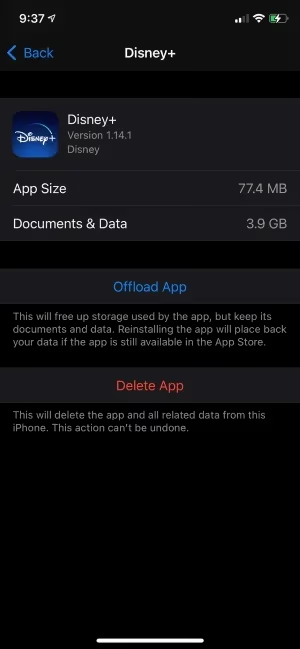
iPhones/iPads – Settings > General > iPhone/iPad Storage > Disney Plus > Offload App > Reinstall
#On Roku Devices
- Home Screen > Settings > System > System Restart
#On Amazon Fire TV
- Settings > Applications > Manage Installed Applications > Disney Plus > Clear Cache + Clear Data
#On Apple TV
- Settings > Apps > TV > Disney Plus > Delete App > Reinstall
#On PS4/PS5
- Settings > Storage > Applications > Disney+ > Delete
After clearing cache/data, reinstall or restart Disney Plus and check if the loading issue is resolved on your device. If it still gets stuck, more troubleshooting is needed.
#Fix #3: Check Disney Plus Server Status
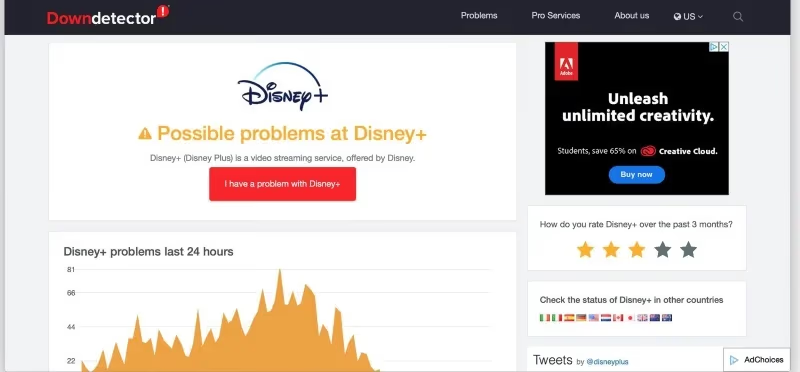
Since server outages can also cause Disney Plus loading issues, it never hurts to check their server status page to see if others are reporting problems too.
Downdetector tracks outages and service issues in real-time. If the graph shows a major spike in Disney Plus reported problems, that likely explains the loading screen troubles on your Samsung smart TV or other devices.
All you can do is wait patiently for Disney’s engineers to get things back up and running again globally. Once servers are restored, Disney Plus should load properly again.
#Fix #4: Disable VPNs and Proxy Connections
As mentioned earlier, getting Disney Plus via VPNs or proxy servers often causes conflicts that result in loading issues.
If you’re attempting to access geo-restricted Disney+ content not available in your country, try these troubleshooting tips:
-
Temporarily Disable The VPN – Turn off the VPN entirely and attempt loading Disney Plus normally to isolate if that is the root cause.
-
Use Credible Paid VPNs Like Express VPN, NordVPN or SurfsharkVPN – Free VPNs often lack the speed and reliability needed for stable streaming. Switch to a highly-rated premium VPN.
-
Connect To Different VPN Server Locations – Try manually selecting VPN servers in a variety of different countries to find one that works best with Disney+.
-
Clear VPN App Data/Caches – VPN apps can accumulate tech gremlins over time. Wiping their app data can help restore proper connectivity.
-
Change language settings on Disney Plus – Incorrect language settings when accessing Disney Plus internationally can also cause conflicts.
If Disney Plus works fine without the VPN active, it points to compatibility issues between Disney’s service and the VPN provider. Switching VPN providers or troubleshooting the VPN app’s settings usually resolves this.
#Fix #5: Update Disney Plus App
App updates frequently address software bugs that cause problems like the loading screen freeze.
It never hurts to check for a Disney Plus app update:
#Disney Plus App Update Methods
-
Mobile Devices – Check your device’s app store for a Disney Plus update
-
Streaming Devices – Check for firmware/software updates in device settings
-
Game Consoles – Check for Disney Plus app update availability in console storefronts
-
Web Browser – Clear browser cache/cookies to refresh page data
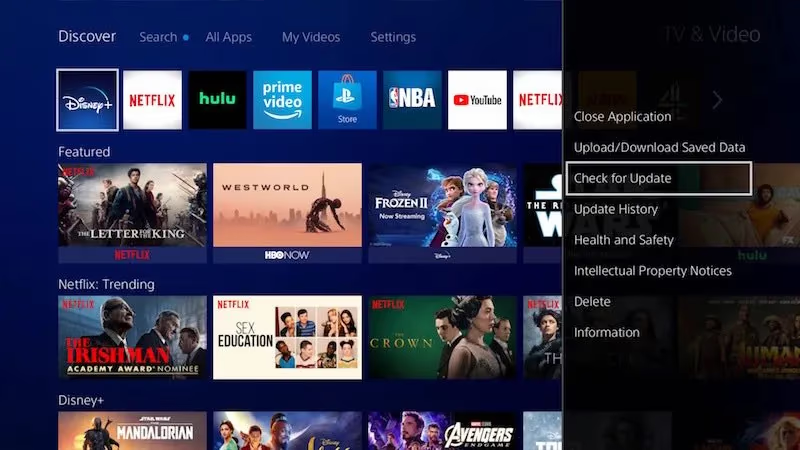
Once updated to the latest Disney+ app version, attempt loading a video again. Also restart your device after updating for changes to take full effect.
#Fix #6: Reinstall the Disney Plus Application
If app updates aren’t available or fail to fix the loading issue, deleting and reinstalling the latest Disney Plus app can purge any corrupted files causing problems in the background.
Follow these device-specific steps:
#Android/iOS
-
Delete Disney Plus App
-
Reboot Device
-
Reinstall App from App Store
#Fire TV / Roku
-
Delete Disney Plus Channel
-
Reboot Device
-
Reinstall Channel
#Apple TV / PS4 / PS5
-
Delete Disney Plus App
-
Reboot Device
-
Redownload App
#Xbox One / Xbox Series X|S
-
Highlight Disney Plus > Press Menu Button on Controller > Select Uninstall
-
Reboot Console
-
Reinstall App from Microsoft Store
Once you’ve freshly installed the latest Disney Plus app version, attempt playback again. This should resolve any corrupted file issues and fix loading problems.
#Fix #7: Disable Ad Blocking Extensions/Software
Ad blocking tools are a surprisingly common reason for Disney Plus loading issues. They interfere with vital browser-to-server communication processes.
If trying to access Disney Plus in Chrome, Firefox, Edge or any major desktop browser, disable ANY ad blocking browser extensions like uBlock Origin, AdBlock Plus or AdGuard. Also add DisneyPlus.com to your ad blocker’s whitelist.
For extra assurance, temporarily disable any general ad blocking apps entirely like Adguard for Windows while attempting to use Disney+.
#Fix #8: Adjust Date and Time Settings
Having incorrect date or time settings on your devices can break compatibility with Disney Plus.
Here’s the quick fix if unaffected by previous troubleshooting:
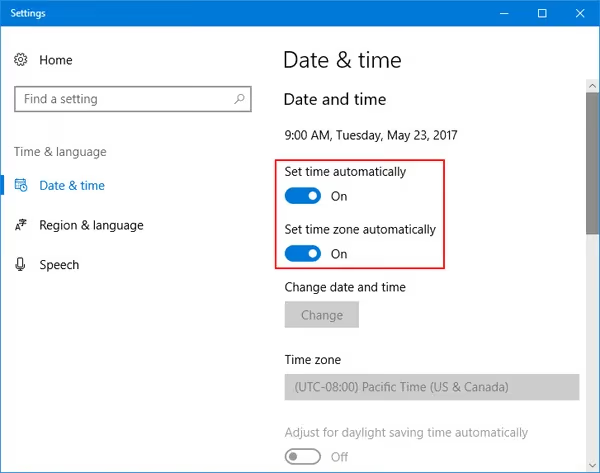
#Windows 10
-
Windows Search Bar > Type “date and time settings” > Open Matching Result
-
Set Time Zone Properly for Your Region
-
Toggle “Set Time Automatically” to Sync Clock
-
Toggle “Set Date Automatically” to Sync Calendar
#MacOS
-
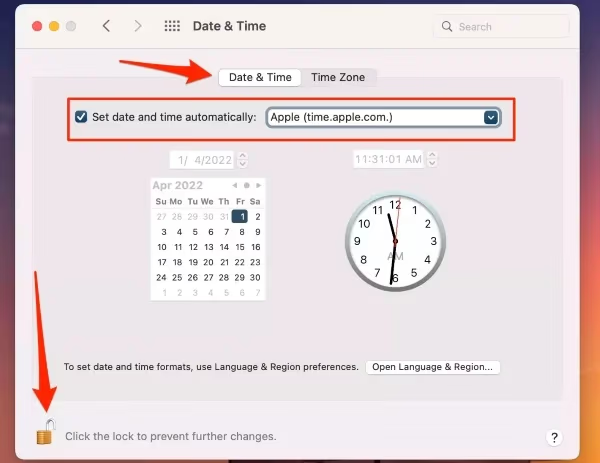
Apple Logo (Top Left) > System Preferences > Date & Time
-
Set Time Zone Appropriately
-
Check “Set Date and Time Automatically”
#iPhone and iPad
-
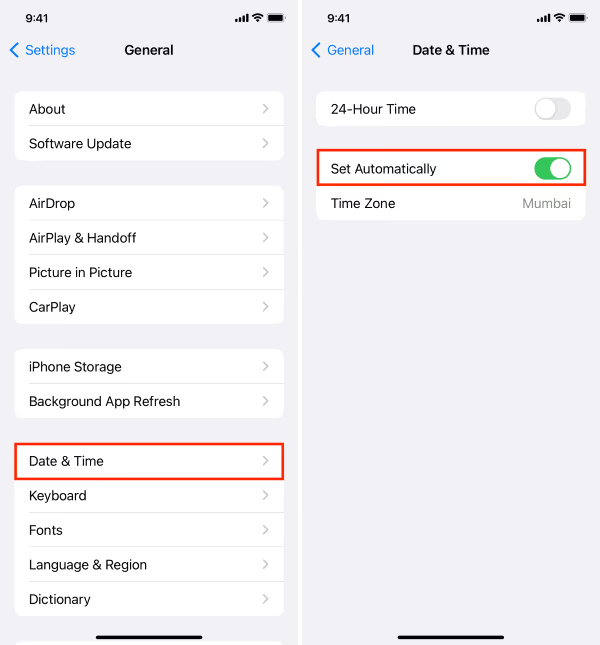
Settings App > General > Date & Time
-
Toggle On “Set Automatically” Option
#Android Devices
-
Settings App > System > Date & Time
-
Toggle On “Use Network-based Time”
Once date and time are aligned properly, reboot devices fully and relaunch Disney Plus to see loading issues resolved.
#Fix #9: Disable IPv6 on Your Network
In some cases, router configuration issues relating to IPv6 cause conflict with Disney Plus loading properly.
If you’re technically savvy, disabling IPv6 on your home network is worth testing:
-
Log Into Network Router Admin Interface
-
Navigate to IPv6 or DNS Settings
-
Set IPv6 Connection to “Ignore” or “Disabled”
-
Save Settings & Reboot Router
With IPv6 disabled at the network-level, reboot your device and test if Disney Plus will now load normally.
Note: Instructions vary across router models. Consult your router admin manual for exact steps.
If no longer stuck at the loading screen after disabling IPv6, contact your ISP or router manufacturer to further isolate this potential network incompatibility issue with Disney+.
For average users, this fix is optional given the technical complexity. Try other troubleshooting steps first before attempting.
#Fix #10: Contact Disney Plus Support
If you’ve made it this far with no success getting Disney Plus past the loading screen, it may be time to get official troubleshooting advice from Disney’s support reps.
#To Contact Disney Plus Support:
-
Navigate to the Disney Plus help site and log into your account
-
Select Contact Us in top nav bar
-
Choose Chat or Phone Call support options
-
Explain loading screen issue and troubleshooting attempts
-
Provide any error messages shown
Disney’s agents can further walk through fixes or escalate technical issues they may be actively working to patch on their end. Support specialists can also check server status or confirm any known outages. With access to your account, agents may spot additional problems causing loading failures specific to your profile.
For tricky Disney+ loading situations, getting one-on-one support helps you get back to streaming your favorite shows fast.
#Bottom Line
Getting stuck on the loading screen is annoyingly common for Disney Plus users. To quickly summarize the troubleshooting:
-
Check internet connectivity and speeds
-
Clear Disney Plus cached data
-
Update to latest app version
-
Disable VPNs, ad blockers and proxies
-
Adjust device date/time settings
-
Clear your Disney Plus watch history occasionally to purge buggy data.
-
Contact Disney Plus support
App restarts, device reboots and router power cycles also help resolve temporary glitches. Testing on alternate devices isolates wider problems.
#To Avoid Future Disney+ Loading Issues:
-
Maintain fast, stable home internet
-
Update devices/apps regularly
-
Clear cache and data occasionally
-
Use reputable VPNs sparingly
-
Be aware of differences between DisneyNow and Disney Plus if accessing both services. Conflicts can cause issues.
We hope these 10 fixes help get your Disney Plus app loading properly so you can get back to streaming Disney classics or binge-watching The Mandalorian!
#Frequently Asked Questions
#Why does Disney Plus keep loading but never starts playing?
The most common cause is a slow or unstable internet connection that falls below the 5 Mbps minimum needed for HD streaming. Corrupted app cache data is the second most likely culprit. Try switching from Wi-Fi to a wired ethernet connection and clearing the app cache before exploring other fixes.
#Does Disney Plus work with a VPN?
Disney Plus actively detects and blocks many VPN services, which often triggers the loading screen freeze. Free VPNs are especially unreliable for streaming because they use shared IP addresses that Disney has already flagged. Premium VPN providers like ExpressVPN and NordVPN maintain dedicated streaming servers that are less likely to be blocked, though Disney continuously updates its detection methods.
#How do I fix Disney Plus not loading on my Samsung TV?
Start by clearing the Disney Plus app cache through Settings > Apps > Disney Plus > Clear Cache on your Samsung TV. If that does not work, uninstall and reinstall the app from the Samsung App Store. Samsung TVs running older Tizen firmware versions sometimes have compatibility issues, so also check for a system update under Settings > Support > Software Update.
#Can a slow internet connection cause Disney Plus to freeze?
Yes. Disney Plus requires a minimum of 5 Mbps for HD content and 25 Mbps for 4K UHD streaming. Anything below these thresholds can cause the app to get stuck on the loading screen or buffer endlessly. Run a speed test at Speedtest.net to confirm your connection meets these requirements.
#Why does Disney Plus load on my phone but not my TV?
This usually indicates a device-specific issue rather than an account or server problem. Your TV may have outdated firmware, a full app cache, or a weaker Wi-Fi signal compared to your phone. Try moving your router closer to the TV, or connect the TV directly to your router with an ethernet cable for a more stable connection.
#How long should I wait during a Disney Plus server outage?
Most Disney Plus server outages resolve within 1 to 3 hours. Check Downdetector for real-time reports from other users before spending time troubleshooting your own setup. If the outage page shows a spike in reports, the problem is on Disney’s end and no local fix will help until their engineers restore service.
#Does clearing the Disney Plus cache delete my downloads?
Clearing the cache removes temporary files that help the app load faster, but it does not delete your account data, watchlist, or preferences. However, clearing app data (not just cache) on Android devices will sign you out and remove any downloaded content. You will need to log back in and re-download any offline titles after clearing app data.
#Will reinstalling Disney Plus fix the loading screen issue?
Reinstalling is one of the most effective fixes because it removes all corrupted files and replaces them with a fresh copy of the app. This works particularly well when the loading issue started after an app update that installed incorrectly. Back up any downloaded content before uninstalling, since offline downloads will be lost during reinstallation.