Are you having issues with no sound or audio cutting out when streaming Disney Plus? Many users have reported sound problems on Disney+, but there are fixes you can try to get it working again. In this troubleshooting guide, I’ll walk you through all the possible reasons why Disney+ has no sound and show you step-by-step instructions to resolve the audio issues.
By the end, you’ll know how to fix Disney+ sound not working on any device so you can get back to streaming your favorite shows.
- Restart or reinstall the Disney+ app — this clears corrupted cache data causing most sound failures
- Check volume levels and mute settings — triple-check your TV, app, and any external speakers before deeper troubleshooting
- Update device software and the Disney+ app — outdated firmware causes audio compatibility issues on smart TVs and streaming sticks
- Verify your audio output device — sound may be routing to Bluetooth headphones or a disconnected speaker instead of your TV
- Test internet speed at Fast.com — you need at least 5 Mbps for HD and 25 Mbps for 4K streaming without audio drops
#Why Is My Disney Plus Sound Not Working? Common Causes
Before jumping into the solutions, it helps to understand what underlying issues typically cause sound problems on Disney Plus:
-
Outdated app requiring an update
-
Corrupted app cache/data needing to be cleared
-
Connectivity problems like unstable internet
-
Issues with speakers or audio output device
-
Using Bluetooth speakers still paired to another device
-
Problems with cables, ports or HDMI connection
-
Disney+ server outages or maintenance
Pay attention to when and how the no sound problem occurs on Disney Plus. That will give you clues to narrow down the culprit so you can apply the best fix.
If you’re wondering how Disney+ compares to other Disney streaming services like DisneyNow, check out this comparison of DisneyNow vs Disney Plus.
I’ll now walk through all the steps to troubleshoot and solve the Disney+ no sound frustration step-by-step:
#Step 1: Check Your Volume Levels
I know, it seems obvious, but make sure:
-
The volume on your TV/device is turned up high enough to hear
-
Mute isn’t accidentally enabled on the device or Disney+ app
-
Any external speakers are powered on and also have volume up
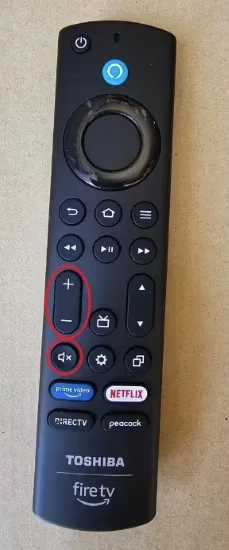
It never hurts to triple check this first before trying other fixes!
#Step 2: Restart/Reinstall the Disney Plus App
If you only have sound issues with Disney+ but other apps play audio fine, there may be a technical glitch within the streaming app itself.
Quickly restarting or reinstalling Disney+ will wipe out any problematic cached data causing no sound:
On Mobile:
-
Force quit the Disney+ app
-
Launch Disney+ again
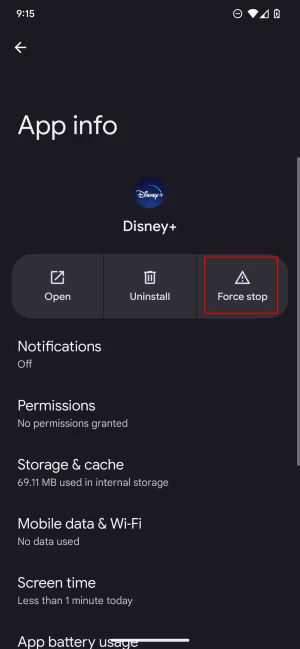
Still no luck? Uninstall the app then redownload it from the Play/App Store. Log back in and try playing a video.
On TVs/Streaming Devices:
-
Force close the Disney+ app by going into App Settings
-
Clear app cache/data then launch Disney+ again
-
If issues persist, uninstall then reinstall Disney+
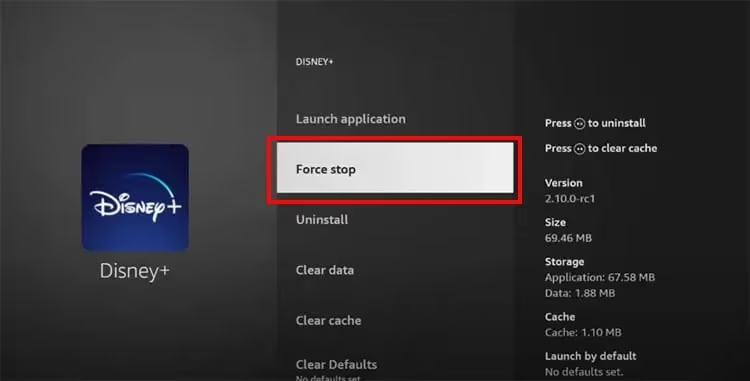
Restarting/reinstalling Disney+ flushes out bugs, ensuring sound works when you relaunch it.
Want to watch Disney+ content in another language? Here’s how to change the language on Disney Plus.
#Step 3: Update Your Device Software
Another common and easily fixed cause of Disney+ sound issues is having outdated software:
On Phones/Tablets:
-
Go into Settings > System Updates
-
Install any pending OS/firmware updates
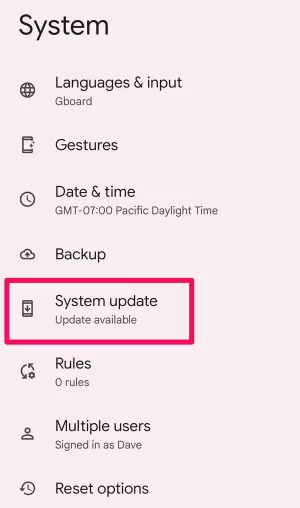
On TVs/Streaming Devices:
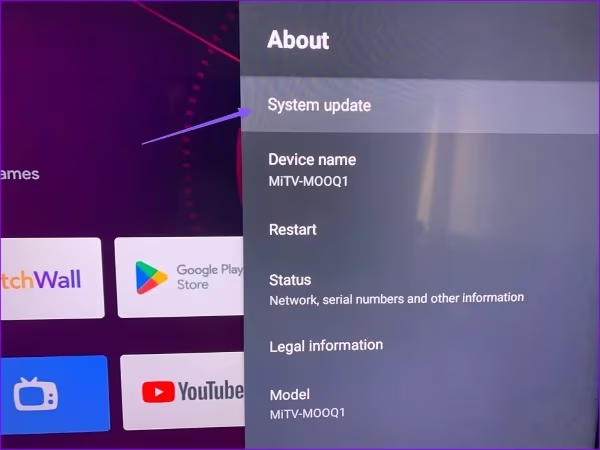
Updating to the latest software and Disney+ app optimizes performance and compatibility, stopping sound glitches.
#Can a Slow Internet Connection Cause Disney+ Sound Issues?
Since Disney Plus is a streaming service, you need a stable high-speed internet connection for smooth video playback without interruptions.
Test your internet speed at Fast.com.
To stream HD quality, you need at least 5 Mbps speed. For 4K quality, 25 Mbps is recommended.
If your internet is too slow and keeps dropping out, it can lead to sound cutting out or not working at all in Disney+.
To boost internet speed/reliability:
-
Move closer to your router or connect via ethernet cable not WiFi
-
Reset your router and modem
-
Contact your ISP if issues persist across all devices
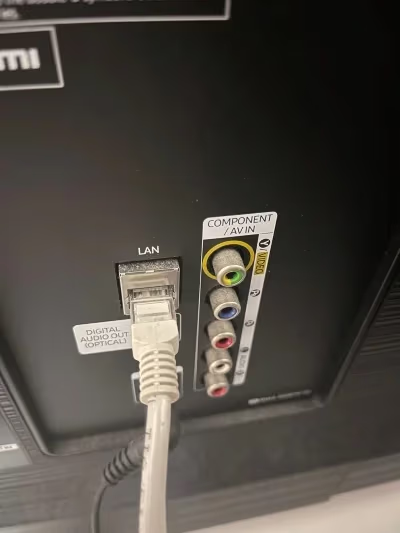
Reliable connectivity ensures no buffering or sound drops while streaming Disney Plus.
If your Disney+ gets stuck loading, this post on fixing the Disney Plus loading screen has the solutions.
#Is Your Audio Output Device Set Correctly?
Are your speakers set as the default audio output device?
-
On a smart TV, go into Sound Settings and select your speakers
-
For external speakers, check connections and power
-
On laptops, confirm sound is routing from speakers not headphones
-
Disable Bluetooth connections to other devices
Set your playback device as primary audio output. This prevents sound going to wrong or unintended device.
Also inspect cables and ports on your television, soundbar or headphones. Damaged HDMI or audio jacks can interrupt sound. Replace faulty cables to restore connectivity.
If your Disney Plus audio is out of sync, this article teaches you how to sync it correctly.
#Step 6: Clear TV/Device Cache & Cookies
Over time, cache/cookies build up on devices which can gradually slow down performance and cause glitches like no sound in Disney Plus.
Clearing this data gives your device a fresh start:
-
On smart TVs, go into System Settings > Storage > Clear Cache
-
On streaming sticks, manage cache/data in device settings
-
On laptops/mobile, clear browser history and cookies
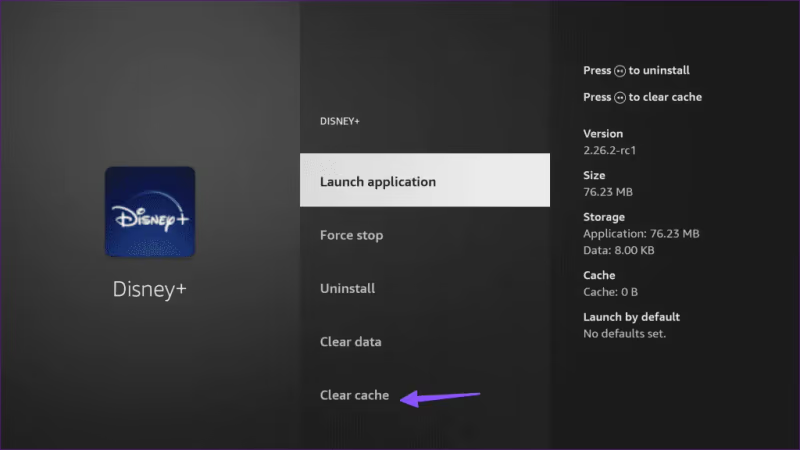
Wiping the junk data fixes playback issues in Disney+ and other apps.
#Step 7: Check Disney+ Server Status
Sometimes sound problems arise from technical issues on Disney Plus’s servers preventing content from streaming properly.
When their servers go down or require maintenance, viewers can experience playback problems like no sound.
-
Go to DownDetector to check Disney+ server status
-
If there’s an outage or reported issues, you’ll have to wait it out until Disney fixes it on their end
Monitoring server performance tells you if problems are isolated or widespread.
Be patient during server-side outages. Disney usually resolves them quickly.
#Step 8: Contact Disney+ Customer Service
If you’ve tried all troubleshooting steps and Disney+ sound still isn’t working, you should reach out to their customer support team:
-
Live chat agents at DisneyPlus.com
-
Email support at [email protected]
-
Phone assistance available daily 6am-10pm PST
Disney’s tech support can further diagnose your sound problem and may suggest account-specific fixes not covered here.
Facing the frustrating Disney Plus black screen? Try these quick fixes to start streaming.
#Bottom Line
-
Restart/reinstall Disney Plus app
-
Update device software and apps
-
Check internet speed; minimum 5 Mbps for HD, 25 Mbps for 4K
-
Select correct audio output device like speakers
-
Inspect condition of cables and ports
-
Clear cache/cookies on device
-
Check Disney Plus server status during outages
-
Contact Disney customer service if issues persist
Following this Disney+ sound troubleshooting checklist will help narrow down and fix no audio issues when streaming.
#Frequently Asked Questions
#Why does my Disney+ have sound but no picture?
Check that your TV input matches the connected streaming device. If the input is correct, reinstall Disney+ and clear the app cache to remove corrupted files blocking video playback.
#Why does Disney+ sound keep cutting out?
Choppy intermittent sound usually points to an unstable internet connection. Switch from Wi-Fi to a wired ethernet connection or move closer to your router. You need at least 5 Mbps for HD streaming without audio drops.
#How can I improve Disney+ sound quality?
Start by streaming over a stable high-speed internet connection. On smart TVs, go into audio settings and enable surround sound or Dolby Atmos if your hardware supports it. Pairing your TV with a dedicated soundbar or speaker system makes a noticeable difference over built-in TV speakers.
#What internet speed do I need for Disney+?
Disney recommends a minimum 5 Mbps for HD quality and 25 Mbps for 4K streaming without buffering. Test your current speed at Fast.com and contact your ISP if you consistently fall below these thresholds.
#Why does Disney+ play without sound on my phone?
Force close the Disney+ app first, then reopen it. If sound still fails, uninstall and reinstall from the App Store or Google Play. Also check that your phone isn’t connected to Bluetooth headphones or a speaker that may be out of range.
#Does clearing cache fix Disney+ audio problems?
Yes, cached data builds up over time and can cause playback glitches including missing audio. Go to your device settings, find the Disney+ app, and clear both cache and stored data. You will need to log back in after clearing data.
#Can HDMI cables cause sound issues on Disney+?
Damaged or loose HDMI cables are a common cause of missing audio on TVs and streaming devices. Try a different HDMI port on your TV, and replace the cable if it shows any visible wear. Use a high-speed HDMI cable rated for 4K if you stream in ultra HD.
#Should I contact Disney+ support if nothing else works?
Reach out to Disney+ support through live chat at DisneyPlus.com or by phone (available daily 6am-10pm PST). Their tech team can check your account for known issues and suggest fixes specific to your device and subscription plan.