Disney+ not working on your Vizio Smart TV is usually caused by outdated firmware, a buggy app install, or a weak internet connection. With over 150 million subscribers relying on the platform, even small glitches can disrupt your viewing. The good news: most fixes take under five minutes and require zero technical expertise.
- Power cycling fixes most issues — unplug the Vizio TV for 60 seconds to clear cached errors and force a fresh app reload
- Disney+ needs at least 5 Mbps — HD streaming requires 5 Mbps minimum, while 4K content needs 25 Mbps or higher
- Outdated firmware is a top cause — check Menu > System > System Update on your Vizio TV to install the latest patches
- Reinstalling the app clears corrupt data — delete Disney+ from the SmartCast store and download it again to reset all app files
- External streaming sticks work as a backup — Roku, Fire TV Stick, and Chromecast all run Disney+ through your Vizio TV’s HDMI ports
#Why Does Disney+ Stop Working on Vizio Smart TVs?
Before jumping into solutions, it helps to understand why Disney+ has technical difficulties on Vizio sets. The streaming service not functioning properly usually comes down to one of these factors:
-
Outdated app or firmware
-
Internet connectivity problems
-
Account login issues
-
Incompatible or defective hardware
-
Disney+ server outages
Most Disney+ problems on Vizio Smart TVs stem from software or network-related issues. These tend to be easier fixes than replacing hardware components.
#How Do You Fix Disney+ Not Working on a Vizio Smart TV?
#1. Check Disney+ System Status
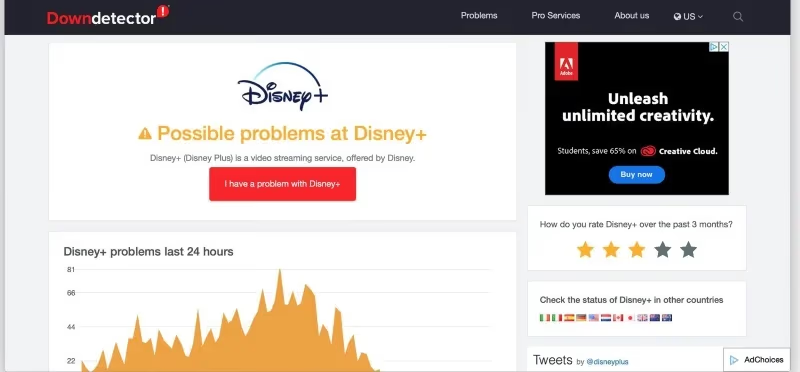
Before troubleshooting your Vizio TV setup, verify Disney+ servers are actually up and running. The streaming service occasionally experiences performance issues or temporary outages due to high traffic loads.
Visiting Downdetector shows the current Disney+ status and user-reported problems in real-time. If you notice a spike in outage reports, try again later when systems return to normal operations.
#2. Confirm Your Internet Connection Works
Streaming problems overwhelmingly trace back to internet connectivity issues. Using Disney+ requires a minimum download speed of 5 Mbps for HD content according to the company’s recommended speeds page.
Faster speeds of at least 25 Mbps produce the best streaming performance based on the Netflix ISP Speed Index.
Test your network connection speed using a computer, smartphone or smart TV browser:
-
Run Speedtest to measure download and upload rates.
-
Confirm speeds reach at least 25 Mbps down and 3 Mbps up.
-
If below the threshold, try disconnecting other devices using your network or move closer to the router.
-
Contact your ISP if speeds fall short throughout your home.
#3. Reboot Your Vizio Smart TV
Power cycling any smart TV remains one of the simplest first steps for rebooting software and clearing up minor glitches. This often resolves common problems like getting stuck on the loading screen.
Follow these proper power cycling procedures for Vizio TV models:
-
Locate the power button on the back or bottom of the TV frame.
-
Press and hold the power button until the TV screen goes completely off.
-
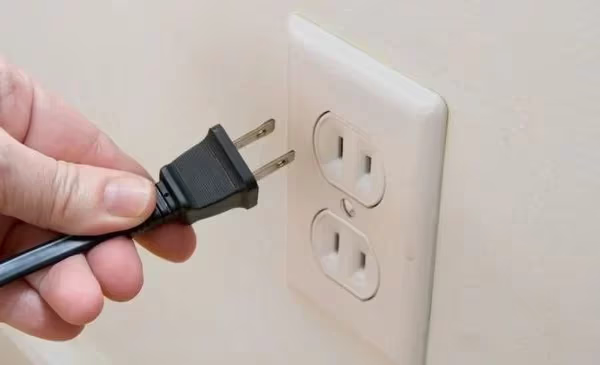
Unplug the TV power cable from the electrical outlet.
-
Wait 1 minute minimum to allow components to discharge.
-
Plug the power cable firmly back into the socket.
-
Press the power button once on the TV to restart the device.
Allow a minute or two for the TV to reboot and load the smart TV interface after powering back on. This clears up Disney+ difficulties in most cases.
#4. Reset Vizio TV To Factory Default Settings
If a basic reboot doesn’t work, restoring factory default settings often resolves stubborn software-related issues. This process erases custom settings and clears any problematic cached data.
Back up content and note app login information beforehand since factory resets wipe that data.
Follow these steps carefully to factory reset your Vizio Smart TV:
-
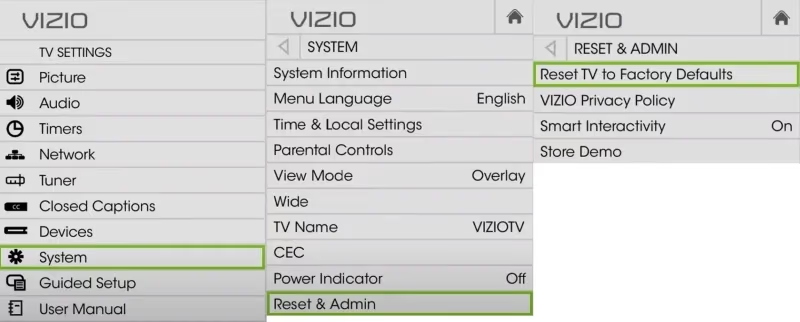
From the TV menu, open System > Reset & Admin
-
Select ‘Reset TV to Factory Defaults’ from options
-
When prompted, input the TV PIN code
The default code is usually 0000 or 1234
-
Choose the reset option again to confirm
-
Wait for TV to erase data and restart
Upon restarting, run through the initial first-time setup process for the TV. Download a fresh Disney+ app from the SmartCast store and reenter login details.
#5. Update Vizio TV Firmware
Vizio periodically rolls out software patches and firmware updates adding new features or addressing bugs. Running outdated firmware often hinders app performance or causes freezing issues. If your Vizio SmartCast is not working at all, a firmware update is often the first thing to try.
Updating to the latest firmware version improves compatibility across onboard apps including Disney+.
Here are the steps for manually checking, downloading and installing updates:
-
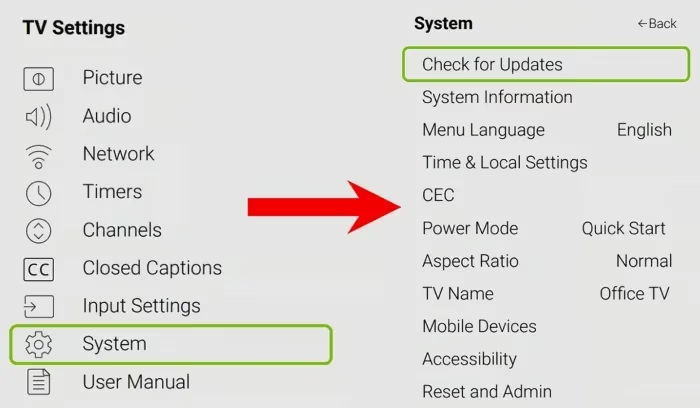
From the settings menu, navigate: Menu > System > System Update
-
Select ‘Check for Updates’ and press OK
-
If an update appears, choose ‘Download Update’
-
When the TV prompts, press OK to install firmware
-
Allow 5-10 minutes for installation then reboot
Vizio sets also support automatic updates. Enable this under Menu > System > System Update > Auto Update. The TV checks for and installs updates around 3 AM based on your device time settings.
#6. Update or Reinstall Disney+ App
Like your Vizio TV, keeping apps up-to-date minimizes playback problems and compatibility issues accessing content.
After completing firmware updates above, double check your Disney+ app version matches the latest from developers. You can also change language settings if the app defaults to the wrong region, and troubleshoot specific error codes that may appear:
-
Highlight the Disney+ app icon on the Vizio SmartCast home screen
-
Press the asterisk * button on the remote to show info
-
Note the current Disney+ app version number
-
Visit the SmartCast store and view the app
-
If newer version available, select Update or Uninstall/Reinstall
Allow a few minutes for changes to fully take effect before launching Disney+.
#7. Restart Your Home Internet Connection
If TV and app troubleshooting fails to fix Disney+ streaming problems, turn attention towards your home network equipment.
Power cycling your modem and router works the same way as rebooting the TV by clearing any software hiccups.
Follow these proper restart procedures for home internet equipment:
#Reset Cable Modem
-
Locate power button on modem and press to turn off
-
Unplug the modem power cord and keep detached for 1 minute
-
Firmly reconnect power cable to boot modem back up
-
Wait 2 minutes for modem to fully come back online
#Reset Router
-
Find router power switch or button to power down
-
Unplug router power adapter for at least 30 seconds
-
Plug power adapter firmly back into router
-
Allow 1 minute for router to finish reboot process
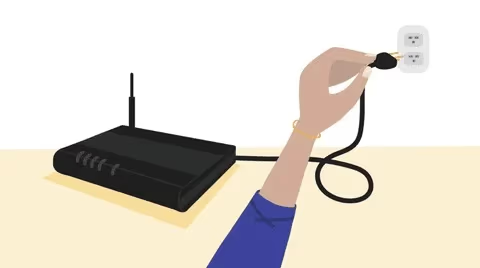
With modem and router restarted, try loading Disney+ on your Vizio TV once again.
#8. Switch DNS Server Settings
Freezing, buffering or errors connecting to Disney+ could also relate to Domain Name System (DNS) server communication issues. Vizio Smart TVs rely on DNS servers to translate DisneyPlus.com into the proper server IP address.
Changing the DNS server settings forces your devices to route through alternate pathways:
On Vizio Smart TV
-
Access network settings menu
-
Select custom or manual DNS address entry
-
Enter public DNS server IP such as:
8.8.8.8 (Google DNS)
-
1.1.1.1 (Cloudflare DNS)
-
Save settings and reconnect TV to Wi-Fi
On Windows PC
-
Open Control Panel > Network & Internet > Network Connections
-
Right click Wi-Fi network > Properties
-
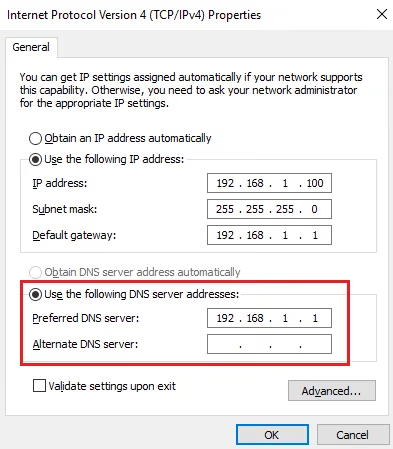
Select Internet Protocol Version 4 > Properties
-
Change from ‘Obtain DNS server address automatically’ to ‘Use the following DNS server addresses’
-
Enter public DNS server IPs separated by comma
-
Click OK to save and reconnect
On Mac
-
Click Apple icon > System Preferences > Network
-
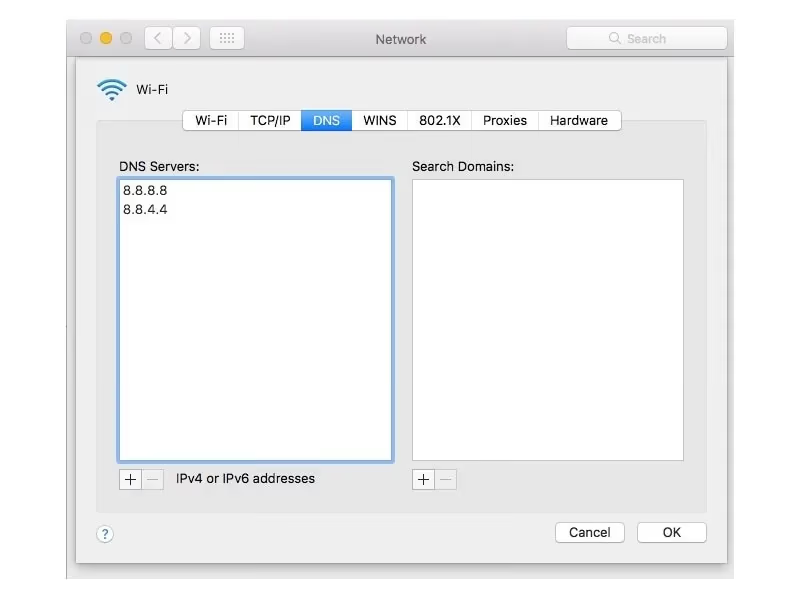
Choose Wi-Fi and click Advanced
-
Switch to DNS tab
-
Delete any listed entries and add:
8.8.8.8
-
8.8.4.4
-
Click OK and Apply to save
Once alternate DNS takes effect, stubborn Disney+ technical problems often disappear on the Vizio TV.
#9. Enable HDMI Device Link
Disney+ and other streaming apps mainly require a solid internet feed for smooth playback. Device connectivity also plays an important role conveying data from smart TVs to external displays. If you experience Disney+ audio out of sync, HDMI settings are often the root cause.
HDMI Device Link technology allows connected devices like Vizio TVs and sound bars to communicate directly and share control signals. Enabling Device Link potentially fixes several problems:
-
Eliminates sync delays between video and audio
-
Prevents volume control issues
-
Resolves HDMI-CEC functionality for input switching
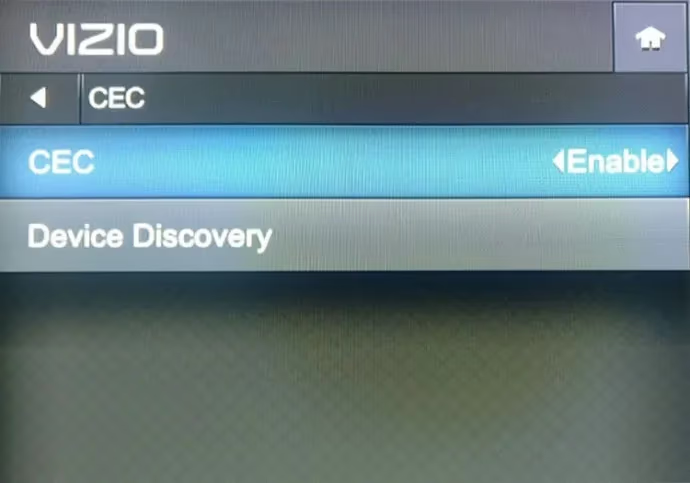
Turn on Vizio HDMI Device Link through:
Menu > System > CEC
Check that the correct HDMI input connects your Vizio TV media player to an external display or audio system. Swapping HDMI ports sometimes resolves interface complications.
#10. Adjust Apps Settings
Properly managing Vizio Smart TV app settings keeps installed streaming platforms running smoothly. If Disney+ works for some Vizio owners but not others, configuration differences are often to blame.
Apps Settings To Adjust
- Permission Manager
Ensure Disney+ has access to necessary data like storage, microphone etc.
-
Reset App Settings
-
Clears app-specific configs to defaults
-
Manage Storage
-
Frees up storage space eliminating buffering or crashing
Reset and manage app settings through: Menu > Apps > Configure Apps
Taking time to tidy up apps eliminates possible conflicts and glitches interfering with streaming performance.
#11. Contact Disney+ Support
After methodically trying fixes on your Vizio television and home network equipment, Disney+ issues that persist likely require professional support. Reach out to Disney+ customer service through preferred contact methods:
Phone Call (855) 559-7459
Live Chat Launch Disney+ chat
Twitter Tweet @disneyplus
Disney+ support troubleshoots platform-specific issues and escalates ongoing technical difficulties to developers when needed. Provide as much detail about problems experienced on your Vizio Smart TV model.
Support agents also confirm account status and billing details not interfering with video streaming. Discuss options for credit or account extensions if problems stem from Disney+ systems.
#12. How Do You Set Up an Alternative Streaming Device?
As a last resort if unable to resolve Disney+ problems on your Vizio platform specifically, consider adding an affordable streaming device. You can also add other apps to your Vizio TV to test whether the issue is Disney+ specific or affecting all streaming apps.
Streaming sticks like Roku, Fire TV and Apple TV provide alternative Disney+ access with fewer software and compatibility headaches. These plug-and-play devices connect via open HDMI ports on Vizio TVs with no extra setup needed. If you’re also weighing Roku versus other platforms, our Disney+ on Apple TV guide covers that option in detail.
Top-rated streaming devices playing Disney+ include:
-
Roku Streaming Stick+ - $50
-
Fire TV Stick 4K - $40
Set up streaming sticks using the Disney+ mobile app following included instructions. Cast or stream Disney+ to your Vizio television without any hassle.
#Bottom Line
The systematic troubleshooting process outlined above equips Vizio Smart TV owners to resolve Disney+ problems on their own. Start with the basics: check Disney+ server status, power cycle the TV, and update firmware. If those don’t work, reinstall the app, reset your network equipment, or switch DNS servers.
When all else fails, a streaming stick like Roku or Fire TV Stick gives you reliable Disney+ access through any Vizio TV’s HDMI port. Most owners get the app running again within 30 minutes using the fixes above.
#Frequently Asked Questions
#Does Disney+ work on all Vizio Smart TV models?
Yes, Vizio TVs fully support the Disney+ app through the included SmartCast platform. The app runs on models dating back to 2016, covering both HD and 4K lineups. Older Vizio TVs without SmartCast can still access Disney+ through an external streaming device plugged into an HDMI port.
#Why does Disney+ keep buffering on my Vizio TV?
Buffering results mainly from internet connections failing to maintain steady 5+ Mbps speeds. Try disconnecting other devices using your home network to free up bandwidth. Rebooting your modem and router often clears up temporary slowdowns. If buffering persists across all rooms, contact your ISP about upgrading your plan.
#How can I get Disney+ on an older Vizio TV without SmartCast?
Plug a Roku, Fire TV Stick, or Chromecast into one of the TV’s HDMI ports and install Disney+ on that device instead. These streaming sticks cost between $30 and $50 and handle all the app processing independently. Your Vizio TV just acts as the display.
#Why does Disney+ crash or freeze on my Vizio TV?
Frequent crashing or freezing usually means the app has a compatibility conflict with the current TV firmware. Update your Vizio system firmware to the latest release under Menu > System > System Update. If the problem continues after updating, uninstall Disney+ from the SmartCast store and reinstall it fresh.
#Does Disney+ support 4K and HDR on Vizio TVs?
Vizio 4K TVs fully support Disney+ Ultra HD and HDR content where available. Make sure to enable Enhanced Color for the active HDMI port and turn on HDR settings under the Picture menu. Not all Disney+ titles stream in 4K, so check the content details page for resolution info.
#What internet speed do I need for Disney+ on a Vizio TV?
Disney+ requires a minimum of 5 Mbps for HD streaming and 25 Mbps for 4K Ultra HD content. A wired Ethernet connection delivers more stable speeds than Wi-Fi if your Vizio TV has an Ethernet port. Run a speed test on the TV or a nearby device to confirm your network meets these thresholds.
#Can I cast Disney+ to my Vizio TV from a phone?
Yes. Vizio SmartCast TVs support both AirPlay and Chromecast built-in, so you can cast Disney+ from an iPhone, iPad, or Android device. Open the Disney+ app on your phone, tap the cast icon, and select your Vizio TV from the list. Both devices need to be on the same Wi-Fi network for casting to work.
#How do I clear the Disney+ cache on a Vizio TV?
Vizio TVs don’t have a dedicated cache-clearing option for individual apps. The closest method is uninstalling Disney+ from the SmartCast store and reinstalling it, which removes all cached data. A factory reset under Menu > System > Reset & Admin clears cache for every app at once but also erases your saved settings.