Having trouble streaming Disney+ on your LG TV? This troubleshooting guide walks you through 14 fixes to get Disney Plus working again.
- LG webOS 3.0 or later required — Disney+ works on 2016 and newer LG Smart TVs
- Minimum 5 Mbps internet speed needed — slower connections cause buffering and loading failures
- Power cycle fixes most crashes — unplug the TV for 60 seconds to clear cached data
- Firmware and app updates matter — outdated software triggers playback errors and black screens
- Factory reset is the last resort — restores default settings but erases all apps and preferences
#Is Your LG TV Compatible With Disney+?
Disney+ is supported on LG webOS 3.0 and above, available on the following model years:
✅ 2016 and newer ✅ 4K, UHD, and FHD TVs ✅ OLED, NanoCell, LED smart TVs
Disney+ requires LG webOS 3.0 or later, available on 2016-2023 model TVs. To check compatibility, head to Settings > About This TV and confirm your webOS version is 3.0 or above. If your LG TV is not compatible, streaming devices like Roku or Fire TV Stick can add Disney+ access.
#How Do You Fix Disney+ Issues on LG TV?
Follow these top troubleshooting tips if Disney Plus won’t load or play on your compatible LG smart TV:
#1. Power Cycle the LG TV
Start by power cycling your LG TV to refresh the software, caches and network connection:
-
Unplug TV power cable from outlet.
-
Press and hold power button on the TV for 60 seconds.
-
Plug power cable back in and power on.
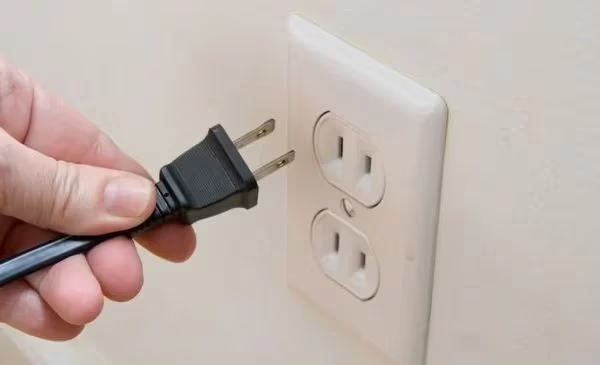
This soft reset often resolves app crashing, loading errors, or lagging issues.
#2. Check Your Internet Speeds
Slow, unstable internet prevents buffer-free Disney+ streaming.
Run a speed test on a device connected to same network as your LG TV. Minimum speeds for HD streaming:
-
3-4 Mbps for SD quality
-
5-8 Mbps for HD quality
If speeds are lower, try connecting your LG TV via ethernet cable or move router closer. Contact your ISP about network issues or speed upgrades.
If you see a Disney+ black screen or have no sound on Disney Plus, try power cycling your devices. For Disney+ buffering, check your internet speeds.
#3. Reset Your Home Router
Rebooting your Wi-Fi router revives internet speeds and refreshes network connections.
To properly reset the router:
-
Unplug router and modem power cables.
-
Wait 30 seconds.
-
Plug power cables back in.
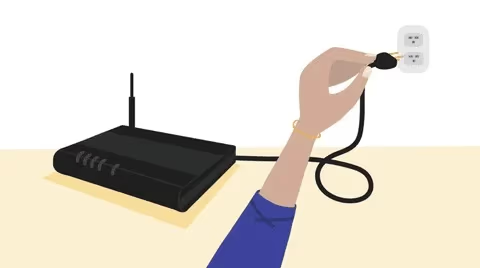
Give modems/routers a few minutes to restart before retesting Disney+. This often resolves connectivity problems causing streaming failures or app crashes.
#4. Update Your LG TV Firmware
Outdated LG webOS firmware can trigger Disney+ app issues.
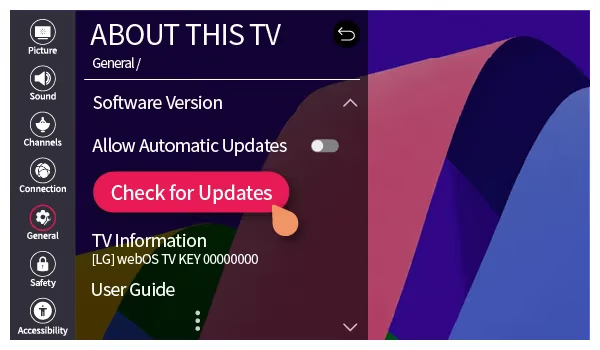
Head to Settings > About This TV > Check for Updates to download latest firmware upgrades. Soft reset TV after installing.
#5. Update or Reinstall Disney+ App
Verify Disney+ app is fully updated or reinstall if possible corruption.
From LG Content Store, open Disney+ app page > Check for update > Download. If app is already updated, uninstall then redownload app from Content Store.
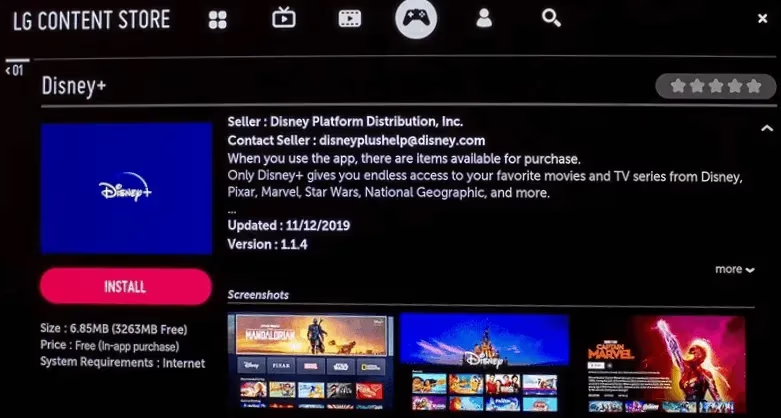
This clears any corrupted cached data that could prevent streaming.
#6. Accept LG TV User Agreements
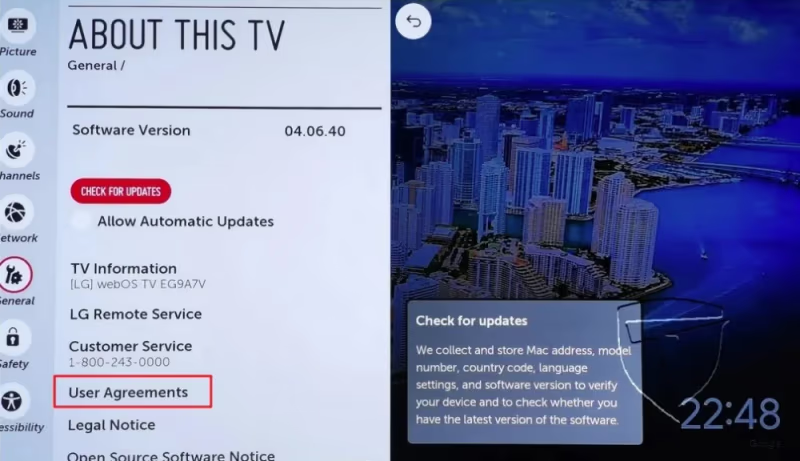
Navigating to Settings > General > About This TV > User Agreements and accepting all terms enables full smart TV functionality.
#7. Check LG TV Location Settings
Inaccurate location data can block region-locked Disney+ content.
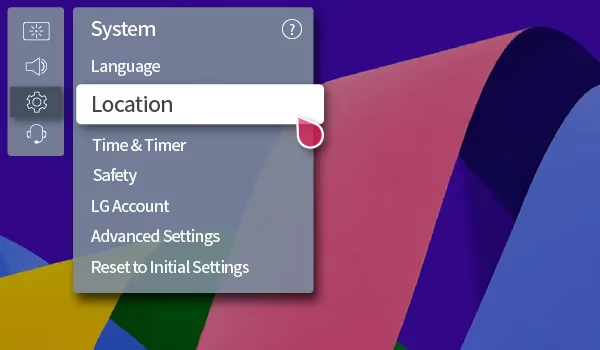
Confirm correct zip code is entered in Settings > General > System > Location on your LG TV.
#8. Disable VPN Connection
Disney+ attempts to block streaming over VPN connections.
Temporarily disconnect from any active VPN service on your network to test if this is causing Disney+ difficulties on your LG TV.
#9. Test Disney+ on Another Device
Determine if the issue stems from your LG TV or a wider outage.
Try accessing Disney+ through game consoles, streaming devices, laptops or phones connected to same home network. If problems persist on other devices too, there may be a service disruption in your area or Disney+ login errors.
Check DownDetector for reported problems from other Disney+ subscribers in your region. Contact @DisneyPlusCS if outage seems larger scale.
#10. Factory Reset Your LG Smart TV
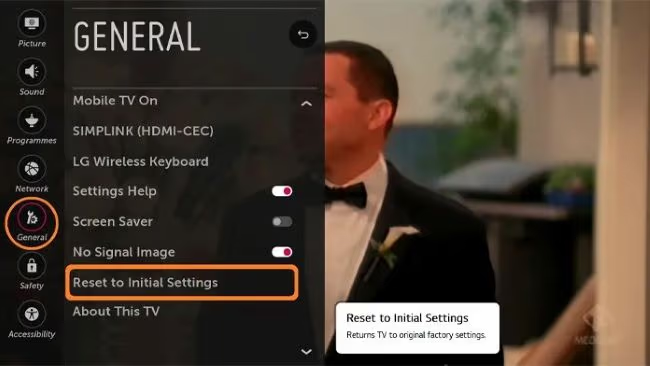
If you still can’t get Disney+ working after other troubleshooting, factory reset your LG TV as a last resort fix for software glitches.
Go to Settings > General > Reset to Initial Settings. This erases all custom settings, apps and data. You’ll need to re-enter Wi-Fi passwords, app logins, and preferences.
#11. Contact LG or Disney+ Support
For ongoing Disney+ issues after trying these DIY fixes, reach out to the experts:
-
LG TV Support: Get Help Here
-
Disney+ Help Center: Contact Form
Provide your LG TV model number, Disney+ account email, and detailed issue description. They can investigate and resolve more complex cases related to changing languages on Disney+ or reviewing Disney+ viewing history.
#Alternative: Stream Disney+ via External Devices
If compatible LG TV troubleshooting fails, plug in external streaming devices as a workaround. Disney+ apps on Roku, Fire sticks, Apple TV or game consoles all beam the video feed to display on your TV via HDMI input.
Consider upgrading older unsupported LG TV models for the best smart functionality. But streaming sticks conveniently add app access without replacing the TV itself.
#Bottom Line
Most Disney+ problems on LG TVs come down to network issues, outdated software, or corrupted app data. Work through the fixes in order, starting with a power cycle and internet speed check.
If the basics don’t help, update your firmware and reinstall the Disney+ app. Check your location settings and disable any VPN connections. Factory reset is the nuclear option, but it works when nothing else does.
Still stuck? Contact LG Support or Disney+ Help with your TV model number and error details.
#FAQ
#Why does Disney+ keep crashing on my LG TV?
App crashes usually point to corrupted cached data or outdated firmware. Uninstall and reinstall the Disney+ app from the LG Content Store, then check for firmware updates under Settings > About This TV > Check for Updates.
#What LG TV models support Disney+?
Disney+ requires LG webOS 3.0 or later. This covers all LG Smart TVs from 2016 onward, including OLED, NanoCell, and LED models. If your TV is from 2015 or earlier, you’ll need an external streaming device.
#How do I clear the Disney+ cache on my LG TV?
LG webOS does not have a built-in cache-clearing option for individual apps. The workaround is to uninstall Disney+ from the LG Content Store and reinstall it. This removes all stored data and forces a fresh download.
#Can I use a VPN with Disney+ on LG TV?
Disney+ actively blocks most VPN connections. If you have a VPN running on your router, temporarily disable it and test Disney+ again. Some VPN providers offer specific servers for streaming, but results vary.
#Why is Disney+ buffering on my LG TV?
Buffering happens when your internet speed drops below 5 Mbps. Run a speed test on a device connected to the same network. For a stable connection, use an ethernet cable instead of Wi-Fi, or move your router closer to the TV.
#Does a factory reset delete the Disney+ app?
Yes. A factory reset erases every app, saved password, and custom setting on your LG TV. You’ll need to set up the TV from scratch and reinstall Disney+ from the LG Content Store. Back up any important settings before resetting.
#What should I do if Disney+ shows a black screen on my LG TV?
A black screen usually means a connection or HDMI handshake issue. Power cycle the TV by unplugging it for 60 seconds, then restart your router. If you’re using an external device like a Roku or Fire TV Stick, try a different HDMI port on the TV.