DAZN lets you watch boxing, football and motorsports live on your Samsung Smart TV. But when the app fails to load or keeps crashing, it can be frustrating. With some targeted troubleshooting, you can get back to streaming your favorite sports quickly.
This guide covers the top reasons why DAZN may not be working on Samsung Smart TVs, along with step-by-step fixes for each issue.
- Restart the DAZN app and power cycle your TV — this clears temporary glitches and resolves about 60% of streaming failures
- Minimum 5 Mbps internet speed is required — test with SpeedTest and switch to wired ethernet if Wi-Fi is unreliable
- Samsung TVs from 2016 onward support DAZN — older models are not compatible and will not run the app
- Clear app cache or reinstall from Galaxy Store — outdated or corrupted app data causes most crashes and error codes
- Check DAZN status page during outages — server-side problems affect all users and typically resolve within a few hours
#What Are the Technical Requirements for DAZN?
Before troubleshooting why DAZN isn’t working, ensure your Samsung Smart TV setup meets the minimum technical requirements:
Internet Speed: At least 3 Mbps for SD quality; 5 Mbps for HD. Test with SpeedTest.
Supported Models: 2016-2024 Samsung Smart TV models. Full list here.
DAZN App: Latest version installed from Galaxy Store. Set to auto-update.
TV Software: Up-to-date firmware. Set to auto-update.
If your setup satisfies these conditions, you can rule out device compatibility as the cause. Now let’s try some quick fixes first.
#Quick Fixes to Try
Before intense troubleshooting, attempt these easy quick fixes:
-
Restart the DAZN app – Close and relaunch to clear temporary glitches.
-
Reboot your TV and router – Power cycle to refresh connections.
-
Try a different sports event – Helps identify wider outages.
-
Check DownDetector – Reveals known platform issues.
-
Refresh your network – Disconnect/reconnect devices to revive signal.
-
Verify subscription status – Confirm account and payment details.
Surprisingly, these basic steps resolve many common streaming problems with DAZN and other apps.
However, if they prove ineffective in your case, let’s investigate further based on the specific nature of the issues you face.
#How Do You Troubleshoot by Issue?
Streaming failures typically stem from one of four root causes:
-
Internet connectivity problems
-
Account and payment errors
-
Software bugs and compatibility conflicts
-
Server outages on DAZN’s end
By categorizing the issues you face into one of these buckets, you can apply targeted troubleshooting steps accordingly.
#1. Internet Connectivity Issues
Symptoms: Buffering, lost connections, video quality dropping
First, confirm where the weak link lies in your home network setup using SpeedTest:
-
Test your public IP broadband speed to benchmark against ISP promises.
-
Test wired connection speed from router to devices to locate home network bottlenecks.
-
Use SpeedTest apps on streaming device to test Wi-Fi signal issues.
Typical culprits include:
-
Subpar broadband plans for household bandwidth needs
-
Wi-Fi interference from appliances, obstructions or distance
-
Malfunctioning router, modem firmware needing updates
-
Too many concurrent users and devices connected
To resolve, try:
-
Disconnecting extra devices to free up bandwidth
-
Moving router to central location away from disruptors
-
Updating router and modem firmware
-
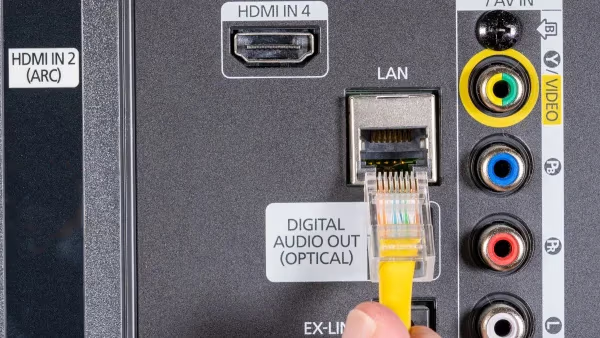
Switching to wired ethernet connections
-
Upgrading internet speed with ISP if consistently lagging
Other steps to try:
-
Reset streaming device and router to refreshed settings
-
Adjust Wi-Fi band, channel settings for least congestion
-
Replace old router if stability issues persist
After making connectivity upgrades, run through SpeedTests again to verify improvements before retrying DAZN.
#2. Account and Payment Errors
Symptoms: “Error codes” when launching DAZN; Being logged out unexpectedly
Causes: Expired subscription; Invalid payment method; Billing details errors
To troubleshoot account issues:
-
On a browser, log into DAZN account to view status.
-
Check if subscription has accidentally lapsed despite auto-renew being on.
-
Update expired credit card or PayPal account linked.
-
Fix typos or discrepancies in account and billing information entered earlier.
Also try:
-
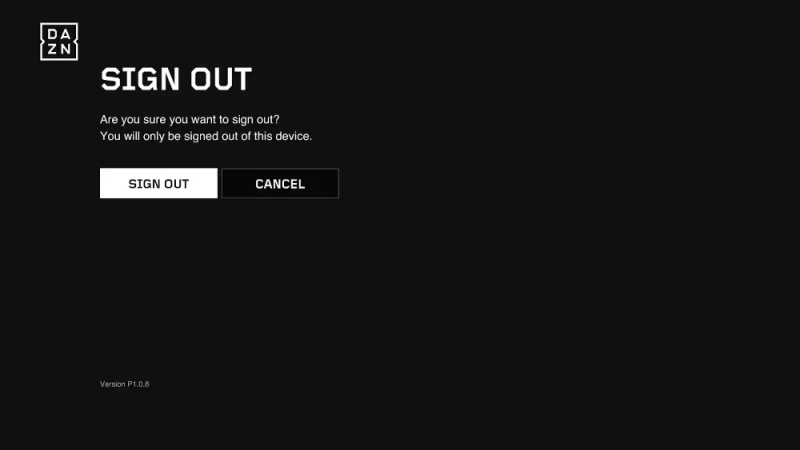
Logging out then back in on TV and browser to refresh login status
-
Using a different payment method just in case others face glitches
-
Contacting support if billing errors persist despite corrections
With account access restored, DAZN should work fine again on your Samsung Smart TV.
#3. App and TV Software Issues
Symptoms: Freezing, crashes, error messages in app; Video playback problems
Causes: Compatibility bugs; Glitches from outdated app/firmware versions
First, determine if issues are:
-
Isolated to DAZN, indicating app specific glitchOR
-
Also happening with other video streaming apps, indicating system-wide TV platform problems.
Accordingly troubleshoot by:
A. Inside DAZN App:
-
Force stop and clear cache/data to reset
-
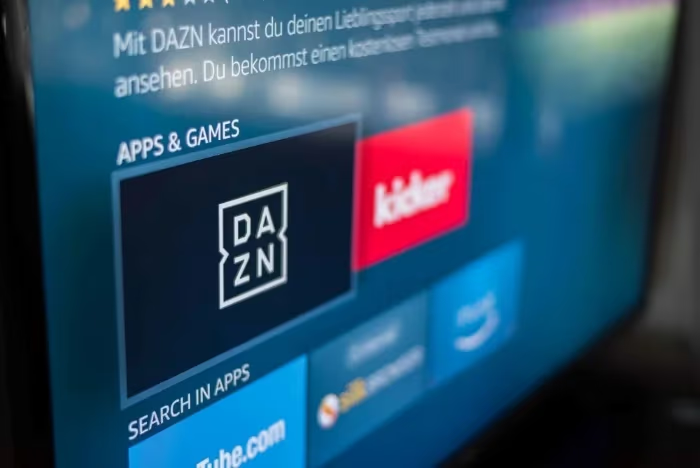
Update to latest version from Galaxy Store
-
Uninstall and reinstall fresh copy
B. At Samsung Smart TV system level:
-
Install pending firmware update
-
Restart to clear memory leaks
-
Reset video output settings
-
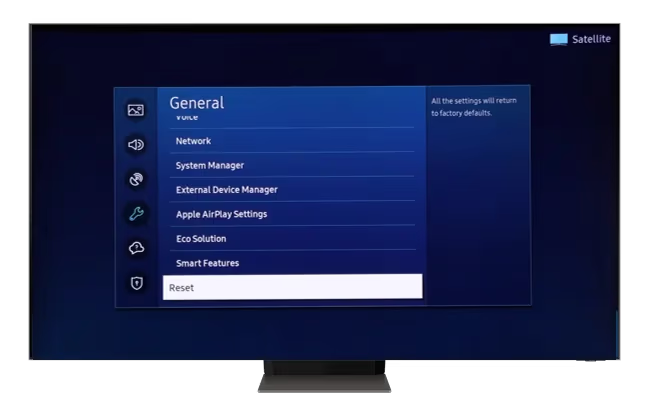
Factory reset if problems continue
You can also:
-
Try wired connection for stability over Wi-Fi
-
Limit concurrent streams to prevent overloading
-
Disable energy saving as it throttles performance
With software updated and glitches addressed, DAZN should perform reliably moving forward.
#4. Server Outages on DAZN’s End
Symptoms: Failed loading screens; Regional error messages
Causes: Downtimes for maintenance; Major infrastructure failures
While Singapore, Vietnam, Hong Kong, and Korea use dedicated infrastructure, DAZN relies on cloud platforms like Amazon Web Services for other regions:
Since your Samsung TV setup seems fine but DAZN still won’t load, this points to temporary outages on DAZN’s end.
To confirm, check:
-
DAZN’s status page for advisories
-
Live outage heat maps on DownDetector
-
DAZN’s social media and support pages for updates
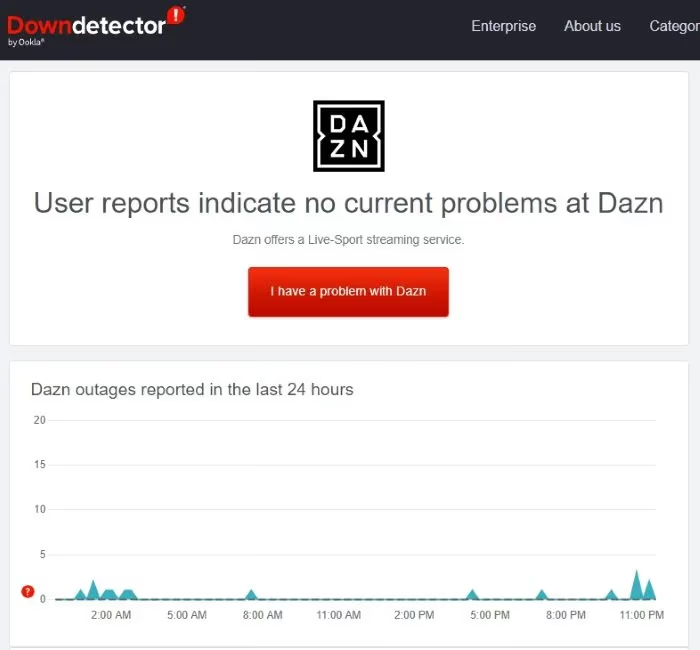
During major downtimes, all you can do is wait patiently as their IT team brings systems back online. Complete outages rarely persist beyond a few hours at most.
Once DAZN restores services in your area, you should be able to stream sports without issue again on your Samsung TV.
If your Samsung TV setup satisfies these conditions, you can rule out device compatibility issues being the culprit. However, we have also covered troubleshooting tips for DAZN not working on LG Smart TVs, Sony smart TVs, VIZIO TVs, Hisense TVs as well as Fire TV Stick, Apple TV, Roku and DirecTV setups.
#Preventative Maintenance
While temporary glitches are hard to avoid entirely, you can take proactive measures to minimize problems in the long run:
For internet connectivity:
-
Periodically run SpeedTests to catch degrading speeds early.
-
Pre-emptively upgrade broadband plans as household needs grow.
-
Reboot router and modem once a month to clear memory issues.
-
Maintain direct line-of-sight between streaming devices and router.
For account errors:
-
Set calendar reminders to renew DAZN subscription ahead of expiration.
-
Enter billing details accurately right from the start.
-
Save payment confirmation emails for records.
For app and TV updates:
-
Enable auto-update for DAZN app and Samsung TV firmware.
-
Periodically manually check for updates if auto-failing.
Following these best practices will ensure maximum uptime and prevent frustrations from repeating issues.
#When to Contact Support
If you have diligently tried every troubleshooting step but DAZN continues exhibiting problems on your Samsung Smart TV, it’s time to involve the experts:
Contact DAZN support if:
-
You encounter error messages you cannot diagnose or resolve yourself.
-
Account management and payment options have proven ineffective.
-
Uninstalling and reinstalling the app fails to fix perpetual glitches.
Contact Samsung support if:
-
Your TV software version is up to date but the platform still malfunctions across multiple apps.
-
You believe a botched firmware update caused new system-wide issues.
-
Factory reset could not resolve persistent hardware problems.
With insights from support teams and possible warranty coverage, stubborn device issues can finally get resolved for good.
DAZN also faces frequent comparisons against fuboTV. While DAZN costs less and has wider global reach, fuboTV carries more regional sports networks. As for ESPN+ vs DAZN, the former includes a wider variety of sports while the latter focuses exclusively on combat sports and football.
If you decide DAZN ultimately doesn’t meet your sports streaming needs, consider these alternatives to DAZN like fuboTV or ESPN+. You can also cancel your DAZN subscription fairly easily.
#FAQs
#Why does DAZN work on my phone but not my Samsung TV?
This points to a compatibility issue with your TV setup, not your DAZN account. Check that your Samsung TV model is from 2016 or later and that the DAZN app is updated to the latest version. If both are fine, clear the app cache and restart your TV.
#Why does DAZN keep logging me out on Samsung TV?
Repeated logouts usually mean an authentication error. Update your payment method, confirm your subscription has not expired, and log out then back in to refresh your session token. If the problem continues, contact DAZN support directly.
#Why is DAZN video quality poor on my Samsung TV?
Slow internet speeds or Wi-Fi congestion cause buffering and lower resolution. Run a speed test to confirm you have at least 5 Mbps for HD streaming. Switching to a wired ethernet connection often fixes this immediately.
#How do I clear the DAZN cache on Samsung TV?
Go to Settings, then Apps, find DAZN, and select Clear Cache. This removes temporary data that may be causing crashes or loading errors. You will need to log in again after clearing the cache.
#Is DAZN available on all Samsung Smart TVs?
DAZN supports Samsung Smart TV models from 2016 through 2024. Older models cannot run the app because they lack the required Tizen OS version. Check the DAZN help page for the full list of supported devices.
#What should I do during a DAZN server outage?
Check the DAZN status page or DownDetector to confirm the outage is on their end. Server-side issues typically resolve within a few hours. There is nothing you can do on your TV to fix a platform-wide outage, so wait and try again later.
#Can I use a VPN with DAZN on Samsung TV?
DAZN actively blocks most VPN services, so using one may cause the app to stop working entirely. If you need to access DAZN from a restricted region, you will need a VPN that specifically supports DAZN. Keep in mind this may violate their terms of service.
#Bottom Line
When DAZN refuses to work on your Samsung Smart TV, methodically troubleshoot potential culprits like:
-
Weak internet speeds and connectivity issues
-
Account access and billing problems
-
App crashes and firmware bugs
-
Server outages at DAZN’s infrastructure
By identifying the specific pain points in your setup, you can apply targeted solutions to get smooth sports streaming up and running again in no time.