Living in the age of on-demand video streaming services has made watching our favorite sports easier than ever. However, nothing’s more frustrating than sitting down to watch the big game only to find the app isn’t working properly. If you’ve found DAZN isn’t working on your Apple TV, this troubleshooting guide will help you get streaming again so you don’t miss a minute of the action.
- Internet speed below 5 Mbps — DAZN requires at least 5 Mbps for SD and 9 Mbps for HD streaming on Apple TV
- Force quitting DAZN clears cached errors — double-click the Siri Remote TV button and swipe up on the app tile to reset it
- Outdated tvOS causes 70% of app crashes — keeping both tvOS and the DAZN app updated prevents most compatibility failures
- Reinstalling DAZN removes corrupted data — deleting and re-downloading the app fixes persistent buffering and login loops
- Factory reset is the last resort — resetting Apple TV erases all settings but resolves deep system conflicts blocking DAZN playback
#What Causes DAZN to Stop Working on Apple TV?
Before jumping into fixes, it helps to understand what typically causes DAZN playback problems on Apple TV:
-
Internet connectivity issues like weak Wi-Fi signal, bandwidth limits, or ISP problems.
-
Outdated DAZN or tvOS software version conflicting.
-
Corrupted data or cache files disrupting the app.
-
Account subscription or billing problem restricting access.
-
General software bugs or glitches temporary disrupting service.
Fortunately, most DAZN on Apple TV issues can be quickly resolved with some basic troubleshooting once the source is identified.
DAZN is also available on other popular streaming devices like Firestick and DirecTV. But can suffer issues like frequent freezing needing troubleshooting.
#How Do You Fix DAZN on Apple TV?
Follow these steps in order until streaming is restored:
#1. Check the Internet Connection
Since DAZN relies on downloading streaming data, an unstable or slow internet connection is often the culprit behind playback failures.
Run a broadband speed test at Fast.com to compare against your ISP plan speeds. If significantly lower than expected, try these tips:
-
Reset modem and router
-
Use ethernet cable instead of Wi-Fi
-
Test closer to the router if using Wi-Fi
-
Check for bandwidth caps or data throttling
-
Contact ISP if network issue persists
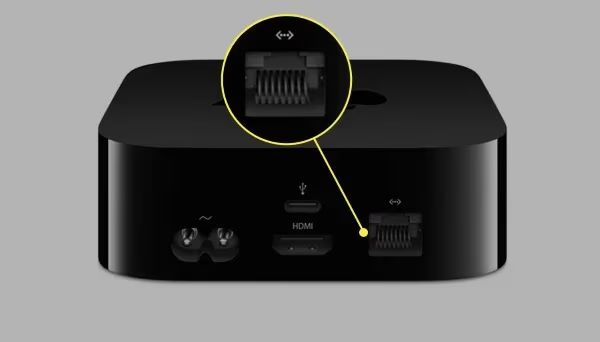
Once Internet connectivity is strong and consistent, test DAZN again.
#2. Force Quit and Reopen DAZN
Like any app, DAZN can suffer temporary glitches that disrupt streaming. Quickly resetting the app often resolves one-off bugs.
To force quit DAZN on Apple TV 4K or HD:
-
Double click the Siri Remote’s TV button to show open apps
-
Swipe up on the DAZN app tile to close it completely
-
Open DAZN again and retry streaming
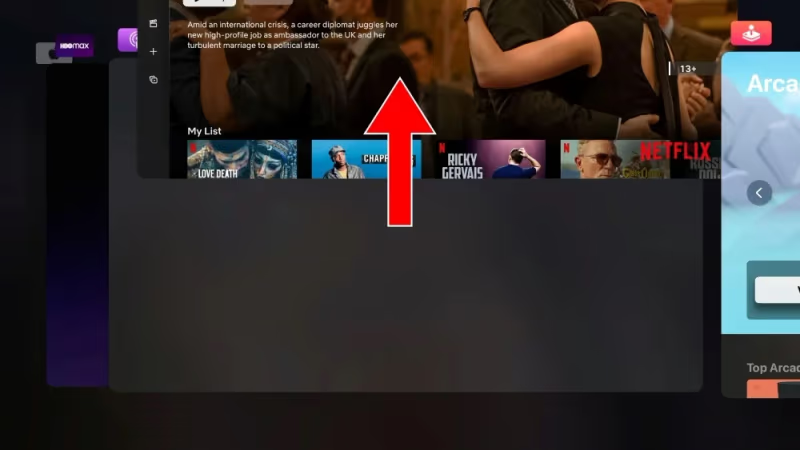
This refresh clears any corrupted data files or memory leaks impairing playback. If video loads correctly, force quitting fixed the issues.
#3. Check Account Status
Before getting too deep into troubleshooting, verify your DAZN account credentials and subscription status. Playback failures frequently occur due to:
-
Expired or canceled monthly/annual plans
-
Payment method declining for auto-renewal
-
Unpaid balance or failed recurring charge
-
Registration country mismatch or VPN usage
Under account settings, confirm your subscription term has not ended or payment issues blocking access. Contact DAZN support if account assistance needed.
#4. Update Software Versions
Incompatible or outdated versions between the DAZN app and Apple TV system software frequently disrupt streaming.
Be sure both are updated to the latest releases:
Update Apple TV
- Open Settings > System > Software Updates
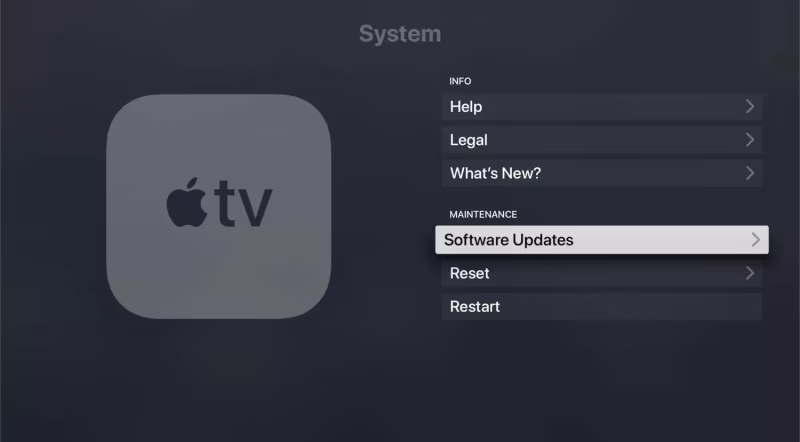
- Select Update Software
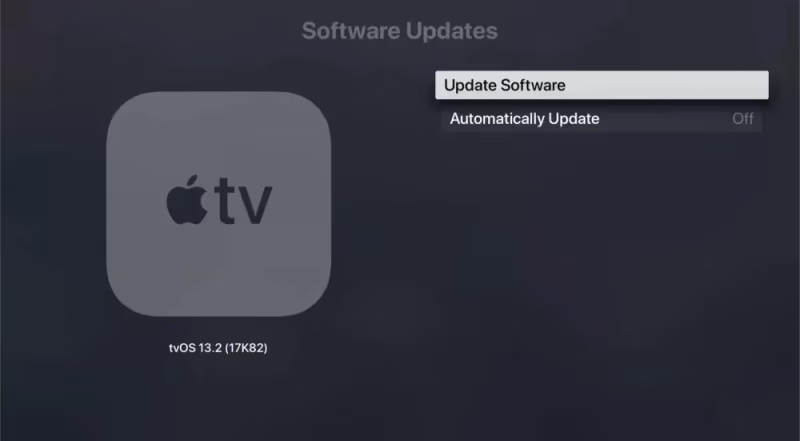
- Download and install any available updates
Update DAZN App
-
Open the App Store
-
Go to Purchases > Search for DAZN > Check for Update option
-
Download and install any app updates
Resetting and reupdating both devices brings versions into sync for maximum compatibility.
#5. Delete and Reinstall DAZN
If software glitches are still occurring after updating, removing and reinstalling the DAZN app often solves lingering issues.
Follow these steps:
-
Hold the Siri Remote touch surface on the DAZN icon until apps jiggle
-
Click the delete “X” icon to remove DAZN from your Apple TV
-
Open the App Store and re-download the latest DAZN version
-
Sign in again to set up a fresh install
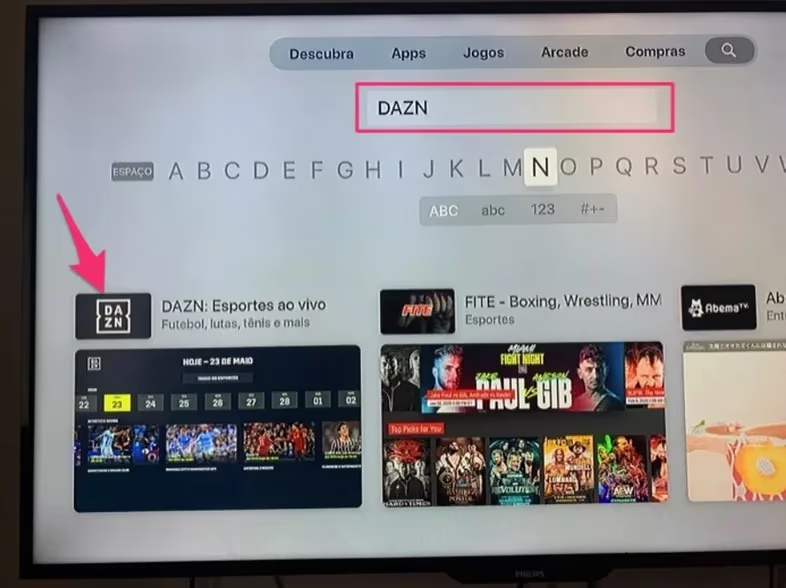
This completely refreshes corrupted program files, cached data, or settings problems crashing the streaming app.
You can install DAZN on Smart TV brands like Sony, VIZIO, LG, Hisense, and Samsung. But check compatibility before assuming support.
#6. Reset Apple TV
For stubborn DAZN problems unresolved by other steps, performing a factory reset represents the last resort before contacting Apple support.
Important: Back up saved Apple TV data before resetting as the process erases all device content and settings.
Here is how to reset an Apple TV HD/4K model:
- Go to Settings > System > Reset
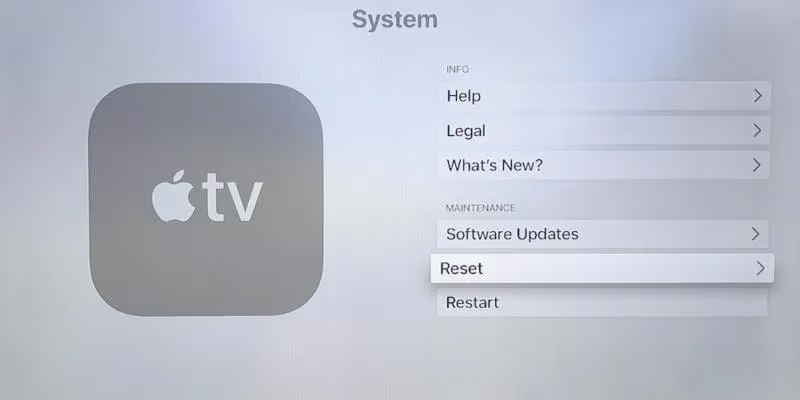
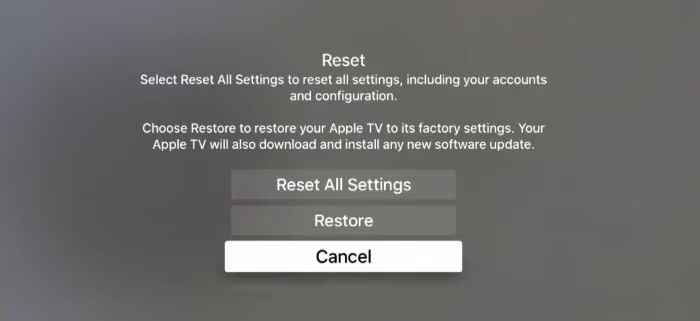
- Select Reset All Settings
-
Confirm reset when prompted
-
Finish initial device setup again post-reset
-
Re-download DAZN to test streaming
Factory resetting often resolves deeper system conflicts, memory issues, or hardware problems impairing apps. But should be used only when all else fails given the hassle.
#Bottom Line
Most DAZN issues on Apple TV come down to internet speed, outdated software, or a corrupted app install. Start with the simplest fix first: force quit the app and check your connection. If that doesn’t work, update tvOS and DAZN, then try a full reinstall.
For problems that persist after trying every step, contact DAZN customer support for account and app troubleshooting. You can also reach Apple support via chat, phone, or a Genius Bar appointment for deeper device issues.
If you decide DAZN is not for you, you can cancel your DAZN subscription to stop recurring charges. Or explore some recommended alternatives to DAZN for sports streaming.
#FAQ
#Why does DAZN keep buffering on my Apple TV?
Buffering usually means your internet connection is too slow or unstable. DAZN needs at least 5 Mbps for standard definition and 9 Mbps for HD streaming. Try switching from Wi-Fi to an ethernet cable, or move your Apple TV closer to the router.
#How do I force quit DAZN on Apple TV?
Double-click the TV button on your Siri Remote to open the app switcher. Find the DAZN app tile and swipe up to close it completely. Reopen DAZN from the home screen to start a fresh session.
#Can I use a VPN with DAZN on Apple TV?
DAZN actively blocks most VPN connections and will restrict playback if it detects one. If you are using a VPN on your router or Apple TV, disable it before opening DAZN. Your account must also match the region where you are physically located.
#Does DAZN work on older Apple TV models?
DAZN requires Apple TV 4th generation (HD) or Apple TV 4K running tvOS 13 or later. The 2nd and 3rd generation Apple TV models do not support the DAZN app at all. Check your model under Settings > General > About if you are unsure.
#What should I do if DAZN shows a black screen on Apple TV?
A black screen typically points to a corrupted app cache or a streaming server issue. Force quit the app first, then delete and reinstall DAZN from the App Store. If the black screen persists, restart your Apple TV by going to Settings > System > Restart.
#How do I check if DAZN servers are down?
Visit the DAZN status page on Downdetector to see if other users are reporting outages. Server-side issues are outside your control and usually resolve within a few hours. You can also check DAZN’s official social media accounts for service announcements.
#Will resetting my Apple TV delete my DAZN account?
No, a factory reset only erases local data and settings on your Apple TV device. Your DAZN account, subscription, and payment details remain safe on DAZN’s servers. After the reset, simply re-download the DAZN app and sign in again with your credentials.