DAZN freezing mid-game is one of the most common complaints from sports streaming subscribers. The problem usually traces back to your internet connection, the DAZN app itself, or your device’s hardware limits. This guide covers 15+ fixes that address each of these root causes so you can get back to watching without interruptions.
Whether you’re using a smart TV, mobile device, or another platform, these tips will have you streaming smoothly in time for the next match.
- Internet speed is the #1 cause — DAZN needs at least 10 Mbps, and 50+ Mbps for reliable HD streaming
- Wired beats wireless every time — Ethernet connections eliminate Wi-Fi interference that causes buffering
- Clearing cache fixes most app-side freezes — corrupted temporary files are a frequent culprit on smart TVs and mobile
- Lowering video quality reduces buffering — dropping from 4K to 720p cuts required bandwidth by over 75%
- DAZN server outages happen during major events — check DAZN status pages before troubleshooting your own setup
#What Causes DAZN to Freeze?
Before applying fixes, here’s a quick rundown of what triggers the buffering wheel. These are the most common reasons for DAZN stream interruptions:
#Internet and Wi-Fi Connectivity Issues
Streaming sports through DAZN requires stable, high-speed connectivity. If your internet is slow or keeps disconnecting, video freezing is inevitable. This can happen due to:
-
Poor Wi-Fi signal strength and interference
-
Bandwidth throttling by ISP
-
Peak usage times in your area
-
Using mobile data instead of Wi-Fi
-
VPN connections slowing things down
#Problems With DAZN App or Servers
Issues on DAZN’s end can also affect stream performance. For example:
-
DAZN app bugs and glitches
-
Overloaded streaming servers
-
Problems specific to certain platforms
-
Downtime for DAZN maintenance
#Issues With Your Streaming Device
The device you’re using to access DAZN plays a role too. For instance:
-
Low storage, memory, and processing capabilities
-
Outdated firmware and software
-
Conflicts with other apps and services
-
Device overheating from extended streaming
#Account and Payment Problems
Account and billing issues may also freeze your stream until resolved:
-
Deactivation for non-payment
-
Login verification problems
-
Location restrictions
-
Simultaneous stream limits exceeded
The causes vary widely. Targeted troubleshooting helps narrow things down fast.
#How Do You Diagnose DAZN Freezing Issues?
Before applying fixes, take a moment to figure out what exactly is failing.
Ask yourself:
-
Is it happening across all content or just certain streams?
-
Does the video freeze right away or after a period of time?
-
Can you stream other services like Netflix without issue?
-
Have you recently changed internet plans or any device settings?
Also take note of error messages, your network strength, device storage space, and other clues. This context will help guide suitable solutions.
Now for the actionable tips to get non-stop sports viewing working again.
How does DAZN compare to other sports streaming services like fuboTV and ESPN+? Check out our detailed comparisons.
#What Are the Best Fixes to Stop DAZN From Freezing?
Here are 15 fixes to troubleshoot bothersome DAZN interruptions:
#1. Check Your Internet Speed and Connection
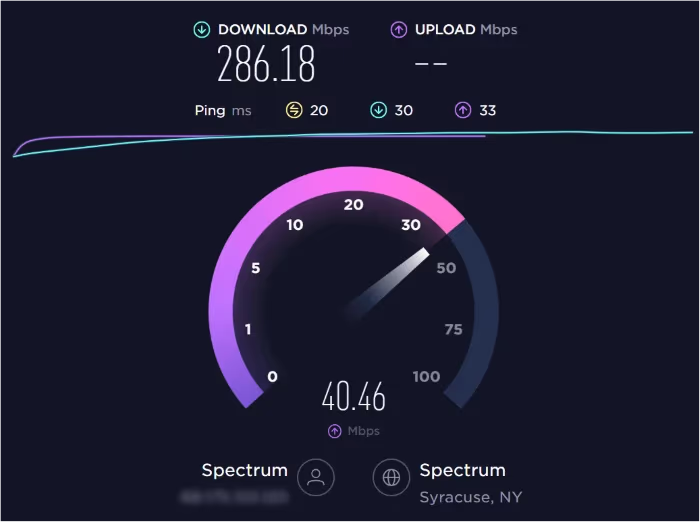
The #1 cause of buffering wheels is internet connectivity problems. Run a speed test to check for issues like:
✔️ Slow download or upload speeds ✔️ High ping times and latency ✔️ Packet loss and jitter
Reboot your modem and router if speeds are low. Connect devices directly to the router using an Ethernet cable. Switch to 5 GHz Wi-Fi bands if possible for better performance.
Consider upgrading your internet plan as DAZN recommends a minimum of 10 Mbps, preferably 50 Mbps. For 4K streaming, speeds up to 100 Mbps may be required.
#2. Restart Your Modem and Router
Over time, internet equipment can develop performance issues from overheating, memory overload, and similar glitches.
Reboot your modem and router to refresh the connection. Unplug them from power, wait 60 seconds, then plug back in.
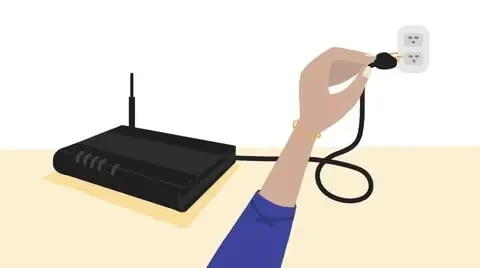
This often resolves network problems contributing to DAZN buffering.
#3. Update DAZN App and System Software
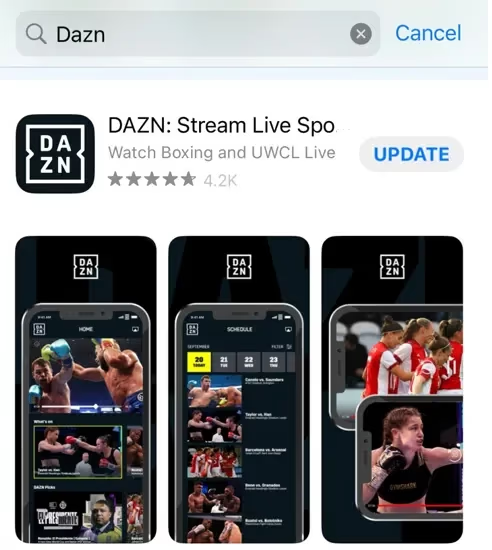
Outdated apps and firmware cause a surprising number of streaming glitches. Update to the latest DAZN app version on your device.
Also check for available software updates for your TV, phone, streaming stick, etc. System updates improve compatibility and allow apps to run more smoothly.
#4. Clear Cache and Data
Temporary app files and cached data on your device can sometimes become corrupted.
Clearing the DAZN cache and app data resets things to factory conditions. On smart TVs, look in Settings > Apps > DAZN > Clear Cache/Data.
On mobile, go to Settings > Apps > DAZN > Storage > Clear Cache and Clear Data. Then re-launch the app.
#5. Use a Wired Internet Connection
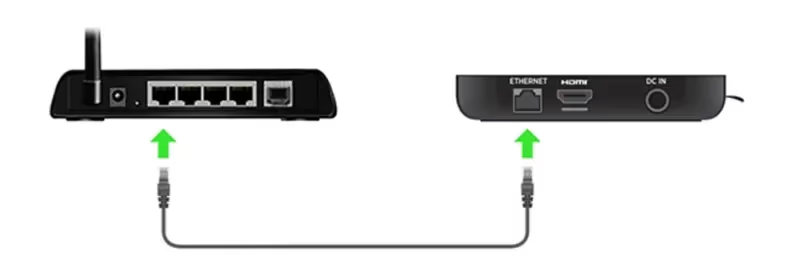
For the most reliable connectivity, use an Ethernet cable rather than Wi-Fi. Wired networks have faster speeds, lower latency, and avoid interference issues that plague wireless connections.
Plug your streaming box or smart TV directly into your router with an Ethernet cable to resolve common buffering problems.
#6. Adjust Video Quality in DAZN
Can your internet keep up with the video quality selected in DAZN? Streaming in 4K or 1080p HD requires higher speeds compared to lower resolutions.
Open video settings within the DAZN app and reduce quality to 720p or 480p. This lessens buffering likelihood for marginal connections. You can incrementally increase video quality later.
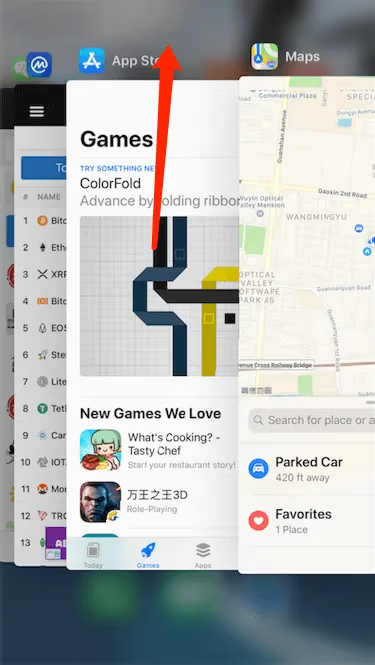
#7. Close Background Apps and Tabs
Too many apps and browser tabs fighting for bandwidth can starve your DAZN stream. Close any non-essential apps and browser windows before streaming.
Also disable Wi-Fi access for guest devices not currently being used. Every bit of conserved bandwidth counts when troubleshooting streaming hiccups.
#8. Try a Different Device or Browser
If you’re on a desktop browser, try switching between Chrome, Firefox, Edge, and Safari to see if one handles DAZN better. On mobile, attempt viewing in the app vs. the mobile browser.
You can also try streaming to your TV through a different device like a smartphone, tablet, streaming box, or games console connected to the same network.
Process of elimination helps determine if the freezing stems from a specific device/browser combination.
#9. Reinstall the DAZN App
A common troubleshooting step is to reinstall an app that keeps crashing or freezing. Delete and re-download the latest DAZN app from your device’s app store or channel store.
Sign back into your account after installation. This fresh start resolves many underlying software issues affecting stream performance.
When testing different devices and platforms, check out our advice on getting DAZN working properly on Fire TV Stick, Apple TV, Roku, LG Smart TV, Sony TV, Vizio TV, and Hisense TV.
#10. Create a New DAZN Account
On rare occasions, freezing and playback errors persist due to account-specific issues. Try signing up for a new account using a different email on the same device.
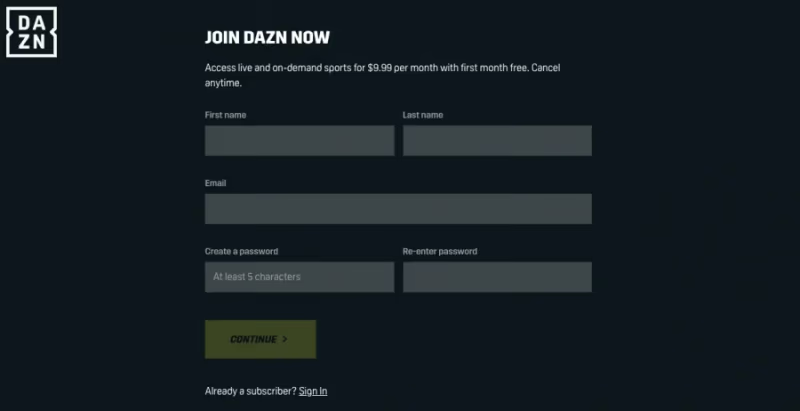
If streaming works fine in the new account, an authentication or account settings problem is likely the cause. Contact DAZN support to investigate further.
#11. Contact DAZN Support
If the self-help tips above haven’t worked, contact DAZN’s customer support team via online chat, email, or phone.
Explain precisely when and how streams are freezing. Include any error messages and which troubleshooting steps you already tried. Support agents can use these details to pinpoint the root cause.
If DAZN continues freezing even after troubleshooting, you may want to consider DAZN alternatives or cancelling your DAZN subscription.
#Bottom Line
Getting DAZN to stop freezing usually comes down to three areas: your internet connection, the DAZN app, and your streaming device. Start with the basics by rebooting your router, clearing the app cache, and updating software. If those steps don’t help, switch to a wired Ethernet connection and lower the video quality.
For issues that persist after trying everything here, reach out to DAZN support directly. They can check for account-specific problems or server-side issues affecting your region.
#FAQ
#Why does DAZN freeze during live sports but not on-demand content?
Live sports pull from real-time servers that handle massive viewer loads during popular events. On-demand content is pre-cached on CDN servers closer to your location, which reduces buffering. If freezing only happens during live events, the issue is likely server congestion rather than your internet connection.
#Does using a VPN cause DAZN to buffer more?
Yes. VPNs add an extra routing step that increases latency and reduces effective bandwidth. Even a fast VPN can add 20-40% overhead to your connection speed. If you must use a VPN, connect to a server geographically close to you and choose a provider known for streaming performance.
#How much internet speed does DAZN actually need?
DAZN recommends a minimum of 10 Mbps for standard streaming. For 1080p HD, you need at least 25 Mbps, and 4K content requires 50 Mbps or higher. Keep in mind that other devices on your network share this bandwidth, so your total plan speed should be well above these minimums.
#Can DAZN freezing be caused by my smart TV being too old?
Older smart TVs with limited RAM and slower processors struggle to run modern streaming apps. DAZN regularly updates its app with features that demand more resources. If your TV is more than 5-6 years old and DAZN freezes frequently, connecting an external streaming device like a Roku or Fire TV Stick often solves the problem.
#Why does DAZN work fine on my phone but freeze on my TV?
Phones typically have faster processors and more RAM than budget smart TVs. Your phone may also connect to a different Wi-Fi band or sit closer to the router. Try moving your router closer to the TV, using a Wi-Fi extender, or connecting the TV with an Ethernet cable to see if the gap closes.
#Does clearing DAZN cache delete my account or saved preferences?
Clearing the cache only removes temporary files like thumbnails and buffered video data. Your account, login credentials, and watchlist remain stored on DAZN’s servers. You may need to log in again after clearing data, but nothing on your account side changes.
#What should I do if DAZN shows a specific error code instead of just freezing?
Error codes point to specific problems that general troubleshooting may not fix. Write down the exact code displayed and search for it on DAZN’s help page at help.dazn.com. Common codes relate to geo-restrictions, payment issues, or device incompatibility. If the code isn’t listed, contact DAZN support with the code and a screenshot for faster resolution.