You will start to wonder how to charge an Apple TV remote if you are new to it. The requirement to charge the Apple TV remote arises when you see the low-battery notification. You will see those notifications when the battery level goes down to 20%. So, keep reading if you are a novice looking for the proper way to charge an Apple TV remote.
- Charging port location — the Lightning or USB-C port sits on the bottom edge of every Siri Remote generation
- Full charge time — a completely drained Siri Remote reaches 100% in roughly 2 hours
- Battery longevity — one full charge powers the remote for 2 to 3 months under normal use
- No physical charging indicator — check battery status through Settings > Remotes and Devices > Remote on your Apple TV
- Older remotes use CR-2032 batteries — 1st, 2nd, and 3rd-generation Apple TV remotes have replaceable coin-cell batteries instead of built-in rechargeable ones
#How Do You Charge Apple TV Remote?
As mentioned, you can see those notifications on the Apple TV remote. Those notifications start to appear when your Siri Remote’s battery level drops to 20%. To make it charge, you are supposed to use a Thunderbolt cable.
You will receive this cable and the Apple TV when you buy it. One end of this cable should be connected to the remote. A dedicated port for the Thunderbolt cable is located at the bottom side of the remote.
The other end of the cable should be connected to a power outlet to acquire power. In this case, it should be either a USB port or a dedicated wall adapter.
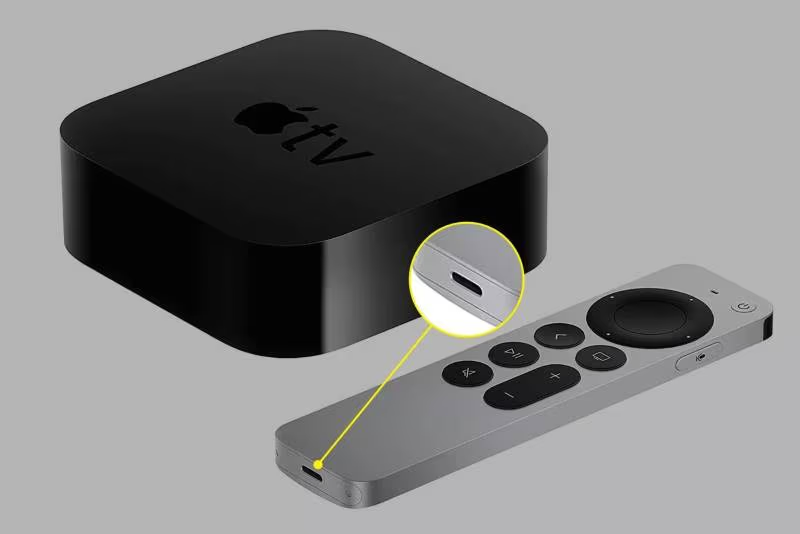
Regardless of the generation of the device, the charging port is located in the same place. That means both second and first-generation remote devices come with the charging port in the same place.
PS: if you are looking for the best Vizio TV remote app for your Android device, just read more.
#How to Check if the Remote Controller is Charging?
What you should know is that your Siri Remote does not come with a physical indicator to notify charging.
But the good news is that it displays a notification on the TV screen. It says the remote has a power connection but doesn’t display the existing battery level.
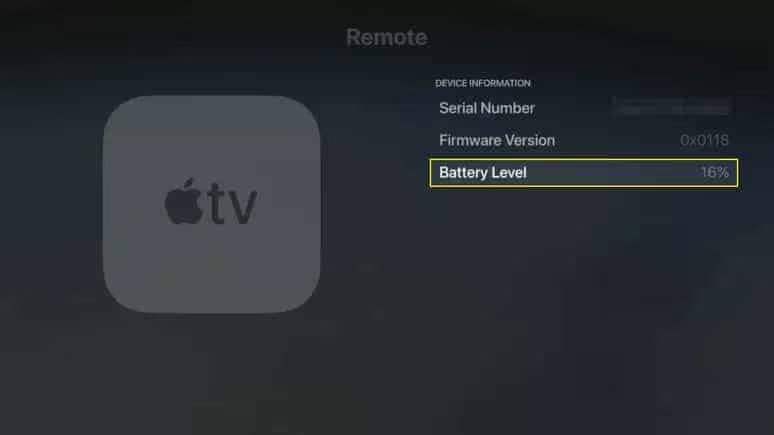
It is possible if you want to check the existing battery level and the status. In that case, you should look for the menus on the Apple TV.
Please follow the below guide to check the battery levels of the TV remote.
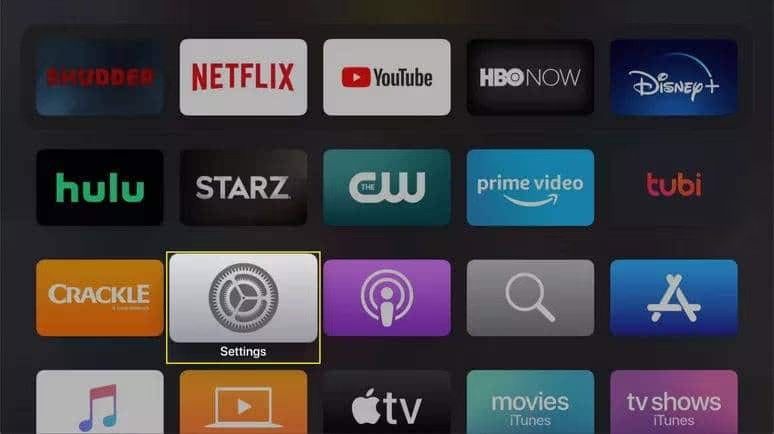
- First, you should go to the app “System” on the home screen of the Apple TV.
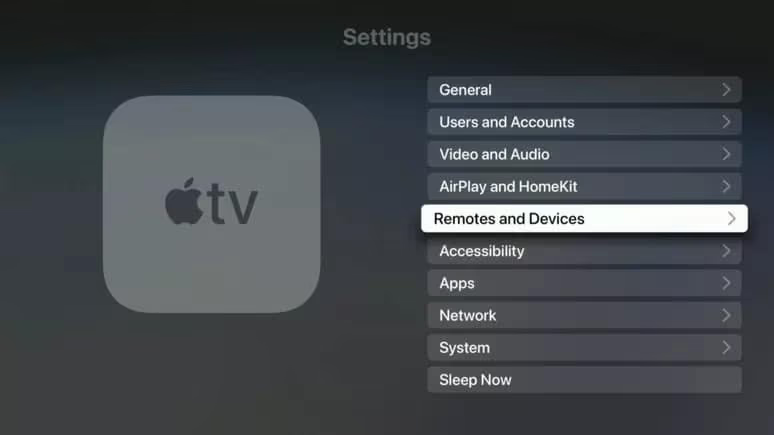
- Then, you should choose the option called “Remotes and Devices.”
- Under that option, you can find the option called “Remote.” Click on it to proceed.
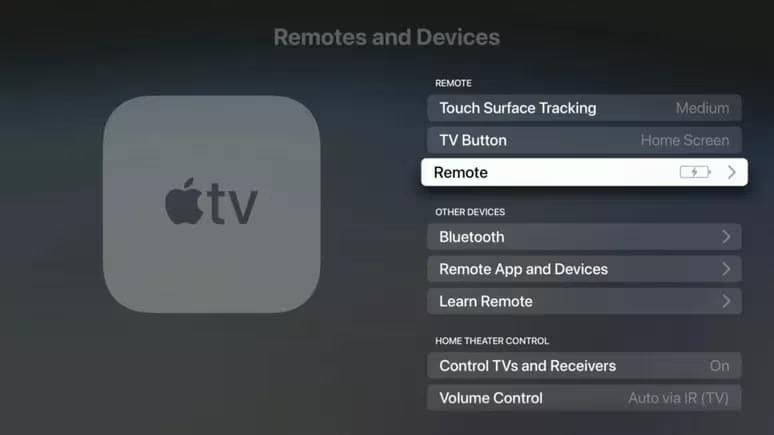
- If the Siri Remote has been put into charging mode successfully, you can notice it. In this case, you can see a lightning bolt on the right-hand side of the remote-like icon. Or, a different type of bar found in the battery-like icon will show the level of charging. That will clarify whether or not your device is charging.
#When Should You Charge Apple TV Remote?
If you wonder how often to charge Apple TV remote, this paragraph is just for you. There is no requirement to charge your Apple TV remote regularly.
If you are a standard-type Apple TV user, you will not have to charge its remote often.
For instance, a single full charge will last at least a couple of months. Your Apple TV may take a couple of months to display the 20% notification.
Even if you get the notification, you don’t have to worry because the remote will get charged quickly. It will reach a fully charged level within two hours or even less.
Besides, if your Vizio SmartCast is not working and you wish to fix it, you can follow the guide here with every practical solution to address this issue easily.
#How to Charge Apple TV Remote Battery?
You should know that Apple did not offer you the option of replacing batteries on their remote versions.
That means the first-generation and second-generation Apple TV remotes did not have replacement batteries. So, you had to replace the whole remote-control unit when it could not hold the charge anymore.
But when it comes to older versions of the Apple TV Remote, they had the option of replacement batteries. That means the devices are compatible with second-generation and third-generation Apple TV units.
They were manufactured with replaceable batteries (CR-2032), and they had a small button-cell design.
In this case, you will have to swap the old batteries once they have died. Nevertheless, regardless of the model, you cannot expect to recharge the remote as an entire unit.
By the way, are you interested in learning how to connect Apple TV to WiFi without a remote? Here is the step-by-step guide to setting up Apple TV without a remote.
#Frequently Asked Questions
#How do you pair an Apple TV remote?
Turn on your Apple TV first, then hold the remote within a couple of inches from the front of the device. For a 2nd-generation Siri Remote, press and hold the Back button and Volume Up simultaneously for about two seconds. On a 1st-generation Siri Remote, hold the Menu button and Volume Up instead. A pairing confirmation message appears on screen once the connection succeeds.
#How long does it take to charge an Apple TV remote?
A fully drained Siri Remote reaches 100% in about two hours when connected to a USB power source. You can keep using the remote while it charges, though the cable limits your range. Even 30 minutes of charging gives you enough power for several weeks of regular viewing.
#Can you use your Apple TV remote while it charges?
Yes. The Siri Remote works normally during charging. Plug the cable into the bottom port and continue navigating your Apple TV as usual. The only limitation is the cable length, so sit closer to the power source while it tops up.
#How do you reset an Apple TV remote?
Start by charging the remote for at least 30 minutes using the original cable and a wall adapter. Then unplug your Apple TV from the wall outlet, wait six seconds, and plug it back in. For older Apple Remotes with removable batteries, pop the battery out and reinsert it to reset. After the Apple TV restarts, re-pair the remote by holding it close and pressing the correct button combination for your generation.
#How often should you charge an Apple TV remote?
Under normal usage, the Siri Remote battery lasts two to three months on a single charge. Apple sends a low-battery notification to your TV screen when the level drops to 20%. Most users only need to charge the remote four to six times per year.
#Where can you buy a replacement Apple TV remote?
You can purchase a new Siri Remote directly from the Apple Store online or at any Apple retail location. Third-party retailers like Amazon also stock genuine Apple remotes and often run discounts. Before buying, confirm the remote version matches your Apple TV generation to avoid compatibility issues.
#What type of cable does the Apple TV remote use for charging?
The 1st-generation Siri Remote uses a Lightning cable, which is the same connector found on older iPhones and iPads. Starting with the 3rd-generation Siri Remote (released in 2022), Apple switched to USB-C. Both cable types come included in the Apple TV box, so you should already have the right one.
So, that’s how to charge the Apple TV remote. If you have further questions, please let us know.