Tired of staying up too late binge-watching shows on your Apple TV? The sleep timer in tvOS 17 finally offers a fix. In this guide, you’ll learn how the Apple TV sleep timer works, why it saves energy, and how to set it up through Settings or Siri voice commands. I’ll also cover troubleshooting tips in case the timer doesn’t activate properly.
- Sleep timer durations range from 15 minutes to 12 hours in the Settings > General > Sleep After menu
- Siri voice commands activate the timer in seconds without navigating any menus
- HDMI-CEC support means your TV powers down too when the Apple TV sleep timer triggers
- tvOS 17 or later is required for reliable sleep timer functionality
- A factory reset fixes persistent timer failures when software updates and cable checks don’t help
#Overview of the Apple TV Sleep Timer Feature
The Apple TV sleep timer automatically turns off your hardware after a set period of inactivity. If you fall asleep watching a movie, the device powers down on its own without wasting electricity all night.
Key Benefits
-
Saves energy since Apple TV shuts off automatically
-
Stops binge-watching sessions from running into the early morning
-
Lets you fall asleep without manually turning it off
-
Works reliably once configured after the latest OS update
The sleep timer feature first arrived in June 2022 with the Apple tvOS 16 beta. It then rolled out to consumers with the tvOS 17 update in late 2023.
So how does it work? You pick a shut off time between 15 minutes and 12 hours. If the Apple TV detects no remote control input or video playback for the full duration, it turns off your television through CEC commands.
Tip: You can use Siri voice commands to set sleep timer durations without scrolling through settings.
Now let’s walk through how to configure the sleep timer on your device.
#How Do You Activate the Sleep Timer Through Settings?
The Sleep Timer settings offer the simplest way to schedule automatic shut offs after periods of inactivity. Pick a duration, and your Apple TV handles the rest.
#Access the Apple TV Settings Menu
Step 1: Turn on your Apple TV and television if not already powered on.
Step 2: Navigate to the main Settings screen by selecting the gear icon.
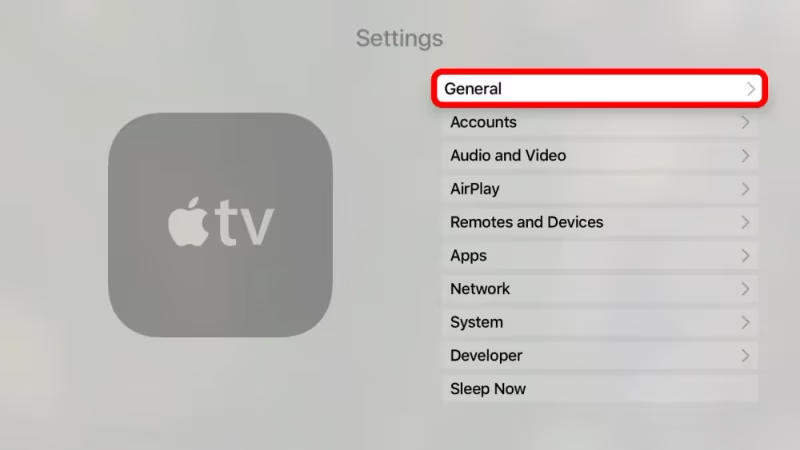
Step 3: Scroll down and select General.
#Configure the Sleep Timer Duration
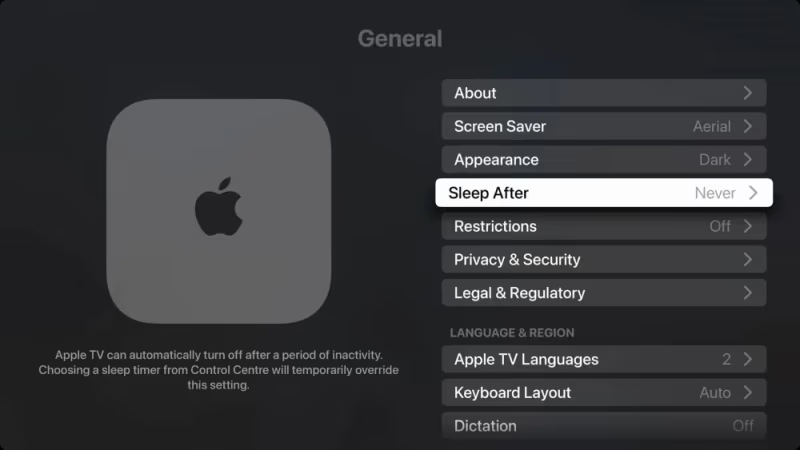
Step 1: Scroll down and select Sleep After.
Step 2: Choose your ideal auto-shutoff duration such as 30 minutes or 2 hours.
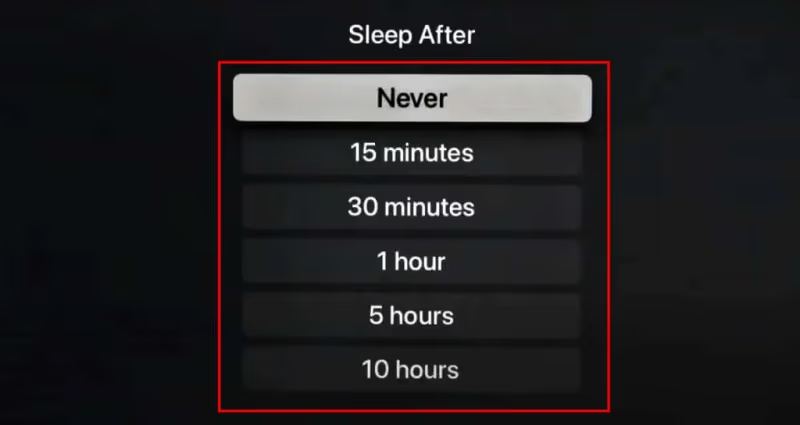
Tip: If you don’t want the timer enabled at all, simply choose Never.
That’s it. Your Apple TV will now automatically turn off after the selected duration when inactive.
#Can You Set the Sleep Timer With Siri?
Thanks to Siri integration on the Apple TV 4K remotes, you can also enable the sleep timer using voice shortcuts. Press the microphone button and clearly state your chosen shut off time.
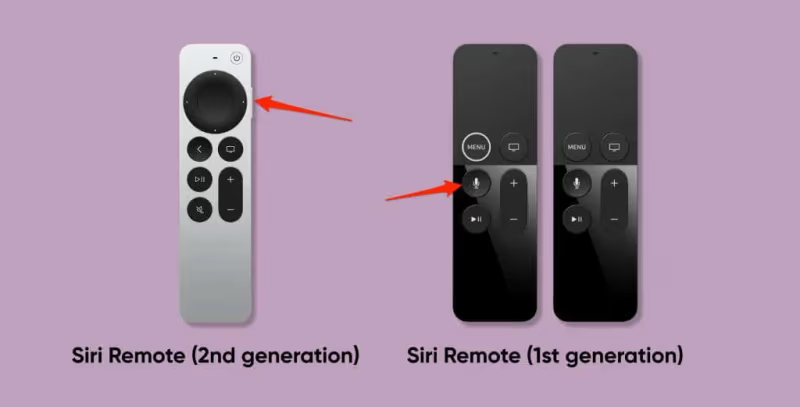
Here are the basic voice commands to try:
-
“Hey Siri, turn off after 30 minutes”
-
“Hey Siri, set sleep timer for 1 hour”
-
“Hey Siri, put Apple TV to sleep in 2 hours”
Siri will confirm your request audibly, then schedule the automatic shut down.
Benefits of Using Siri for Sleep Timer:
-
Faster than navigating TV settings menus
-
Works well in low light or across the room
-
No need to get up from bed or the couch
If you’re snuggled in bed and want Apple TV to shut off shortly, grab the remote and use Siri instead of navigating menus. If your Apple TV feels sluggish when responding to Siri, check out our guide on Apple TV lagging for fixes.
#Troubleshooting Apple TV Sleep Timer Problems
In some cases, you may configure a sleep timer duration but notice that your Apple TV fails to turn off after the inactivity period passes.
This is likely due to outdated software or HDMI connectivity issues. Here are tips for fixing sleep timer problems:
Software Updates
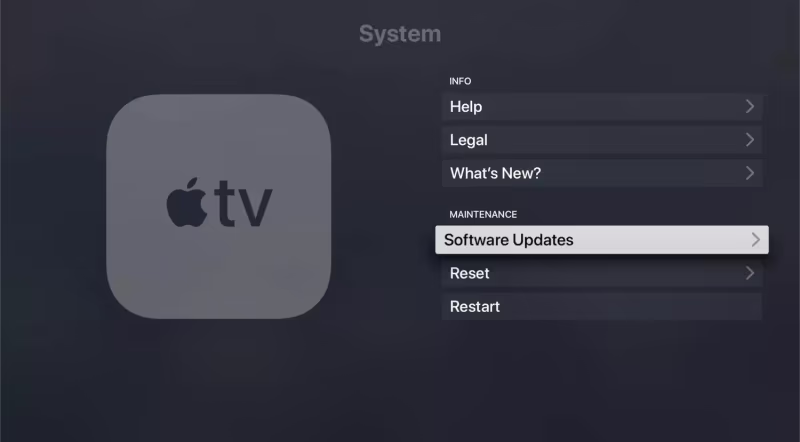
Confirm your Apple TV OS is fully updated to the latest tvOS 17 or newer. Bug fixes with each release improve the reliability of the sleep timer. If apps like Amazon Prime Video stop working after an update, a second restart usually resolves both issues.
HDMI Cable
Try unplugging the HDMI cable from your Apple TV box and plugging it firmly back in. This often resolves connectivity issues that could prevent CEC control signals from going through.

Factory Reset
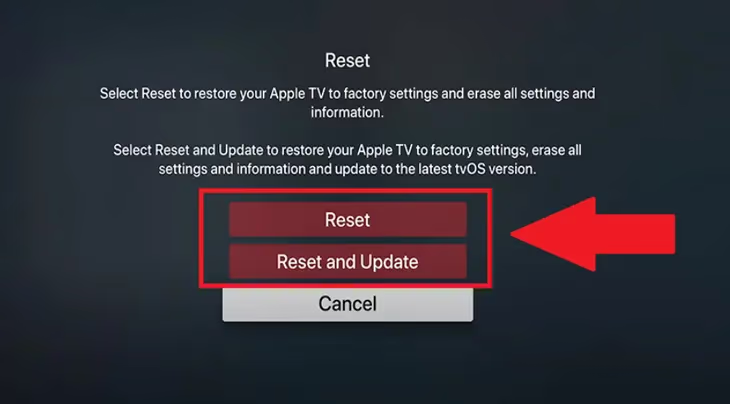
If software updates and cable checks don’t resolve the issue, perform a factory reset on your Apple TV. This erases all saved data and settings but often fixes technical problems. Reconfigure your sleep timer afterward.
As a last resort, contact Apple Support for help if the timer still fails after trying these steps.
#Bottom Line
-
Enable the Apple TV sleep timer in Settings > General
-
Or use Siri voice commands to quickly set durations
-
Troubleshoot activation issues with software updates
-
Perform factory reset if the sleep timer still won’t work
-
Set the timer nightly or use smart home automations
-
Adjust timer durations based on your viewing habits
-
Use “Never” setting instead of manually turning off
The Apple TV sleep timer takes about 30 seconds to configure and saves you from waking up to a TV that ran all night. Set it once, adjust it as your habits change, and enjoy better rest.
#Frequently Asked Questions
#What is the shortest sleep timer duration available?
The minimum auto-shutoff duration is 15 minutes. Your Apple TV will turn off automatically after just 15 minutes of no remote or playback activity.
#What is the longest duration you can set?
You can schedule sleep timers up to 12 hours in advance. This is useful if you start a movie late at night and expect to fall asleep before it ends.
#Can you use Alexa or Google Assistant for sleep timers?
Alexa and Google Assistant cannot directly control the Apple TV sleep timer. However, you can use “Goodnight” routines to shut off smart outlets or HDMI switches that cut power to the Apple TV instead.
#What happens if you use the remote before the timer expires?
Interacting with your remote control or watching video content resets the sleep timer countdown. Regular use prevents accidental power downs during active viewing sessions.
#Can you set unique timers for each user profile?
No. All Apple TV sleep timer settings apply globally across user profiles. Even with personal profiles, there is one shared auto-shutoff rule for the device.
#Will HDMI-CEC also turn off your television?
Yes. If you have HDMI-CEC enabled between your Apple TV and television, the sleep timer will turn off your TV as well. This is useful for powering down your full home theater setup without touching multiple remotes.
#Can you use Shortcuts automation to enable sleep timers?
Apple has not opened up Apple TV remote capability within Shortcuts yet. This functionality is expected in a future iOS update based on user feedback. For now, Siri voice commands are the fastest alternative to the Settings menu.
#Does the sleep timer work during music playback?
Yes, the sleep timer applies to all media types including music. If you’re listening to Apple Music or a podcast and the timer expires with no remote input, the Apple TV will still power down automatically.