Have you noticed your Apple TV lagging, buffering, and freezing when trying to stream shows or movies? Few things are more frustrating than choppy video and delayed response times when you just want to relax and enjoy the latest episode of your favorite series. With the right troubleshooting approach you can get to the bottom of what’s causing Apple TV lag and performance issues – and fix it for good. This guide covers 18 tips to boost speed, reduce buffering, and have your Apple TV running smoother than ever.
- Slow internet is the top cause — you need at least 8 Mbps for 1080p and 25 Mbps for 4K streaming on Apple TV
- Outdated tvOS firmware — updating software fixes known bugs and often improves streaming performance immediately
- Background apps drain resources — force-closing unused apps and disabling Background App Refresh frees up memory
- HDMI cable quality matters — older cables below HDMI 2.0 spec can cause choppy 4K HDR playback
- Factory reset is the nuclear option — if nothing else works, resetting all settings clears deep software issues
#What Causes Apple TV Lagging?
Before jumping into the solutions, it helps to understand the potential culprits behind Apple TV lag. The most common reasons include:
-
Weak internet connectivity and speed
-
Outdated Apple TV software and firmware
-
Incompatible apps and services
-
Too high video resolution setting
-
Bloated app caches
-
Too many downloaded apps
-
Faulty HDMI cable connections
-
Too much background activity on the network
Paying attention to signs like choppy video, pixelation, extreme buffering, input delays, and overall system sluggishness will help you pinpoint if you have an Apple TV lag problem.
#How Do You Fix Apple TV Lag for Good?
Here are the top recommendations for improving performance and eliminating lag on your Apple TV once and for all:
#1. Check Your Internet Speed
Your Apple TV relies on a strong, stable internet connection for smooth streaming, so start there. Use a trusted speed test site to check if your broadband speed matches the requirements:
-
At least 8 Mbps for 1080p
-
6 Mbps for 720p
-
2.5 Mbps for SD
If the speed is lower, contact your ISP about upgrading. Also try connecting your Apple TV directly to the router with an Ethernet cable.
One source of lag can also be if your Apple TV becomes disconnected from Wi-Fi. See this article on solutions for Apple TV disconnecting from Wi-Fi for some troubleshooting tips if that occurs.
#2. Reboot Your Router
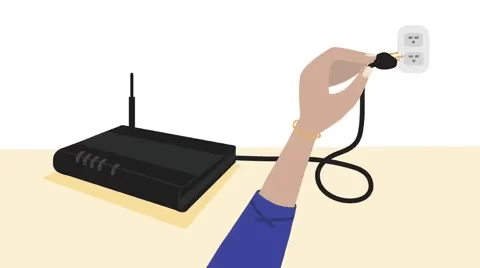
Restarting your router can help clear any network issues contributing to Apple TV lag. Unplug the power cord for 60 seconds, then plug back in to reboot.
#3. Update Apple TV Software
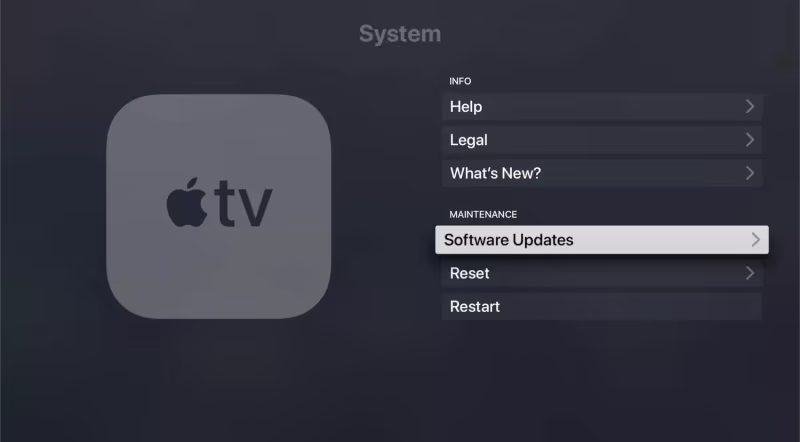
Outdated software is a prime culprit. Go to Settings > System > Software Updates to download the latest Apple TV firmware. This improves performance and fixes bugs.
#4. Lower Video Resolution
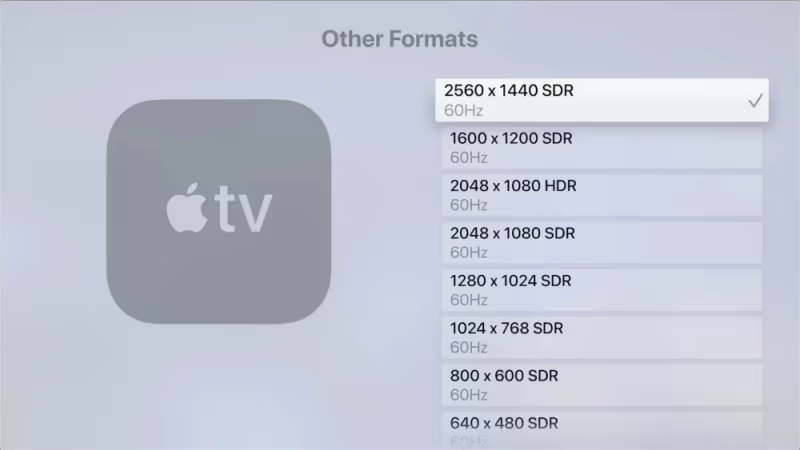
Choppy playback? Your video resolution setting may be too high for your connection. Go to Settings > Video and Audio > Format > Other Formats to lower it.
#5. Delete Unneeded Apps
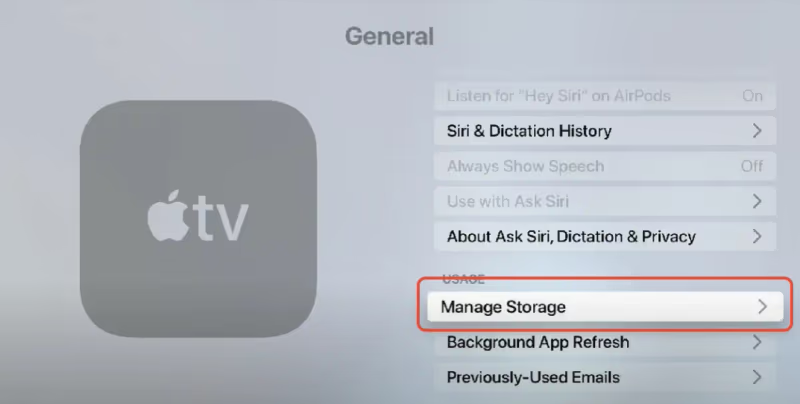
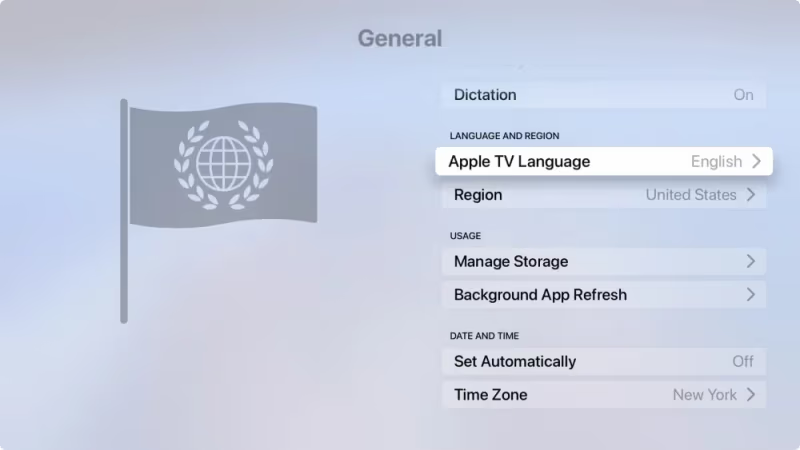
An overloaded Apple TV with too many apps can lag. Delete any unused apps under Settings > General > Manage Storage to free up resources.
#6. Reset Apple TV
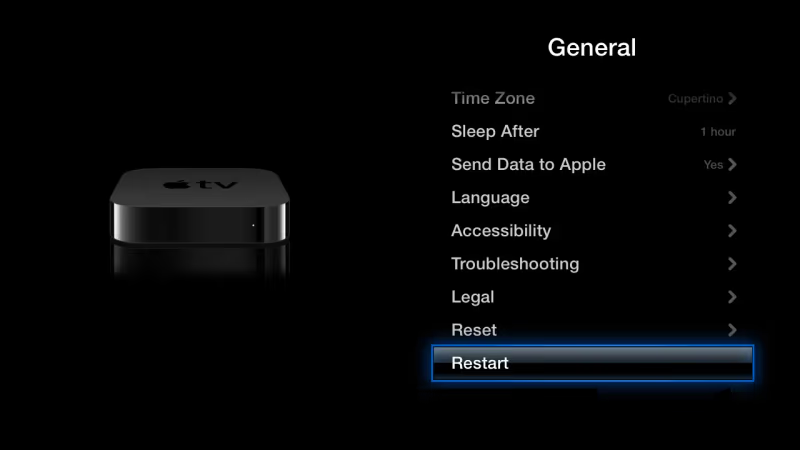
For stubborn lag a hard reset often helps. Go to Settings > General > Reset and choose “Reset All Settings”. This restores factory defaults.
If your remote is having issues connecting, you may need to charge your Apple TV remote or pair it again. You can also set up Apple TV without the remote as a workaround.
#7. Enable Game Mode on TV
If you connect Apple TV to a TV with game mode, turn this setting on. It optimizes the HDMI input for faster response times.
#8. Check HDMI Port for Dirt or Damage
A faulty HDMI connection between Apple TV and TV can affect performance. With the devices off, inspect the port for any dirt buildup or damage.

#9. Disable Background App Refresh
Apps updating in the background can use resources needed for streaming. Turn this off under Settings > General > Background App Refresh.
#10. Turn Off Unneeded Features
Features like Bluetooth and screensavers use extra resources that could otherwise be freed up for streaming. Disable anything not regularly needed.
#11. Force Close Running Apps
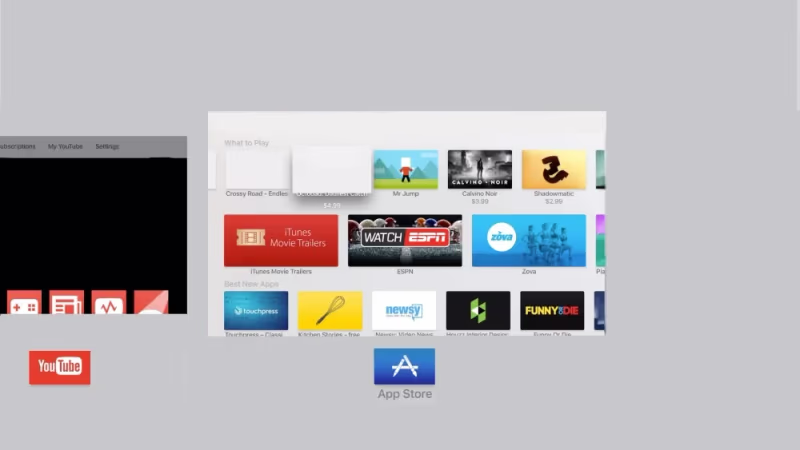
Double click the Apple TV home button then swipe up to force quit any apps still running in the background that could be slowing things down.
#12. Clear Alternate MAC Address
On your Apple TV HD or 4K, try going to Settings > General > Privacy > Clear Alternate MAC Address to potentially resolve software issues causing lag.
#13. Disable Power Saving Mode
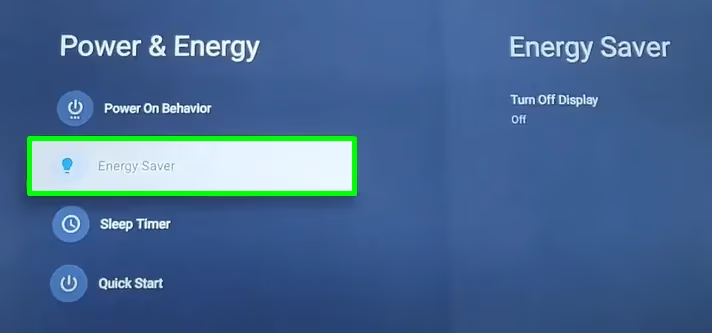
Some TVs have a power saving mode enabled by default. Turn this off if possible, as it can limit performance. Refer to your TV guide for instructions.
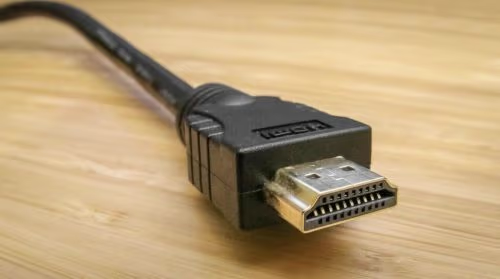
#14. Check HDMI Cable Specifications
Make sure you use HDMI cables that meet 2.0 specifications for 4K HDR video playback. Older cables can disrupt signal integrity.
#15. Move Sources of Interference
Other wireless devices and electronics near your router or Apple TV can cause signal interference. Increase physical separation between these.
#16. Contact Apple Support
If you still have Apple TV lag after trying these tips, contact Apple support. They can help troubleshoot further or initiate a replacement if your device is defective.
#17. Consider Upgrading Apple TV
For 4K HDR streaming or enhanced performance, upgrading to the latest generation Apple TV model can eliminate lag issues. The hardware is more powerful.
#18. Investigate ISP Throttling
Some ISPs intentionally throttle traffic during peak hours for certain streaming apps. Check with your provider if lag seems outside your control.
#Bottom Line
To recap, focus on this sequence of steps to permanently resolve lag and buffering problems on your Apple TV:
-
Check your internet speed and upgrade if needed.
-
Update Apple TV firmware to latest version.
-
Lower video resolution setting to match your network.
-
Delete unused apps and disable background processes.
-
Reset Apple TV to factory settings.
-
Replace faulty HDMI cable connections.
Following this troubleshooting roadmap will help track down what’s causing performance issues with your Apple TV. Combining the firmware updates, settings adjustments, and connectivity improvements outlined in this guide will get you smooth streaming in no time.
#Frequently Asked Questions
#Why does my Apple TV lag even with fast internet?
Outdated firmware, incompatible apps, a video resolution set too high, and background processes can all cause lag regardless of your connection speed. A bloated Apple TV with too many downloaded apps also drains system resources. Try updating tvOS and force-closing apps as a first step.
#Should I upgrade to a newer Apple TV model?
The latest Apple TV 4K has a faster processor and better Wi-Fi support, which reduces lag significantly. If your current model is more than four years old, an upgrade will likely solve persistent performance issues. Check compatibility with your TV setup before purchasing.
#Will switching routers help with Apple TV lag?
Routers older than five years often have lower wireless bandwidth caps that create bottlenecks for streaming. A newer Wi-Fi 6 router provides stronger signals and handles multiple devices better. Replacing an aging router is one of the most effective fixes for network-related lag.
#Can too many devices on Wi-Fi cause Apple TV lag?
Yes. Each connected device takes a share of your internet bandwidth, leaving less capacity for streaming. Try disconnecting other devices temporarily to see if playback improves. If it does, consider upgrading your internet plan or connecting Apple TV via Ethernet.
#Why does my Apple TV work fine sometimes but lag at other times?
Intermittent lag usually points to network congestion during peak usage hours. Interference from nearby wireless electronics and router firmware bugs can also cause inconsistent performance. Running a speed test during a lag episode helps confirm whether the network is the bottleneck.
#Does clearing the cache fix Apple TV lag?
Apple TV does not have a dedicated cache-clearing option like phones or computers. The closest equivalent is deleting and reinstalling individual apps, which removes their stored data. A full factory reset under Settings > General > Reset clears everything at once.
#How much internet speed do I need for 4K streaming on Apple TV?
Apple recommends at least 25 Mbps for stable 4K HDR streaming. For standard 1080p content, 8 Mbps is the minimum. If your speed test results fall below these thresholds, lowering the video resolution in Settings > Video and Audio > Format will reduce buffering.
#Can a bad HDMI cable cause Apple TV to lag?
A damaged or outdated HDMI cable can absolutely cause choppy playback and signal dropouts. For 4K HDR content, you need an HDMI 2.0 or higher cable. Swapping in a certified high-speed cable is a quick and inexpensive fix worth trying early in your troubleshooting.