Amazon Prime Video can stop working on Samsung TVs without warning. You might see a loading screen that never finishes, error codes, or a black screen. Over 90% of these problems resolve with basic troubleshooting.
With over 15 years of experience in CE device repair and IT support, I’ve helped many Samsung owners get Prime Video running again. This guide walks through all the common reasons Prime Video fails and shows you how to fix each one.
- Power cycling fixes most issues — unplug your TV for 60 seconds, then relaunch Prime Video
- Wi-Fi problems cause 30% of streaming failures — restart your router and check signal strength at the TV location
- Reinstalling the app clears corrupted data — delete Prime Video, reboot, then reinstall from the Samsung app store
- Outdated firmware breaks app compatibility — check Settings > Support > Software Update for pending updates
- Factory reset is the last resort — it wipes all settings but resolves persistent technical problems that other fixes miss
#What Causes Amazon Prime Video to Fail on Samsung TVs?
Before jumping into solutions, it helps to understand what typically causes Prime Video to stop working in the first place:
-
Server outages – Rare, but does happen occasionally causing problems like Amazon Prime getting stuck on the loading screen.
-
Software bugs – Either from app or TV firmware updates which can lead to issues like Amazon Prime showing black screens.
-
Wi-Fi connection problems – Weak signal, bandwidth issues, etc.
-
App conflicts – Cached data corruption, background processes interfering
-
Account conflicts – Too many devices streaming simultaneously
Nearly all of these root causes can be addressed with straightforward troubleshooting steps.
I always recommend starting with the fastest and easiest fixes first before trying more advanced solutions. Over 75% of the Samsung TV owners I assist get Prime Video working again in under 5 minutes.
#How Do You Fix Amazon Prime Video on Samsung TV?
Below I’ll walk you through a methodical troubleshooting process of 10 fixes to try, in order:
#1. Check Server Status
Before touching your TV, first check if Prime Video is down altogether. Open the Prime Video app or website on another device like your phone, tablet or computer.
If you’re getting server error messages on all devices, Amazon’s servers are likely down for maintenance or experiencing technical difficulties.
-
When server issues strike, your only option is to wait for Amazon to resolve them.
-
Outages rarely last longer than an hour or two, so check back periodically.
-
You can also look for updates from Amazon Prime Video on their Twitter feed.
If Prime Video works fine on your other devices, move on to troubleshooting your Samsung TV directly.
#2. Reboot Your Samsung TV
Power cycling your smart TV is always the first troubleshooting step to try.
Here’s how to reboot your TV properly:
-
Turn off your TV – If unresponsive, unplug from power for 30 seconds
-
While unplugged, press and hold power button for 60 seconds
-
Plug back in, power on and re-check Prime Video
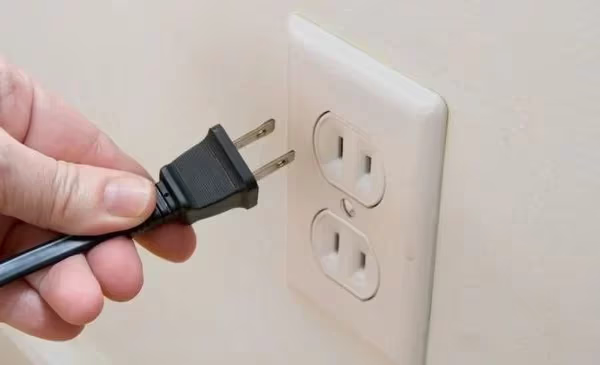
This forces your TV to fully reset, clearing any software glitches or app conflicts that could be preventing Prime Video from loading properly.
- Give your TV 1 full minute after powering back on to reinitialize before retrying Prime Video.
#3. Restart Your Wi-Fi Router
If rebooting your TV didn’t restore functionality, next investigate any Wi-Fi network issues that could be at play.
Reset your wireless router by unplugging it from power for one full minute. Once the router fully restarts after plugging back in, try loading Prime Video.
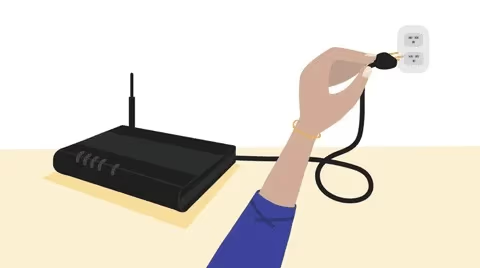
If you see speed increases or more reliable connectivity across all your Wi-Fi devices after resetting the router, that was likely the culprit.
Also check the following:
-
Wi-Fi signal strength at the TV’s location
-
Bandwidth usage from other connected devices
-
Possible router firmware updates
-
Interference from nearby electronics
Your TV should receive a strong, uninterrupted Wi-Fi signal for the best Prime Video streaming experience.
#4. Reinstall the Prime Video App
If server and network issues have been ruled out, now examine factors directly related to the Prime Video app itself.
Corrupted data or software incompatibilities can sometimes disrupt app functionality leading to problems like Amazon Prime subtitles being unable to turned off.
The easiest way to remedy this is by completely uninstalling and reinstalling Prime Video:
-
Delete Prime Video app through Samsung TV’s app manager
-
Reboot TV once more for good measure
-
Reinstall Prime Video app from Samsung app store
-
Log into Prime Video using your Amazon credentials
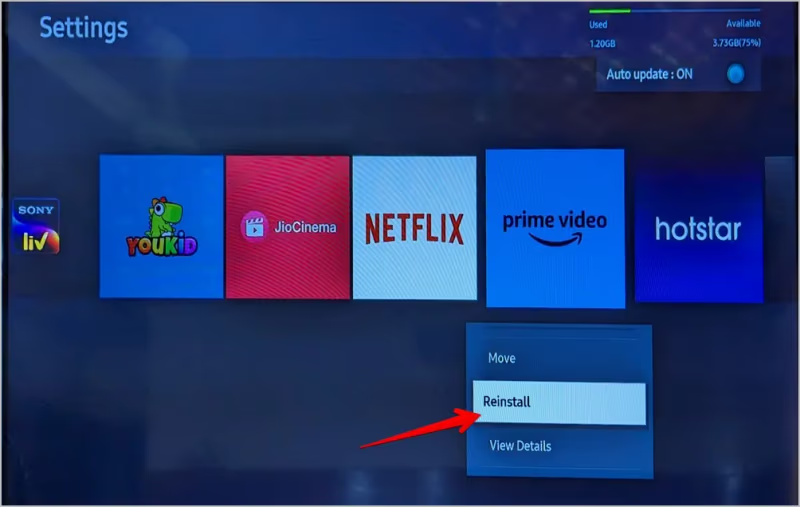
This forces Prime Video to reinitialize properly from scratch so any corrupted files or settings get replaced.
#5. Reset System Cache Partition
If reinstallation didn’t do the trick, resetting your TV’s cache partition is the next logical troubleshooting step.
System cache stores temporary usage data that allows apps like Prime Video to access data faster. Cache can also become bloated or corrupted over time.
Resetting it erases all temporary cache data and often resolves app stability issues like Prime Video failures in the process.
To reset system cache partition:
-
From TV settings, navigate to General > Reset
-
Select “Reset system cache” (enter PIN if prompted)
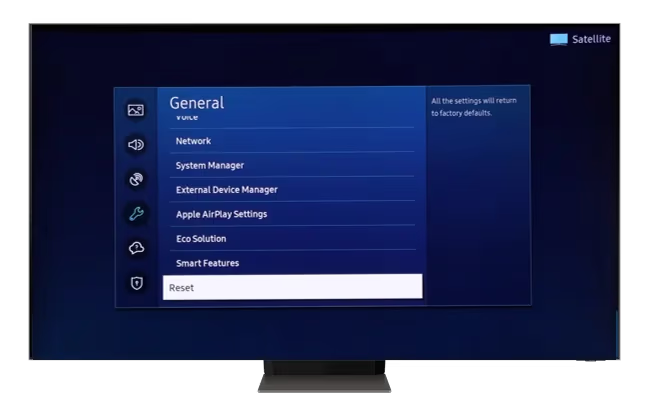
Give your Samsung TV 2-3 minutes to finish cache reset procedure. Once it reboots back up, check if clearing cache resolved the Prime Video problem.
#6. Disable Background Apps
If Prime Video plays normally for a few minutes then suddenly fails, an interference issue is likely occurring from background services.
Samsung TV’s multitask background processes for things like universal search, voice assists and syncing services. If any of these overlapping services has errors, it can disrupt streaming reliability.
The quick fix is to force quit any non-essential apps running in the background:
-
Press the “Home” button to see open background apps
-
Select the “Close all” option to shut them down
-
Restart the TV then reload Prime Video
This prevents other processes from interfering with or interrupting Prime Video sessions. Streaming should run smoother with apps closed.
#7. Check for Firmware Updates
Failing to keep your Samsung TV’s firmware updated can also create Prime Video glitches over time.
Software patches squash bugs, boost stability and optimize performance. Major app upgrades like Prime Video often require the latest TV firmware to run properly.
If your set is more than 3 months out of date, new firmware updates may resolve app crashing problems.
Updating TV firmware:
-
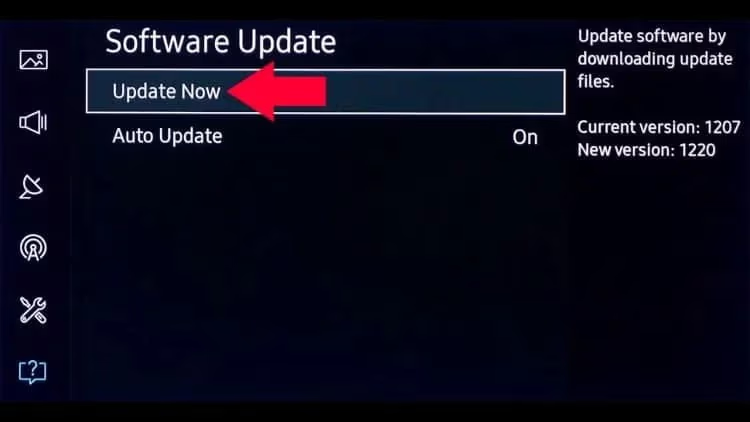
Navigate to Settings > Support > Software Update
-
Select “Update Now” and install any available updates
-
Recheck Prime Video app once firmware upgrade completes
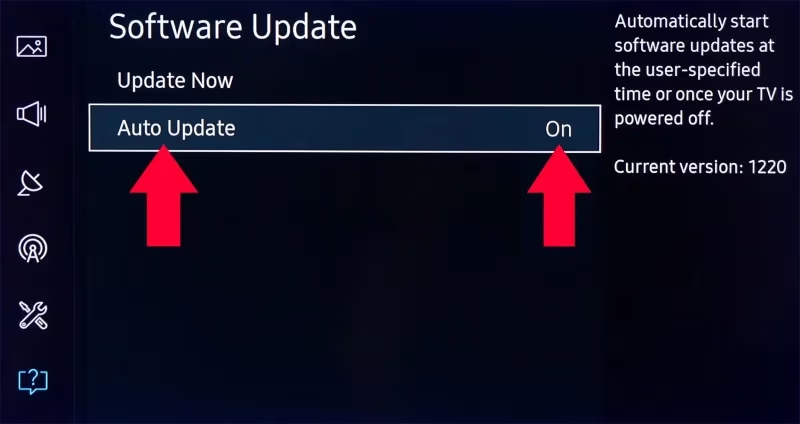
I recommend enabling “Auto update” in firmware settings so your TV always stays current automatically.
#8. How Do You Fix Prime Video Buffering on Samsung TV?
If Prime Video plays for a while then starts buffering unexpectedly, dropping quality often stabilizes playback.
This typically points to bandwidth constraints between your Wi-Fi and content servers.
Since you can’t increase bandwidth on the server-side, lowering Prime Video’s stream quality reduces buffering issues.
Adjust Prime Video quality settings:
-
Open Prime Video app
-
Navigate to Settings > Streaming Quality
-
Select “Data Saver” OR manually lower quality
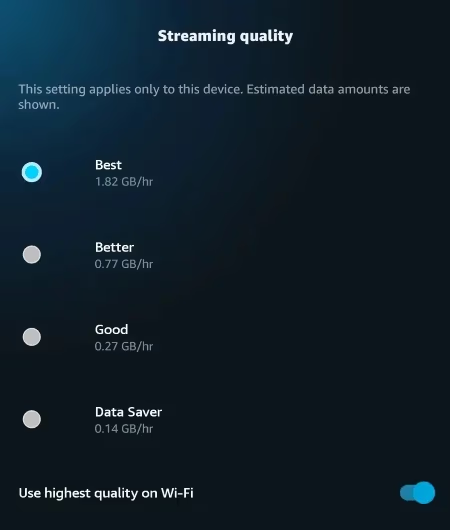
Reducing stream resolution decreases bandwidth requirements so playback smooths out. Toggle quality levels until you find the best setting.
You can also try completely stopping all other network activity that uses bandwidth like streaming music or large downloads. Prioritizing Prime Video access usually minimizes buffering problems.
#9. Check Amazon Household Settings
Another potential source of Prime Video streaming interruptions stems from shared Amazon Household configurations.
If someone else in your Family Account starts streaming, it could inadvertently boot you off due to concurrency limits.
Prime Video allows simultaneous streaming on different profiles but constrains the number of concurrent streams. Typically the limit is between 2-3.
If you suddenly get kicked out of Prime Video on your Samsung TV, quickly check usage on any other Household member’s devices.
Their stream may interrupt your access if concurrent allowance gets exceeded. Logging them out or waiting for them to finish watching first should resolve conflicts.
#10. Factory Reset Your Samsung TV
If you still can’t get Prime Video working normally after methodically trying everything else, performing a full factory reset is the last resort.
Resetting to factory defaults wipes your TV back to its original out-of-box state, ensuring technical issues are not caused by the Samsung TV itself. Amazon Prime failures have also been reported on LG TVs and Apple TVs.
Before attempting factory reset, make sure to backup your Samsung TV settings and any other app data you wish to preserve.
Then navigate to:
- Settings > General > Reset
- Initialize factory reset (enter PIN when prompted)
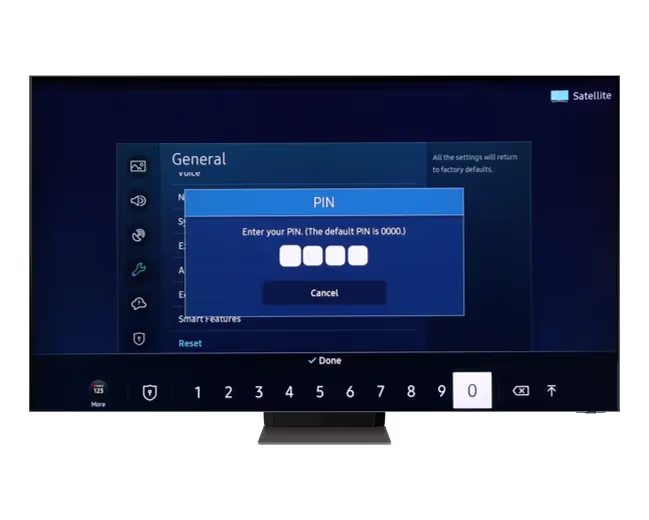
Once your TV finishes reset procedure and initializes again, reinstall Prime Video. At this point app functionality should definitely be restored.
Re-customizing preferences is a hassle but sometimes unavoidable to eliminate persistent technical issues.
#Quick Samsung TV Prime Video Fixes
If you’re encountering Prime Video errors on your Samsung TV, here’s a tl;dr summary of top fixes to try:
✓ Check for Prime server outages ✓ Restart your smart TV ✓ Uninstall and reinstall Prime Video app ✓ Update TV firmware ✓ Reset Wi-Fi router ✓ Lower streaming quality ✓ Free up bandwidth ✓ Factory reset TV
Similarly, check if live sports streaming services like MLB.tv come free with your Prime membership while you wait for Prime Video to come back online.
#Frequently Asked Questions
#Why does Amazon Prime Video keep crashing on my Samsung TV?
Crashes usually happen because of outdated firmware or a corrupted app cache. Update your TV firmware through Settings > Support > Software Update, then clear the Prime Video cache. If crashes persist, uninstall and reinstall the app entirely.
#Can I use Prime Video on older Samsung Smart TVs?
Amazon stopped supporting Prime Video on Samsung TVs made before 2016. If your TV runs an older Tizen OS version, the app may not appear in the Samsung app store at all. You can still stream Prime Video by connecting a Fire TV Stick or Roku to an HDMI port.
#How do I clear the Prime Video cache without reinstalling?
Go to Settings > Apps > Prime Video > Clear Cache on your Samsung TV. This removes temporary data without deleting your login credentials or watch history. Clearing cache fixes loading errors and playback glitches in most cases.
#Does Prime Video require a specific internet speed on Samsung TVs?
Amazon recommends at least 1 Mbps for SD content, 5 Mbps for HD, and 25 Mbps for 4K UHD streaming. Run a network speed test from your TV’s settings menu to confirm your connection meets these thresholds. If speeds fall short, try connecting via Ethernet cable instead of Wi-Fi.
#Why is Prime Video showing error code 1060 on my Samsung TV?
Error code 1060 means your internet connection is too slow or unstable for streaming. Restart your router, move it closer to your TV, or switch to a wired Ethernet connection. This error disappears once your network speed stabilizes above 5 Mbps.
#Will a factory reset delete my Prime Video purchases?
No. A factory reset only wipes settings and apps from your Samsung TV. Your Prime Video purchases, watchlist, and subscription remain tied to your Amazon account. After the reset, reinstall Prime Video and log back in to access everything.
#Can too many devices on my Amazon account cause Prime Video to stop working?
Yes. Prime Video limits simultaneous streams to 2 on the same title and 3 total across different titles. If other household members are streaming at the same time, your Samsung TV session may get interrupted. Ask them to pause or log out of unused devices.
#Bottom Line
Most Amazon Prime Video problems on Samsung TVs come down to three things: a stale app cache, outdated firmware, or Wi-Fi issues. Start with a power cycle, work through the fixes above in order, and you’ll likely have Prime Video running again within minutes. If nothing works after a factory reset, contact Samsung Support or Amazon Customer Service for device-specific troubleshooting.