Having issues streaming Amazon Prime Video on your Apple TV? You’re not alone. Many users have reported problems like the app not opening, videos not loading, constant buffering, and error messages.But don’t worry – in most cases, Amazon Prime not working on Apple TV can be easily fixed with some basic troubleshooting steps.
Below you’ll find the most common issues and proven solutions to get your Prime Video streaming smoothly in no time.
- Restart everything first — power cycling your Apple TV, router, and modem fixes most temporary Prime Video glitches
- Update tvOS and the app — outdated software causes the majority of playback failures and app crashes
- Sign out and reinstall — clearing login credentials and corrupted app data resolves persistent loading errors
- Check Amazon server status — Downdetector shows real-time Prime Video outages that only Amazon can fix
- Only Apple TV HD and 4K supported — older 1st and 2nd generation Apple TV models cannot run the Prime Video app
#Why Is Amazon Prime Not Working on My Apple TV?
Before jumping into fixes, let’s look at some of the potential causes behind Amazon Prime Video problems on Apple TV:
-
Outdated app: An outdated version of the Prime Video app can cause playback failures or app crashes.
-
Software bugs: Bugs in the latest tvOS or Prime Video app updates could be the culprit.
-
Internet connectivity issues: Slow internet speeds, Wi-Fi dead zones, and other network problems impact streaming.
-
Amazon server outages: Large-scale issues with Amazon’s streaming servers can cause widespread failures.
-
Account problems: Incorrect login credentials or expired subscriptions may prevent access.
-
Incompatible Apple TV models: Only Apple TV HD and 4K models support Prime Video.
-
HDCP errors: HDCP handshake failures between your TV and Apple TV block video playback.
Now let’s walk through the top fixes and troubleshooting steps to resolve these common issues.
#How Do You Fix Amazon Prime Video on Apple TV?
#1. Check Your Internet Connection
At the most basic level, you need a stable, fast internet connection for smooth Prime Video streaming in HD and 4K quality.
On your Apple TV, go to Settings > Network to view your current connection details. Run internet speed tests using the Speedtest app or Fast.com website to verify adequate performance:
-
At least 5 Mbps for HD quality
-
25 Mbps for 4K streaming
If speeds are lower, try moving your Apple TV closer to your Wi-Fi router, upgrading internet plans, or connecting via ethernet instead.
#2. Restart Your Devices
Before anything else – try power cycling! Restarting your Apple TV, Wi-Fi router, modem, and even streaming devices can help resolve temporary glitches.
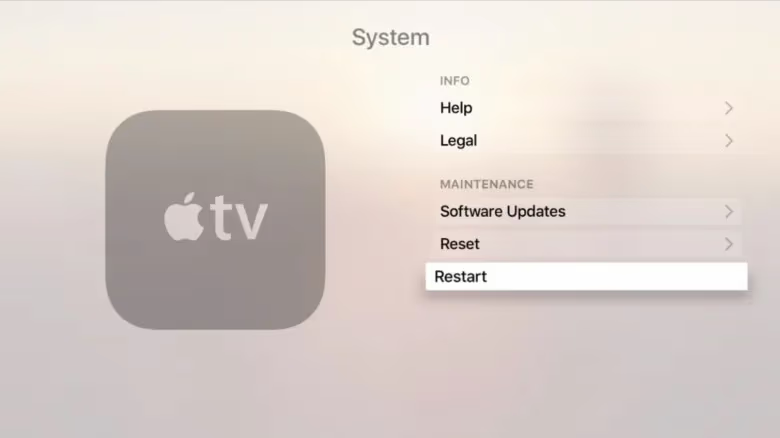
To reboot Apple TV: Go to Settings > System > Restart. Wait for it to restart completely.
While restarting your devices, don’t forget to also reboot your smart TV if you view Prime Video on the big screen. Some LG TV and Samsung TV owners have also faced issues like Amazon Prime getting stuck on the loading screen or encountering a black screen on their models.
#3. Update Software
Outdated software often causes app issues and bugs.
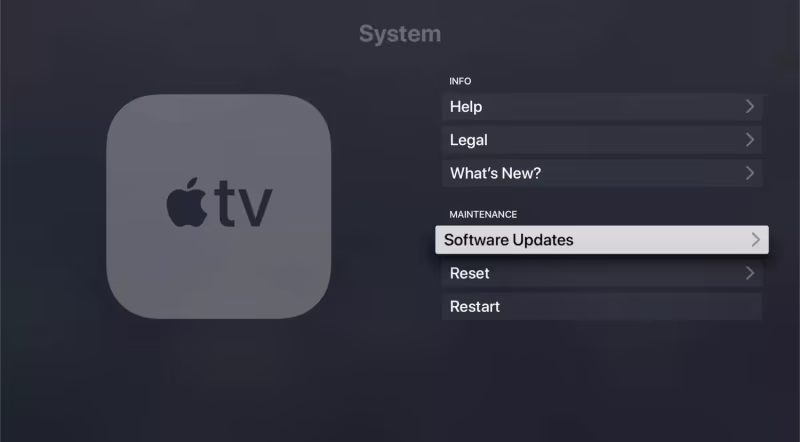
On Apple TV, go to Settings > System > Software Updates to install the latest tvOS update. Also check the App Store for Prime Video app updates.
#4. Sign Out and Sign Back In
Login credentials getting mixed up sometimes breaks things.
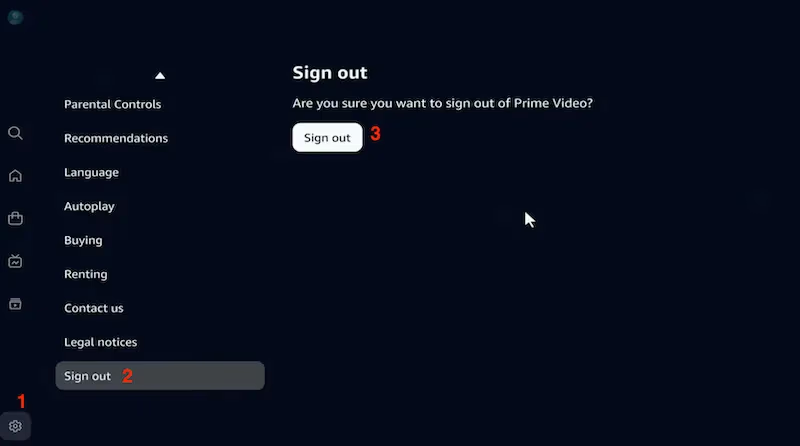
In the Prime Video app, go to settings and sign out completely. Then input your credentials again to sign back in fresh.
#5. Delete and Reinstall the App
A corrupted install can prevent Prime Video from opening or functioning properly on Apple TV.
Delete the app from your Apple TV, restart, redownload a clean version from the App Store and try again. This often resolves underlying issues.
#6. Reset Apple TV
For more persistent problems, you can factory reset your Apple TV device to clear out any problematic data and settings.
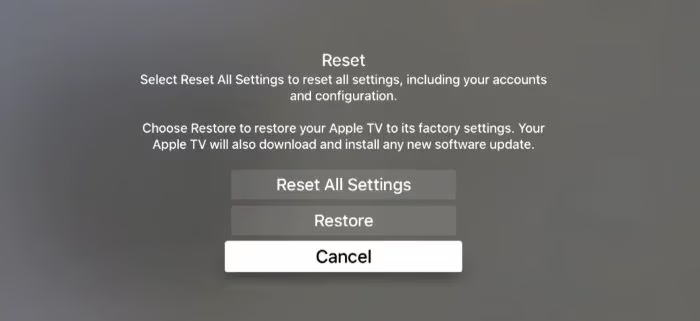
Go to Settings > System > Reset and choose Reset All Settings. Your Apple TV data will be erased and factory defaults restored. You’ll have to reconfigure settings afterwards.
#7. Contact Apple Support
If you’ve tried all other basic fixes for Amazon Prime not working on Apple TV to no avail, it may be an issue requiring deeper Apple TV troubleshooting or hardware service.
Contact Apple support online via chat or phone to get personalized help solving obscure, device-specific issues. Support agents can run diagnostics, issue replacement devices if needed, and more.
When contacting Amazon support with Prime Video issues, inquiries related to using the service on smart TVs is common. You can ask about problems specific to your model like why Amazon Prime Video is not working on LG TVs or fixing streaming fails on Samsung TVs.
#8. Check Amazon Server Status
Sometimes the issue lies not with you but with Amazon’s streaming servers going down.
You can check the real-time status of Prime Video servers using third-party checker sites like Downdetector. If servers show widespread outages in your region, the only fix is to wait it out.
#9. Verify Your Amazon Prime Subscription
Don’t forget to double check that your Amazon Prime membership is active! Log into your Amazon account online to confirm your subscription hasn’t accidentally expired.
You need an active Prime membership for access to Amazon Prime Video streaming on any device. Renew promptly to restore access.
#10. Use Alternative Streaming Devices
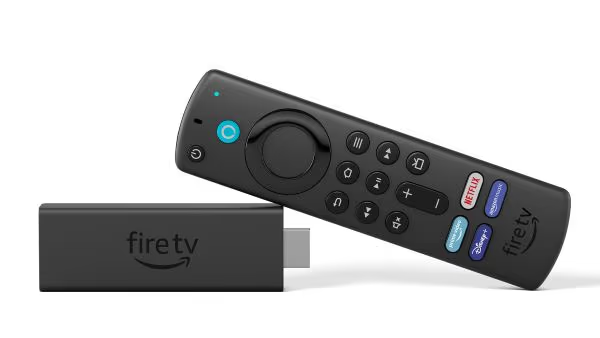
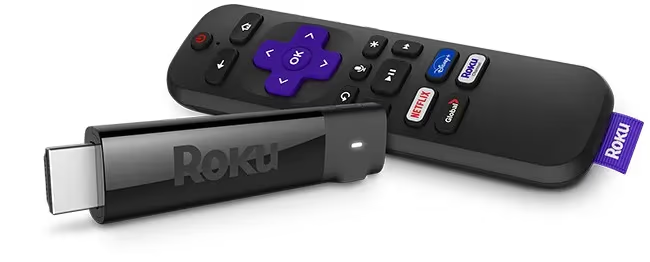
If your Apple TV battles persist, one workaround is using alternate streaming hardware like Fire TV Stick, Roku, PS4, or Xbox to stream Amazon Prime. The viewing experience and features may differ across platforms.
Bonus features like subtitles can sometimes be finicky too. If you can’t seem to turn off Amazon Prime subtitles on your TV, customer service should be able to help adjust closed caption settings.
#FAQ
#Does Apple TV support Amazon Prime Video?
Yes. Amazon Prime Video comes pre-installed on Apple TV HD and Apple TV 4K models. Older 3rd-generation units can download it from the App Store, though 1st and 2nd-generation models are not supported.
#Why does Prime Video keep buffering on my Apple TV?
Buffering almost always traces back to weak Wi-Fi or internet speeds below the 5 Mbps minimum needed for HD playback. Move your Apple TV closer to the router, switch to a 5 GHz band, or connect with an ethernet adapter. Running a speed test on Fast.com from the Apple TV itself is the fastest way to confirm the issue.
#Can I get Amazon Prime Video on a 2nd-generation Apple TV?
No. Only 3rd-generation and newer Apple TV hardware supports the Prime Video app. If you own an older unit, a Fire TV Stick or Roku plugged into the same TV is the most affordable workaround.
#Why are some Prime Video titles unavailable on my Apple TV?
Licensing agreements restrict certain movies and shows by country. Your geographic region determines what catalog you can access. A VPN won’t help because Amazon actively blocks them, and using one may violate the terms of service.
#How do I clear the Prime Video cache on Apple TV?
Apple TV does not offer a cache-clearing option for individual apps. Delete the Prime Video app from your home screen, restart the Apple TV, then reinstall the app from the App Store. This achieves the same result by removing all locally stored data.
#Does Amazon Prime Video support 4K and Dolby Atmos on Apple TV?
Yes, Apple TV 4K plays Prime Video content in 4K HDR with Dolby Vision and Dolby Atmos when available. Make sure your HDMI cable supports HDMI 2.0 or higher and that your TV firmware is up to date.
#What should I do if Prime Video shows a black screen on Apple TV?
Start by force-closing the app and reopening it. If the black screen persists, check your HDMI connection and try a different HDMI port. A factory reset of the Apple TV is a last resort but resolves most display-related bugs.
#Bottom Line
Getting Amazon Prime Video up and running on your Apple TV is a must for cord-cutters who want easy access to exclusive originals, movies, and their watchlist shows.
By methodically trying the solutions above, you should be able to fix most common issues causing Amazon Prime fails on Apple TV models and resume entertainment without endless buffering or error messages.
Don’t hesitate to contact Apple or Amazon customer support if problems persist after troubleshooting – they can dig deeper and resolve trickier device-specific bugs causing outages.
Now put your feet up, grab the remote, and continue that Prime Video binge on your now-fixed Apple TV!