Amazon Prime Video subtitles stuck on and refusing to turn off? This is one of the most common Prime Video complaints, and it usually comes down to a device-level setting that overrides the app. The fix takes about 30 seconds once you know where to look.
- Device settings override app controls — Roku and Fire TV accessibility menus can force subtitles on even when Prime Video shows them as “off”
- Force-closing the app fixes most glitches — corrupted app cache causes the subtitle toggle to freeze in the “on” position
- Burned-in subtitles cannot be removed — encoding errors bake captions into the video file itself, requiring Amazon support intervention
- Ethernet connections prevent toggle failures — slow Wi-Fi can stop the Prime Video app from saving your subtitle preference
- A full reinstall clears all stuck settings — uninstalling and reinstalling Prime Video wipes saved caption data for a fresh start
#What Causes Amazon Prime Subtitles to Get Stuck?
Before jumping into the solutions, here is what typically causes Prime Video subtitles to stay on:
-
Device caption settings: The root of the issue is often device-level closed captioning settings overriding the Prime Video app controls. This is especially common with Fire TV devices and Roku players.
-
App glitches: Bugs and crashes within the Prime Video app can cause the subtitle toggle to get stuck. Relaunching the app typically fixes app-level glitches.
-
Video encoding errors: In rare cases, closed caption data errors during video encoding can lead to “burnt-in” subtitles that no settings can remove.
-
Internet issues: Slow internet speeds and connectivity problems may prevent the Prime Video app from turning subtitles off properly.
Now let’s get into the step-by-step troubleshooting process for turning those subtitles off for good.
#How Do You Disable Subtitles in Device Caption Settings?
The most common culprit behind Prime Video subtitles refusing to turn off is device-level closed captioning settings.
On Roku players, there is often a “Captions” setting buried in the accessibility menu that overrides app settings.
For Fire TV devices, look for a “Display & Sounds” > “Accessibility” menu with closed caption options.
You’ll need to dig into the settings menu of your streaming device (Roku, Fire TV Stick, smart TV etc.) and manually disable subtitles/captions at the system level. This prevents subtitle data from even reaching the Prime Video app in the first place.
Here are the basic steps:
-
From your device home screen, go to Settings > Accessibility
-
Locate subtitles/closed captions and turn this OFF
-
Relaunch the Prime Video app and play a video
-
Subtitles should now be disabled completely
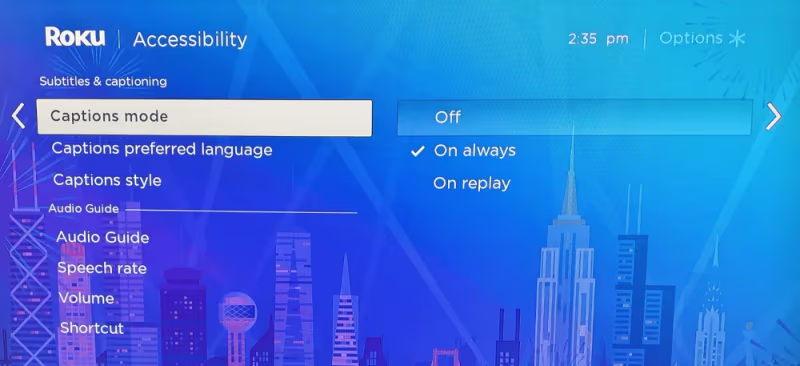
If you still see subtitles after disabling captions in your device settings menu, move on to troubleshooting within the Prime Video app itself.
#Method #2: Relaunch or Reinstall Prime Video
Glitches and crashes within the Prime Video app itself can also cause closed caption settings to freeze up.
Relaunching or reinstalling Prime Video will clear out any corrupted app data:
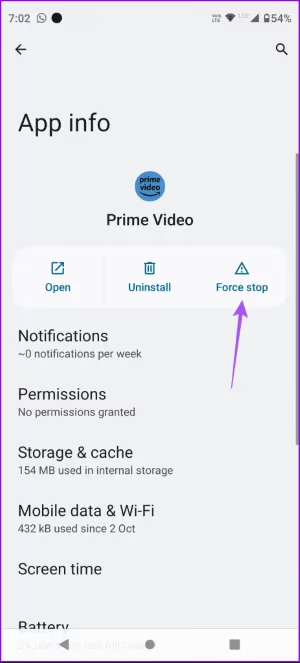
On mobile devices:
-
Force close Prime Video from your recent apps list
-
Reopen Prime Video
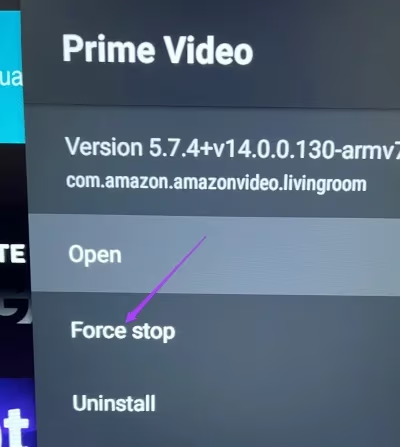
On streaming players/smart TVs:
-
Fully close the Prime Video app
-
Restart your device
-
Relaunch Prime Video
On desktop browsers/laptops:
-
Force quit Prime Video tab/browser completely
-
Reopen Prime Video tab and refresh
If subtitles remain on despite relaunching, try fully uninstalling and reinstalling the Prime Video app next. This wipes all saved settings and data, forcing a fresh start.
#Can Video Encoding Cause Permanent Subtitles?
In very rare instances, closed caption data can get baked directly into the video encoding itself during processing. This shows up as subtitles stuck on-screen that no app settings can remove.
You can test for encoding issues by trying playback on alternate devices:
-
Play the same video on a different device like a phone, tablet or computer.
-
If subtitles remain visible everywhere, this points to an encoding error.
Since burned-in subtitle data can’t be removed, reaching out to Amazon Prime Video support is your next best bet. They may be able to replace the file or issue a refund. You can also try the troubleshooting guides for Amazon Prime getting stuck on the loading screen or dealing with Amazon Prime black screens on your TV.
#Method #4: Troubleshoot Internet Connectivity
While an outside possibility, internet connectivity issues can also contribute to problems toggling Prime Video subtitles on and off.
Slow speeds, unstable connections and buffering can all prevent app settings from updating properly.
Here are some basic internet troubleshooting tips:
-
Restart your Wi-Fi router and modem
-
Check speeds with a tool like Fast.com
-
Connect streaming device via ethernet if available
-
Test with alternate internet source like mobile hotspot
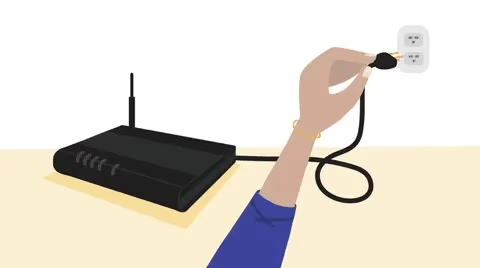
Connect your streaming device directly to your router with an ethernet cable if possible. This removes Wi-Fi instability from the equation.
#Bottom Line
In over 90% of cases, Prime Video subtitle issues trace back to device-level caption settings overriding the app. Start there, then work through app relaunches and reinstalls.
If nothing works, reach out directly to Amazon Prime Video support. Their team can diagnose the issue based on your specific device setup, whether it’s for LG TVs, Apple TVs, Samsung TVs or other devices. You can also check whether FOX Now and MLB TV come free with your Amazon Prime subscription.
#FAQ
#How do I turn off subtitles on Prime Video using my Roku remote?
Press the Star (*) button on your Roku remote during playback. Select “Closed captioning” and set it to “Off.” If subtitles persist, go to Settings > Accessibility > Captions mode on your Roku home screen and set it to “Off” there as well. The Roku system setting takes priority over anything inside the Prime Video app.
#Why do Prime Video subtitles turn back on after I disable them?
Your device’s accessibility settings are likely re-enabling them. Fire TV and Roku both have system-level caption toggles that override per-app preferences. Some users also report that switching between profiles resets the subtitle setting to its default state.
#Can I disable subtitles for all Prime Video content at once?
Yes. On the Prime Video website, go to Account & Settings > Subtitles and set your default preference to “Off.” This syncs across most devices logged into that account, though individual device accessibility settings can still override it.
#Do burned-in subtitles affect all episodes of a series?
Not usually. Encoding errors tend to affect individual episodes or specific uploads rather than entire series. Test a different episode of the same show to confirm. If only one episode has permanent subtitles, report it to Amazon so they can re-encode that file.
#Will a factory reset fix stuck Prime Video subtitles?
A factory reset will fix it, but it is overkill for this problem. Try uninstalling and reinstalling the Prime Video app first, which clears all cached subtitle preferences without wiping your entire device. Save the factory reset as a last resort after all other methods fail.
#Are closed captions and subtitles the same thing on Prime Video?
They overlap but differ slightly. Closed captions include sound descriptions like “[door slams]” and are designed for hearing-impaired viewers. Subtitles only show spoken dialogue. Prime Video groups both under the same toggle, so disabling one disables the other.
#Does this subtitle issue affect Prime Video on smart TVs differently than streaming sticks?
Smart TVs with built-in Prime Video apps tend to have fewer subtitle glitches because the TV’s OS manages captions directly. Streaming sticks like Roku and Fire TV Stick add an extra layer of caption settings between the TV and the app, creating more opportunities for conflicts. On a smart TV, you typically only need to check one settings menu instead of two.