Apple’s AirPlay feature provides a convenient way to wirelessly stream videos, photos, music and more from your iOS devices to a variety of AirPlay-compatible receivers, including select smart TVs and streaming devices. However, Amazon’s popular Fire TV Stick doesn’t natively support AirPlay, leaving many users wondering if it’s possible to connect the two technologies. The good news is that while you can’t directly AirPlay to a Fire TV Stick, there are workarounds using third-party apps that allow you to mirror your iPhone, iPad or Mac screen to view content on the big screen. In this guide, we’ll walk you through exactly how to use AirPlay on your Fire TV Stick step-by-step.
- No native AirPlay support — Fire TV Stick runs a custom Android OS and lacks built-in AirPlay functionality
- Third-party apps bridge the gap — Free apps like AirScreen and AirReceiver turn your Fire Stick into an AirPlay receiver
- Same Wi-Fi network required — Both your iOS device and Fire TV Stick must be on the same wireless network for mirroring to work
- Screen mirroring vs. AirPlay casting — Mirroring shows your full device screen, while native AirPlay streams optimized video at higher quality
- DRM content is blocked — Most streaming apps like Netflix and Hulu prevent video playback over mirrored AirPlay connections
#Can You AirPlay to Fire Stick?
Officially, no — the Amazon Fire TV Stick does not have built-in AirPlay functionality. The Fire TV Stick runs on a customized version of Android, while AirPlay is an Apple-developed protocol designed for the company’s own iOS, macOS and tvOS operating systems.
So if you try to AirPlay directly from your iPhone or iPad to a Fire Stick, you’ll quickly discover that your streaming device doesn’t show up as an available AirPlay receiver. But that doesn’t mean there isn’t a solution.
#How Do You Set Up AirPlay on Fire Stick with Third-Party Apps?
The key to connecting AirPlay to your Fire TV Stick is to use a third-party app as an intermediary between the two devices. By installing an app like AirScreen or AirReceiver on your Fire Stick, you can create a bridge that allows you to mirror your iOS device’s display.
Here’s a step-by-step breakdown of how to set it up:
Install a third-party AirPlay receiver app on your Amazon Fire TV Stick. We recommend either AirScreen or AirReceiver, both of which are free to download from the Amazon Appstore.
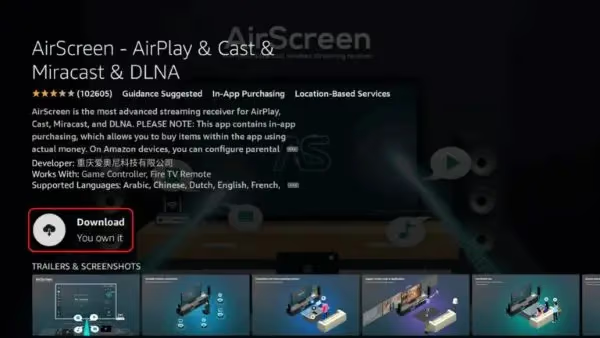
Ensure your iOS device and Fire TV Stick are connected to the same Wi-Fi network. AirPlay won’t work if the devices are on separate networks.
Launch the AirPlay receiver app on your Fire TV Stick and make note of the on-screen AirPlay code or QR code.
Open the Control Center on your iOS device by swiping down from the top right corner of the screen (on iPhone X or later or iPad running iOS 12 or later) or up from the bottom of the screen (on iPhone 8 or earlier or iOS 11 or earlier).
Tap the “Screen Mirroring” button and select your Fire TV Stick from the list of available devices. If prompted, enter the AirPlay code from Step 3.
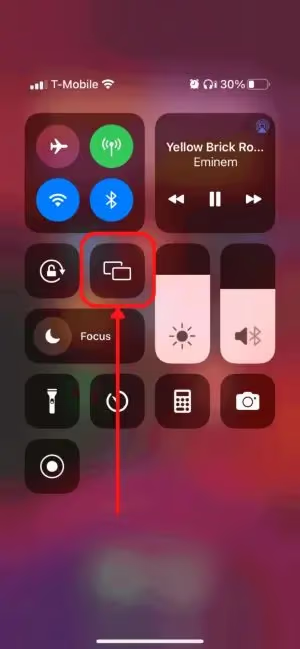
Your iOS device screen will now be mirrored on your TV via the Fire Stick. To disconnect, tap the “Screen Mirroring” button in Control Center again and select “Stop Mirroring.”
Screen mirroring is different from true AirPlay casting, so the video quality and aspect ratio may not be optimized for your TV. For the best results, rotate your iOS device to horizontal orientation to better match the TV’s display.
#What Should You Do If AirPlay Won’t Connect?
If you’re having trouble connecting AirPlay to your Fire Stick, here are a few things to check:
-
Double check that both devices are on the same Wi-Fi network
-
Force quit the AirPlay receiver app on your Fire Stick and relaunch it
-
Restart both your Fire Stick and iOS device
-
Make sure your devices are running the latest software versions
-
If the connection is dropping out, try moving the devices closer to your Wi-Fi router
-
If you’re trying to AirPlay to a smart TV, make sure it supports AirPlay 2. For troubleshooting tips, check out our guides for Hisense TV, TCL TV, Samsung TV, and LG TV AirPlay issues.
-
If you don’t see the AirPlay option on your iOS device, follow these steps to fix AirPlay not showing.
#Frequently Asked Questions
#Can I AirPlay to a Fire Stick without installing an app?
No, the Fire TV Stick does not have built-in AirPlay support. You need to install a third-party app like AirScreen or AirReceiver from the Amazon Appstore. These apps act as a receiver that translates the AirPlay signal so your Fire Stick can understand it.
#Is there a way to AirPlay from a Mac to Fire Stick?
Yes, as long as you have an AirPlay receiver app installed on your Fire Stick, you can mirror your Mac’s display the same way you would an iPhone or iPad. Click the AirPlay icon in the menu bar and select your Fire TV Stick from the list. On macOS Monterey and later, you can also use the Screen Mirroring option in Control Center.
#Do AirPlay receiver apps cost money?
AirScreen is free to download and use for basic screen mirroring. AirReceiver has a small one-time purchase price but includes extra features like Google Cast support. Both work well for standard AirPlay mirroring, so the free option is fine for most users.
#Can I stream Netflix or Hulu to Fire Stick using AirPlay?
In most cases, no. Streaming apps like Netflix and Hulu use DRM protection that blocks video output over AirPlay to unauthorized devices. You can mirror your entire iOS screen, but the video itself will appear as a black rectangle in the app. Install those apps directly on your Fire Stick for the best experience.
#Does screen mirroring reduce video quality compared to native AirPlay?
Yes, screen mirroring captures a live video feed of your entire iOS display, so quality depends on your network speed and device performance. Native AirPlay streams the original video and audio data directly, which preserves full resolution. You may notice some lag or compression artifacts when mirroring, especially on slower Wi-Fi connections.
#What Wi-Fi speed do I need for smooth AirPlay mirroring?
A stable connection of at least 10 Mbps is recommended for smooth 1080p screen mirroring. If you’re mirroring 4K content, aim for 25 Mbps or higher. Using a 5 GHz Wi-Fi band instead of 2.4 GHz also helps reduce latency and buffering during mirroring sessions.
#Why does my Fire Stick not show up as an AirPlay device?
The most common reason is that your Fire Stick and iOS device are on different Wi-Fi networks. Make sure both are connected to the exact same network. Also confirm that the AirPlay receiver app is running in the foreground on your Fire Stick. Restarting both devices and your router often fixes persistent discovery issues.
#Can I use AirPlay and watch Fire TV content at the same time?
No, AirPlay mirroring takes over the Fire Stick’s display entirely. You cannot run a Fire TV app and mirror your iPhone screen simultaneously. To switch back to Fire TV content, stop the AirPlay mirroring session from your iOS device’s Control Center first.
#Bottom Line
-
The Amazon Fire TV Stick does not natively support Apple’s AirPlay protocol
-
It is possible to connect AirPlay to a Fire Stick using third-party receiver apps
-
For best results, make sure devices are on the same network and in horizontal orientation
-
Screen mirroring will not be as optimized as native AirPlay casting
-
Free apps like AirScreen and AirReceiver make it easy to connect AirPlay to Fire Stick
While it may be disappointing that the Fire TV Stick doesn’t work with AirPlay out of the box, the ability to easily add this functionality with a quick app download is the next best thing. With this setup, you’ll be streaming content from your iPhone, iPad or Mac to the big screen in no time.