AirPlay lets you wirelessly mirror or stream content from Apple devices to your Vizio TV without any cables. This guide walks you through enabling AirPlay on Vizio TVs with step-by-step instructions, troubleshooting tips, and answers to common questions.
- SmartCast 3.0 required — Vizio TVs running SmartCast 3.0 or newer have built-in AirPlay support
- Same Wi-Fi network — both your Apple device and Vizio TV must be on the same network for AirPlay to work
- 4K HDR streaming — AirPlay supports up to 4K Ultra HD and HDR content on compatible Vizio models
- No Apple TV needed — Vizio TVs with AirPlay built-in stream directly from iPhones, iPads, and Macs
- 5-step setup — connect to Wi-Fi, select AirPlay input, open Control Center, pick your TV, and start streaming
#What Exactly Is AirPlay and Why Use It?
AirPlay is Apple’s wireless streaming technology that lets you mirror audio, video, photos, and more between compatible devices. With AirPlay enabled on your Vizio TV, you can share content from your iPhone, iPad, or Mac directly to the TV — no cables required.
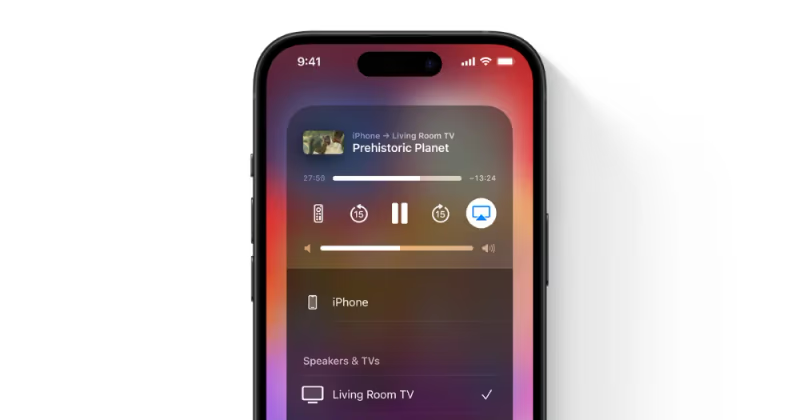
Benefits of Using AirPlay Include:
-
Effortless wireless streaming from Apple devices
-
Mirroring capability in up to 4K resolution
-
Ability to stream content from a wide variety of apps like ESPN
-
Synchronized streaming of both audio and video
-
Intuitive connection process between devices
AirPlay delivers an extremely convenient way to broadcast content from small screens to the superior sound and display of your Vizio TV. It’s even possible to AirPlay to hotel TVs while traveling.
#Which Vizio TVs Are Compatible with AirPlay?
Before moving forward with the setup process, you’ll want to verify that your Vizio TV includes built-in support for AirPlay.
Generally, Vizio TV models featuring SmartCast 3.0 or newer versions have AirPlay capabilities. This includes:
-
Vizio OLED TVs (2020 and newer)
-
Vizio P-Series Quantum X (2019 and newer)
-
Vizio P-Series Quantum (2018 and newer)
-
Vizio P-Series (2016 and newer)
-
Vizio M-Series Quantum (2019 and newer)
-
Vizio M-Series (2016 and newer)
-
Vizio E-Series 4K UHD models (2016 and newer)
-
Vizio V-Series (2019 and newer)
-
Vizio D-Series (2018 and newer)
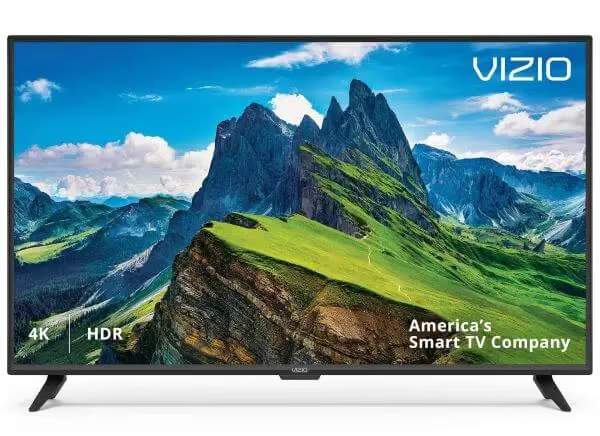
Confirm your Vizio TV model supports SmartCast 3.0 or higher before proceeding. Without native AirPlay integration, wireless streaming functionality will not be present. If your TV lacks AirPlay, consider using an AirPlay TV adapter as an alternative.
#Step-by-Step Guide to Enabling AirPlay
Ready to start AirPlaying your favorite movies, music, presentations, and more from your Apple devices to your Vizio TV? Great, let’s get started!
#Step 1: Connect Devices to Same Wi-Fi Network
AirPlay relies on Wi-Fi connectivity to discover and communicate with compatible devices on the network. So first, confirm that both your Vizio TV and the Apple device you wish to AirPlay from are connected to the same Wi-Fi network.
While obvious, this crucial first step eliminates playback issues down the line.
#Step 2: Activate AirPlay Mode on Vizio TV
Next, you’ll need to trigger the AirPlay mode on your compatible Vizio TV. Simply:
-
Turn on your Vizio TV
-
Pick up Vizio TV remote and press the Input button
-
Select Apple AirPlay from list of available input sources
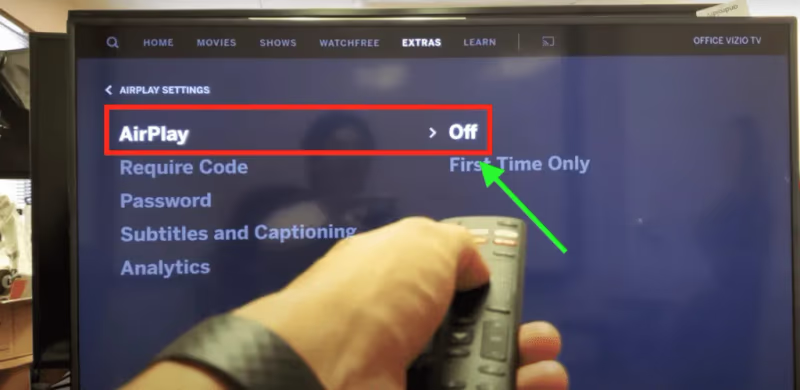
Selecting the Apple AirPlay input enables discovery mode on your TV, allowing Apple devices on the network to locate it as an available AirPlay destination.
#Step 3: Open Control Center on Apple Device
The Control Center on iOS devices and Menu Bar on macOS machines provide quick access to AirPlay controls.
On an iPhone or iPad, swipe down from upper right corner to reveal the Control Center.
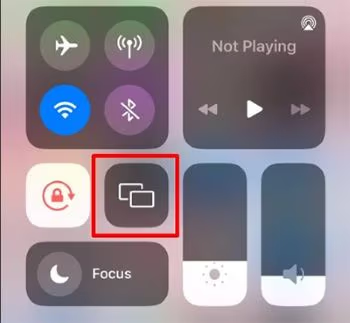
On a Mac, click the AirPlay icon in the menu bar.
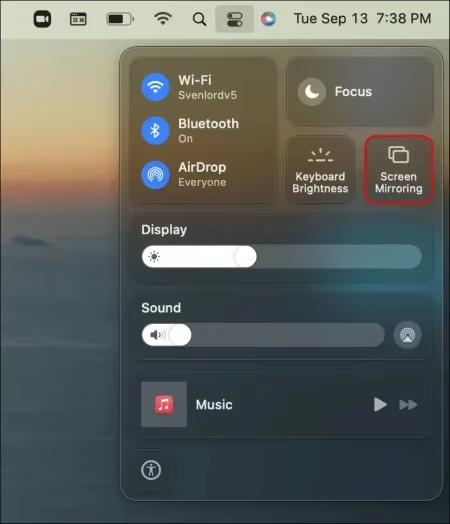
#Step 4: Identify Vizio TV and Initiate Connection
You should now see your Vizio TV with AirPlay mode enabled listed as an available device. Simply tap on its name to initiate the AirPlay connection.
Upon selection, your Apple device prompts you to enter a verification code displayed on the Vizio TV screen (for first-time connections). Matching codes confirms the link between devices.
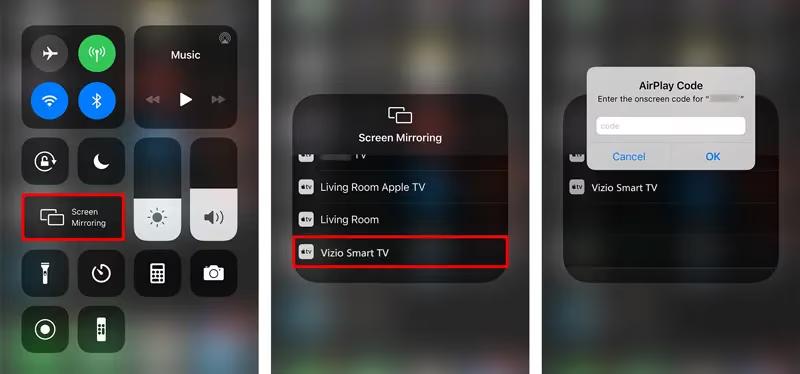
#Step 5: Start Streaming Content
With AirPlay successfully configured between your Apple device and Vizio TV, you’re ready to start streaming!
Play any compatible media content in photos, videos, music, presentations, and mirror entire device displays. Audio and video should transmit in perfect sync.
Sit back and enjoy up to 4K HDR content from iOS/iPadOS apps and iTunes movies on your Vizio TV screen. You can even AirPlay TikTok videos to watch on the big screen!
#AirPlay on Other Smart TVs
In addition to Vizio TVs, many other television brands offer AirPlay capabilities on selected models. Check out our guides for enabling AirPlay on these smart TVs:
Even if you don’t own a Vizio TV, you can likely still enjoy AirPlay on your preferred smart TV platform.
#Handy AirPlay Troubleshooting Tips
In some instances, you might run into difficulties getting AirPlay functioning properly between your Vizio TV and Apple devices. Try these basic troubleshooting steps to get wirelessly streaming your favorite content in no time:
Wi-Fi Connectivity Issues
-
Confirm both the Vizio TV and Apple device are connected to the same Wi-Fi network. All devices must be on the same network!
-
Reboot router and devices if struggling to connect. Power cycling refreshes network registration.
-
Verify Wi-Fi performance meets minimum AirPlay requirements, including wireless ac/5 GHz support.
Hardware Compatibility Problems
-
Double check Vizio TV model supports AirPlay requirements (SmartCast 3.0+).
-
Update Vizio TV firmware, iOS, iPadOS or macOS to latest available software version. Outdated platforms often cause streaming problems.
Can’t Discover or Connect Vizio TV
-
Toggle AirPlay mode off and back on using Input button on Vizio remote to renew device visibility.
-
Reboot the Vizio TV and Apple streaming source if still not appearing.
If all else fails, connecting an AirPlay to FireStick adapter allows you to mirror content to unsupported TVs.
In most cases, basic troubleshooting steps like these will have you wirelessly casting content from Apple devices faster than you can say AirPlay. For any lingering issues, don’t hesitate to reach out to our team or Vizio Support directly.
#Frequently Asked Questions
#Does AirPlay on Vizio TVs support 4K streaming?
Yes, AirPlay mirrors up to 4K Ultra HD and HDR video content to compatible Vizio TV models. For best results, make sure your Vizio television and the iOS device both support 4K streaming.
#Can I stream content from iTunes or third-party apps to my Vizio TV using AirPlay?
AirPlay lets you mirror both audio and video content from a wide range of sources. These include the Apple TV app, iTunes Store, Apple Music, Spotify, YouTube, and thousands of other iOS apps that support AirPlay output.
#Do I need an Apple TV box to use AirPlay on a Vizio TV?
No. Selected Vizio televisions have AirPlay built in, so you can wirelessly stream content directly from any iPhone, iPad, or Mac without needing a standalone Apple TV box.
#Can I mirror my Android phone or tablet screen to a Vizio TV?
AirPlay only works between Apple devices and supported smart TVs like selected Vizio models. If mirroring Android screens is a priority, consider Vizio TVs powered by Chromecast built-in for comparable wireless streaming with Android devices.
#How far can Apple devices be from the Vizio TV to still use AirPlay reliably?
Effective wireless transmission range varies based on environmental factors, but under optimal conditions AirPlay performs well up to 30 feet away. For best results, keep streaming sources in the same room as the Vizio television.
#What should I do if my Vizio TV is not showing up as an AirPlay device?
First, confirm both devices are on the same Wi-Fi network. Then toggle AirPlay mode off and back on using the Input button on your Vizio remote. If the TV still doesn’t appear, restart both the Vizio TV and your Apple device, and check for firmware updates on the TV.
#Does AirPlay work with older Vizio TVs that lack SmartCast 3.0?
Older Vizio TVs without SmartCast 3.0 do not have native AirPlay support. You can work around this by connecting an Apple TV box or an AirPlay-compatible streaming stick like a Roku to your TV’s HDMI port. This adds AirPlay functionality to any television with an HDMI input.
#Can I use AirPlay to stream audio only to my Vizio TV?
Yes, AirPlay supports audio-only streaming to your Vizio TV. Open the music or podcast app on your Apple device, tap the AirPlay icon, and select your Vizio TV. The TV speakers will play your audio while you continue using your phone for other tasks.