Mirroring your iPhone to your Sharp TV allows you to wirelessly view content from your mobile device on the big screen. This guide covers the full setup process, troubleshooting steps, and alternative methods for connecting your iPhone to a Sharp TV.
- AirPlay is built into most Sharp smart TVs — check Settings > Apple AirPlay and HomeKit to confirm
- Both devices need the same WiFi network — a stable, high-speed connection prevents lag and dropped mirrors
- Setup takes under 5 minutes — swipe down on iPhone, tap Screen Mirroring, and select your Sharp TV
- AirPlay streams up to 1080p HD — no quality loss as long as your WiFi signal stays strong
- Three alternatives exist if AirPlay is missing — Lightning HDMI adapter, Chromecast, or third-party apps like ApowerMirror
#Why Mirror iPhone to Sharp TV?
Here are the key benefits of mirroring an iPhone to a Sharp TV:
-
View photos, videos, websites, apps, and more from your phone on your TV’s large screen
-
Show content to groups of people easily without crowding around your phone
-
Play mobile games on TV for a more immersive experience
-
Watch streaming services like Netflix which may not be available on older TV models
-
Use AirPlay rather than cables for a wireless, clutter-free setup. You can also use an AirPlay TV adapter for TVs without built-in support.
#What Do You Need to Mirror iPhone to Sharp TV?
-
A Sharp TV model with AirPlay support. AirPlay is also available on Vizio, Roku, Philips and TCL TVs.
-
An iPhone or other iOS device running iOS 12 or later
-
Both devices connected to the same WiFi network
#How to Mirror an iPhone to a Sharp TV
Mirroring your iPhone to a Sharp TV only takes a few minutes. Follow these simple steps:
#1. Check if Your Sharp TV Supports AirPlay
Most mid-range and higher Sharp smart TVs have built-in support for Apple AirPlay. To check:
-
Go to Settings > Apple AirPlay and HomeKit on your Sharp TV
-
If you see options to turn AirPlay on and manage connections, your TV is compatible
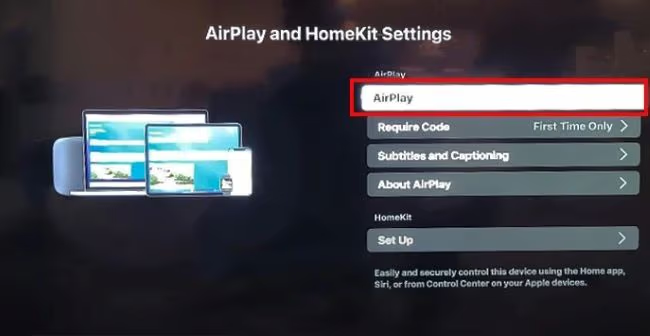
If you don’t see the AirPlay settings, your Sharp TV may not be a compatible model. Check your TV specs to confirm.
#2. Connect Both Devices to the Same WiFi
AirPlay mirroring works wirelessly over WiFi, so both devices need to be on the same network.
-
Connect your Sharp TV to your home WiFi
-
On your iPhone, connect to the same home WiFi network
A stable, high-speed WiFi connection is recommended for the best mirroring performance. If AirPlay keeps disconnecting from TV, you may need to troubleshoot your network.
#3. Swipe Down on iPhone to Access Control Center
-
Swipe down from top right corner of your iPhone screen to access Control Center
-
Tap the Screen Mirroring icon (looks like TV with triangle)
#4. Select Your Sharp TV
-
Your TV name should appear as an available option
-
Tap the name to connect your iPhone to the Sharp TV
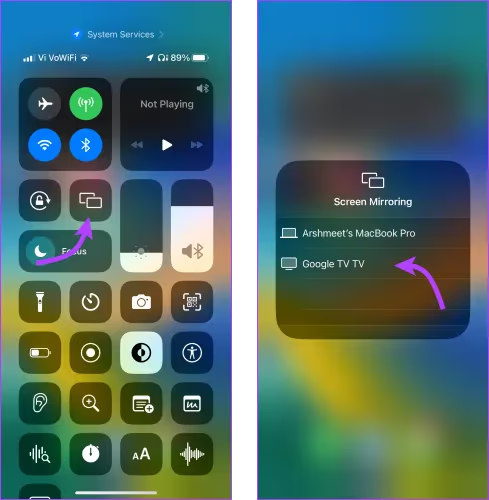
The first time, you may need to enter a code shown on TV.
#5. Enjoy Mirroring from iPhone to Sharp TV!
Once connected via AirPlay, anything shown on your iPhone will also display on the Sharp TV screen.
-
Apps, websites, photos, videos, and more
-
Play games, music, videos on the big screen
-
TV display mirrors iPhone exactly
-
Use iPhone as normal while mirrored
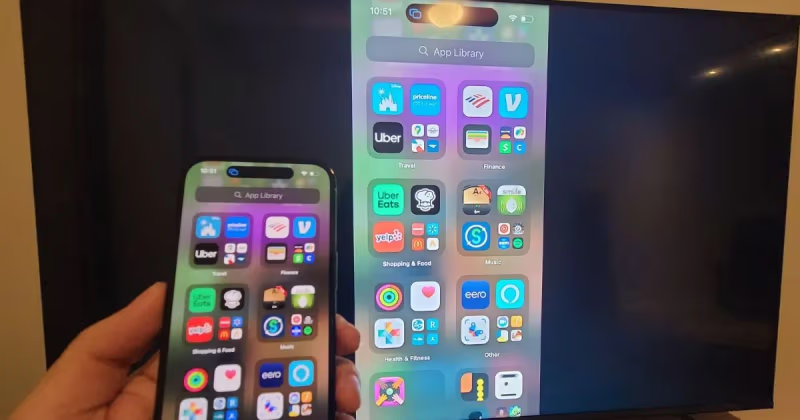
To stop mirroring, swipe to access Control Center again and tap Screen Mirroring > Turn Off. Simple!
#Mirroring Not Working? Troubleshoot Issues
If you don’t see your Sharp TV as an available option when trying to mirror iPhone, try these tips:
-
Restart both iPhone and TV
-
Ensure TV and iPhone WiFi connections are strong
-
Check for TV software updates and update if available
-
Make sure TV AirPlay is enabled in Settings
-
Reset TV to factory settings if other steps don’t resolve
-
Use this method to fix AirPlay not showing up
For step-by-step mirroring support, contact Sharp TV technical assistance.
#Alternative Mirroring Options
If your Sharp TV still doesn’t show up for AirPlay mirroring after troubleshooting, all is not lost! Here are 3 alternative options:
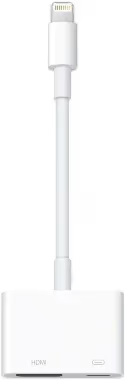
#Use a Lightning Digital AV Adapter
This wired adapter connects your iPhone to your TV’s HDMI port. While not wireless, it offers a reliable mirrored connection.
#Cast with Chromecast
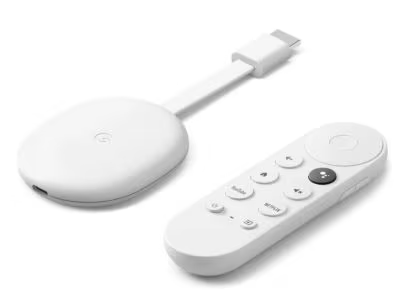
Chromecast is a small HDMI dongle for TVs that lets you cast content from iPhone and other devices.
#Use Third-Party Apps
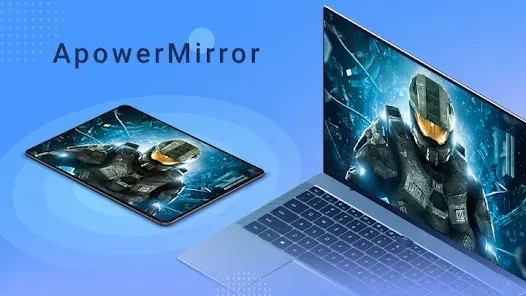
Apps like ApowerMirror and LetsView enable mirroring from iPhone to many TV models without native AirPlay.
So with the right tools and a few quick steps, beaming iPhone games, videos, and more to your Sharp TV is simple. Enjoy an enhanced viewing experience today!
#Bottom Line
-
Most Sharp smart TVs support wireless AirPlay mirroring from iPhone
-
Connect both iPhone and TV to the same WiFi to enable mirroring
-
Swipe down on iPhone to start Screen Mirroring to TV
-
Troubleshoot with restarts, updates if TV not showing up
-
Alternative wired and wireless third-party mirroring options available
#Frequently Asked Questions
#Does screen mirroring drain an iPhone’s battery faster?
Yes, active screen mirroring uses more battery because your iPhone display stays on and continuously streams data. Plug your iPhone into a USB or Lightning cable while mirroring to keep the battery topped up. Most users find the extra drain manageable for sessions under an hour.
#Does AirPlay mirroring reduce video quality on a Sharp TV?
AirPlay streams up to 1080p HD video without quality loss. A strong WiFi signal is the main factor in maintaining picture quality. If you notice pixelation or stuttering, move your router closer to both devices or switch to a 5 GHz WiFi band.
#Can I play iPhone games on my Sharp TV through AirPlay?
Yes, any game running on your iPhone screen mirrors directly to the TV. Keep in mind there is a slight input lag over WiFi, so fast-paced competitive games may feel less responsive. Casual and puzzle games work particularly well.
#Can I mirror my iPhone if my Sharp TV is wall-mounted?
AirPlay uses WiFi, not Bluetooth or infrared, so line-of-sight between your iPhone and TV is not required. As long as both devices connect to the same network with a stable signal, mirroring works regardless of TV placement.
#What can I do if my Sharp TV does not support AirPlay?
You have three main alternatives: a Lightning Digital AV Adapter for a wired HDMI connection, a Chromecast dongle plugged into an HDMI port, or third-party apps like ApowerMirror. The wired adapter is the most reliable option since it does not depend on WiFi speed.
#How do I stop screen mirroring on my Sharp TV?
Swipe down from the top-right corner of your iPhone to open Control Center, then tap Screen Mirroring and select Turn Off. The TV screen returns to its regular input within a few seconds. You can also turn off the TV or disconnect from WiFi to end the session immediately.
#Does AirPlay work with older Sharp TV models?
Most Sharp smart TVs released after 2019 include AirPlay support, but older models typically do not. Check your TV settings for an Apple AirPlay and HomeKit menu to confirm compatibility. If the option is missing, a firmware update may add it on select models.