ESPN is one of the most popular sports streaming services, offering live and on-demand access to events like NFL, NBA, MLB, Soccer, Golf, and more. With an ESPN+ subscription, you can watch thousands of live games and shows.The problem is that the ESPN app does not natively support streaming to your TV. You’ll need to use AirPlay, which allows you to wirelessly stream content from your iPhone, iPad or Mac to an AirPlay compatible TV.
Here’s how to set it up.
- AirPlay works with ESPN and ESPN+ — stream live games wirelessly from iPhone, iPad, or Mac to your TV
- Both devices need the same WiFi network — this is the most common reason AirPlay connections fail
- AirPlay 2 smart TVs work directly — LG, Samsung, Vizio, and Sony TVs from 2018 onward support AirPlay natively
- No WiFi alternative exists — use a Lightning or USB-C Digital AV adapter with an HDMI cable for a wired connection
- ESPN app has a built-in AirPlay button — tap it during video playback to select your TV without using Control Center
#What Do You Need to AirPlay ESPN?
To AirPlay ESPN, you’ll need:
-
An iPhone, iPad or Mac – The device you’ll stream ESPN from
-
The ESPN app installed on your iPhone, iPad or accessed on your Mac. You can also watch ESPN on other devices like Roku, Apple TV and Chromecast.
-
An active ESPN+ subscription
-
An AirPlay compatible TV:
An Apple TV (2nd gen or later)
-
An AirPlay 2 supported Smart TV (LG, Samsung, VIZIO, Sony etc.)
-
Learn how to set up AirPlay on various smart TV brands:
-
A TV connected to an AirPlay compatible streaming device (Roku, Fire TV, Chromecast)
-
All devices connected to the same WiFi network
If your TV is not AirPlay compatible, you can also use an HDMI cable and adapter to mirror your iPhone or Mac’s screen.
Now let’s go through how to actually AirPlay ESPN.
#How to AirPlay ESPN from iPhone & iPad
AirPlaying ESPN from your iPhone or iPad to your TV is quick and easy:
-
Install the ESPN App from the App Store
-
Sign in with your ESPN+ account credentials
-
Browse and select a live game or video to watch
-
Tap the AirPlay icon in the app’s media player
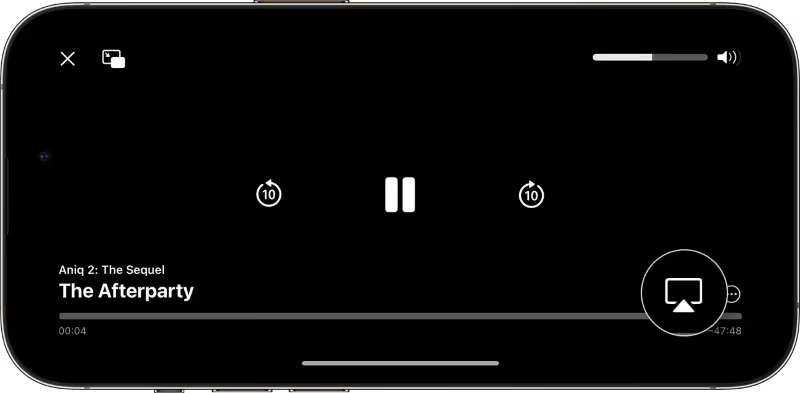
- Select your AirPlay compatible TV from the list
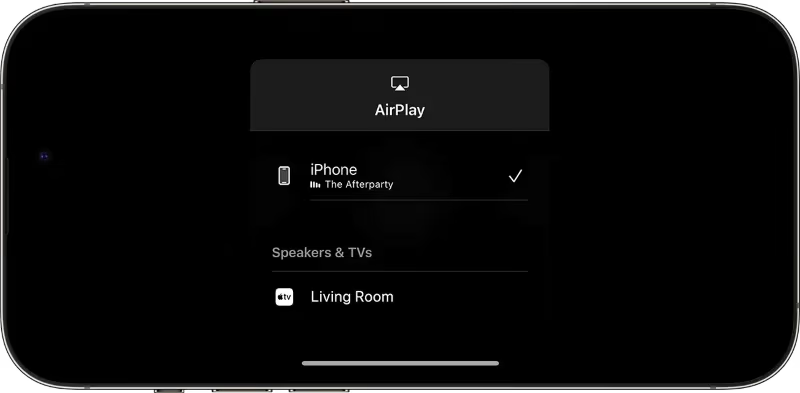
- Allow access if a prompt appears on your TV
And that’s it! The video will now stream directly to your TV via AirPlay, rather than only being viewable on your iPhone or iPad screen.
Pro Tip: Make sure both devices are on the same WiFi or you won’t be able to discover and connect to your TV.
When done streaming, you can exit AirPlay to disconnect your iPhone from the TV. Enjoy!
#How to AirPlay ESPN from Mac
Using your Mac, you can AirPlay ESPN.com streams in Safari or from ESPN’s macOS app:
#AirPlay ESPN from Safari
-
Go to ESPN.com on your Mac
-
Sign in with your ESPN+ account
-
Play a video
-
Expand the Control Center and select Screen Mirroring
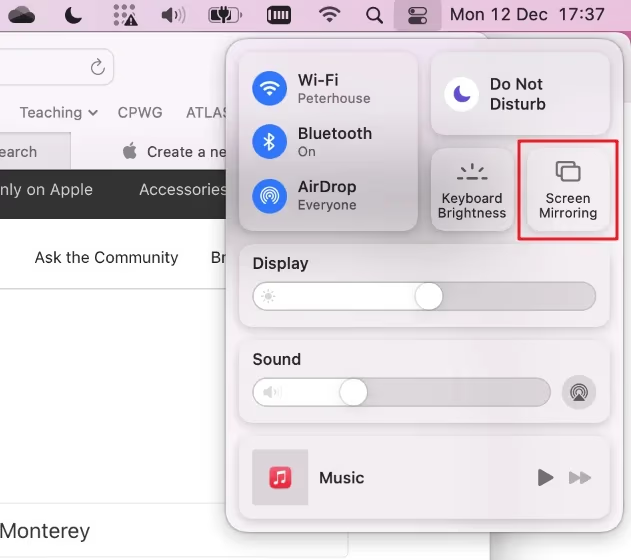
- Choose your TV from the list of AirPlay devices
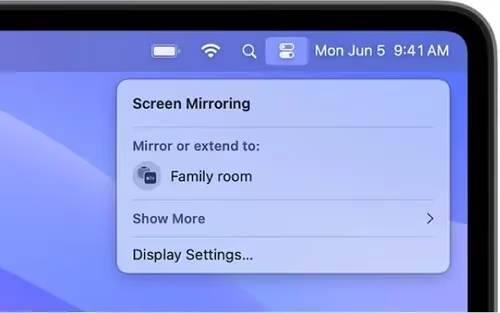
- The video will now play directly on your TV
#AirPlay From ESPN’s Mac App
-
Download ESPN from the Mac App Store
-
Sign in with your ESPN+ account credentials
-
Select and play a video
-
Click the AirPlay icon in the player
-
Pick your compatible TV to stream to

And you’re all set! When finished streaming to your TV, you can disconnect AirPlay in the Control Center.
#Other Apps & Services You Can AirPlay
In addition to ESPN, there are many other popular apps and services you can AirPlay from your iOS or macOS devices to TV:
#How to AirPlay Without WiFi Using HDMI Cable
If your WiFi is spotty, you can opt for a wired connection to mirror ESPN from your iPhone or iPad to TV:
What you need:
-
Lightning or USB-C Digital AV adapter: Available for iPhone and iPad
-
HDMI cable: Connects adapter to TV
#Steps
-
Connect the AV adapter to your iPhone or iPad charging port
-
Connect the adapter to your TV’s HDMI port using an HDMI cable
-
Launch ESPN and play a video
-
Enable screen mirroring if prompted on your device
-
Change TV input to view mirrored content
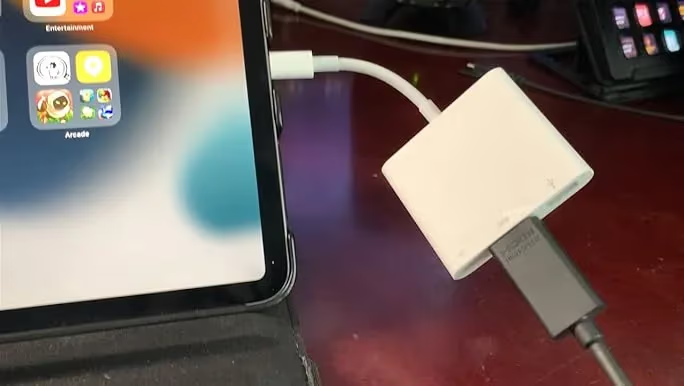
And now ESPN streams directly to your TV screen via the HDMI cable without any need for WiFi!
#Why Is ESPN AirPlay Not Working?
Sometimes AirPlay fails to work properly with the ESPN app. Here are some troubleshooting tips:
-
Reconnect both devices to the same WiFi network
-
Update the ESPN app in your device’s app store
-
Restart your WiFi router to refresh connections
-
Check server status at downdetector.com for any ESPN outages
-
Try uninstalling and reinstalling the ESPN app
-
Reset network settings on your iPhone/iPad
-
As a last resort, factory reset your Apple TV or Smart TV
If issues persist, contact ESPN customer support who can further troubleshoot and resolve AirPlay problems.
#Frequently Asked Questions
#Can I AirPlay ESPN+ content to my TV?
Yes, ESPN+ fully supports AirPlay. You can stream thousands of live games, events, and shows to any AirPlay-compatible TV. Just tap the AirPlay icon in the ESPN app during playback.
#Does ESPN+ work on Apple TV?
The 4th and 5th generation Apple TV boxes have a native ESPN app, so you can sign in and stream ESPN+ directly. For older Apple TV models (2nd and 3rd gen), use AirPlay to mirror ESPN from your iPhone, iPad, or Mac instead.
#Why does ESPN AirPlay keep disconnecting?
Frequent disconnects usually come from weak WiFi signal or outdated app software. Move your router closer to both devices and update the ESPN app. Reinstalling the app can also fix software bugs that cause crashes during streaming.
#Does ESPN work with Chromecast?
ESPN does not have built-in Chromecast support in its app. However, you can mirror your entire iPhone or iPad screen to a Chromecast through the Google Home app. This method works but uses more battery since it mirrors everything on your screen.
#Do I need an ESPN+ subscription to use AirPlay?
You need an active ESPN+ subscription or a cable TV login to access most live content in the ESPN app. Free highlights and some articles do not require a subscription. AirPlay itself is free and built into Apple devices.
#Can I AirPlay ESPN from an older iPhone?
AirPlay works on any iPhone running iOS 12.3 or later, which includes iPhone 6s and newer models. Your TV also needs to support AirPlay 2, or you can use an Apple TV as the receiver. If your iPhone is too old for iOS 12.3, a wired HDMI adapter is your best option.
#What TV brands support AirPlay 2 for ESPN streaming?
Samsung, LG, Sony, Vizio, and TCL all have AirPlay 2 support on select smart TV models from 2018 onward. Check your TV’s settings menu for an AirPlay option to confirm compatibility. You can also use a Roku or Apple TV streaming device if your TV lacks built-in AirPlay.
#Bottom Line
AirPlay turns your iPhone, iPad, or Mac into a remote for streaming ESPN on the big screen. Connect both devices to the same WiFi, tap the AirPlay icon in the ESPN app, and pick your TV.
If WiFi is unreliable, grab a Lightning or USB-C Digital AV adapter and an HDMI cable for a wired connection that never drops. Either way, you get the full ESPN experience on your television instead of a small mobile screen.